> ## Documentation Index
> Fetch the complete documentation index at: https://docs.gradingpal.com/llms.txt
> Use this file to discover all available pages before exploring further.
# Create a Student Account
> Sign up for GradingPal and join your teacher's class
This guide explains how to create a GradingPal student account and join your teacher's class.
***
## Getting Started
You'll need one of the following from your teacher:
* A **class code** (like "ABC123")
* An **invite link** (URL that starts with gradingpal.ai/invite)
* An **email invitation** (sent to your email address)
***
## Option 1: Join with a Class Code
Go to [gradingpal.ai/signup/student](https://gradingpal.ai/signup/student)
Sign up using:
* **Google** (recommended if you have a school Google account)
* **Email** (enter your email and click the link sent to you)
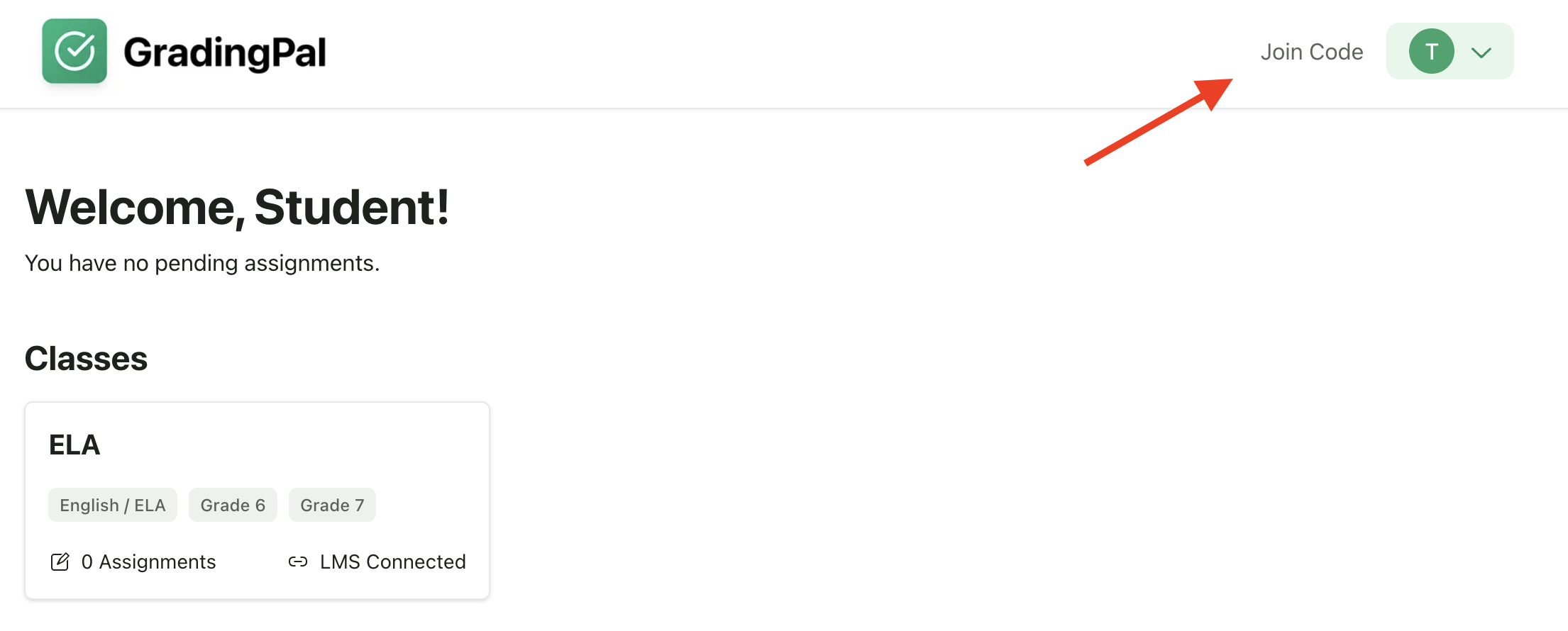
Enter the **class code** your teacher provided
Confirm your name and join the class
 ***
## Option 2: Join with an Invite Link
Click the invite link your teacher shared
You'll be taken directly to the signup page with your class pre-selected
Sign up using Google or email
Confirm your name and you're enrolled
***
## Option 3: Join from an Email Invitation
Open the email invitation from GradingPal
Click **Join Class** in the email
Sign up or log in to your account
You'll be automatically added to the class
***
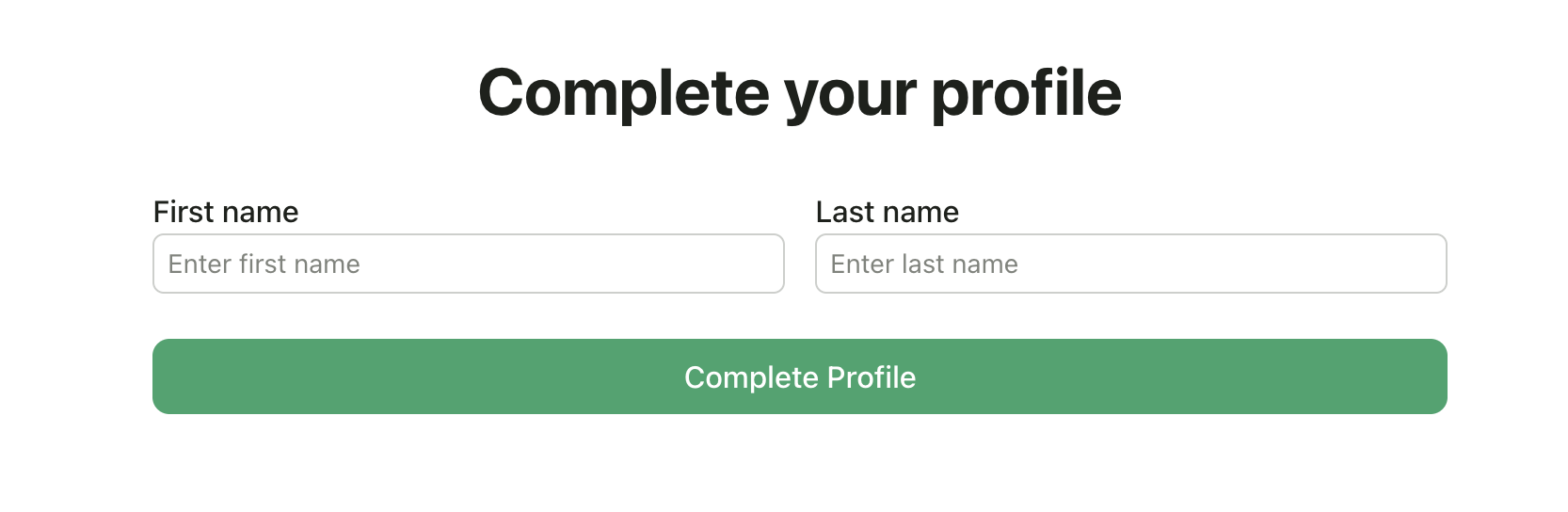
## Completing Your Profile
After signing up, you'll set up your profile:
1. **Enter your name** - Use your real first and last name so your teacher can identify you
2. **Add a profile photo** (optional) - Helps personalize your account
3. Click **Complete Setup**
***
## Option 2: Join with an Invite Link
Click the invite link your teacher shared
You'll be taken directly to the signup page with your class pre-selected
Sign up using Google or email
Confirm your name and you're enrolled
***
## Option 3: Join from an Email Invitation
Open the email invitation from GradingPal
Click **Join Class** in the email
Sign up or log in to your account
You'll be automatically added to the class
***
## Completing Your Profile
After signing up, you'll set up your profile:
1. **Enter your name** - Use your real first and last name so your teacher can identify you
2. **Add a profile photo** (optional) - Helps personalize your account
3. Click **Complete Setup**
 ***
## Joining Multiple Classes
If you have multiple teachers using GradingPal:
1. Log in to your existing account
2. Click **Join a Class** from your dashboard
3. Enter the new class code or use the invite link
4. The new class appears on your dashboard
***
## Using Your School Google Account
If your school uses Google Workspace:
1. Click **Sign up with Google**
2. Choose your school Google account
3. Your name is automatically pulled from your Google profile
4. GradingPal doesn't access your Drive or email—just your name and profile picture
***
## Troubleshooting
* Check that you typed the code exactly as given (codes are case-sensitive)
* Ask your teacher to confirm the class code
* The code might have expired—ask for a new one
* You may already have an account
* Try logging in instead of signing up
* Use the "Forgot password" link if you can't remember your password
* Check your spam/junk folder
* Add [noreply@gradingpal.ai](mailto:noreply@gradingpal.ai) to your contacts
* Try signing up with Google instead
* Refresh your dashboard
* Make sure you're logged in with the correct account
* Contact your teacher to verify you're enrolled
***
## Privacy & Safety
* Your submissions are only visible to your teacher
* Other students cannot see your grades or feedback
* Your account is connected to your teacher's class only while enrolled
* You can leave a class at any time from your settings
***
## Next Steps
Once you've joined your class:
See what work is due
Upload assignments directly
View grades and comments when returned
***
## Related Articles
* [View Assignments](/student/view-assignments)
* [Submit Your Work](/student/submit-your-work)
* [View Scores & Feedback](/student/view-scores-feedback)
***
## Joining Multiple Classes
If you have multiple teachers using GradingPal:
1. Log in to your existing account
2. Click **Join a Class** from your dashboard
3. Enter the new class code or use the invite link
4. The new class appears on your dashboard
***
## Using Your School Google Account
If your school uses Google Workspace:
1. Click **Sign up with Google**
2. Choose your school Google account
3. Your name is automatically pulled from your Google profile
4. GradingPal doesn't access your Drive or email—just your name and profile picture
***
## Troubleshooting
* Check that you typed the code exactly as given (codes are case-sensitive)
* Ask your teacher to confirm the class code
* The code might have expired—ask for a new one
* You may already have an account
* Try logging in instead of signing up
* Use the "Forgot password" link if you can't remember your password
* Check your spam/junk folder
* Add [noreply@gradingpal.ai](mailto:noreply@gradingpal.ai) to your contacts
* Try signing up with Google instead
* Refresh your dashboard
* Make sure you're logged in with the correct account
* Contact your teacher to verify you're enrolled
***
## Privacy & Safety
* Your submissions are only visible to your teacher
* Other students cannot see your grades or feedback
* Your account is connected to your teacher's class only while enrolled
* You can leave a class at any time from your settings
***
## Next Steps
Once you've joined your class:
See what work is due
Upload assignments directly
View grades and comments when returned
***
## Related Articles
* [View Assignments](/student/view-assignments)
* [Submit Your Work](/student/submit-your-work)
* [View Scores & Feedback](/student/view-scores-feedback)