> ## Documentation Index
> Fetch the complete documentation index at: https://docs.gradingpal.com/llms.txt
> Use this file to discover all available pages before exploring further.
# Submit Your Work
> How to upload and submit assignments in GradingPal
This guide explains how to submit assignments in GradingPal.
***
## Finding Your Assignments
Log in to GradingPal at [gradingpal.ai](https://gradingpal.ai)
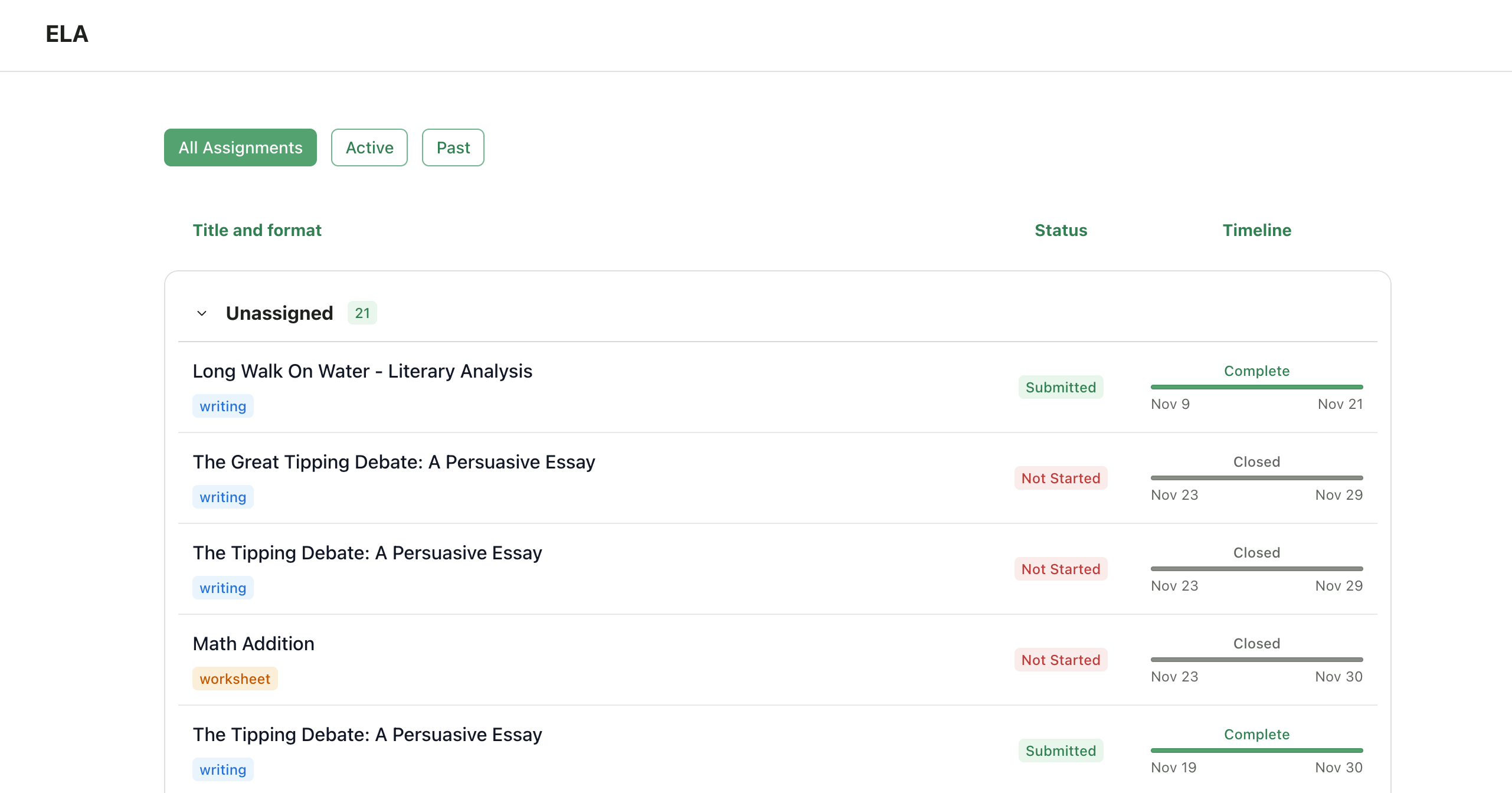
Your dashboard shows all your enrolled classes
Click on a class to see its assignments
Assignments show:
* Assignment name
* Due date (if set)
* Your submission status
 ***
## Submitting an Assignment
Click on the assignment you want to submit
You'll see the assignment details and instructions
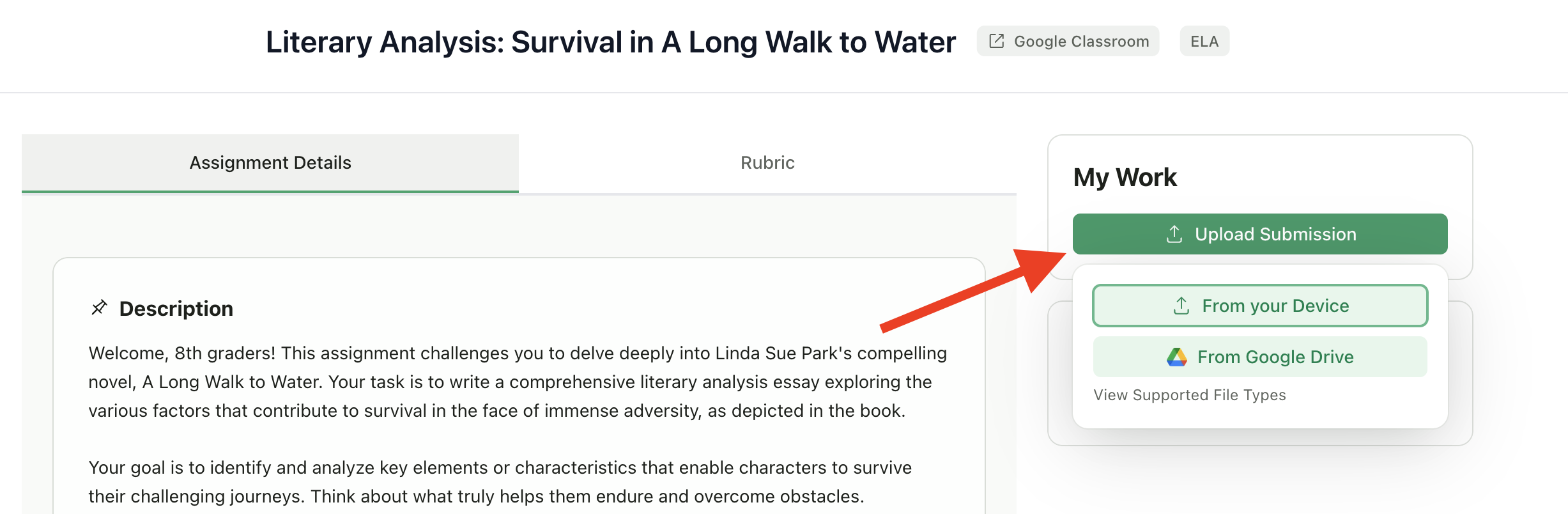
Click **Submit** or **Upload**
Choose your file:
* **From your device** - Select a file from your computer
* **From Google Drive** - Pick a file from your Google Drive
Confirm and submit
***
## Submitting an Assignment
Click on the assignment you want to submit
You'll see the assignment details and instructions
Click **Submit** or **Upload**
Choose your file:
* **From your device** - Select a file from your computer
* **From Google Drive** - Pick a file from your Google Drive
Confirm and submit
 ***
## Supported File Types
Different assignment types accept different files:
| Assignment Type | Accepted Files |
| -------------------- | ------------------------------- |
| **Writing & Essays** | PDF, Word (.doc, .docx), images |
| **Video & Audio** | MP4, MOV, WebM, MP3, WAV |
| **Presentations** | PDF, PowerPoint (.ppt, .pptx) |
| **Art & Design** | Images (JPG, PNG, HEIC) |
| **Quizzes/Exams** | PDF, images |
If you try to upload the wrong file type, you'll see an error message explaining what formats are accepted.
***
## Submission Status
After submitting, your assignment will show one of these statuses:
| Status | What It Means |
| ------------- | ----------------------------------------------- |
| **Submitted** | Your work was received and is being graded |
| **Grading** | AI is currently reviewing your submission |
| **Graded** | Grading is complete; waiting for teacher review |
| **Returned** | Your teacher has returned your graded work |
***
## Supported File Types
Different assignment types accept different files:
| Assignment Type | Accepted Files |
| -------------------- | ------------------------------- |
| **Writing & Essays** | PDF, Word (.doc, .docx), images |
| **Video & Audio** | MP4, MOV, WebM, MP3, WAV |
| **Presentations** | PDF, PowerPoint (.ppt, .pptx) |
| **Art & Design** | Images (JPG, PNG, HEIC) |
| **Quizzes/Exams** | PDF, images |
If you try to upload the wrong file type, you'll see an error message explaining what formats are accepted.
***
## Submission Status
After submitting, your assignment will show one of these statuses:
| Status | What It Means |
| ------------- | ----------------------------------------------- |
| **Submitted** | Your work was received and is being graded |
| **Grading** | AI is currently reviewing your submission |
| **Graded** | Grading is complete; waiting for teacher review |
| **Returned** | Your teacher has returned your graded work |
 ***
## Resubmitting Work
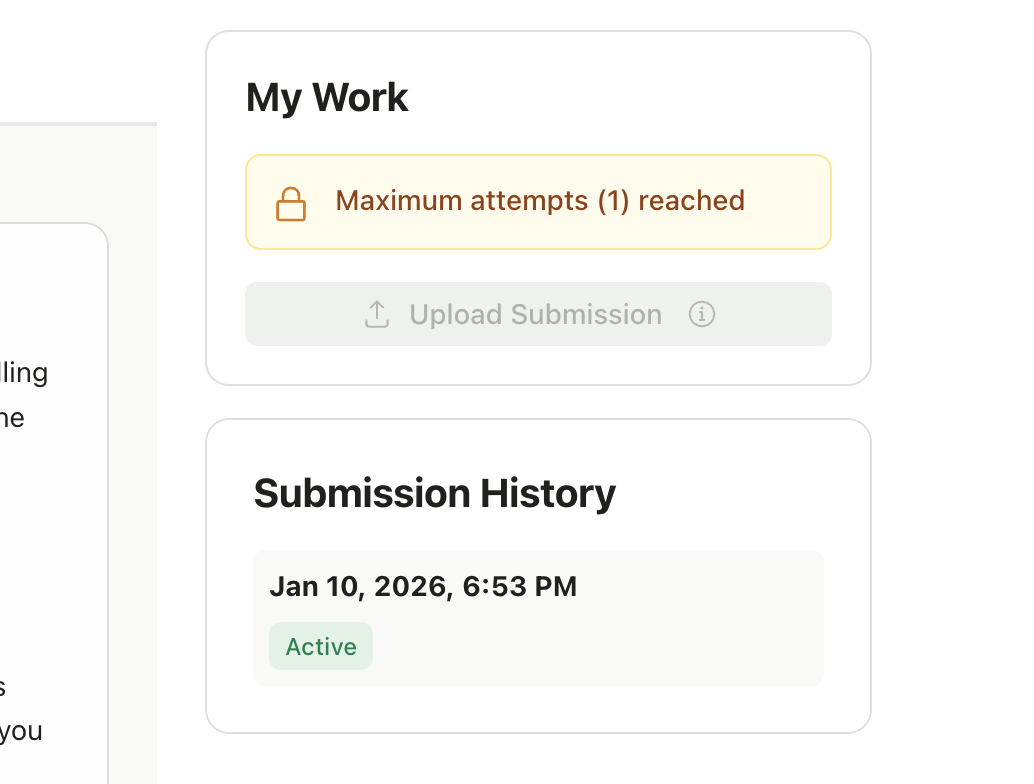
If your teacher allows multiple submissions:
1. Go to the assignment
2. Click **Submit Again** or **Resubmit**
3. Upload your updated file
4. Your new submission replaces the previous one for grading
Your teacher may limit the number of times you can resubmit. Check the assignment details or ask your teacher.
***
## Late Submissions
If the due date has passed:
* **If late submissions are allowed**: You can still submit, but your work may be marked as late
* **If late submissions are blocked**: You'll see a message that submissions are closed
Contact your teacher if you need to submit late and can't.
***
## Uploading from Google Drive
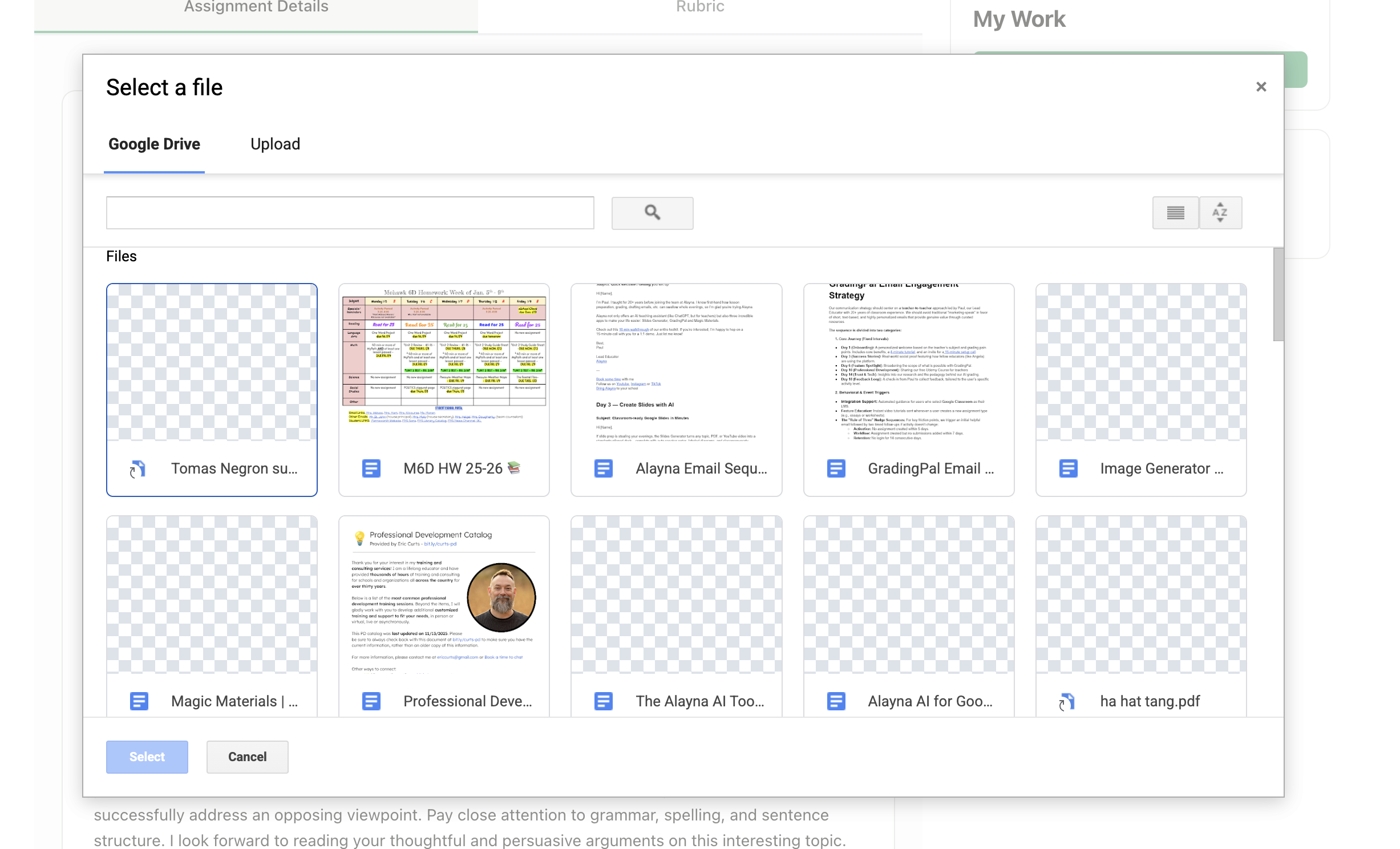
Click **Submit** on the assignment
Choose **Google Drive**
Sign in to Google if prompted
Browse or search for your file
Select the file and confirm
This works with:
* Google Docs
* Google Slides
* Files you've uploaded to Drive
***
## Resubmitting Work
If your teacher allows multiple submissions:
1. Go to the assignment
2. Click **Submit Again** or **Resubmit**
3. Upload your updated file
4. Your new submission replaces the previous one for grading
Your teacher may limit the number of times you can resubmit. Check the assignment details or ask your teacher.
***
## Late Submissions
If the due date has passed:
* **If late submissions are allowed**: You can still submit, but your work may be marked as late
* **If late submissions are blocked**: You'll see a message that submissions are closed
Contact your teacher if you need to submit late and can't.
***
## Uploading from Google Drive
Click **Submit** on the assignment
Choose **Google Drive**
Sign in to Google if prompted
Browse or search for your file
Select the file and confirm
This works with:
* Google Docs
* Google Slides
* Files you've uploaded to Drive
 ***
## Tips for Successful Submissions
### Before Submitting
* **Check the file type** - Make sure your file format is accepted
* **Review your work** - You may not be able to resubmit
* **Check the file size** - Very large files may take longer to upload
* **Name your file clearly** - Include your name or the assignment title
### If Something Goes Wrong
* **Upload failed** - Check your internet connection and try again
* **Wrong file submitted** - Resubmit with the correct file if allowed
* **File won't open** - Try saving in a different format (PDF usually works)
***
## What Happens After You Submit
GradingPal converts your file if needed
The AI reviews your work based on your teacher's rubric
Your teacher checks the AI grades and feedback
You receive your graded work with feedback
Grading typically takes a few minutes, but your teacher may take additional time to review before returning.
***
## Viewing Past Submissions
To see your submission history:
1. Click on the assignment
2. Scroll to see your submissions
3. Click on any submission to view details
You can see:
* When you submitted
* What file you submitted
* Status of each submission
***
## Troubleshooting
* The assignment may not be published yet
* The due date may have passed with late submissions disabled
* Check that you're enrolled in the class
* Try a smaller file
* Check your internet connection
* Try a different browser
* Save your file as PDF and try again
* Resubmit if allowed
* If resubmission is disabled, contact your teacher immediately
***
## Related Articles
* [Create a Student Account](/student/create-student-account)
* [View Scores & Feedback](/student/view-scores-feedback)
***
## Tips for Successful Submissions
### Before Submitting
* **Check the file type** - Make sure your file format is accepted
* **Review your work** - You may not be able to resubmit
* **Check the file size** - Very large files may take longer to upload
* **Name your file clearly** - Include your name or the assignment title
### If Something Goes Wrong
* **Upload failed** - Check your internet connection and try again
* **Wrong file submitted** - Resubmit with the correct file if allowed
* **File won't open** - Try saving in a different format (PDF usually works)
***
## What Happens After You Submit
GradingPal converts your file if needed
The AI reviews your work based on your teacher's rubric
Your teacher checks the AI grades and feedback
You receive your graded work with feedback
Grading typically takes a few minutes, but your teacher may take additional time to review before returning.
***
## Viewing Past Submissions
To see your submission history:
1. Click on the assignment
2. Scroll to see your submissions
3. Click on any submission to view details
You can see:
* When you submitted
* What file you submitted
* Status of each submission
***
## Troubleshooting
* The assignment may not be published yet
* The due date may have passed with late submissions disabled
* Check that you're enrolled in the class
* Try a smaller file
* Check your internet connection
* Try a different browser
* Save your file as PDF and try again
* Resubmit if allowed
* If resubmission is disabled, contact your teacher immediately
***
## Related Articles
* [Create a Student Account](/student/create-student-account)
* [View Scores & Feedback](/student/view-scores-feedback)