> ## Documentation Index
> Fetch the complete documentation index at: https://docs.gradingpal.com/llms.txt
> Use this file to discover all available pages before exploring further.
# View Scores & Feedback
> Access your grades and detailed feedback after your teacher returns your work
Once your teacher returns your graded work, you can view your scores and feedback in GradingPal.
***
## Finding Your Graded Work
Log in to GradingPal
Go to your class
Click on the assignment
If your work has been returned, you'll see **View Feedback** or your score
Alternatively, assignments marked "Graded" on your dashboard are ready to view.
 ***
## Understanding Your Grades
### Overall Score
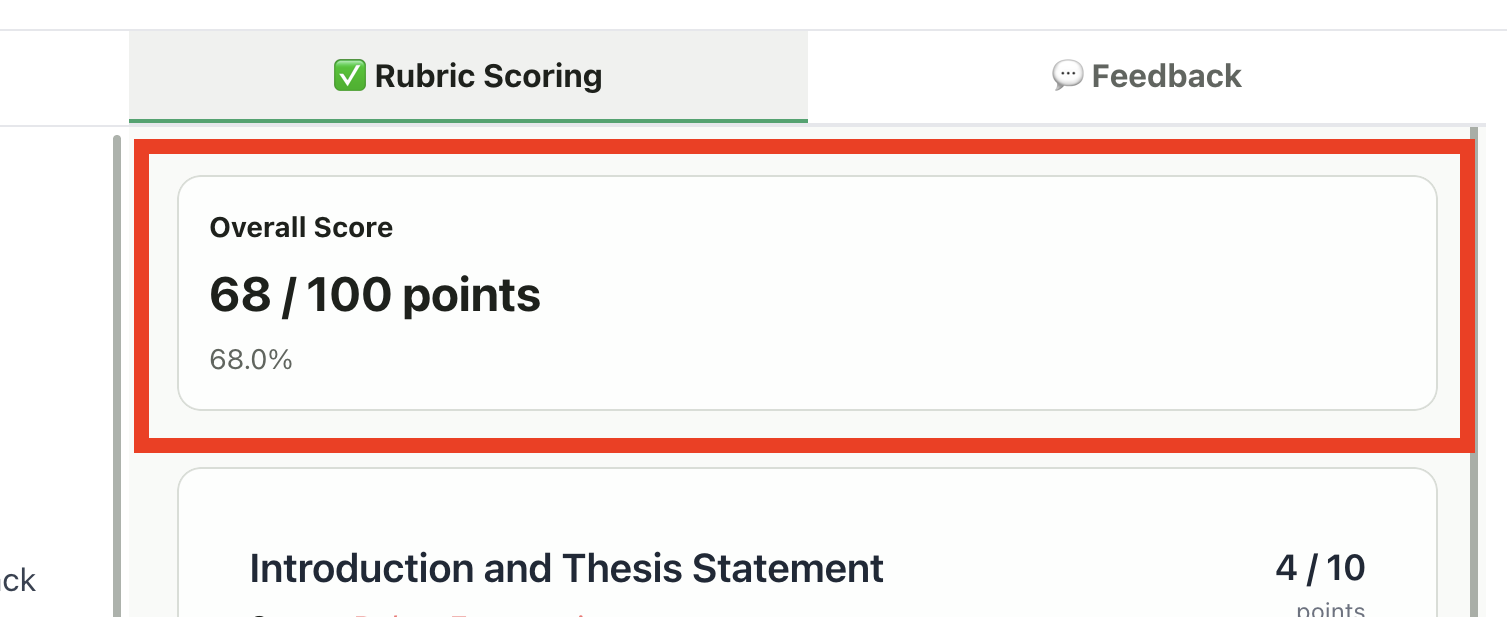
At the top of your graded submission, you'll see:
* Your **total points** earned
* The **maximum points** possible
* Your **percentage** (if shown)
Some teachers hide point values so you focus on the feedback instead.
***
## Understanding Your Grades
### Overall Score
At the top of your graded submission, you'll see:
* Your **total points** earned
* The **maximum points** possible
* Your **percentage** (if shown)
Some teachers hide point values so you focus on the feedback instead.
 ### Per-Criterion Scores
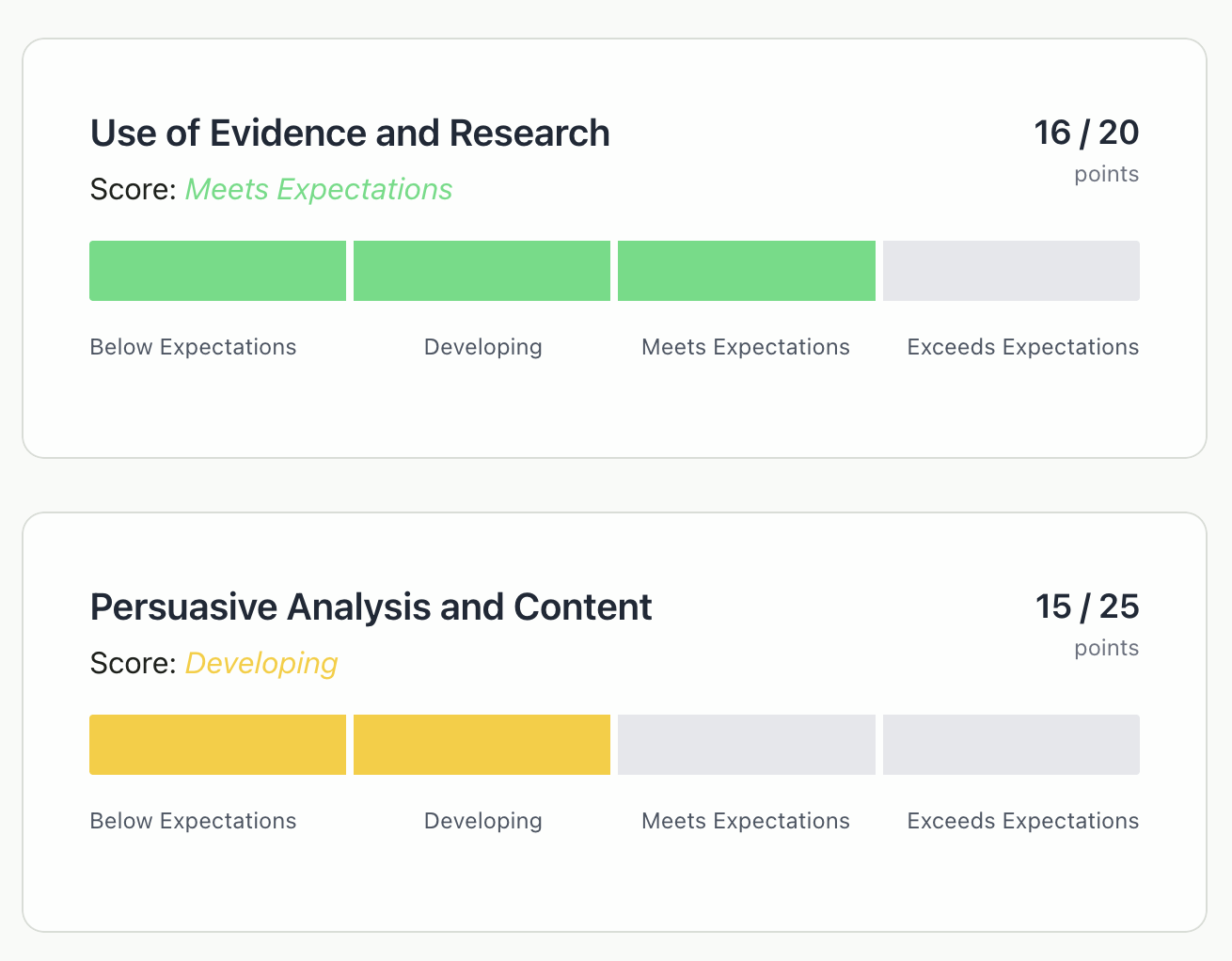
For most assignments, you'll see scores broken down by rubric criteria:
| Element | Description |
| ------------------ | ---------------------------------------------------- |
| **Criterion Name** | What was being evaluated (e.g., "Thesis Statement") |
| **Your Level** | Which rubric level you achieved (e.g., "Proficient") |
| **Points** | Points earned for this criterion |
| **Feedback** | Specific comments about your work |
### Per-Criterion Scores
For most assignments, you'll see scores broken down by rubric criteria:
| Element | Description |
| ------------------ | ---------------------------------------------------- |
| **Criterion Name** | What was being evaluated (e.g., "Thesis Statement") |
| **Your Level** | Which rubric level you achieved (e.g., "Proficient") |
| **Points** | Points earned for this criterion |
| **Feedback** | Specific comments about your work |
 ### Question Scores (Quizzes/Exams)
For quizzes, exams, and structured assignments:
* Each question shows your score
* You can see which questions you got right or wrong
* Feedback explains the correct answer or where you lost points
***
## Reading Your Feedback
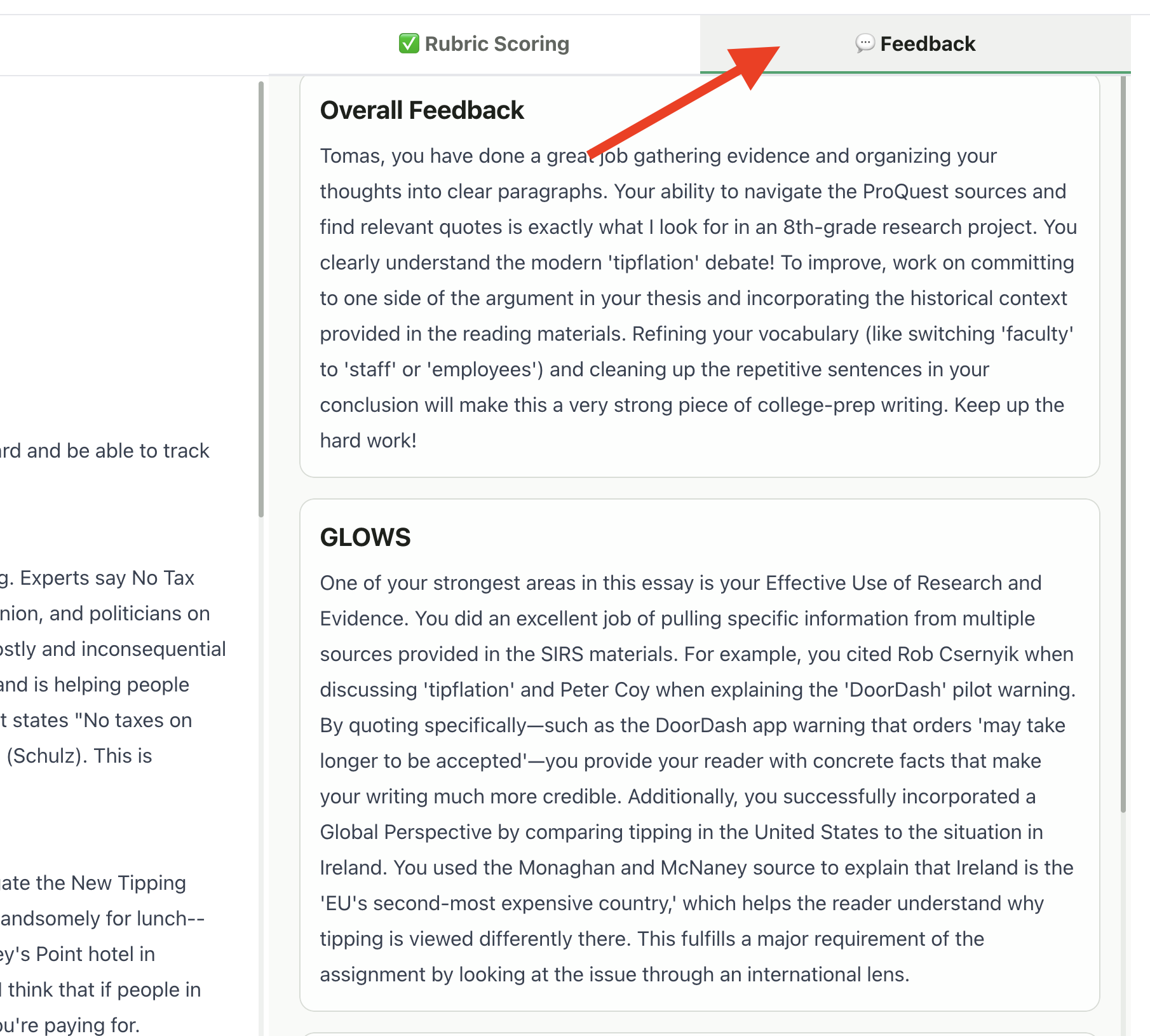
### Overall Feedback
Your teacher may add overall comments at the top, summarizing:
* General impressions of your work
* Key takeaways
* Suggestions for future assignments
### Feedback Styles
Your feedback might appear in different styles depending on what your teacher selected:
* Direct comments on specific parts of your work
* Similar to Google Docs-style annotations
* Shows exactly where you earned or lost points
* **Glows**: What you did well (your strengths)
* **Grows**: Areas for improvement
* Detailed feedback organized by each rubric criterion
* Clear breakdown of how you performed on each section
* Starts with positives, then constructive feedback, ends with positives
* Balanced approach that highlights growth areas while acknowledging strengths
* Specific, step-by-step suggestions for improvement
* Concrete next steps you can take to improve your work
* Feedback through guiding questions
* Prompts self-reflection to help you understand your work deeper
### Question Scores (Quizzes/Exams)
For quizzes, exams, and structured assignments:
* Each question shows your score
* You can see which questions you got right or wrong
* Feedback explains the correct answer or where you lost points
***
## Reading Your Feedback
### Overall Feedback
Your teacher may add overall comments at the top, summarizing:
* General impressions of your work
* Key takeaways
* Suggestions for future assignments
### Feedback Styles
Your feedback might appear in different styles depending on what your teacher selected:
* Direct comments on specific parts of your work
* Similar to Google Docs-style annotations
* Shows exactly where you earned or lost points
* **Glows**: What you did well (your strengths)
* **Grows**: Areas for improvement
* Detailed feedback organized by each rubric criterion
* Clear breakdown of how you performed on each section
* Starts with positives, then constructive feedback, ends with positives
* Balanced approach that highlights growth areas while acknowledging strengths
* Specific, step-by-step suggestions for improvement
* Concrete next steps you can take to improve your work
* Feedback through guiding questions
* Prompts self-reflection to help you understand your work deeper
 ***
## Viewing Your Submitted Work
On the graded submission page:
* **Left side**: Your original submitted work (document, video, etc.)
* **Right side**: Scores and feedback
You can:
* Scroll through your document
* Play videos or audio
* View images at full size
This lets you see exactly what the AI and teacher evaluated.
***
## If Points Are Hidden
Your teacher may choose to hide point values. In this case:
* You'll see feedback but not numerical scores
* This helps you focus on improving, not just the grade
* Your teacher can still see your scores
***
## What to Do With Your Feedback
### Review Carefully
1. Read all feedback, not just the score
2. Note patterns—do you see the same comments across assignments?
3. Highlight suggestions you can apply to future work
### Ask Questions
If you don't understand your feedback:
* Ask your teacher for clarification
* Review the rubric to understand expectations
* Compare your work to the rubric criteria
### Improve Next Time
Use feedback to:
* Identify your strengths to keep building on
* Focus on areas that need work
* Set specific goals for your next assignment
***
## Troubleshooting
* Your teacher may not have returned it yet
* Check that the assignment status shows "Returned"
* Ask your teacher if they've finished grading
* Scroll to see all criteria
* Check for an "Overall Feedback" section at the top
* Some criteria may not have additional comments if you scored well
* Review the rubric to understand the scoring
* Compare your work to the feedback
* Politely ask your teacher to explain or reconsider
* Older assignments should still be visible in your class
* If you left a class, you may lose access
* Contact your teacher if you need past grades
***
## Privacy
Your grades and feedback are private:
* Only you and your teacher can see your scores
* Other students cannot view your submissions or grades
* Your work is stored securely in GradingPal
***
## Related Articles
* [Create a Student Account](/student/create-student-account)
* [Submit Your Work](/student/submit-your-work)
***
## Viewing Your Submitted Work
On the graded submission page:
* **Left side**: Your original submitted work (document, video, etc.)
* **Right side**: Scores and feedback
You can:
* Scroll through your document
* Play videos or audio
* View images at full size
This lets you see exactly what the AI and teacher evaluated.
***
## If Points Are Hidden
Your teacher may choose to hide point values. In this case:
* You'll see feedback but not numerical scores
* This helps you focus on improving, not just the grade
* Your teacher can still see your scores
***
## What to Do With Your Feedback
### Review Carefully
1. Read all feedback, not just the score
2. Note patterns—do you see the same comments across assignments?
3. Highlight suggestions you can apply to future work
### Ask Questions
If you don't understand your feedback:
* Ask your teacher for clarification
* Review the rubric to understand expectations
* Compare your work to the rubric criteria
### Improve Next Time
Use feedback to:
* Identify your strengths to keep building on
* Focus on areas that need work
* Set specific goals for your next assignment
***
## Troubleshooting
* Your teacher may not have returned it yet
* Check that the assignment status shows "Returned"
* Ask your teacher if they've finished grading
* Scroll to see all criteria
* Check for an "Overall Feedback" section at the top
* Some criteria may not have additional comments if you scored well
* Review the rubric to understand the scoring
* Compare your work to the feedback
* Politely ask your teacher to explain or reconsider
* Older assignments should still be visible in your class
* If you left a class, you may lose access
* Contact your teacher if you need past grades
***
## Privacy
Your grades and feedback are private:
* Only you and your teacher can see your scores
* Other students cannot view your submissions or grades
* Your work is stored securely in GradingPal
***
## Related Articles
* [Create a Student Account](/student/create-student-account)
* [Submit Your Work](/student/submit-your-work)