> ## Documentation Index
> Fetch the complete documentation index at: https://docs.gradingpal.com/llms.txt
> Use this file to discover all available pages before exploring further.
# Duplicate Assignment
> Copy an assignment to another class or create a similar assignment quickly
Save time by duplicating an existing assignment to another class (or the same class). Duplicating copies the assignment details, rubric, and settings—you just need to upload new student submissions.
***
## When to Duplicate
Create once, duplicate to other classes
Duplicate and modify as needed
***
## How to Duplicate
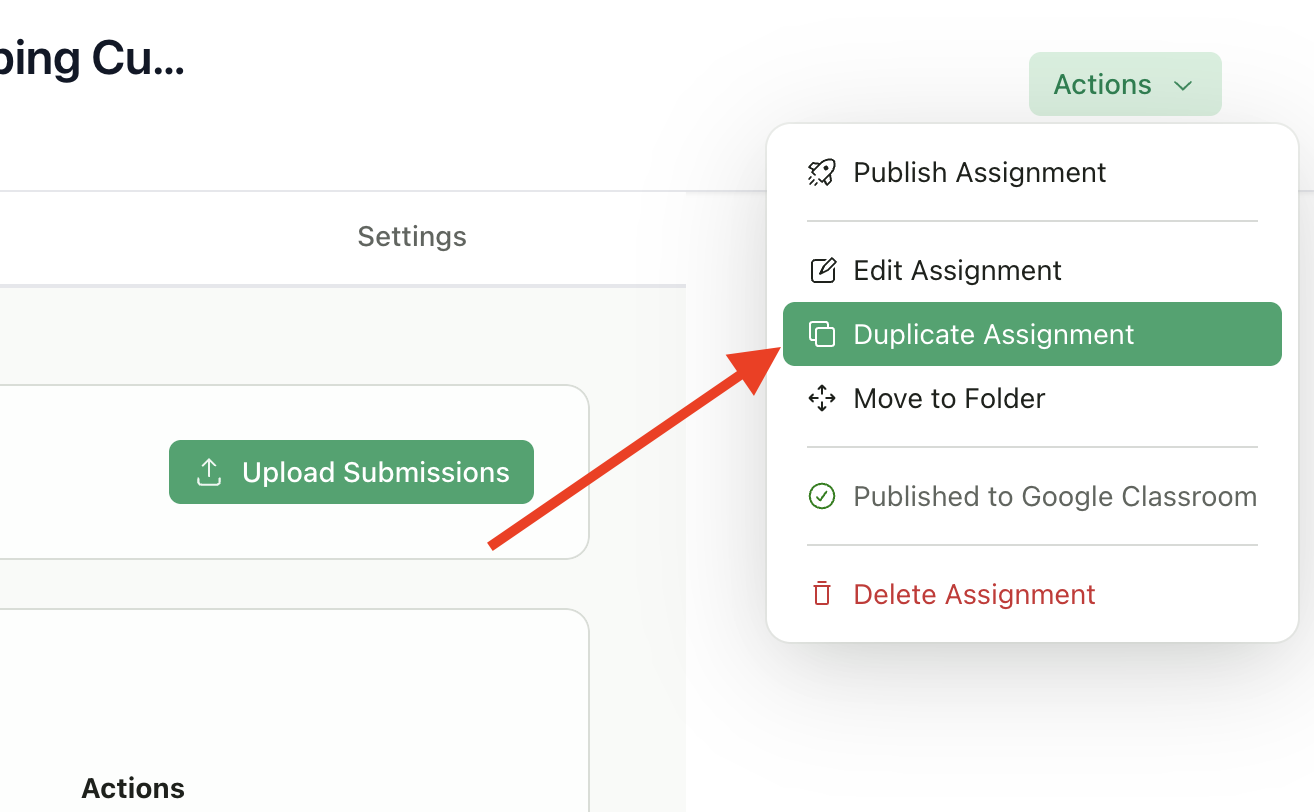
Go to the assignment you want to duplicate
Click **Actions** in the top right
Select **Duplicate Assignment**
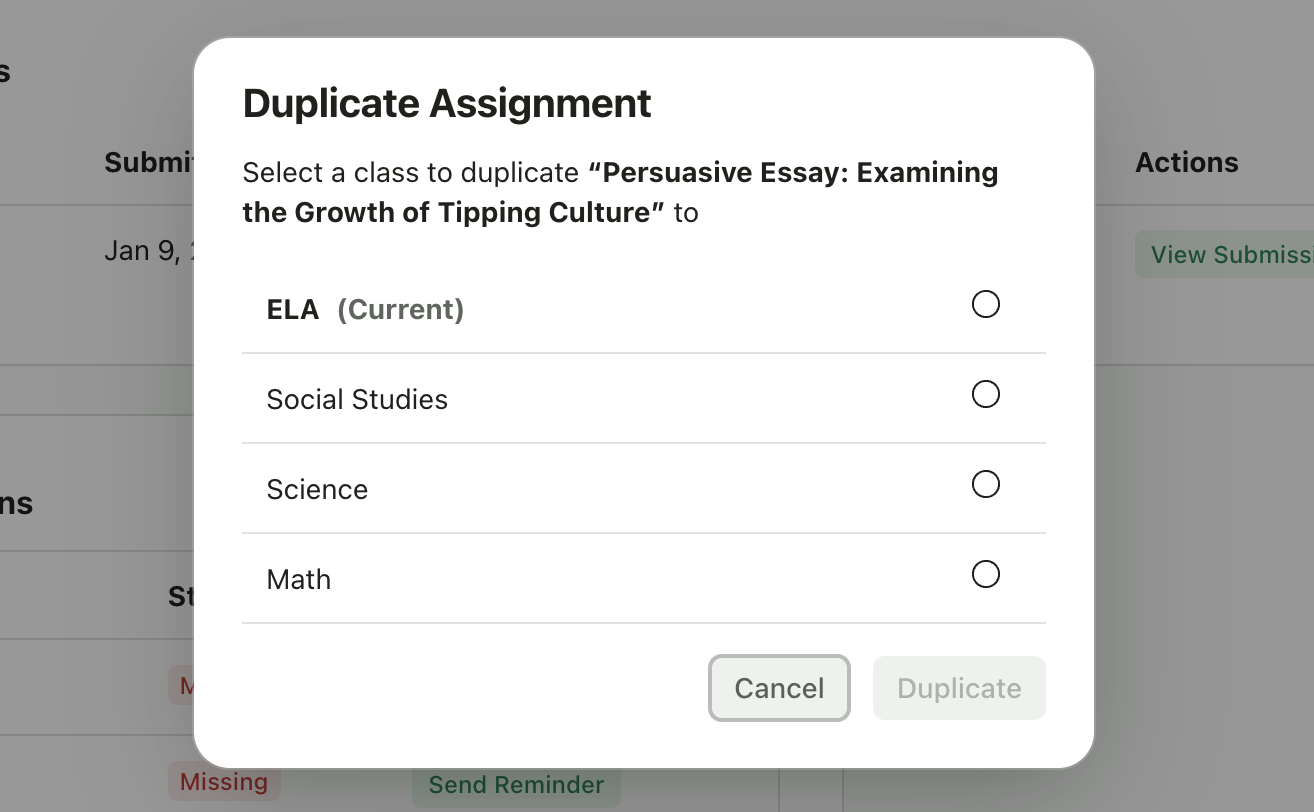
Choose the destination class from the list
Click **Duplicate**
 ***
## Selecting a Destination Class
The dialog shows all your classes. The current class appears first and is labeled "(Current)".
You can duplicate to:
* **The same class** - Creates a copy in the current class
* **A different class** - Creates the assignment in another class you teach
***
## Selecting a Destination Class
The dialog shows all your classes. The current class appears first and is labeled "(Current)".
You can duplicate to:
* **The same class** - Creates a copy in the current class
* **A different class** - Creates the assignment in another class you teach
 ***
## After Duplicating
Once duplication completes:
You're automatically redirected to the new assignment
Review and adjust the title if needed (e.g., add section number)
**Review the dates** - they're copied from the original, so update if needed for your new class
Publish to Google Classroom separately if needed
Upload submissions when ready
***
## What Gets Copied
| Item | Copied? |
| -------------------------------- | ----------------------- |
| Assignment title | Yes |
| Assignment description | Yes |
| Rubric (all criteria and levels) | Yes |
| Feedback settings | Yes |
| Due date/publish date | Yes (review and update) |
| Assignment settings | Yes |
| **Submissions and grades** | No - never copied |
| **Google Classroom connection** | No - publish separately |
***
## Limitations
* You cannot duplicate an assignment to a class you don't own
* Google Classroom connections are not duplicated (you'll need to publish to GC separately if needed)
* Submissions and grades are never copied
***
## Tips
Add a section number or semester to distinguish copies (e.g., "Essay 1 - Period 2")
Dates are copied from the original. If the original due date has passed, update the dates for your new class schedule.
If you've made improvements to your rubric, the duplicate will have the improved version.
You'll need to publish to Google Classroom separately for the new class if needed.
***
## Related Articles
* [Reuse Rubric](/teacher/assignment-management/reuse-rubric)
* [Edit Assignment Details & Rubric](/teacher/assignment-management/edit-assignment-details-rubric)
* [Select Assignment Type](/teacher/grade-your-assignment/select-assignment-type)
* [Google Classroom Integration](/teacher/lms-integrations/google-classroom)
***
## After Duplicating
Once duplication completes:
You're automatically redirected to the new assignment
Review and adjust the title if needed (e.g., add section number)
**Review the dates** - they're copied from the original, so update if needed for your new class
Publish to Google Classroom separately if needed
Upload submissions when ready
***
## What Gets Copied
| Item | Copied? |
| -------------------------------- | ----------------------- |
| Assignment title | Yes |
| Assignment description | Yes |
| Rubric (all criteria and levels) | Yes |
| Feedback settings | Yes |
| Due date/publish date | Yes (review and update) |
| Assignment settings | Yes |
| **Submissions and grades** | No - never copied |
| **Google Classroom connection** | No - publish separately |
***
## Limitations
* You cannot duplicate an assignment to a class you don't own
* Google Classroom connections are not duplicated (you'll need to publish to GC separately if needed)
* Submissions and grades are never copied
***
## Tips
Add a section number or semester to distinguish copies (e.g., "Essay 1 - Period 2")
Dates are copied from the original. If the original due date has passed, update the dates for your new class schedule.
If you've made improvements to your rubric, the duplicate will have the improved version.
You'll need to publish to Google Classroom separately for the new class if needed.
***
## Related Articles
* [Reuse Rubric](/teacher/assignment-management/reuse-rubric)
* [Edit Assignment Details & Rubric](/teacher/assignment-management/edit-assignment-details-rubric)
* [Select Assignment Type](/teacher/grade-your-assignment/select-assignment-type)
* [Google Classroom Integration](/teacher/lms-integrations/google-classroom)