> ## Documentation Index
> Fetch the complete documentation index at: https://docs.gradingpal.com/llms.txt
> Use this file to discover all available pages before exploring further.
# Edit Assignment Details & Rubric
> Modify assignment information, rubric criteria, and feedback settings after creation
After creating an assignment, you can edit its details, description, rubric, and feedback settings at any time.
***
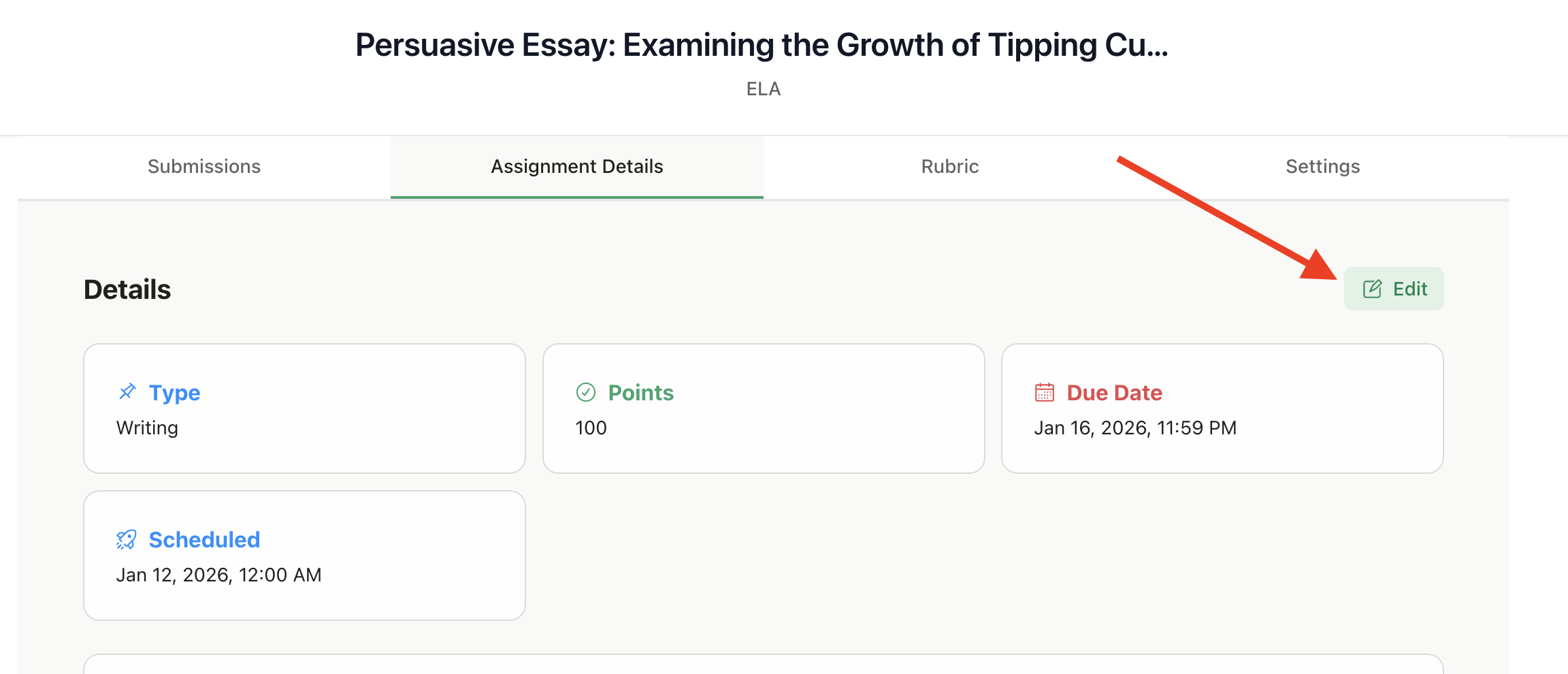
## Accessing Edit Mode
Go to your assignment page
Click **Actions** in the top right
Select **Edit Assignment**
 ***
## What You Can Edit
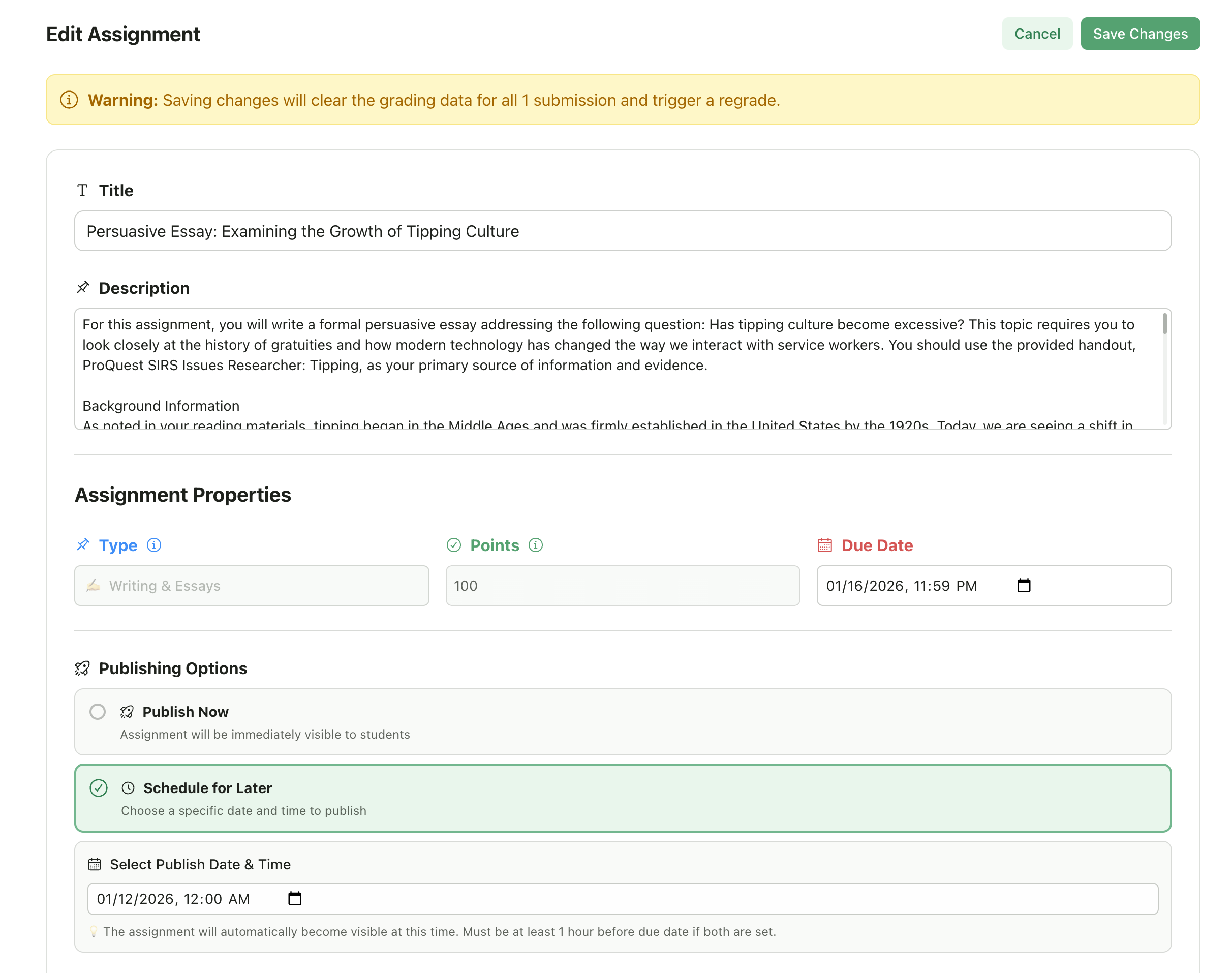
### Assignment Details
| Field | Description |
| ---------------- | ----------------------------------------------- |
| **Title** | The assignment name (minimum 5 characters) |
| **Description** | The full assignment prompt or instructions |
| **Due Date** | When students should submit by |
| **Publish Date** | When the assignment becomes visible to students |
| **Max Points** | Total possible points for the assignment |
***
## What You Can Edit
### Assignment Details
| Field | Description |
| ---------------- | ----------------------------------------------- |
| **Title** | The assignment name (minimum 5 characters) |
| **Description** | The full assignment prompt or instructions |
| **Due Date** | When students should submit by |
| **Publish Date** | When the assignment becomes visible to students |
| **Max Points** | Total possible points for the assignment |
 ### Feedback Settings
Adjust how the AI generates feedback:
| Setting | Options |
| --------------------------- | -------------------------------------- |
| **Feedback Style** | Targeted, Glow & Grow, or other styles |
| **Feedback Length** | Concise or Detailed |
| **Feedback Leniency** | Lenient, Balanced, or Tough |
| **Additional Instructions** | Custom instructions for the AI grader |
### Rubric
For Writing & Multi-Media assignments, you can edit the rubric criteria:
* Modify criterion names and descriptions
* Add or remove criteria
* Change point values for each level
* Edit level descriptions
**For Structured Assignments (Exams, Quizzes, etc.):**
Editing is not currently supported — see [limitations below](#after-submissions-are-graded).
***
## Editing Restrictions
### When Submissions Are In Progress
If submissions are currently being graded (status: "In Progress"), editing is temporarily blocked. Wait for grading to complete before making changes.
### Feedback Settings
Adjust how the AI generates feedback:
| Setting | Options |
| --------------------------- | -------------------------------------- |
| **Feedback Style** | Targeted, Glow & Grow, or other styles |
| **Feedback Length** | Concise or Detailed |
| **Feedback Leniency** | Lenient, Balanced, or Tough |
| **Additional Instructions** | Custom instructions for the AI grader |
### Rubric
For Writing & Multi-Media assignments, you can edit the rubric criteria:
* Modify criterion names and descriptions
* Add or remove criteria
* Change point values for each level
* Edit level descriptions
**For Structured Assignments (Exams, Quizzes, etc.):**
Editing is not currently supported — see [limitations below](#after-submissions-are-graded).
***
## Editing Restrictions
### When Submissions Are In Progress
If submissions are currently being graded (status: "In Progress"), editing is temporarily blocked. Wait for grading to complete before making changes.
 ### After Submissions Are Graded
You can edit assignments after submissions have been graded. When you make grading-relevant changes, the system automatically handles regrading:
**For Writing & Multi-Media Assignments:**
* When you save changes to the **rubric** (criteria, levels, points) or **assignment details** (title, description, additional instructions) or **feedback settings** (style, length, leniency), existing grading data is automatically cleared
* **All affected submissions are automatically regraded** with the new settings
* Regrading happens in the background — you'll see a notification when it starts
* No manual regrading is needed
**For Structured Assignments (Exams, Quizzes, Problem Sets, Worksheets):**
**Current Limitation:** Editing assignment details and rubrics for Structured Assignments is not yet supported. Once a Structured Assignment is created, its details and rubric cannot be modified. This is a known limitation we are actively working to address. For now, if you need to make changes, you will need to create a new assignment.
Display-only changes (like reordering rubric levels) do not trigger regrading.
***
## Saving Changes
1. Make your edits
2. Click **Save Changes**
3. Changes take effect immediately
If you navigate away without saving, your changes will be lost.
***
## Publishing Options
When editing, you can also adjust the publish status:
| Option | Description |
| ----------------- | --------------------------------------------------- |
| **Publish Now** | Make the assignment immediately visible to students |
| **Schedule** | Set a future publish date |
| **Keep as Draft** | Assignment remains hidden from students |
If the assignment is already published, you can still edit it, but changes are immediately visible to students.
***
## Best Practices
Make all edits while the assignment is still a draft when possible.
If editing during the assignment wizard, make all your rubric, details, and feedback changes before clicking "Finish Setup" — regrading will happen once with all your final settings.
If you modify an assignment after students have started, let them know what changed.
Grade one or two submissions first to verify your rubric works as expected before grading the whole class.
After making changes that trigger regrading, wait for it to finish before making additional edits.
***
## Related Articles
* [Assignment Settings](/teacher/assignment-management/assignment-settings)
* [Reuse Rubric](/teacher/assignment-management/reuse-rubric)
* [Duplicate Assignment](/teacher/assignment-management/duplicate-assignment)
* [Review AI Scores & Feedback](/teacher/grades-and-feedback/review-ai-scores-feedback)
### After Submissions Are Graded
You can edit assignments after submissions have been graded. When you make grading-relevant changes, the system automatically handles regrading:
**For Writing & Multi-Media Assignments:**
* When you save changes to the **rubric** (criteria, levels, points) or **assignment details** (title, description, additional instructions) or **feedback settings** (style, length, leniency), existing grading data is automatically cleared
* **All affected submissions are automatically regraded** with the new settings
* Regrading happens in the background — you'll see a notification when it starts
* No manual regrading is needed
**For Structured Assignments (Exams, Quizzes, Problem Sets, Worksheets):**
**Current Limitation:** Editing assignment details and rubrics for Structured Assignments is not yet supported. Once a Structured Assignment is created, its details and rubric cannot be modified. This is a known limitation we are actively working to address. For now, if you need to make changes, you will need to create a new assignment.
Display-only changes (like reordering rubric levels) do not trigger regrading.
***
## Saving Changes
1. Make your edits
2. Click **Save Changes**
3. Changes take effect immediately
If you navigate away without saving, your changes will be lost.
***
## Publishing Options
When editing, you can also adjust the publish status:
| Option | Description |
| ----------------- | --------------------------------------------------- |
| **Publish Now** | Make the assignment immediately visible to students |
| **Schedule** | Set a future publish date |
| **Keep as Draft** | Assignment remains hidden from students |
If the assignment is already published, you can still edit it, but changes are immediately visible to students.
***
## Best Practices
Make all edits while the assignment is still a draft when possible.
If editing during the assignment wizard, make all your rubric, details, and feedback changes before clicking "Finish Setup" — regrading will happen once with all your final settings.
If you modify an assignment after students have started, let them know what changed.
Grade one or two submissions first to verify your rubric works as expected before grading the whole class.
After making changes that trigger regrading, wait for it to finish before making additional edits.
***
## Related Articles
* [Assignment Settings](/teacher/assignment-management/assignment-settings)
* [Reuse Rubric](/teacher/assignment-management/reuse-rubric)
* [Duplicate Assignment](/teacher/assignment-management/duplicate-assignment)
* [Review AI Scores & Feedback](/teacher/grades-and-feedback/review-ai-scores-feedback)