> ## Documentation Index
> Fetch the complete documentation index at: https://docs.gradingpal.com/llms.txt
> Use this file to discover all available pages before exploring further.
# Reuse Rubric
> Save time by importing rubrics from previous assignments or existing documents
Save time when creating new assignments by reusing rubrics from previous assignments or importing rubrics from existing documents.
***
## Ways to Reuse a Rubric
When creating or editing an assignment's rubric, you have two options for reusing existing rubrics:
Copy a rubric from one of your previous assignments
Extract a rubric from a document (PDF, Word, etc.) you already have
***
## Reusing an Existing Rubric
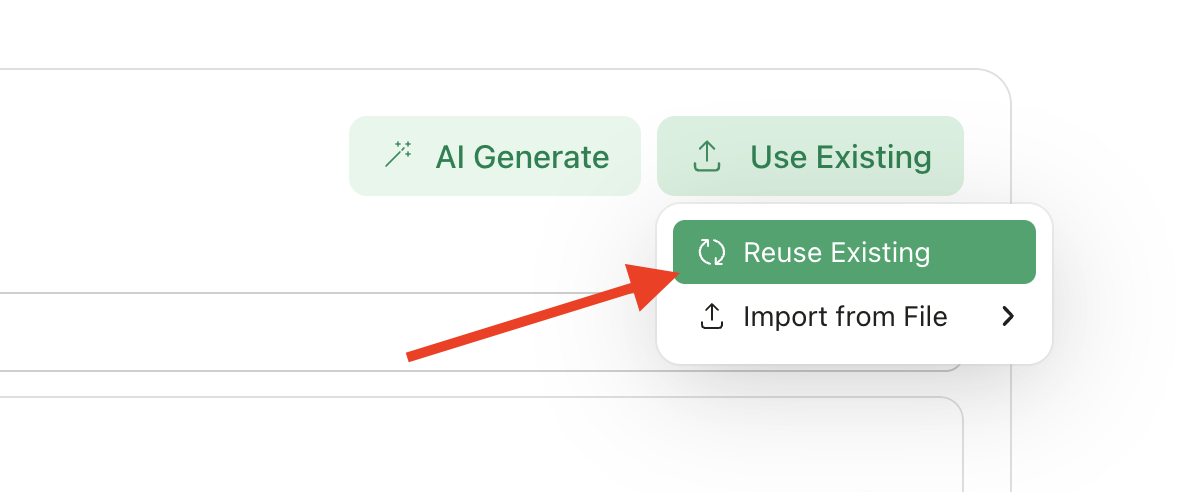
During assignment setup, on the rubric step:
Click **Use Existing**
Select **Reuse Existing** from the dropdown
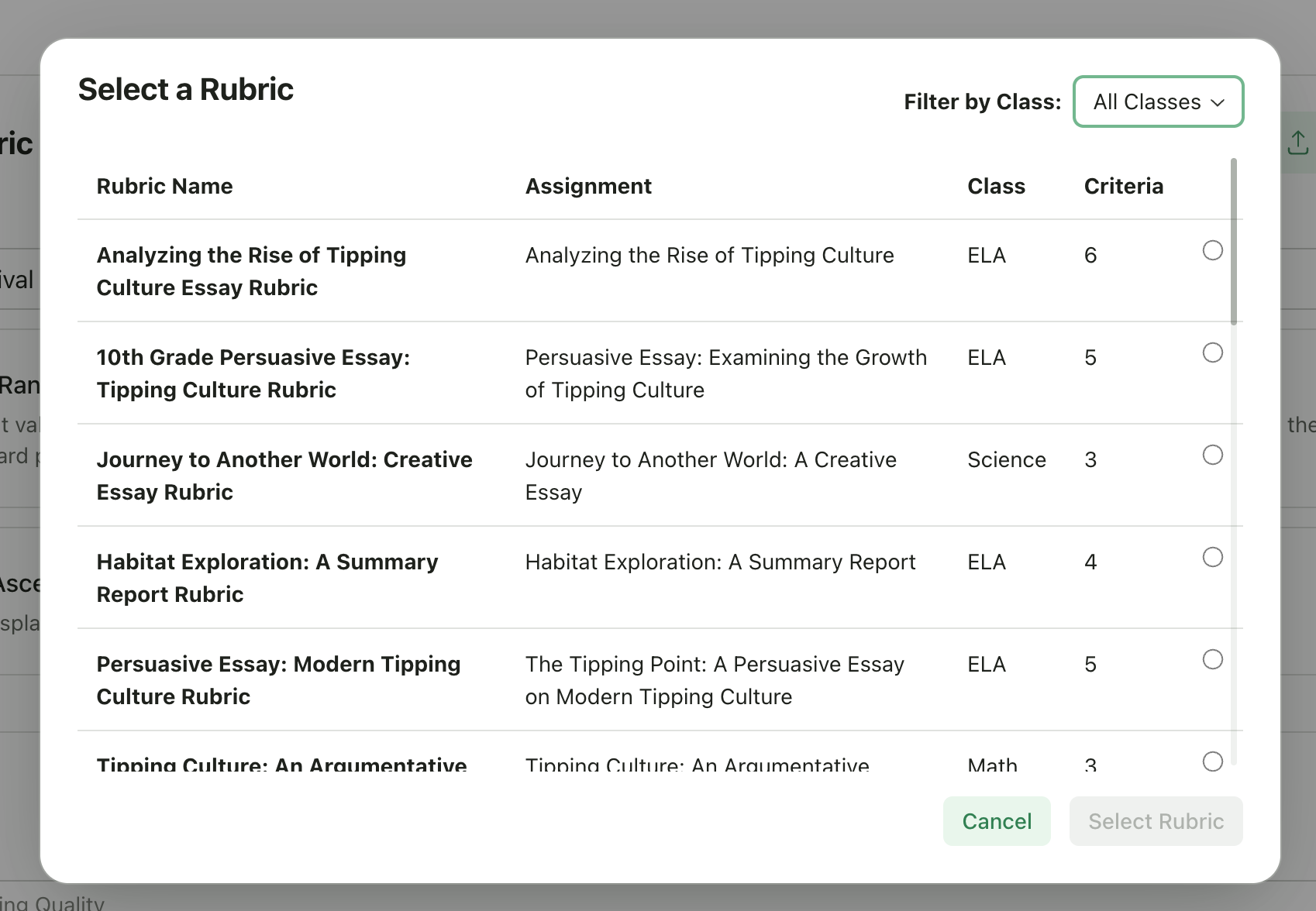
Browse your previous rubrics. Each rubric shows:
* Assignment name it came from
* Class name
* Number of criteria
Click to select a rubric
The rubric is copied to your new assignment
 ### What Gets Copied
* All criteria names and descriptions
* All levels with their point values
* Level descriptions
The copied rubric is independent—editing it won't affect the original assignment.
***
## Importing a Rubric from File
If you have a rubric in a document (like a PDF handout or Word file):
Click **Use Existing**
Select **Import from File**
Choose your source:
* **From your Device** - Upload a file from your computer
* **From Google Drive** - Select a file from your Google Drive
Wait for the AI to extract the rubric
Review the extracted rubric and edit as needed
### What Gets Copied
* All criteria names and descriptions
* All levels with their point values
* Level descriptions
The copied rubric is independent—editing it won't affect the original assignment.
***
## Importing a Rubric from File
If you have a rubric in a document (like a PDF handout or Word file):
Click **Use Existing**
Select **Import from File**
Choose your source:
* **From your Device** - Upload a file from your computer
* **From Google Drive** - Select a file from your Google Drive
Wait for the AI to extract the rubric
Review the extracted rubric and edit as needed
 ### Supported File Types
* PDF documents
* Word documents (.doc, .docx)
* Google Docs (via Google Drive)
* Text files
### Extraction Tips
For best results, your document should have:
* Clear criteria names
* Defined performance levels (e.g., "Excellent", "Proficient", "Developing")
* Point values or score ranges
* Descriptions for each level
The AI reads the document and extracts a structured rubric. If extraction doesn't capture everything, you can edit the rubric manually after import.
***
## When Each Option Works Best
| Scenario | Recommended Option |
| ------------------------------------- | ------------------------- |
| Same rubric as last semester | Reuse Existing |
| Standard rubric your department uses | Import from File |
| Rubric from a colleague (shared doc) | Import from File |
| Slight variation of a previous rubric | Reuse Existing, then edit |
| Building on an existing document | Import from File |
***
## Editing After Import
After reusing or importing a rubric, you can:
* Add or remove criteria
* Change point values
* Edit descriptions
* Add or remove performance levels
* Rename levels
Changes only affect the current assignment—original rubrics remain unchanged.
***
## No Rubrics Available?
If "Reuse Existing" is disabled, you haven't created any assignments with rubrics yet. You can:
1. Create a rubric manually
2. Generate one with AI
3. Import from a file
***
## Related Articles
* [Set Up Writing & Multi-Media Assignments](/teacher/grade-your-assignment/setup-writing-multimedia-assignments)
* [Set Up Structured Assignments](/teacher/grade-your-assignment/setup-structured-assignments)
* [Edit Assignment Details & Rubric](/teacher/assignment-management/edit-assignment-details-rubric)
* [Duplicate Assignment](/teacher/assignment-management/duplicate-assignment)
### Supported File Types
* PDF documents
* Word documents (.doc, .docx)
* Google Docs (via Google Drive)
* Text files
### Extraction Tips
For best results, your document should have:
* Clear criteria names
* Defined performance levels (e.g., "Excellent", "Proficient", "Developing")
* Point values or score ranges
* Descriptions for each level
The AI reads the document and extracts a structured rubric. If extraction doesn't capture everything, you can edit the rubric manually after import.
***
## When Each Option Works Best
| Scenario | Recommended Option |
| ------------------------------------- | ------------------------- |
| Same rubric as last semester | Reuse Existing |
| Standard rubric your department uses | Import from File |
| Rubric from a colleague (shared doc) | Import from File |
| Slight variation of a previous rubric | Reuse Existing, then edit |
| Building on an existing document | Import from File |
***
## Editing After Import
After reusing or importing a rubric, you can:
* Add or remove criteria
* Change point values
* Edit descriptions
* Add or remove performance levels
* Rename levels
Changes only affect the current assignment—original rubrics remain unchanged.
***
## No Rubrics Available?
If "Reuse Existing" is disabled, you haven't created any assignments with rubrics yet. You can:
1. Create a rubric manually
2. Generate one with AI
3. Import from a file
***
## Related Articles
* [Set Up Writing & Multi-Media Assignments](/teacher/grade-your-assignment/setup-writing-multimedia-assignments)
* [Set Up Structured Assignments](/teacher/grade-your-assignment/setup-structured-assignments)
* [Edit Assignment Details & Rubric](/teacher/assignment-management/edit-assignment-details-rubric)
* [Duplicate Assignment](/teacher/assignment-management/duplicate-assignment)