> ## Documentation Index
> Fetch the complete documentation index at: https://docs.gradingpal.com/llms.txt
> Use this file to discover all available pages before exploring further.
# Class Settings
> Configure enrollment options and LMS sync preferences for your class
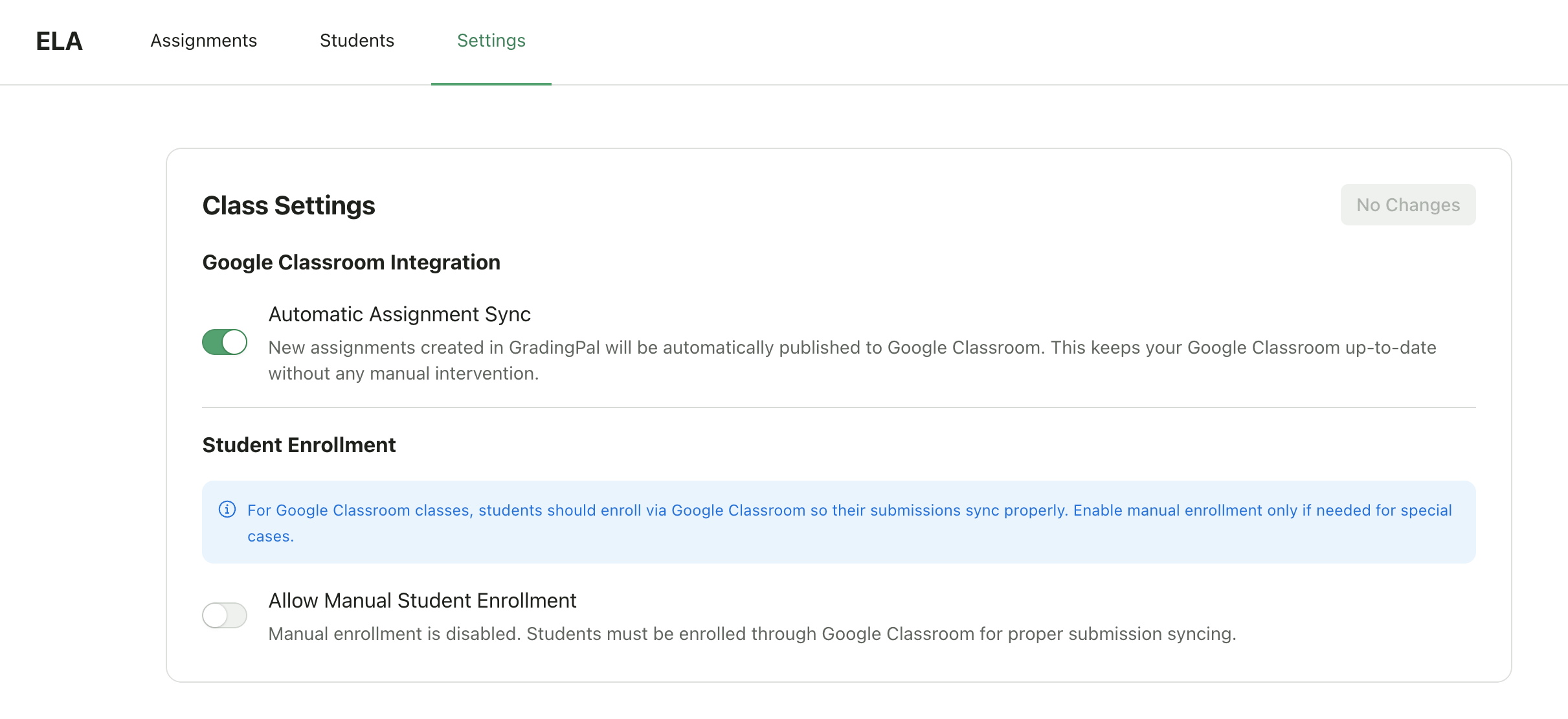
Class settings let you configure how your class behaves, including enrollment options and LMS sync preferences.
***
## Accessing Class Settings
Open your class from the teacher dashboard
Navigate to the **Settings** tab
 ***
## Settings for Google Classroom Classes
Classes imported from Google Classroom have additional settings to control the integration.
### Automatic Assignment Sync
| Setting | Description |
| ---------------- | ------------------------------------------------------------------------------------------- |
| **On** (default) | New assignments created in GradingPal are automatically published to Google Classroom |
| **Off** | Assignments stay in GradingPal only—you can manually publish to Google Classroom when ready |
**When to turn this off:**
* You want to draft assignments in GradingPal before students see them in Google Classroom
* You prefer to manually control when assignments appear in Google Classroom
### Allow Manual Student Enrollment
| Setting | Description |
| ----------------- | ----------------------------------------------------------------------------------------------------------------------------------------------------------- |
| **On** | Students can join using class codes, invite links, or email invites. Note: Students who join manually won't have their Google Classroom submissions synced. |
| **Off** (default) | Students must be enrolled through Google Classroom for proper submission syncing |
**When to turn this on:**
* You have students who aren't in your Google Classroom roster
* You want to allow guest access to specific students
## Saving Changes
After modifying any setting:
The **Save Changes** button will turn blue when you've made changes
Click **Save Changes** to apply your updates
The button will return to gray when changes are saved
Changes take effect immediately after saving.
***
## Related Articles
* [Create a New Class](/teacher/classes-and-students/create-a-new-class)
* [Enroll Students](/teacher/classes-and-students/enroll-students)
* [Google Classroom Integration](/teacher/lms-integrations/google-classroom)
***
## Settings for Google Classroom Classes
Classes imported from Google Classroom have additional settings to control the integration.
### Automatic Assignment Sync
| Setting | Description |
| ---------------- | ------------------------------------------------------------------------------------------- |
| **On** (default) | New assignments created in GradingPal are automatically published to Google Classroom |
| **Off** | Assignments stay in GradingPal only—you can manually publish to Google Classroom when ready |
**When to turn this off:**
* You want to draft assignments in GradingPal before students see them in Google Classroom
* You prefer to manually control when assignments appear in Google Classroom
### Allow Manual Student Enrollment
| Setting | Description |
| ----------------- | ----------------------------------------------------------------------------------------------------------------------------------------------------------- |
| **On** | Students can join using class codes, invite links, or email invites. Note: Students who join manually won't have their Google Classroom submissions synced. |
| **Off** (default) | Students must be enrolled through Google Classroom for proper submission syncing |
**When to turn this on:**
* You have students who aren't in your Google Classroom roster
* You want to allow guest access to specific students
## Saving Changes
After modifying any setting:
The **Save Changes** button will turn blue when you've made changes
Click **Save Changes** to apply your updates
The button will return to gray when changes are saved
Changes take effect immediately after saving.
***
## Related Articles
* [Create a New Class](/teacher/classes-and-students/create-a-new-class)
* [Enroll Students](/teacher/classes-and-students/enroll-students)
* [Google Classroom Integration](/teacher/lms-integrations/google-classroom)