> ## Documentation Index
> Fetch the complete documentation index at: https://docs.gradingpal.com/llms.txt
> Use this file to discover all available pages before exploring further.
# Create a New Class
> Set up classes to organize students and assignments in GradingPal
Classes are how you organize students and assignments in GradingPal. You can create classes manually or import them from Google Classroom.
***
## Option 1: Import from Google Classroom
If you use Google Classroom, importing is the fastest way to get started. Your class roster and student information will sync automatically.
Import classes and sync rosters automatically
***
## Option 2: Create a Class Manually
### Step 1: Open the New Class Dialog
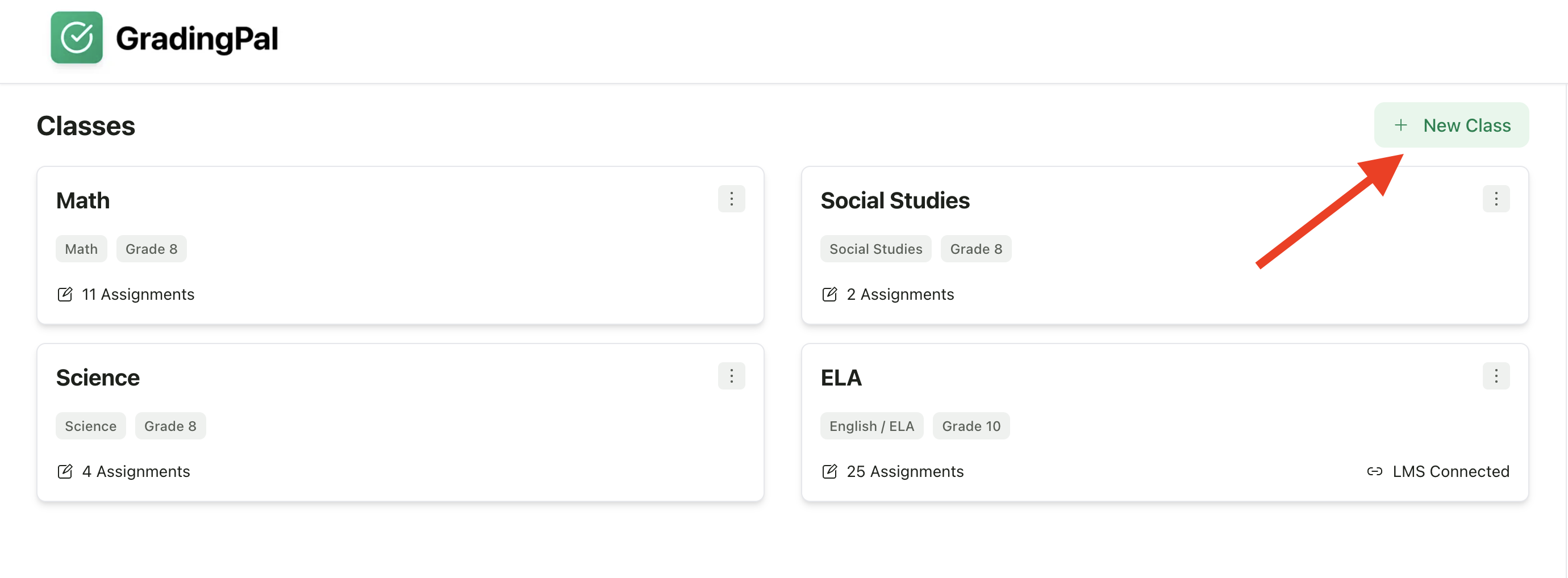
From your teacher dashboard, click the **New Class** button.
 ### Step 2: Choose "Create Class Manually"
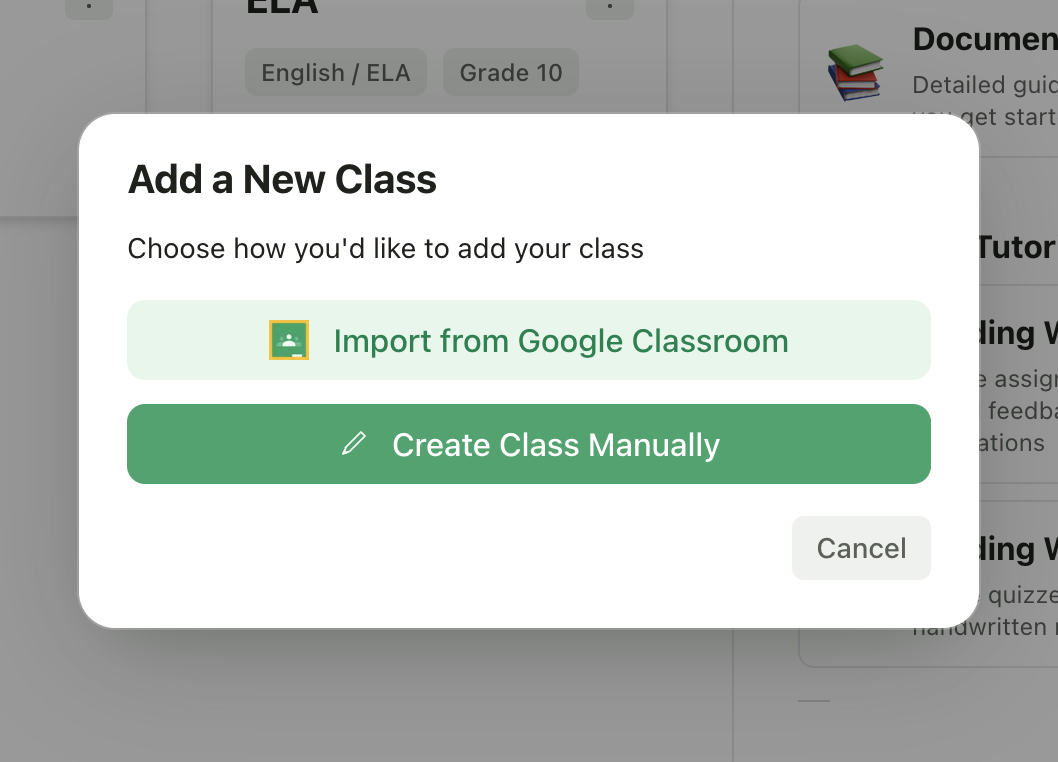
You'll see two options:
* **Import from Google Classroom** - Sync an existing class
* **Create Class Manually** - Set up a new class from scratch
Click **Create Class Manually**.
### Step 2: Choose "Create Class Manually"
You'll see two options:
* **Import from Google Classroom** - Sync an existing class
* **Create Class Manually** - Set up a new class from scratch
Click **Create Class Manually**.
 ### Step 3: Fill in Class Details
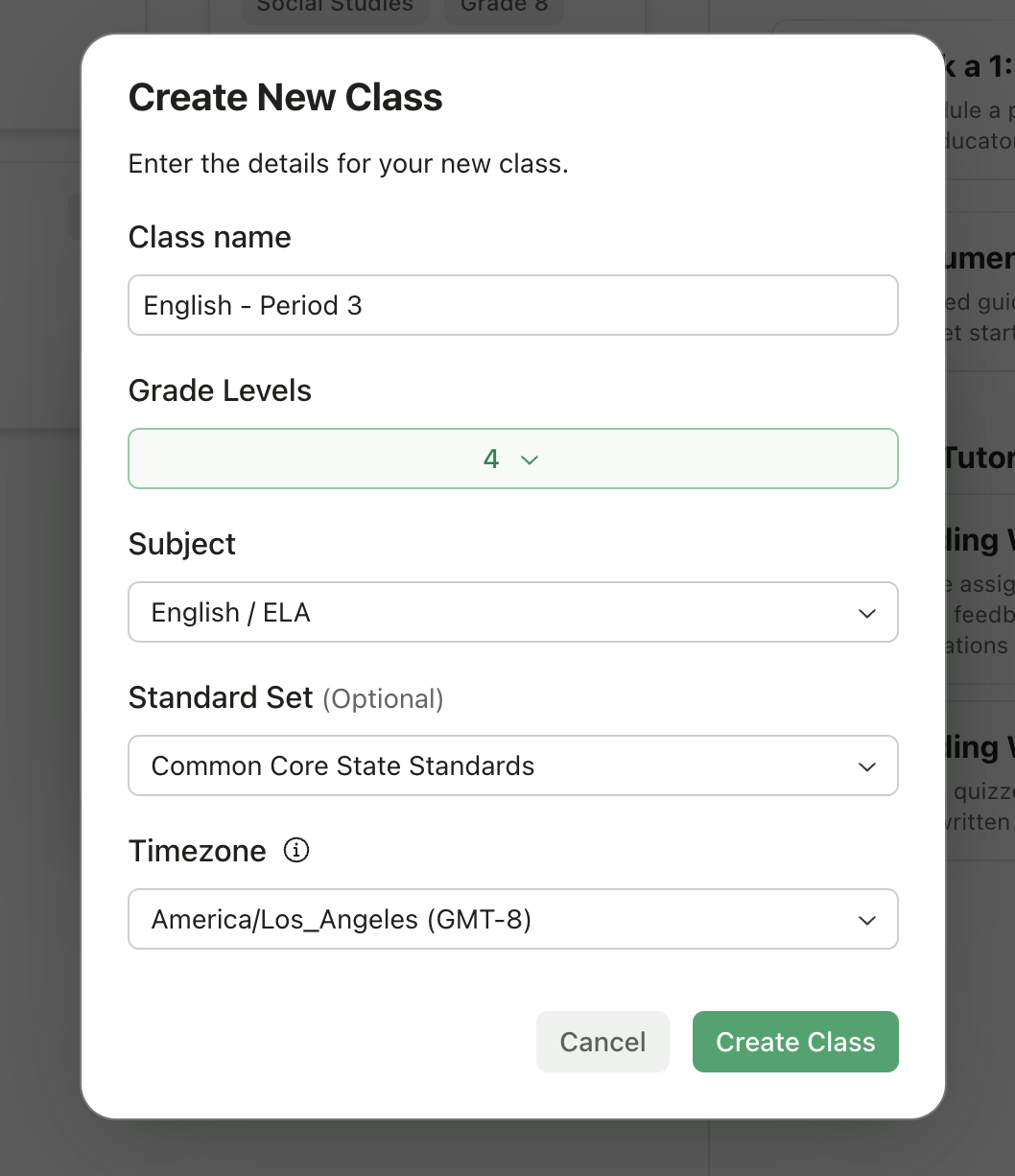
Enter the following information:
| Field | Required | Description |
| ---------------- | -------- | ---------------------------------------------------------------------------------- |
| **Class Name** | Yes | A descriptive name for your class (e.g., "US History - Period 2", "AP English 11") |
| **Grade Levels** | Yes | Select one or more grade levels (K–12, College, Adult) |
| **Subject** | Yes | Choose the primary subject area |
| **Standard Set** | No | Optionally select a standards framework (e.g., Common Core, state standards) |
| **Timezone** | Yes | Defaults to your profile timezone; used for assignment due dates |
### Step 3: Fill in Class Details
Enter the following information:
| Field | Required | Description |
| ---------------- | -------- | ---------------------------------------------------------------------------------- |
| **Class Name** | Yes | A descriptive name for your class (e.g., "US History - Period 2", "AP English 11") |
| **Grade Levels** | Yes | Select one or more grade levels (K–12, College, Adult) |
| **Subject** | Yes | Choose the primary subject area |
| **Standard Set** | No | Optionally select a standards framework (e.g., Common Core, state standards) |
| **Timezone** | Yes | Defaults to your profile timezone; used for assignment due dates |
 ### Step 4: Create the Class
Click **Create Class**. Your new class will appear on your dashboard, ready for you to add students and create assignments.
***
## After Creating Your Class
Once your class is created, you'll want to:
[Enroll students](/teacher/classes-and-students/enroll-students) via class code, invite link, email, or CSV import.
[Select an assignment type](/teacher/grade-your-assignment/select-assignment-type) and set up your rubric.
[Create folders](/teacher/classes-and-students/organize-assignments-folders) to organize assignments by unit, quarter, or type.
***
## Tips
Include the period or section in your class name to easily distinguish between multiple sections of the same course (e.g., "Biology - Period 3" vs "Biology - Period 5").
You can select multiple grades if your class spans grade levels.
Setting a standard framework helps GradingPal align feedback with relevant standards when grading.
***
## Related Articles
* [Enroll Students](/teacher/classes-and-students/enroll-students)
* [Class Settings](/teacher/classes-and-students/class-settings)
* [Organize Assignments with Folders](/teacher/classes-and-students/organize-assignments-folders)
* [Google Classroom Integration](/teacher/lms-integrations/google-classroom)
### Step 4: Create the Class
Click **Create Class**. Your new class will appear on your dashboard, ready for you to add students and create assignments.
***
## After Creating Your Class
Once your class is created, you'll want to:
[Enroll students](/teacher/classes-and-students/enroll-students) via class code, invite link, email, or CSV import.
[Select an assignment type](/teacher/grade-your-assignment/select-assignment-type) and set up your rubric.
[Create folders](/teacher/classes-and-students/organize-assignments-folders) to organize assignments by unit, quarter, or type.
***
## Tips
Include the period or section in your class name to easily distinguish between multiple sections of the same course (e.g., "Biology - Period 3" vs "Biology - Period 5").
You can select multiple grades if your class spans grade levels.
Setting a standard framework helps GradingPal align feedback with relevant standards when grading.
***
## Related Articles
* [Enroll Students](/teacher/classes-and-students/enroll-students)
* [Class Settings](/teacher/classes-and-students/class-settings)
* [Organize Assignments with Folders](/teacher/classes-and-students/organize-assignments-folders)
* [Google Classroom Integration](/teacher/lms-integrations/google-classroom)