> ## Documentation Index
> Fetch the complete documentation index at: https://docs.gradingpal.com/llms.txt
> Use this file to discover all available pages before exploring further.
# Organize Assignments Using Folders
> Group assignments by unit, quarter, or type with folders
Folders help you organize assignments within a class—group them by unit, quarter, assignment type, or any system that works for you.
***
## Creating a Folder
Open your class from the dashboard
Click **New folder** in the assignments header
Enter a folder name (e.g., "Unit 1: Civil War", "Quarter 1", "Essays")
Click **Create folder**
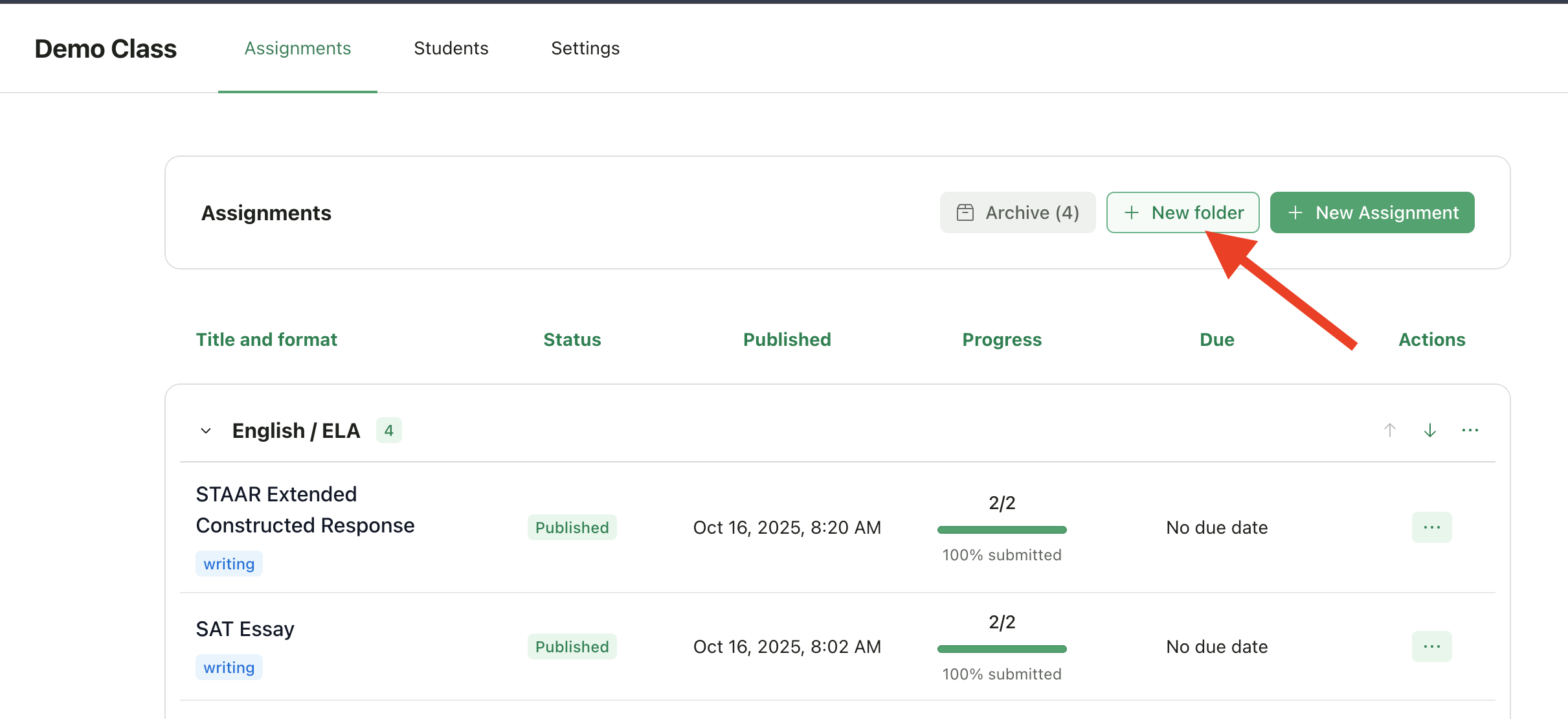
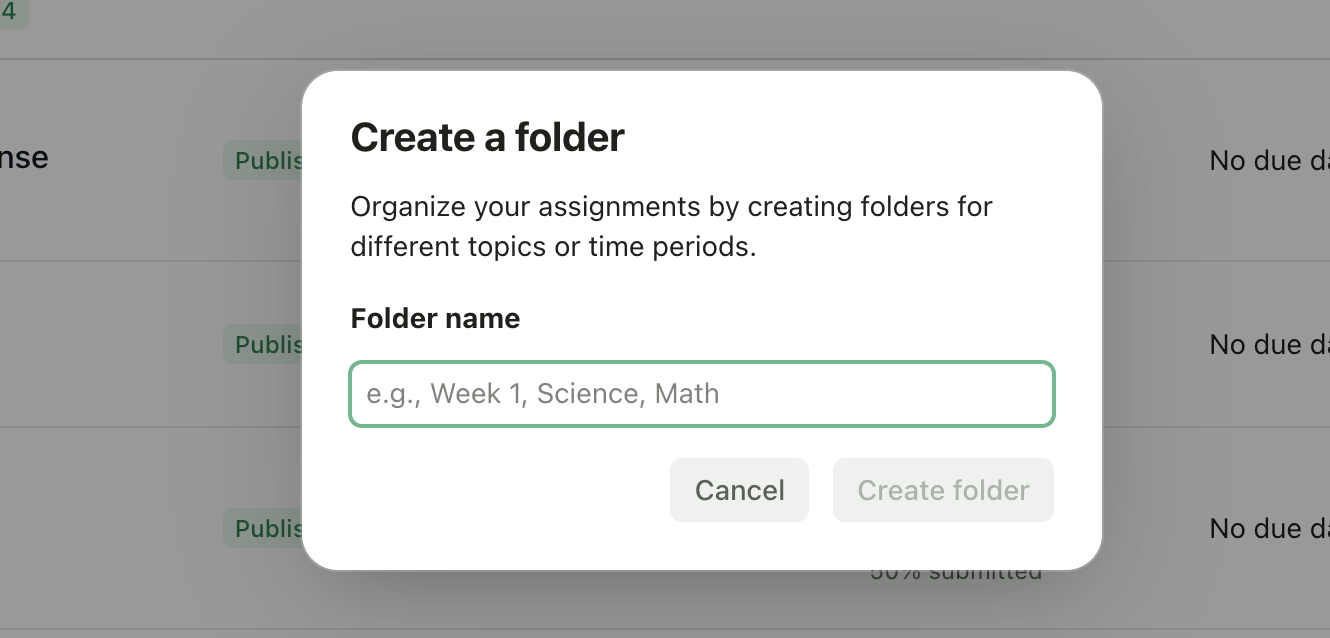 Your new folder will appear in the assignments list, ready for you to add assignments.
***
## Moving Assignments to a Folder
You can move any assignment into a folder:
Find the assignment you want to move
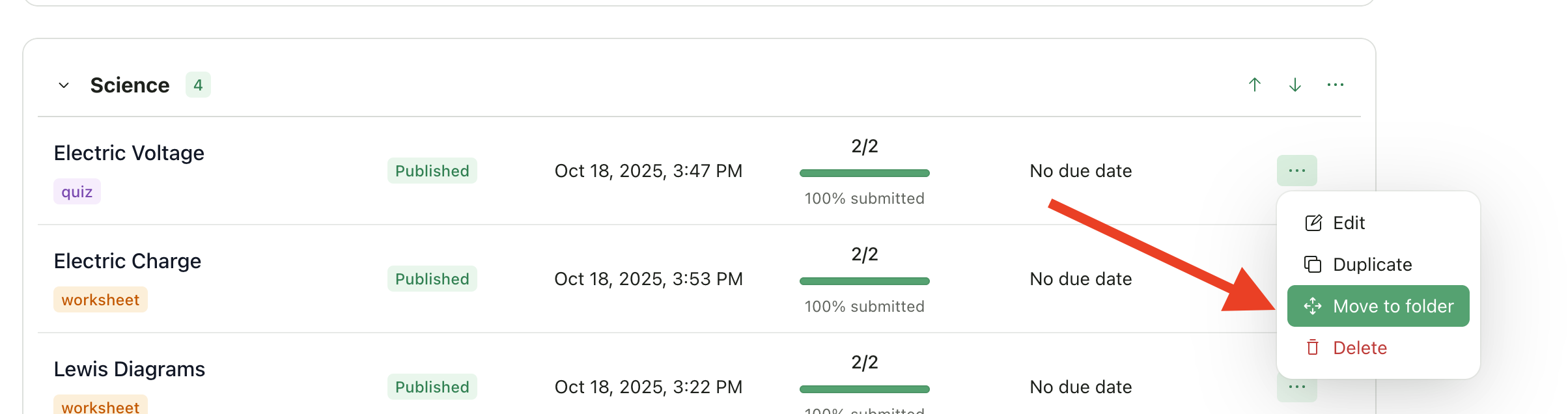
Click the **actions menu** (three dots) on the assignment row
Select **Move to folder**
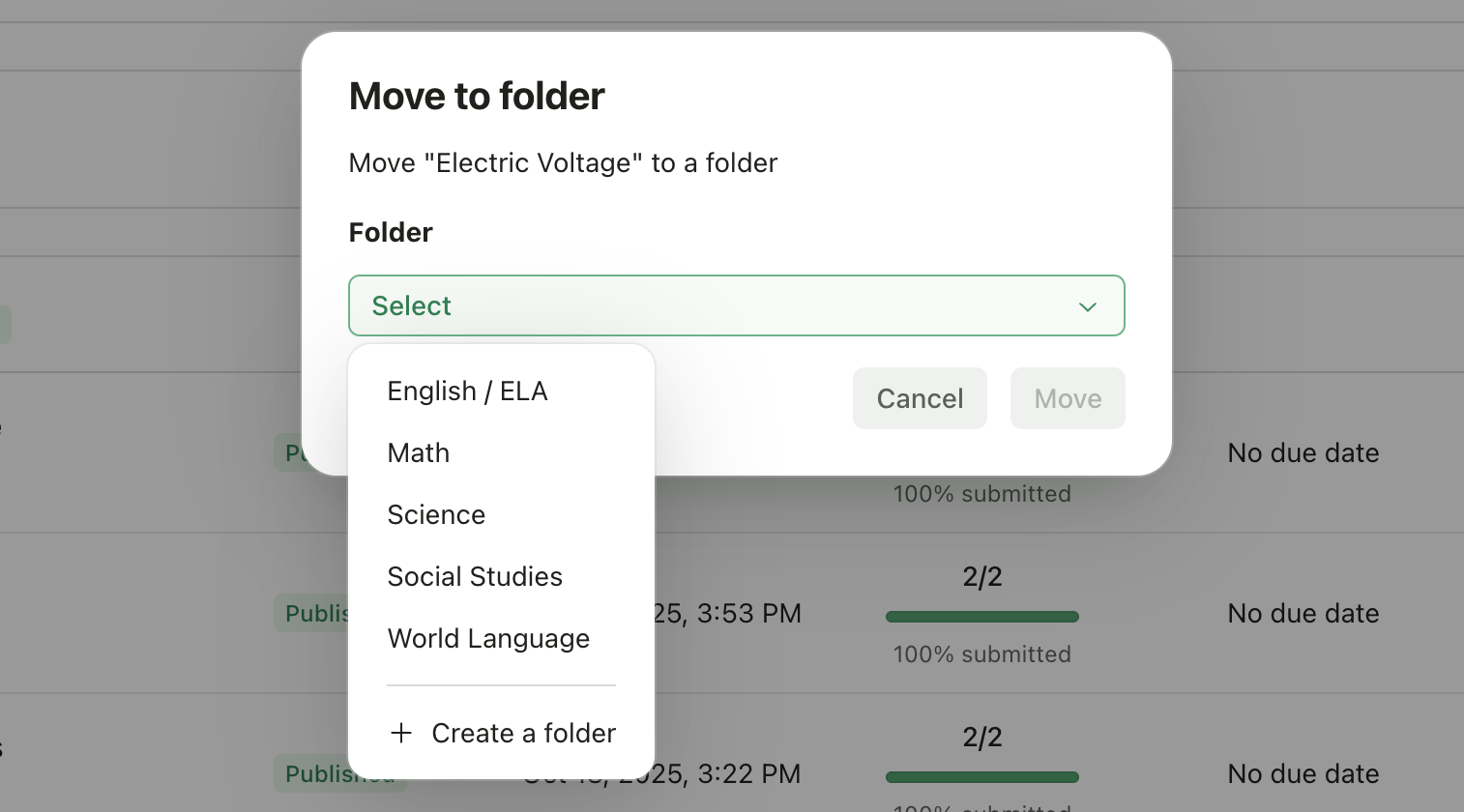
Choose the destination folder (or "Unassigned" to remove from a folder)
Your new folder will appear in the assignments list, ready for you to add assignments.
***
## Moving Assignments to a Folder
You can move any assignment into a folder:
Find the assignment you want to move
Click the **actions menu** (three dots) on the assignment row
Select **Move to folder**
Choose the destination folder (or "Unassigned" to remove from a folder)
 ***
## Managing Folders
### Rename a Folder
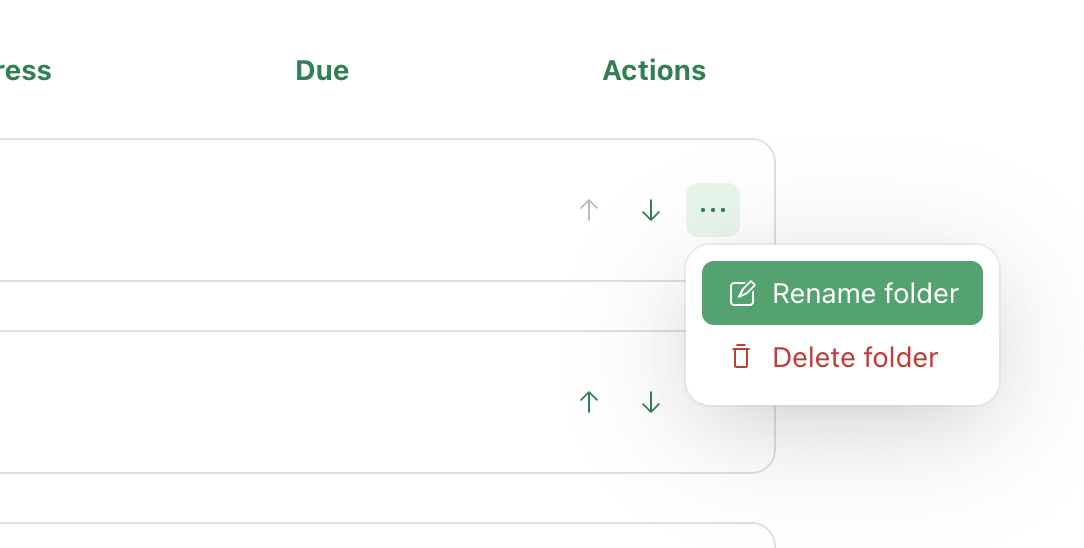
1. Click the **actions menu** (three dots) on the folder header
2. Select **Rename folder**
3. Enter the new name
4. Click **Rename**
***
## Managing Folders
### Rename a Folder
1. Click the **actions menu** (three dots) on the folder header
2. Select **Rename folder**
3. Enter the new name
4. Click **Rename**
 ### Reorder Folders
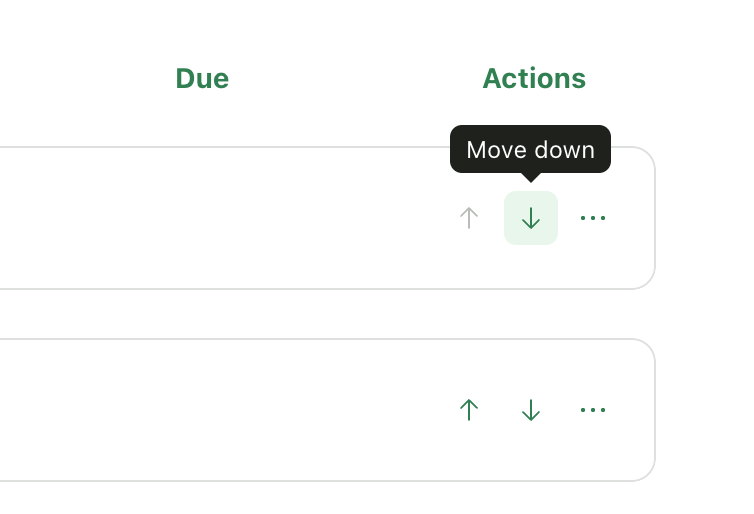
Use the **up** and **down arrows** on the folder header to change the folder order.
### Reorder Folders
Use the **up** and **down arrows** on the folder header to change the folder order.
 ### Delete a Folder
1. Click the **actions menu** (three dots) on the folder header
2. Select **Delete folder**
When you delete a folder, the assignments inside are **not deleted**—they move to the "Unassigned" section.
***
## Viewing Assignments
### Expand and Collapse Folders
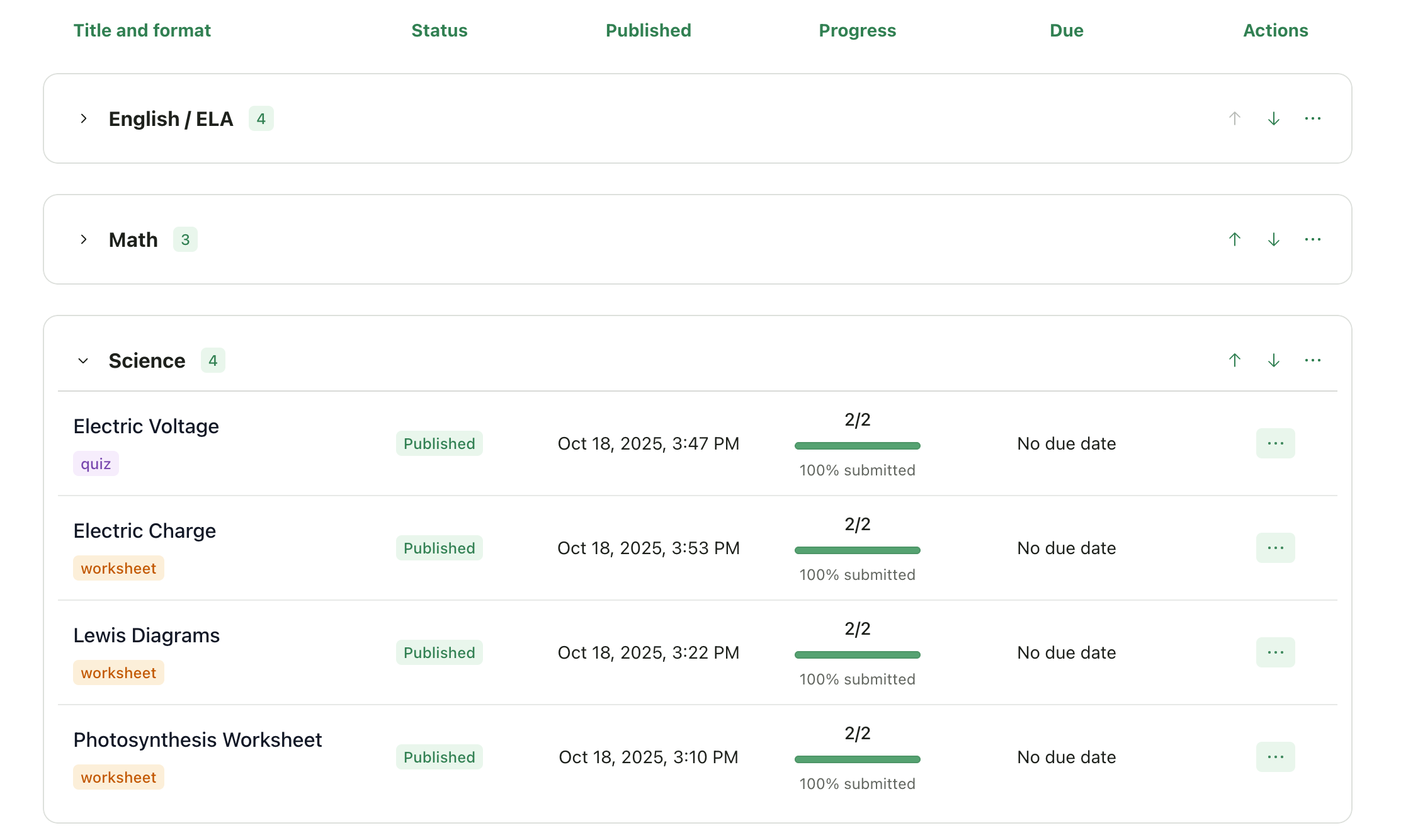
Click on a folder header to expand or collapse it. This helps you focus on specific units or hide completed work.
### Delete a Folder
1. Click the **actions menu** (three dots) on the folder header
2. Select **Delete folder**
When you delete a folder, the assignments inside are **not deleted**—they move to the "Unassigned" section.
***
## Viewing Assignments
### Expand and Collapse Folders
Click on a folder header to expand or collapse it. This helps you focus on specific units or hide completed work.
 ### Unassigned Assignments
Assignments not in any folder appear in the **Unassigned** section at the bottom. You can move them into folders at any time.
***
## Folder Organization Tips
| Organization Style | Example Folders |
| ------------------ | ------------------------------------------------------------------- |
| **By Unit** | "Unit 1: Foundations", "Unit 2: Revolution", "Unit 3: Constitution" |
| **By Quarter** | "Q1", "Q2", "Q3", "Q4" |
| **By Type** | "Essays", "Quizzes", "Projects", "Homework" |
| **By Status** | "In Progress", "Grading Complete", "Returned" |
Choose whatever system helps you stay organized. You can always rename or reorganize folders later.
***
## Related Articles
* [Create a New Class](/teacher/classes-and-students/create-a-new-class)
* [Select Assignment Type](/teacher/grade-your-assignment/select-assignment-type)
* [Assignment Settings](/teacher/assignment-management/assignment-settings)
### Unassigned Assignments
Assignments not in any folder appear in the **Unassigned** section at the bottom. You can move them into folders at any time.
***
## Folder Organization Tips
| Organization Style | Example Folders |
| ------------------ | ------------------------------------------------------------------- |
| **By Unit** | "Unit 1: Foundations", "Unit 2: Revolution", "Unit 3: Constitution" |
| **By Quarter** | "Q1", "Q2", "Q3", "Q4" |
| **By Type** | "Essays", "Quizzes", "Projects", "Homework" |
| **By Status** | "In Progress", "Grading Complete", "Returned" |
Choose whatever system helps you stay organized. You can always rename or reorganize folders later.
***
## Related Articles
* [Create a New Class](/teacher/classes-and-students/create-a-new-class)
* [Select Assignment Type](/teacher/grade-your-assignment/select-assignment-type)
* [Assignment Settings](/teacher/assignment-management/assignment-settings)