> ## Documentation Index
> Fetch the complete documentation index at: https://docs.gradingpal.com/llms.txt
> Use this file to discover all available pages before exploring further.
# Set Up Structured Assignments
> Configure Exams, Problem Sets, Quizzes, and Worksheets with automatic question extraction
This guide covers setup for **Exams**, **Problem Sets**, **Quizzes**, and **Worksheets**.
These assignment types use AI to automatically extract questions from your document and generate rubrics for each question—saving you significant setup time.
***
## How It Works
The exam, quiz, or worksheet document
Each question is identified and categorized
Confirm the questions were extracted correctly
AI generates scoring criteria for each question
Grade student work against the auto-generated rubrics
***
## Step 1: Setup
After selecting your assignment type, you'll provide basic details and upload your document.
### Enter Assignment Title
Give your assignment a descriptive name (e.g., "Unit 3 Quiz - Fractions", "Midterm Exam").
### Upload Your Assignment PDF
Upload the document that contains your questions.
Click **Upload File**
Select your PDF from your device
Wait for the upload to complete
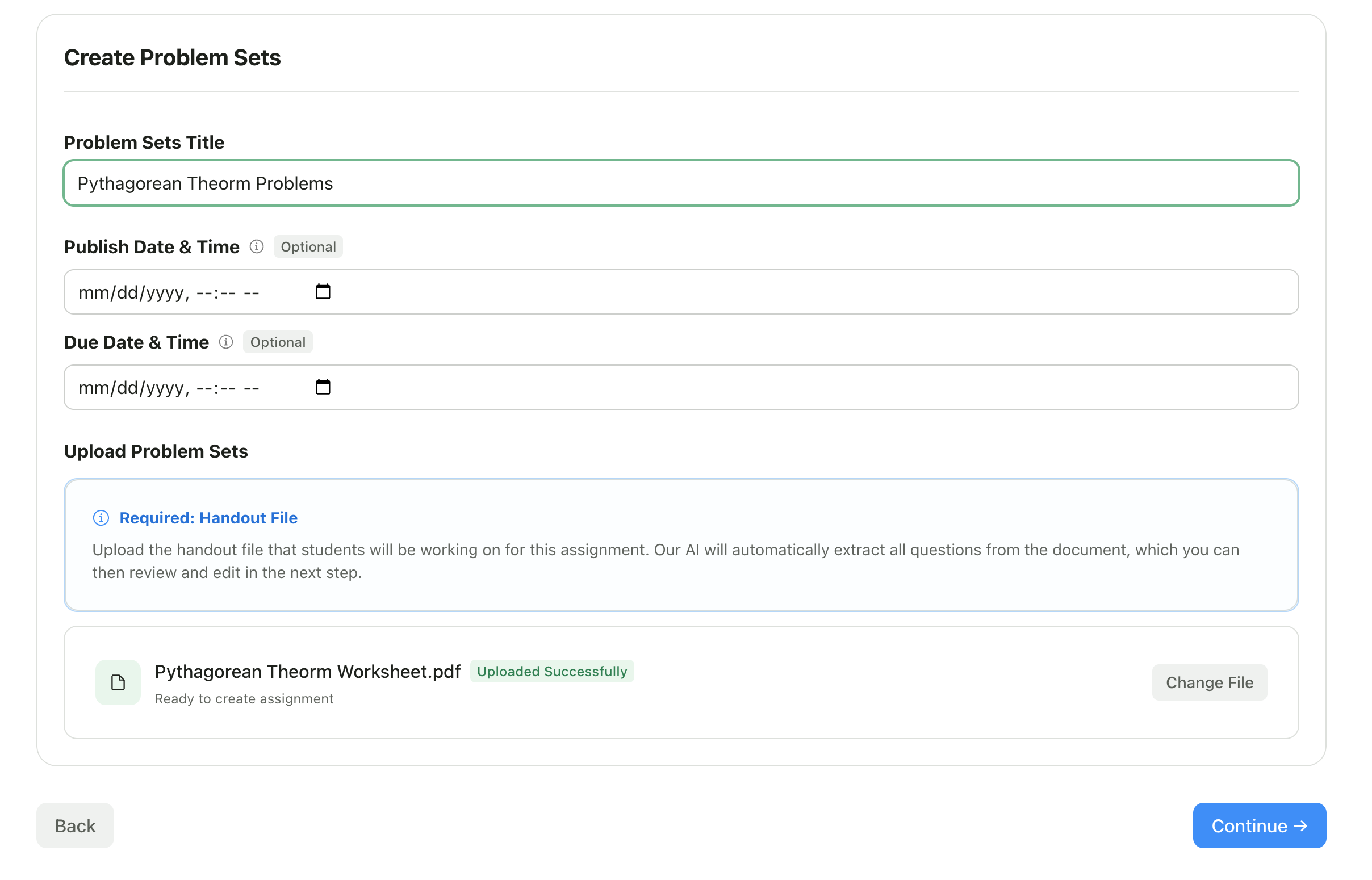 **Supported formats:** PDF is recommended for best results. The AI reads and extracts questions from your document.
**Tips for best results:**
* Use clear, readable fonts
* Ensure questions are numbered or clearly separated
* Include point values if you want them preserved
* Typed documents work better than handwritten
### Set Dates (Optional)
| Field | Description |
| ---------------- | ------------------------------------ |
| **Publish Date** | When students can see the assignment |
| **Due Date** | Submission deadline |
Click **Next** to begin AI processing.
***
## Step 2: Processing
The AI analyzes your document and extracts questions. This step is automatic—just wait for it to complete.
**Supported formats:** PDF is recommended for best results. The AI reads and extracts questions from your document.
**Tips for best results:**
* Use clear, readable fonts
* Ensure questions are numbered or clearly separated
* Include point values if you want them preserved
* Typed documents work better than handwritten
### Set Dates (Optional)
| Field | Description |
| ---------------- | ------------------------------------ |
| **Publish Date** | When students can see the assignment |
| **Due Date** | Submission deadline |
Click **Next** to begin AI processing.
***
## Step 2: Processing
The AI analyzes your document and extracts questions. This step is automatic—just wait for it to complete.
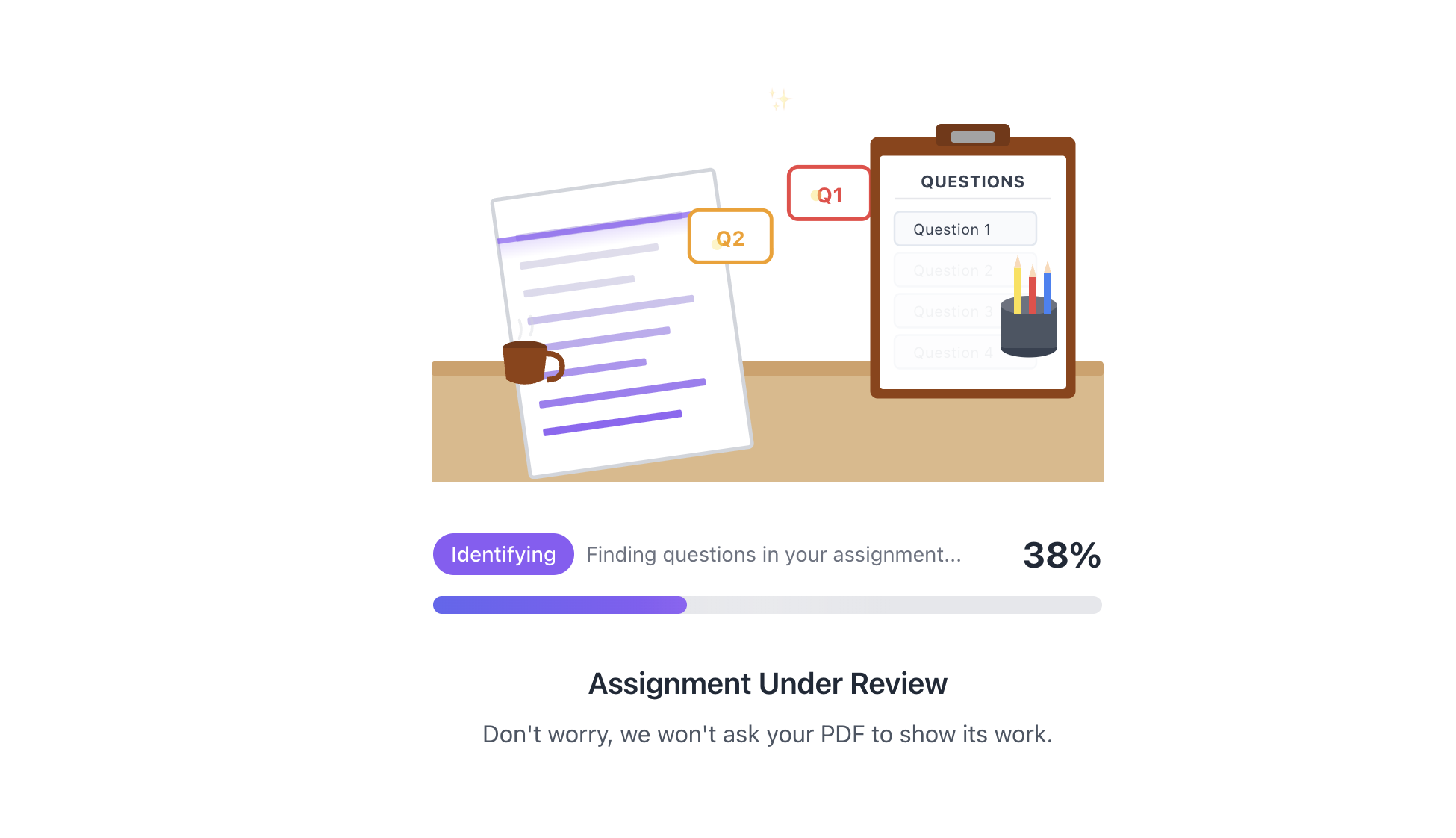 **What's happening:**
* Document text is extracted
* Questions are identified and numbered
* Question types are detected (multiple choice, short answer, etc.)
* Point values are extracted if present
Processing typically takes 30 seconds to 2 minutes depending on document length.
***
## Step 3: Review Outline
See the questions the AI extracted from your document. This is your chance to verify everything was captured correctly.
**What's happening:**
* Document text is extracted
* Questions are identified and numbered
* Question types are detected (multiple choice, short answer, etc.)
* Point values are extracted if present
Processing typically takes 30 seconds to 2 minutes depending on document length.
***
## Step 3: Review Outline
See the questions the AI extracted from your document. This is your chance to verify everything was captured correctly.
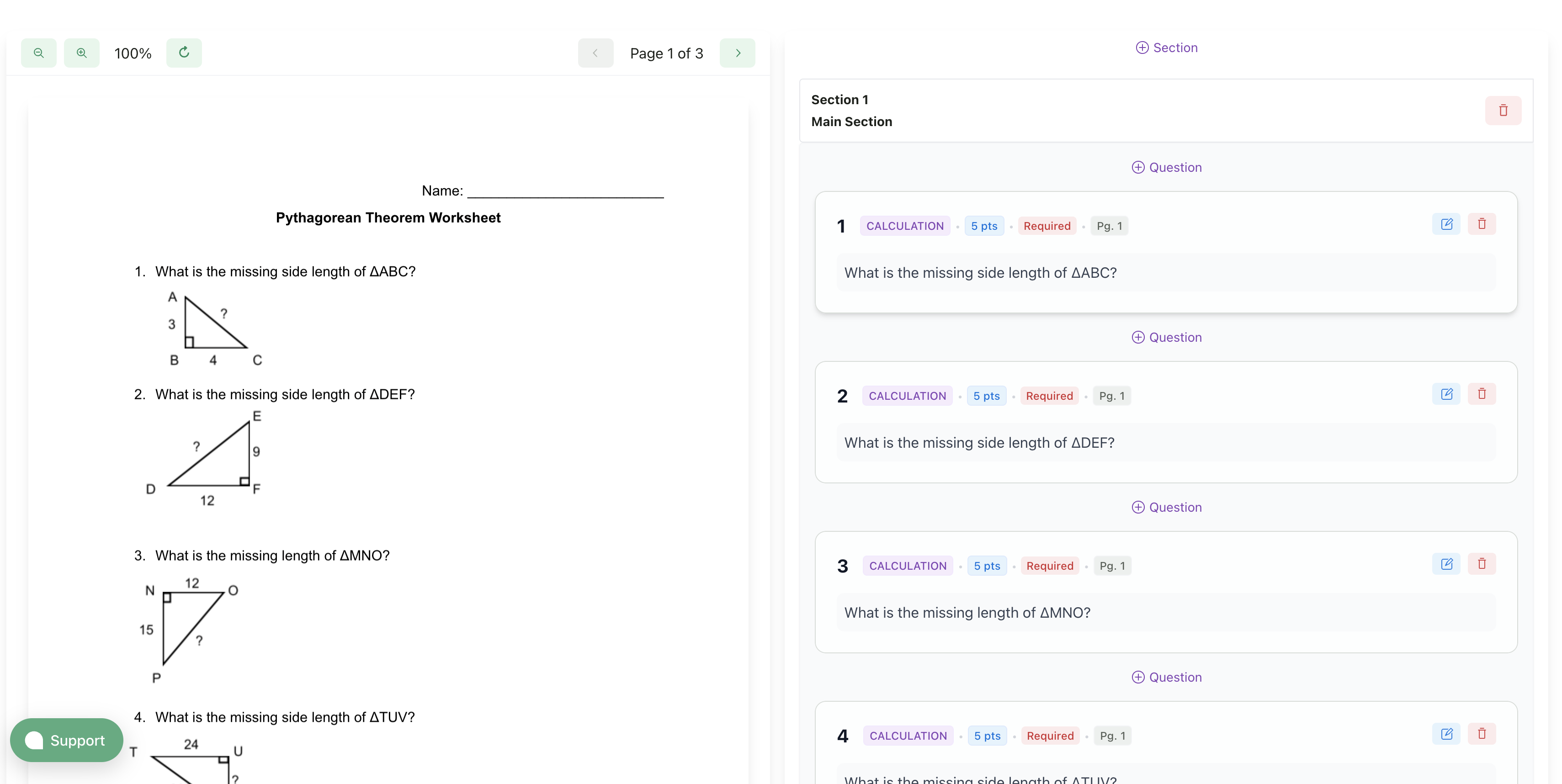 ### Review Each Question
For each question, verify:
* The question text is complete and accurate
* The question number matches your document
* The question type is correct
### Edit Questions
Click on any question to edit:
* Fix text that wasn't extracted correctly
* Adjust question numbers
* Change question types
### Remove Incorrect Questions
If the AI identified something that isn't actually a question:
1. Click the menu (three dots) on that question
2. Select **Remove**
### Add Missing Questions
If a question was missed:
1. Click **Add Question**
2. Enter the question details manually
Click **Next** when the outline looks correct.
***
## Step 4: Approve Rubrics
The AI generates a rubric for each question based on:
* Question type (multiple choice, short answer, etc.)
* Expected answer format
* Point values from your document
### Review Each Question
For each question, verify:
* The question text is complete and accurate
* The question number matches your document
* The question type is correct
### Edit Questions
Click on any question to edit:
* Fix text that wasn't extracted correctly
* Adjust question numbers
* Change question types
### Remove Incorrect Questions
If the AI identified something that isn't actually a question:
1. Click the menu (three dots) on that question
2. Select **Remove**
### Add Missing Questions
If a question was missed:
1. Click **Add Question**
2. Enter the question details manually
Click **Next** when the outline looks correct.
***
## Step 4: Approve Rubrics
The AI generates a rubric for each question based on:
* Question type (multiple choice, short answer, etc.)
* Expected answer format
* Point values from your document
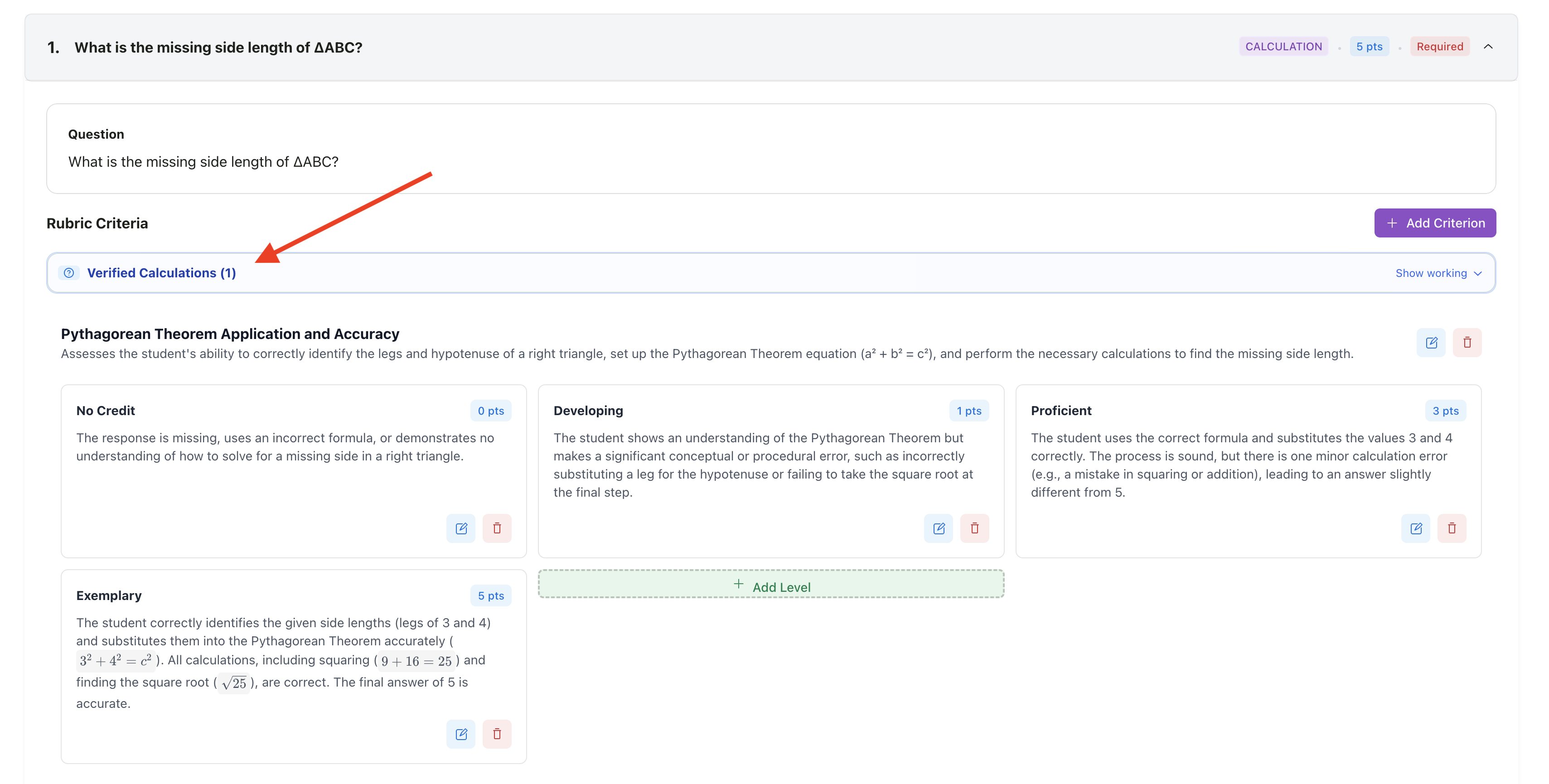
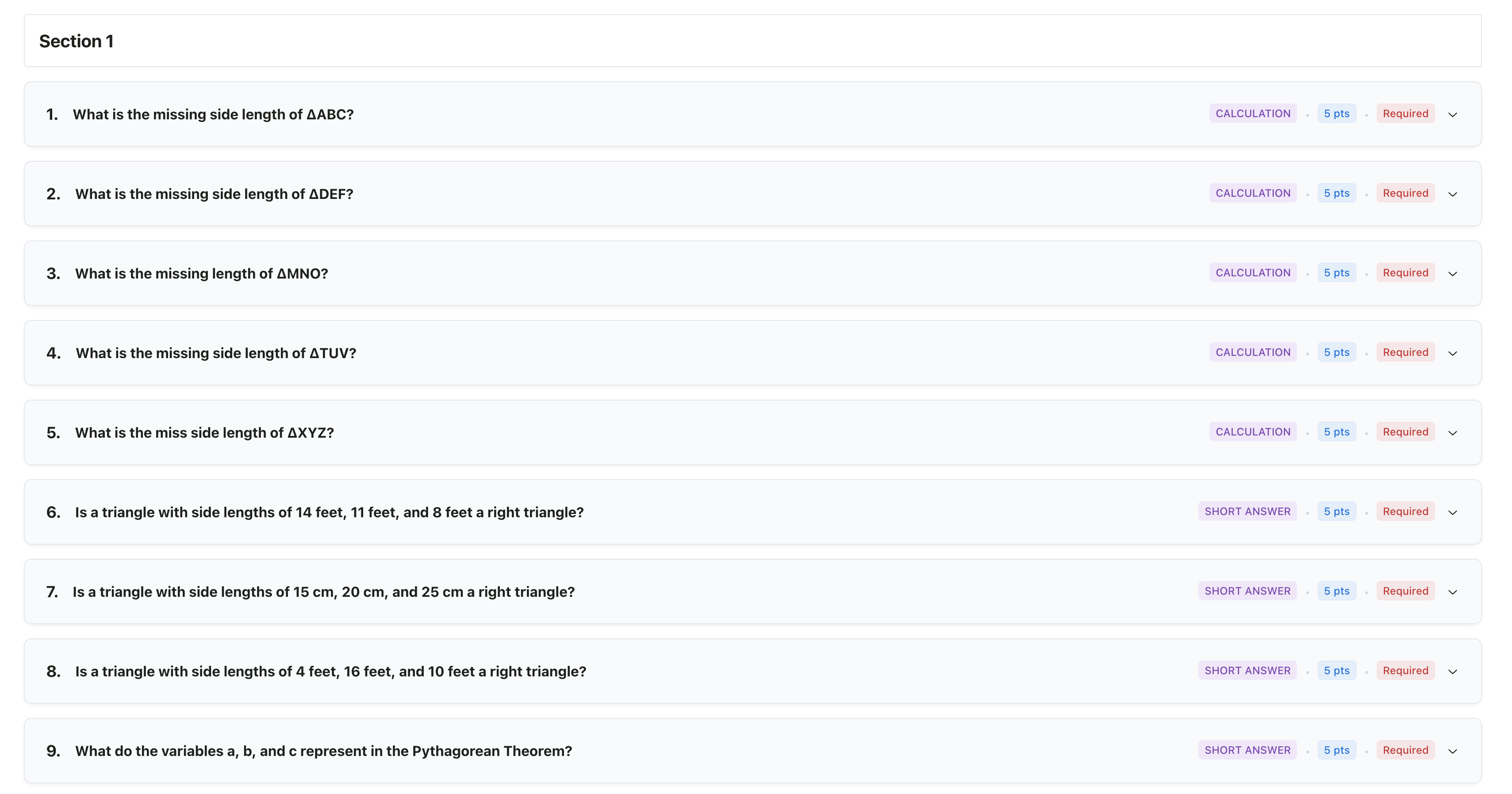 ### Review Each Rubric
For each question, you'll see:
* **Criteria** - What's being evaluated
* **Levels** - Scoring options (e.g., Full Credit, Partial Credit, No Credit)
* **Points** - Point values for each level
### Edit Rubrics
Click on any rubric to modify:
* Adjust point values
* Edit level descriptions
* Add or remove scoring levels
* Verify answer keys or acceptable responses
**For math and calculation-based questions:** When the AI generates rubrics for problems involving calculations, it shows its work in the **Verified Calculations** panel. Always review these calculations to ensure the expected answers and partial credit breakdowns are correct before grading.
### Review Each Rubric
For each question, you'll see:
* **Criteria** - What's being evaluated
* **Levels** - Scoring options (e.g., Full Credit, Partial Credit, No Credit)
* **Points** - Point values for each level
### Edit Rubrics
Click on any rubric to modify:
* Adjust point values
* Edit level descriptions
* Add or remove scoring levels
* Verify answer keys or acceptable responses
**For math and calculation-based questions:** When the AI generates rubrics for problems involving calculations, it shows its work in the **Verified Calculations** panel. Always review these calculations to ensure the expected answers and partial credit breakdowns are correct before grading.
 ### Bulk Actions
For similar questions, you can:
* Copy rubric settings from one question to others
* Apply the same point structure across questions
Click **Next** when rubrics are approved.
***
## Step 5: Upload Submissions
Now you can upload student work to be graded against your rubrics.
Learn about uploading from your device, Google Drive, or Google Classroom
***
## Question Types
The AI recognizes various question types and generates appropriate rubrics:
| Type | Description | Rubric Style |
| --------------------- | --------------------------- | ----------------------------- |
| **Multiple Choice** | Select one correct answer | Correct/Incorrect |
| **Multiple Select** | Select all that apply | Points per correct selection |
| **True/False** | Binary choice | Correct/Incorrect |
| **Short Answer** | Brief text response | Criteria-based or exact match |
| **Extended Response** | Longer written answer | Multi-criteria rubric |
| **Fill in the Blank** | Complete the sentence | Exact or acceptable matches |
| **Matching** | Connect related items | Points per correct match |
| **Numerical** | Math or calculation answers | Correct answer with tolerance |
***
## Tips for Better Results
Numbered questions with consistent formatting extract more accurately.
If your document shows points per question, the AI will use them.
Catching extraction errors early saves time later.
Especially for short answer and numerical questions, adding the correct answer improves grading accuracy.
Make sure the AI's partial credit levels match your grading policy.
***
## Editing After Setup
Editing structured assignments after creation is not currently supported. If you need to make changes to questions or rubrics, you'll need to create a new assignment.
We're working on adding edit functionality for structured assignments in a future update. For now, we recommend reviewing your outline & rubrics carefully during setup before uploading submissions.
***
## Related Articles
* [Select Assignment Type](/teacher/grade-your-assignment/select-assignment-type)
* [Set Up Writing & Multi-Media Assignments](/teacher/grade-your-assignment/setup-writing-multimedia-assignments)
* [Upload Student Work](/teacher/grade-your-assignment/upload-student-work)
* [Review AI Scores & Feedback](/teacher/grades-and-feedback/review-ai-scores-feedback)
* [Grade Quizzes](/teacher/use-cases/grade-quizzes)
* [Grade Worksheets](/teacher/use-cases/grade-worksheets)
### Bulk Actions
For similar questions, you can:
* Copy rubric settings from one question to others
* Apply the same point structure across questions
Click **Next** when rubrics are approved.
***
## Step 5: Upload Submissions
Now you can upload student work to be graded against your rubrics.
Learn about uploading from your device, Google Drive, or Google Classroom
***
## Question Types
The AI recognizes various question types and generates appropriate rubrics:
| Type | Description | Rubric Style |
| --------------------- | --------------------------- | ----------------------------- |
| **Multiple Choice** | Select one correct answer | Correct/Incorrect |
| **Multiple Select** | Select all that apply | Points per correct selection |
| **True/False** | Binary choice | Correct/Incorrect |
| **Short Answer** | Brief text response | Criteria-based or exact match |
| **Extended Response** | Longer written answer | Multi-criteria rubric |
| **Fill in the Blank** | Complete the sentence | Exact or acceptable matches |
| **Matching** | Connect related items | Points per correct match |
| **Numerical** | Math or calculation answers | Correct answer with tolerance |
***
## Tips for Better Results
Numbered questions with consistent formatting extract more accurately.
If your document shows points per question, the AI will use them.
Catching extraction errors early saves time later.
Especially for short answer and numerical questions, adding the correct answer improves grading accuracy.
Make sure the AI's partial credit levels match your grading policy.
***
## Editing After Setup
Editing structured assignments after creation is not currently supported. If you need to make changes to questions or rubrics, you'll need to create a new assignment.
We're working on adding edit functionality for structured assignments in a future update. For now, we recommend reviewing your outline & rubrics carefully during setup before uploading submissions.
***
## Related Articles
* [Select Assignment Type](/teacher/grade-your-assignment/select-assignment-type)
* [Set Up Writing & Multi-Media Assignments](/teacher/grade-your-assignment/setup-writing-multimedia-assignments)
* [Upload Student Work](/teacher/grade-your-assignment/upload-student-work)
* [Review AI Scores & Feedback](/teacher/grades-and-feedback/review-ai-scores-feedback)
* [Grade Quizzes](/teacher/use-cases/grade-quizzes)
* [Grade Worksheets](/teacher/use-cases/grade-worksheets)