> ## Documentation Index
> Fetch the complete documentation index at: https://docs.gradingpal.com/llms.txt
> Use this file to discover all available pages before exploring further.
# Upload Student Work
> Multiple ways to get student submissions into GradingPal for grading
Once your assignment and rubric are set up, you can upload student submissions for grading. GradingPal offers multiple ways to get student work into the system.
***
## Accessing the Upload Options
You can upload submissions from two places:
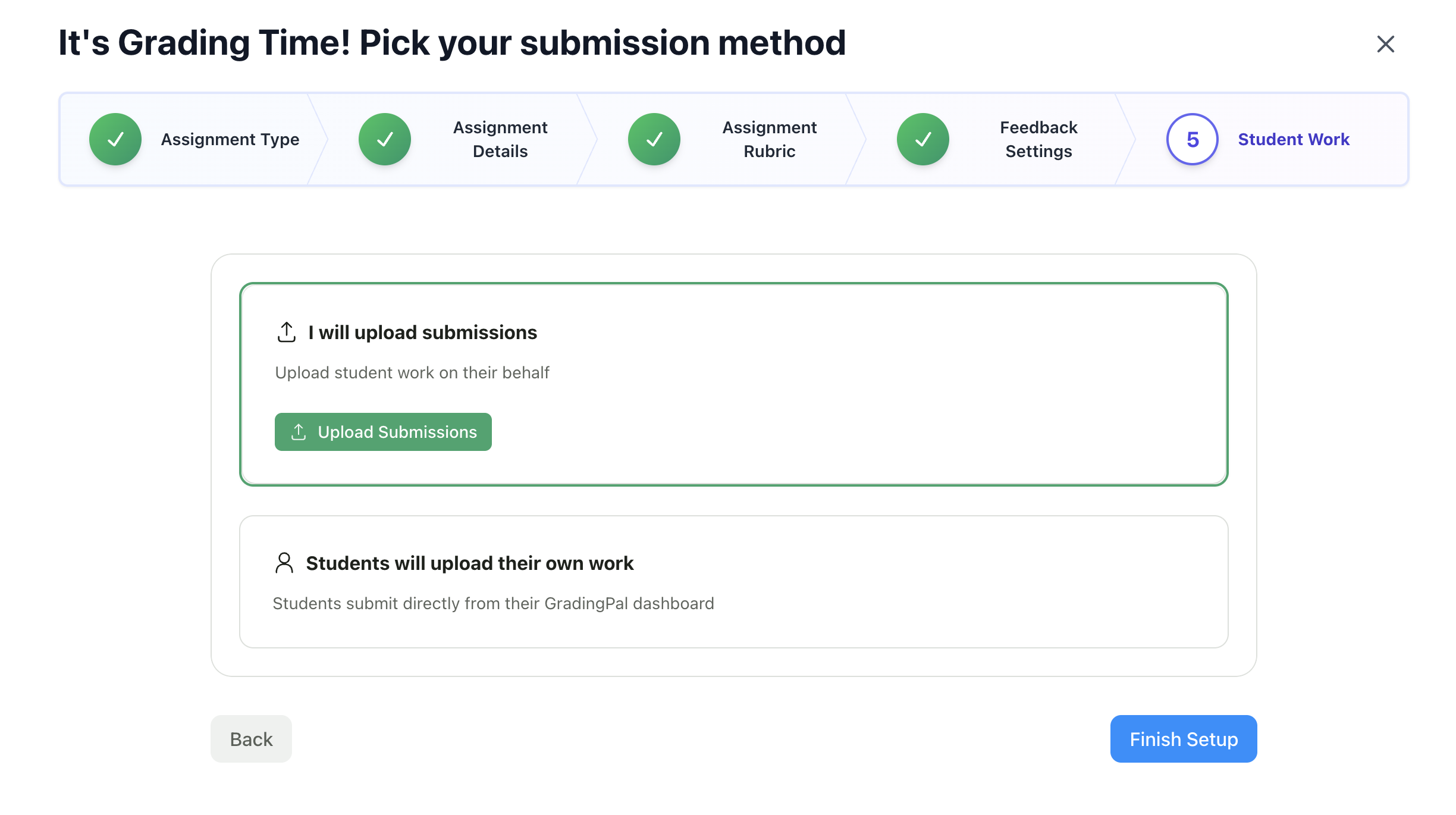
**During assignment setup:**
The final step of the assignment wizard lets you upload submissions immediately.
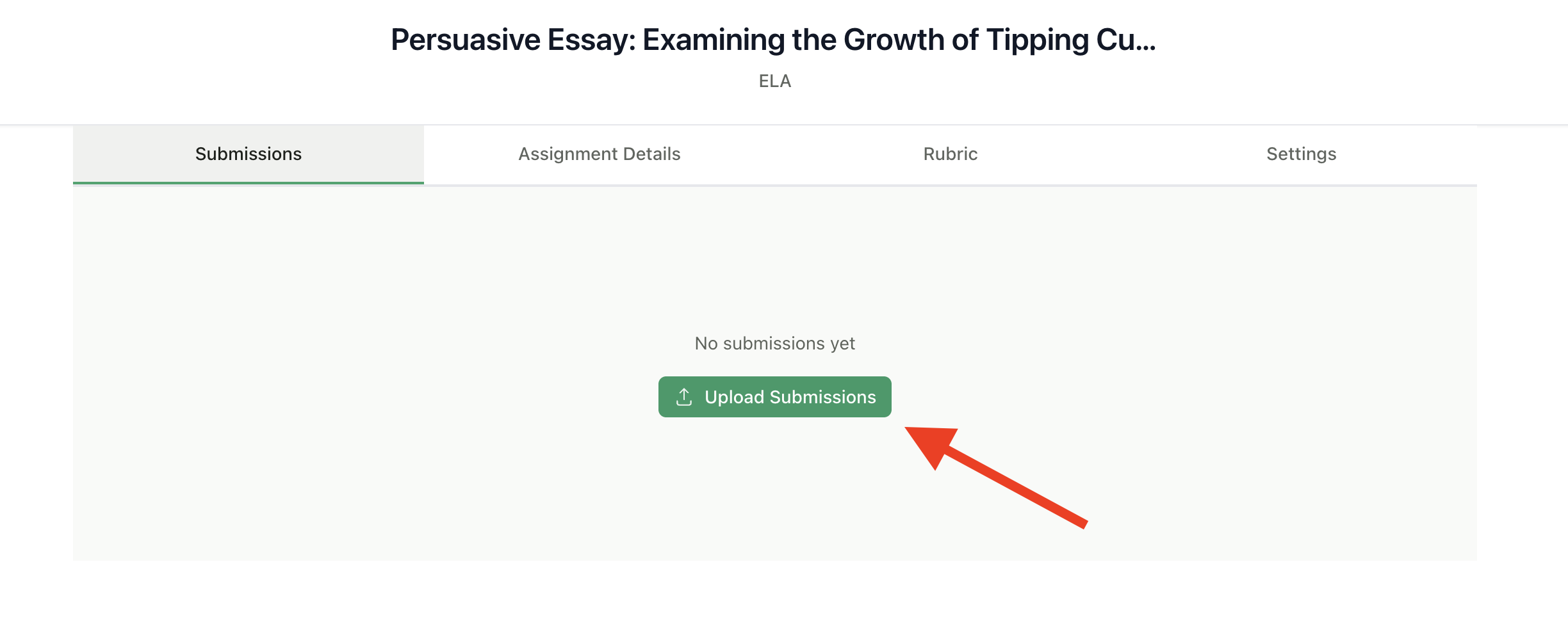
 **From the assignment page:**
Click **Upload Submissions** on any assignment to add more student work.
**From the assignment page:**
Click **Upload Submissions** on any assignment to add more student work.
 ***
## Upload Methods
### Option 1: Upload from Your Device
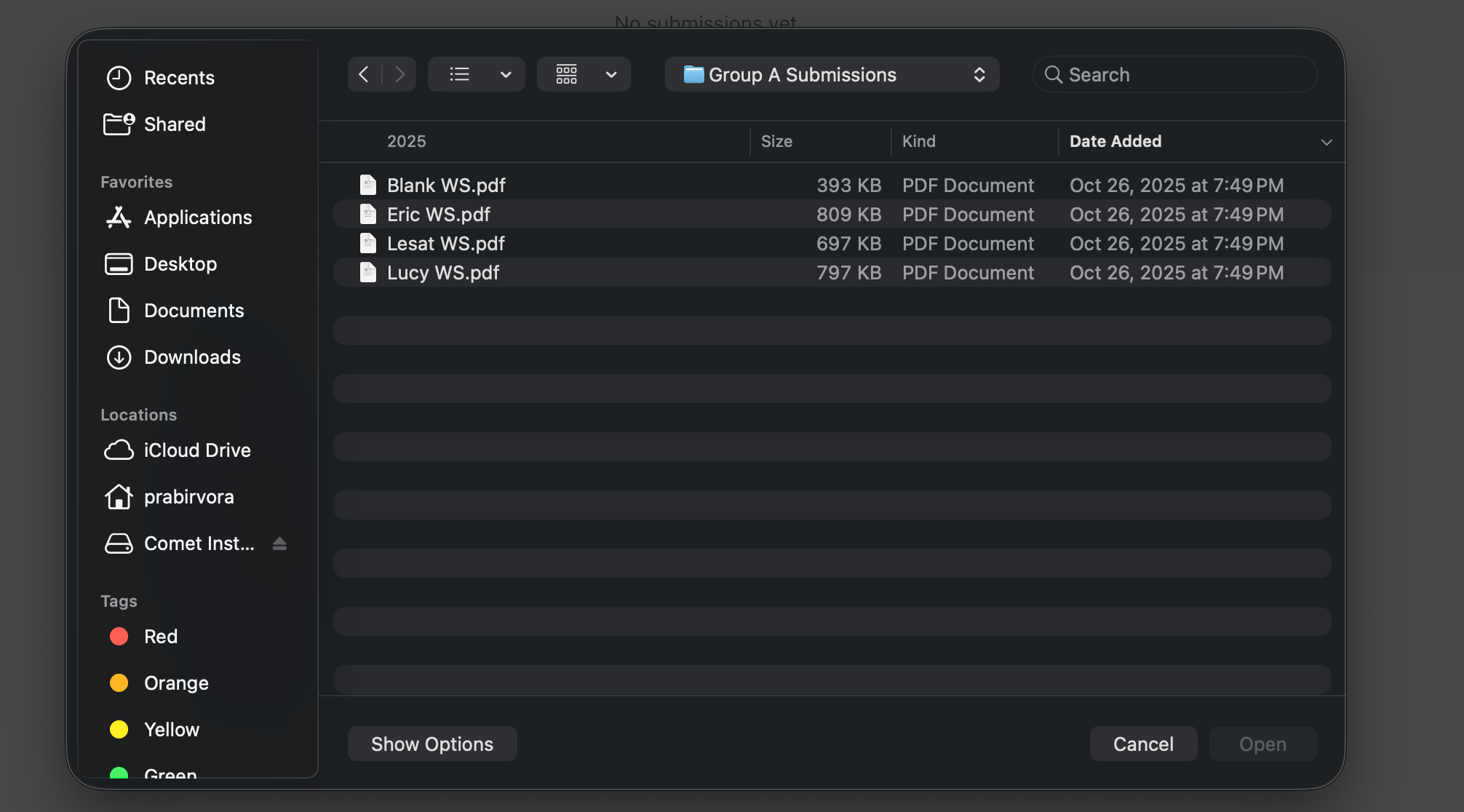
Upload files directly from your computer.
Click **Upload Submissions**
Select **Upload from Device**
Choose one or more files from your computer
Assign each file to a student (or let AI match by filename)
Click **Submit** to start grading
***
## Upload Methods
### Option 1: Upload from Your Device
Upload files directly from your computer.
Click **Upload Submissions**
Select **Upload from Device**
Choose one or more files from your computer
Assign each file to a student (or let AI match by filename)
Click **Submit** to start grading
 **Supported file types:**
| Category | Formats |
| --------- | ----------------------- |
| Documents | PDF, Word (.doc, .docx) |
| Images | JPG, PNG, HEIC |
| Video | MP4, MOV, WebM |
| Audio | MP3, WAV, M4A |
**Tips for device uploads:**
* Name files with student names for easier matching (e.g., "Jane\_Smith\_Essay.pdf")
* Upload multiple files at once by selecting them together
* Large video files may take longer to process
### Option 2: Upload from Google Drive
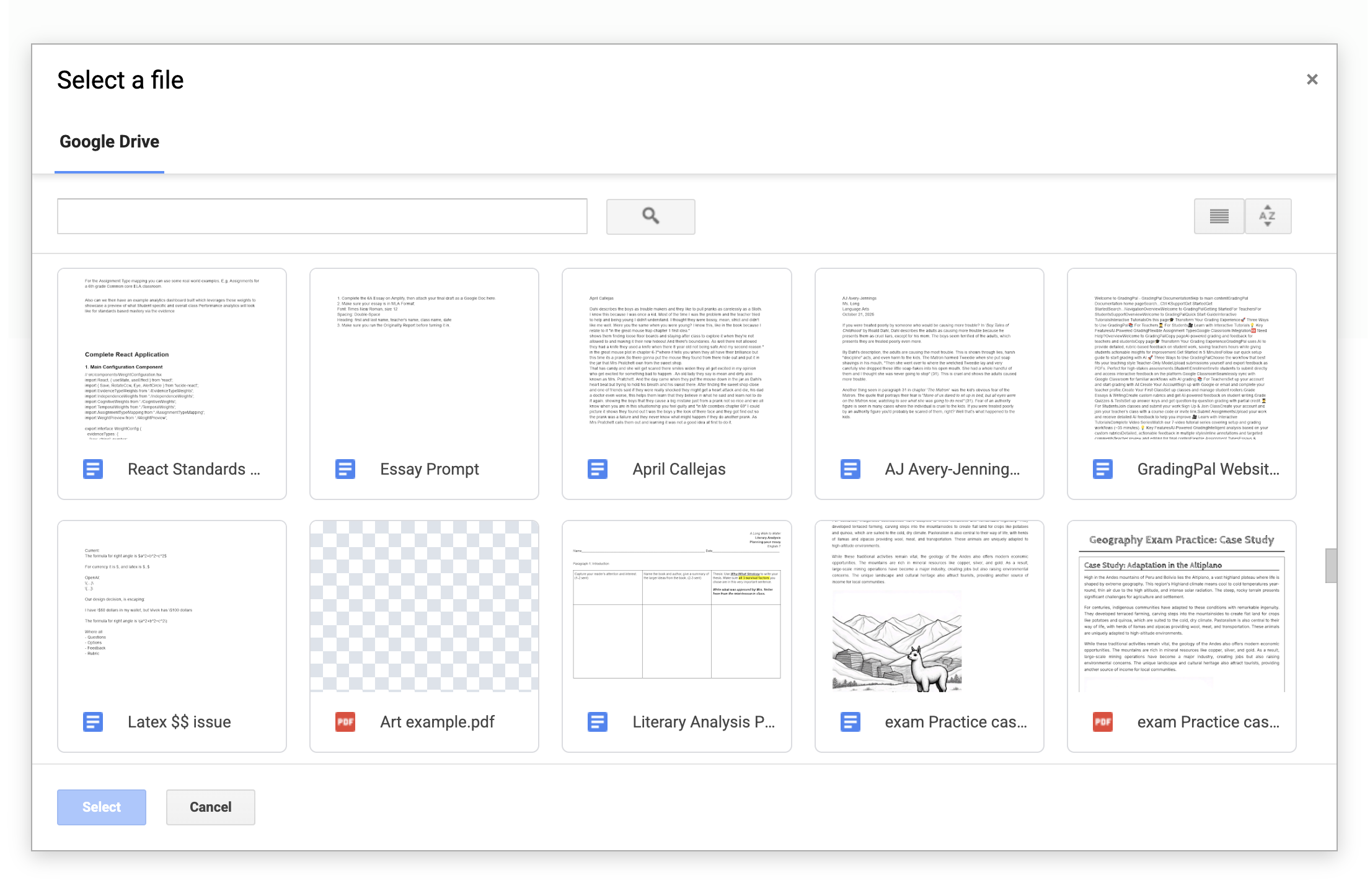
Select files directly from your Google Drive.
Click **Upload Submissions**
Select **Google Drive**
Sign in to Google if prompted
Browse or search for files
Select the files to upload
Assign to students and submit
**Supported file types:**
| Category | Formats |
| --------- | ----------------------- |
| Documents | PDF, Word (.doc, .docx) |
| Images | JPG, PNG, HEIC |
| Video | MP4, MOV, WebM |
| Audio | MP3, WAV, M4A |
**Tips for device uploads:**
* Name files with student names for easier matching (e.g., "Jane\_Smith\_Essay.pdf")
* Upload multiple files at once by selecting them together
* Large video files may take longer to process
### Option 2: Upload from Google Drive
Select files directly from your Google Drive.
Click **Upload Submissions**
Select **Google Drive**
Sign in to Google if prompted
Browse or search for files
Select the files to upload
Assign to students and submit
 **Benefits of Google Drive:**
* Access files already in the cloud
* No need to download then re-upload
* Works with Google Docs, Sheets, and Slides
### Option 3: Import from Google Classroom
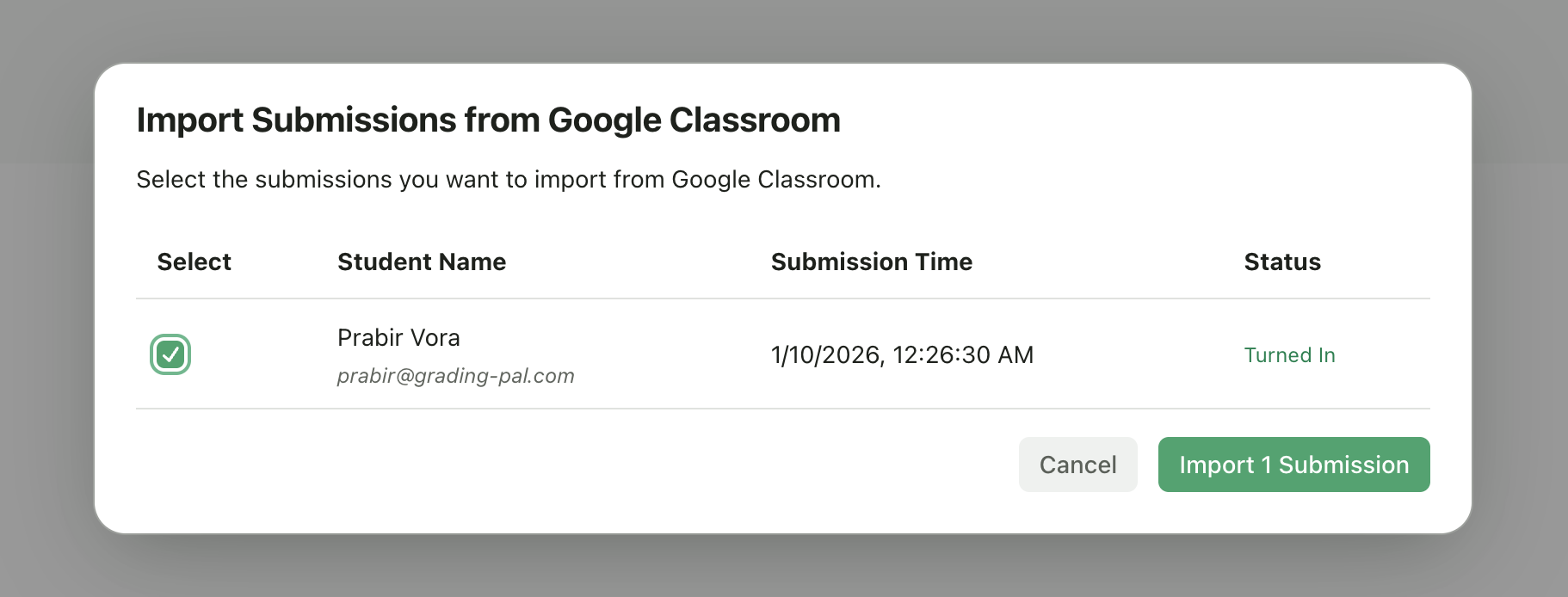
For Google Classroom-connected classes, pull in submissions that students have already turned in.
Click **Upload Submissions**
Select **Import from Google Classroom**
Review the list of student submissions
Click **Import** to bring them into GradingPal
**Benefits of Google Drive:**
* Access files already in the cloud
* No need to download then re-upload
* Works with Google Docs, Sheets, and Slides
### Option 3: Import from Google Classroom
For Google Classroom-connected classes, pull in submissions that students have already turned in.
Click **Upload Submissions**
Select **Import from Google Classroom**
Review the list of student submissions
Click **Import** to bring them into GradingPal
 This option appears when:
* Your class is connected to Google Classroom
* The assignment exists in Google Classroom
* Students have submitted work
Learn more about how submissions sync with Google Classroom
***
## Assigning Submissions to Students
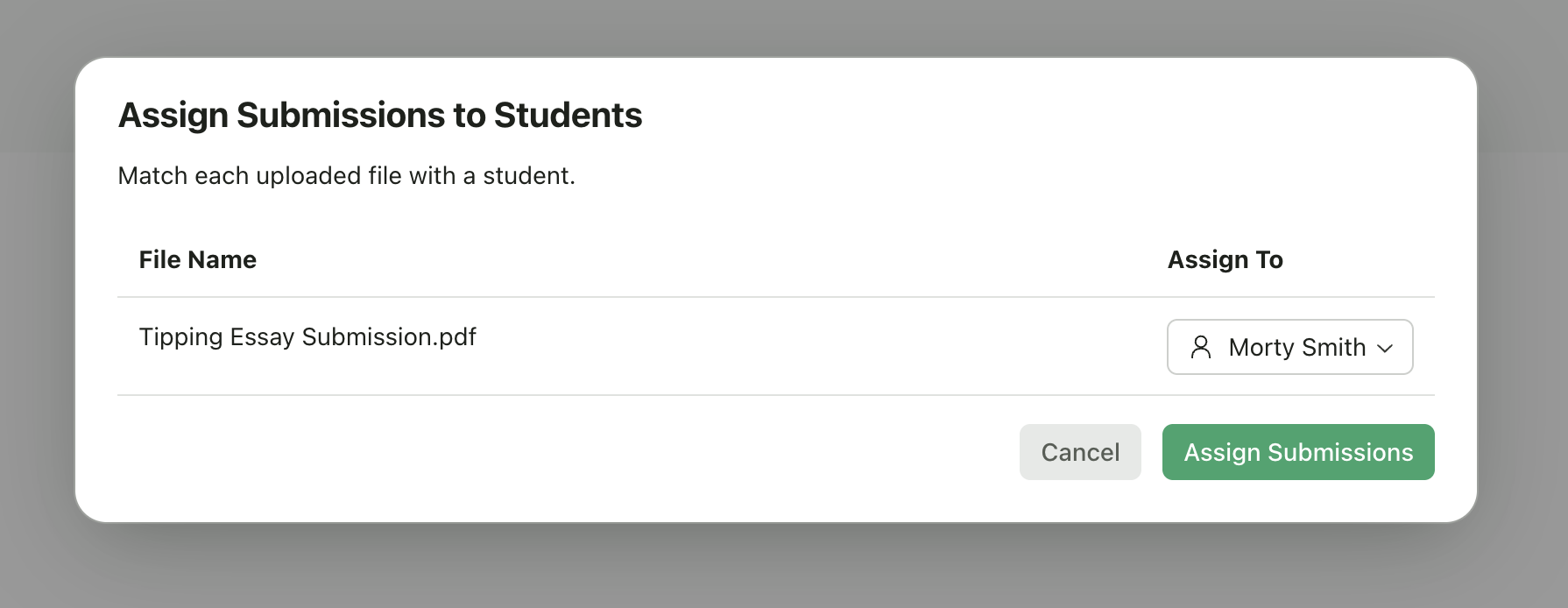
After uploading files, you need to assign each file to a student.
### Automatic Matching
GradingPal can automatically match files to students based on:
* Student name in the filename
* Student email in the filename
* Previous submission patterns
### Manual Assignment
If automatic matching doesn't work:
1. Click the **student dropdown** next to each file
2. Select the correct student from the list
3. If the student isn't enrolled, you can add them on the spot
This option appears when:
* Your class is connected to Google Classroom
* The assignment exists in Google Classroom
* Students have submitted work
Learn more about how submissions sync with Google Classroom
***
## Assigning Submissions to Students
After uploading files, you need to assign each file to a student.
### Automatic Matching
GradingPal can automatically match files to students based on:
* Student name in the filename
* Student email in the filename
* Previous submission patterns
### Manual Assignment
If automatic matching doesn't work:
1. Click the **student dropdown** next to each file
2. Select the correct student from the list
3. If the student isn't enrolled, you can add them on the spot
 ### Handling Unmatched Files
If a file can't be matched:
* The student dropdown will be empty
* Select a student manually
* Or click **Add Student** to enroll a new student
***
## Student Self-Submission
Instead of uploading work yourself, students can submit directly through their GradingPal accounts.
### How It Works
Students log in to GradingPal
They see assignments for their enrolled classes
They upload their work directly
Submissions appear in your dashboard for review
### When to Use Student Self-Submission
* Students have device access
* You want students to own the submission process
* You're using the [Student Interface](/teacher/overview/3-ways-to-use-gradingpal#2-student-interface) workflow
### Setup
Students need to be enrolled in your class. See [Enroll Students](/teacher/classes-and-students/enroll-students) for options.
Once enrolled, students can submit to any published assignment in your class.
***
## What Happens After Upload
Once submissions are uploaded:
Documents are converted and prepared for grading
Each submission is scored against your rubric automatically
Submissions appear in your dashboard—track progress as grading completes
Check AI scores and feedback before returning to students
### Handling Unmatched Files
If a file can't be matched:
* The student dropdown will be empty
* Select a student manually
* Or click **Add Student** to enroll a new student
***
## Student Self-Submission
Instead of uploading work yourself, students can submit directly through their GradingPal accounts.
### How It Works
Students log in to GradingPal
They see assignments for their enrolled classes
They upload their work directly
Submissions appear in your dashboard for review
### When to Use Student Self-Submission
* Students have device access
* You want students to own the submission process
* You're using the [Student Interface](/teacher/overview/3-ways-to-use-gradingpal#2-student-interface) workflow
### Setup
Students need to be enrolled in your class. See [Enroll Students](/teacher/classes-and-students/enroll-students) for options.
Once enrolled, students can submit to any published assignment in your class.
***
## What Happens After Upload
Once submissions are uploaded:
Documents are converted and prepared for grading
Each submission is scored against your rubric automatically
Submissions appear in your dashboard—track progress as grading completes
Check AI scores and feedback before returning to students
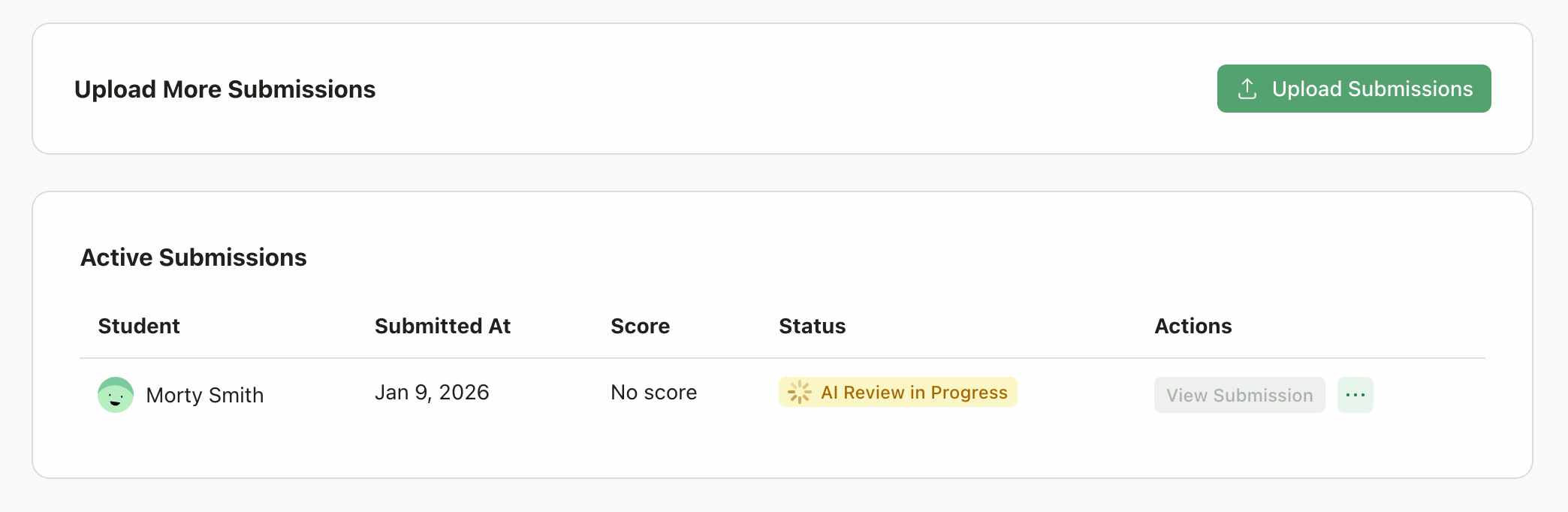 Grading typically takes 30 seconds to 2 minutes per submission, depending on length and complexity.
***
## Uploading Additional Submissions
You can add more submissions to an assignment at any time:
1. Go to the assignment page
2. Click **Upload Submissions**
3. Choose your upload method
4. Assign to students and submit
New submissions are graded using the same rubric and settings as existing ones.
***
## Re-uploading or Replacing Submissions
If a student needs to resubmit:
1. The new submission can be uploaded as normal
2. Previous submissions remain in the system
3. You can view submission history for each student
***
## Troubleshooting
* Check that the file type is supported
* Ensure the file isn't corrupted
* Try a different browser if issues persist
* For large video files, ensure stable internet connection
* The student may not be enrolled in your class
* Click **Add Student** to enroll them
* Or enroll them first via [Enroll Students](/teacher/classes-and-students/enroll-students)
* Video and audio files take longer to process
* Very long documents may take extra time
* Check the submission status for any errors
* Delete the incorrect submission
* Re-upload and assign to the correct student
***
## Related Articles
* [Select Assignment Type](/teacher/grade-your-assignment/select-assignment-type)
* [Review AI Scores & Feedback](/teacher/grades-and-feedback/review-ai-scores-feedback)
* [Return Submissions & Feedback](/teacher/grades-and-feedback/return-submissions-feedback)
* [Enroll Students](/teacher/classes-and-students/enroll-students)
* [Google Classroom Integration](/teacher/lms-integrations/google-classroom)
Grading typically takes 30 seconds to 2 minutes per submission, depending on length and complexity.
***
## Uploading Additional Submissions
You can add more submissions to an assignment at any time:
1. Go to the assignment page
2. Click **Upload Submissions**
3. Choose your upload method
4. Assign to students and submit
New submissions are graded using the same rubric and settings as existing ones.
***
## Re-uploading or Replacing Submissions
If a student needs to resubmit:
1. The new submission can be uploaded as normal
2. Previous submissions remain in the system
3. You can view submission history for each student
***
## Troubleshooting
* Check that the file type is supported
* Ensure the file isn't corrupted
* Try a different browser if issues persist
* For large video files, ensure stable internet connection
* The student may not be enrolled in your class
* Click **Add Student** to enroll them
* Or enroll them first via [Enroll Students](/teacher/classes-and-students/enroll-students)
* Video and audio files take longer to process
* Very long documents may take extra time
* Check the submission status for any errors
* Delete the incorrect submission
* Re-upload and assign to the correct student
***
## Related Articles
* [Select Assignment Type](/teacher/grade-your-assignment/select-assignment-type)
* [Review AI Scores & Feedback](/teacher/grades-and-feedback/review-ai-scores-feedback)
* [Return Submissions & Feedback](/teacher/grades-and-feedback/return-submissions-feedback)
* [Enroll Students](/teacher/classes-and-students/enroll-students)
* [Google Classroom Integration](/teacher/lms-integrations/google-classroom)