> ## Documentation Index
> Fetch the complete documentation index at: https://docs.gradingpal.com/llms.txt
> Use this file to discover all available pages before exploring further.
# Return Submissions & Feedback
> Send graded work back to students with scores and feedback
After reviewing AI-graded submissions, you can return them to students so they can see their scores and feedback. This guide covers how to return work individually or in bulk.
***
## What Happens When You Return a Submission
When you return a submission:
The student can view their grade and feedback in GradingPal
The submission status changes to "Returned to Student"
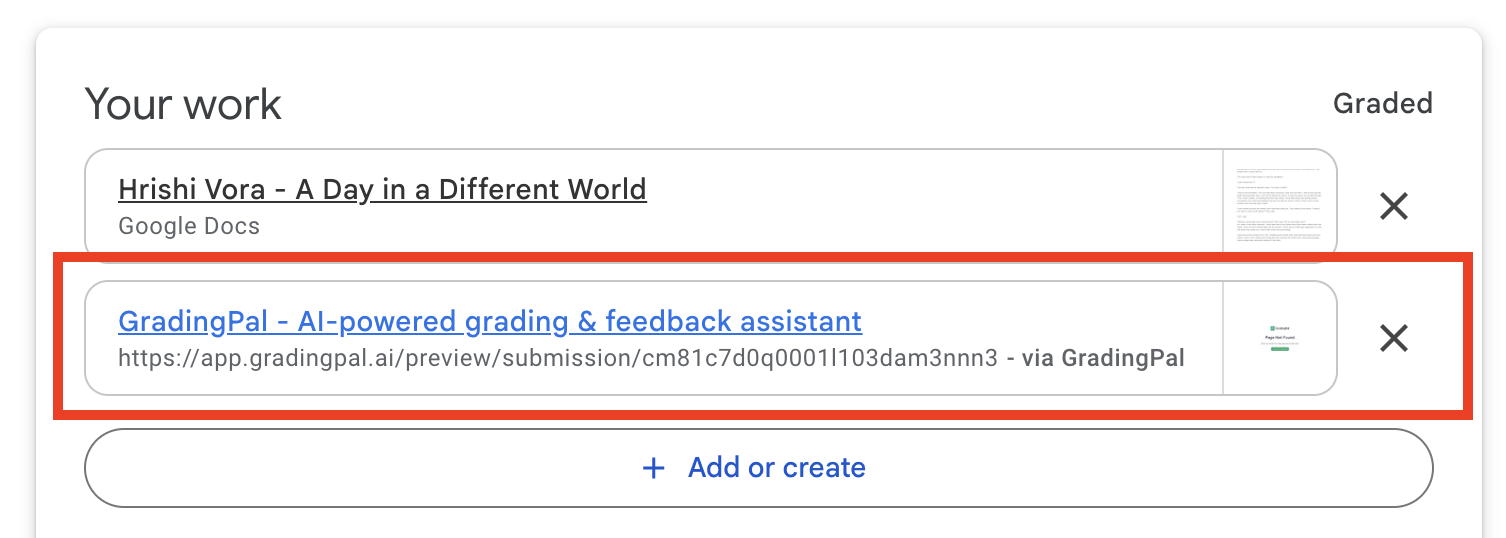
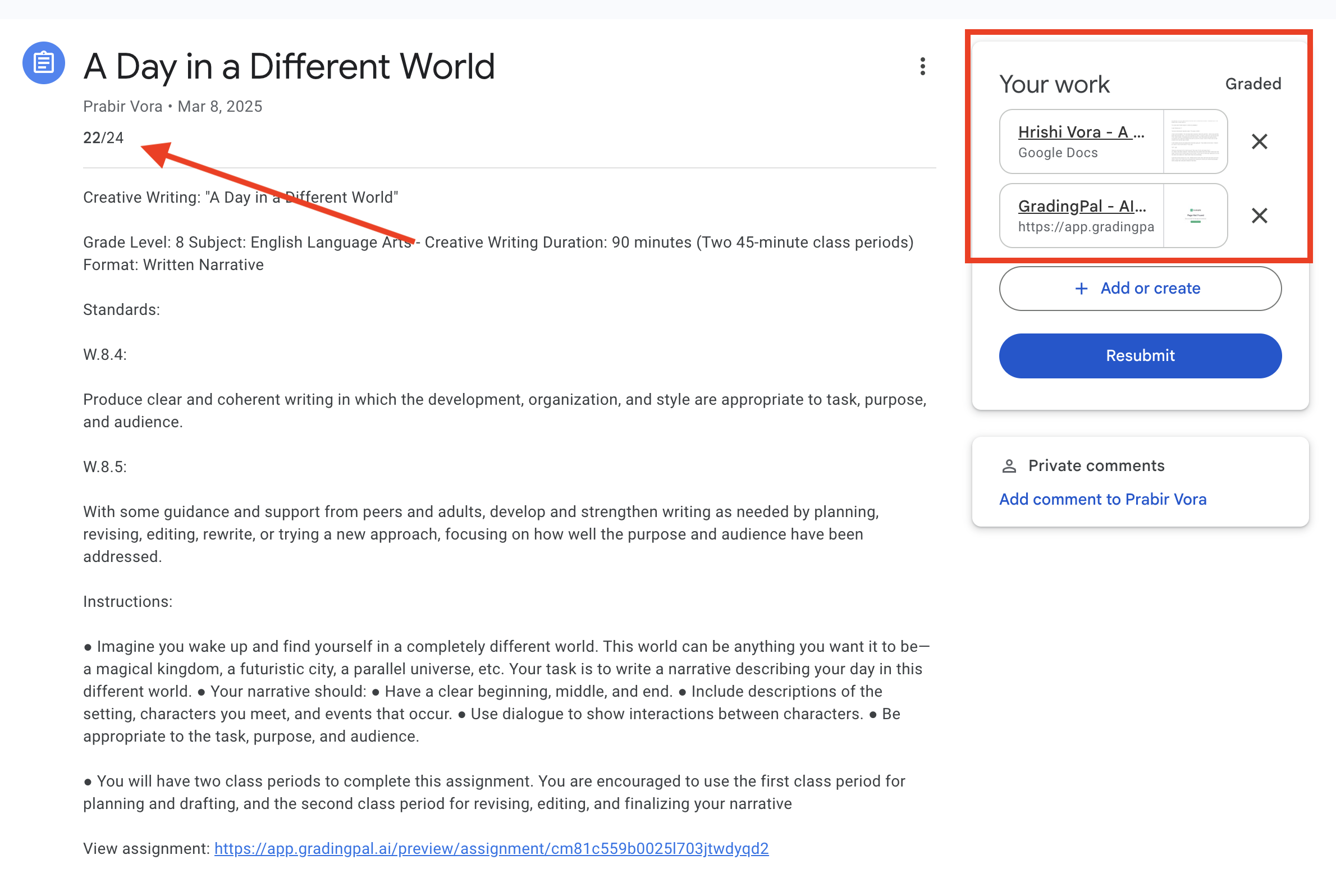
If your class is connected to Google Classroom and the assignment was created in GradingPal, the grade is automatically synced to Google Classroom
***
## Returning Individual Submissions
### From the Submission Review Page
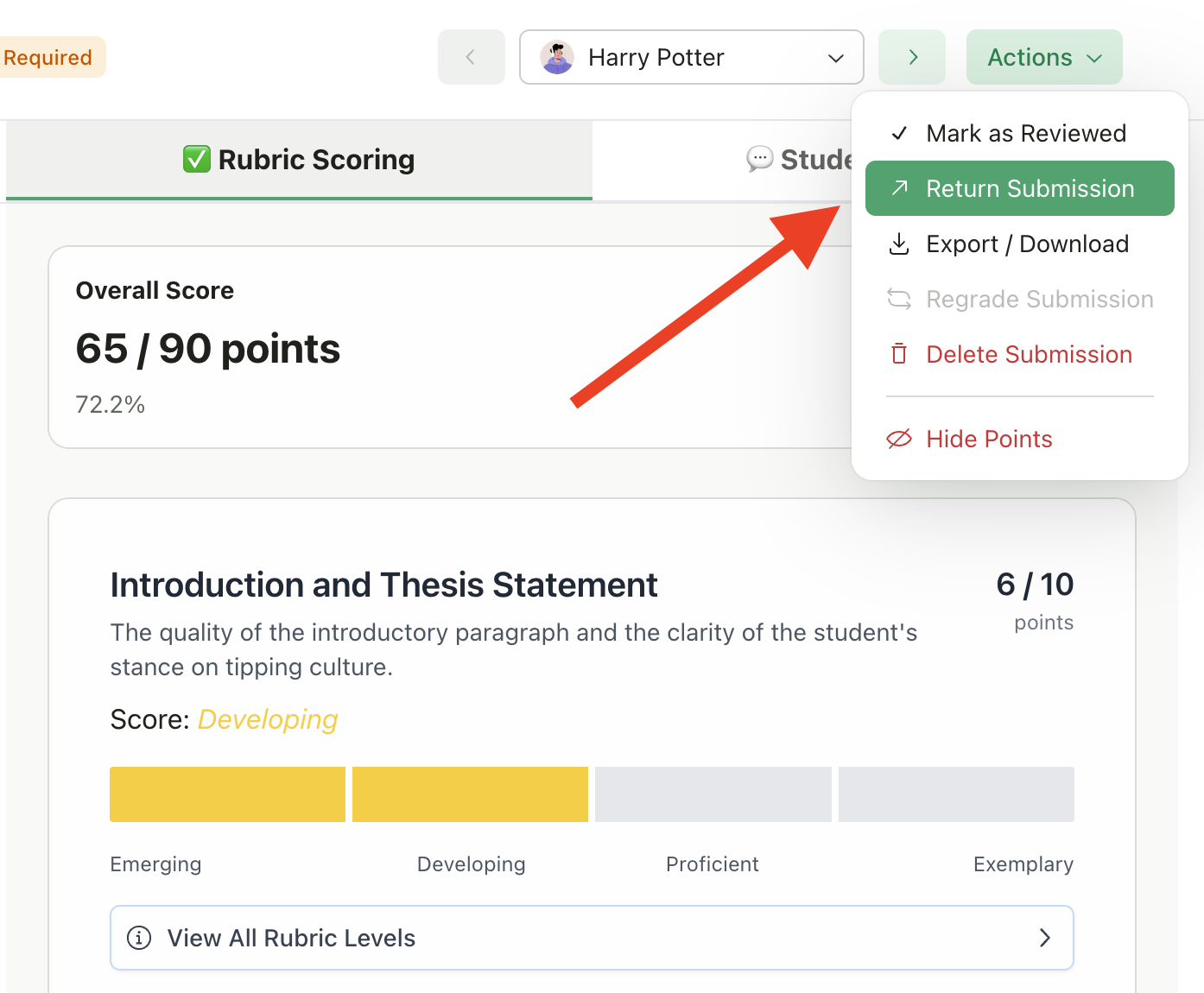
Open the submission you want to return
Click **Actions** in the header
Select **Return Submission**
The submission is immediately returned to the student
### Warning for Unreviewed Submissions
If you try to return a submission that hasn't been marked as reviewed, you'll see a warning:
> "This submission has not been fully reviewed yet. Are you sure you want to return it to the student?"
You can:
* Click **Cancel** to go back and review first
* Click **Return Anyway** to proceed without marking as reviewed
### From the Submissions Table
1. Go to your assignment's **Submissions** tab
2. Find the submission you want to return
3. Click the three-dot menu (⋮) on that row
4. Select **Return Submission**
***
## Bulk Return
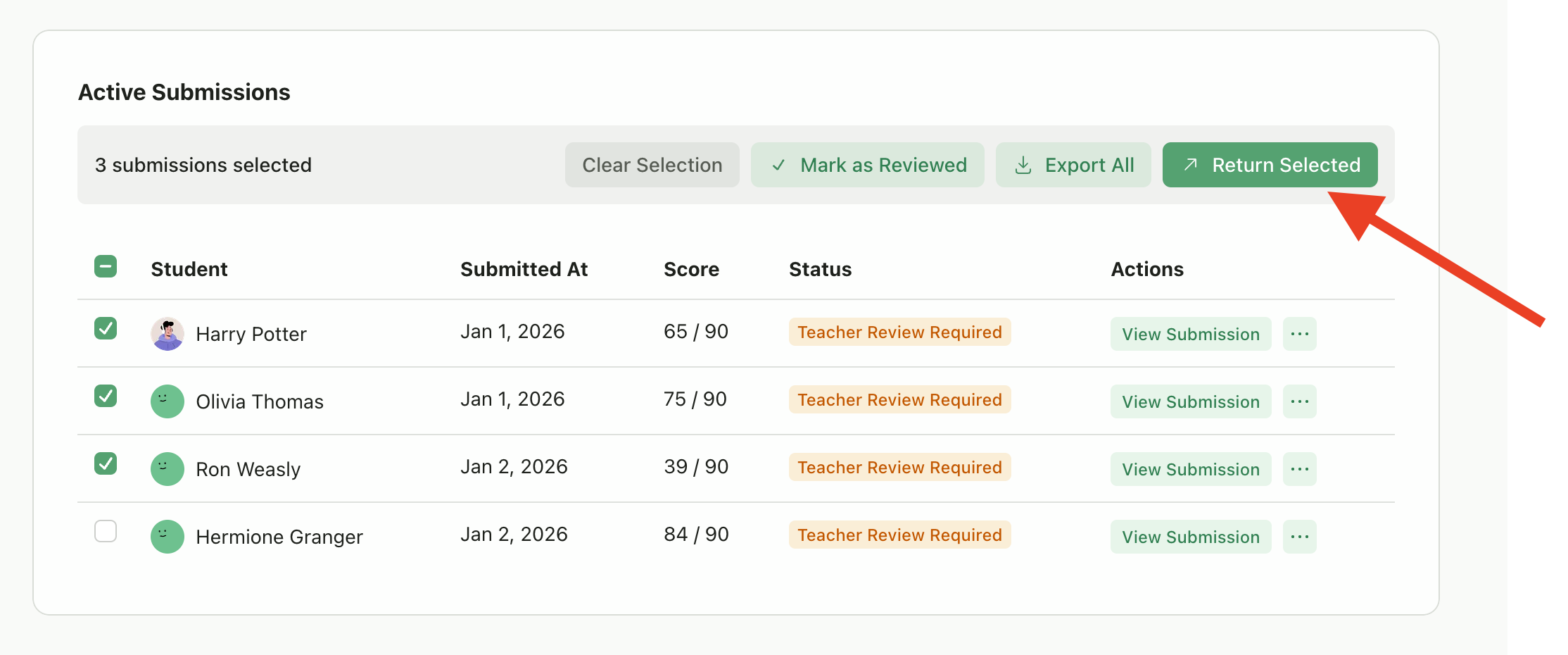
Return multiple submissions at once when you've finished reviewing a batch.
### Select Submissions
Go to the assignment's **Submissions** tab
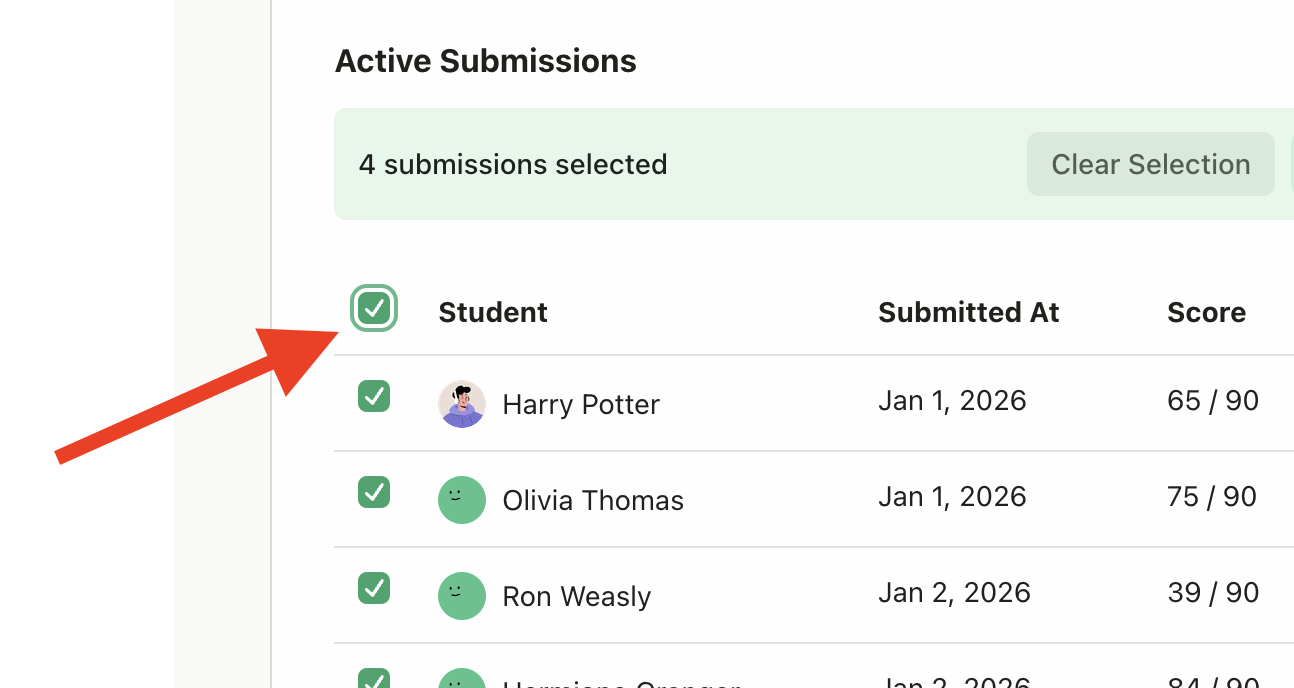
Check the boxes next to submissions you want to return
Or use the header checkbox to select all visible submissions
### Return Selected
1. With submissions selected, click **Return All** (or the bulk actions button)
2. Confirm the action
3. All selected submissions are returned to students
***
## Google Classroom Grade Sync
### When Grades Sync Automatically
For classes connected to Google Classroom, grades sync automatically when:
* The assignment was **created in GradingPal** and published to Google Classroom
* You return the submission to the student
* The student has a Google Classroom account linked
### When Grades Don't Sync
Grades will **not** sync to Google Classroom if:
* The assignment was imported from Google Classroom (sync only works one direction)
* The class is not connected to Google Classroom
* The student isn't enrolled in the Google Classroom class
### What Gets Synced
| Data | Synced to Google Classroom |
| ------------------- | ---------------------------------------------------- |
| **Numerical grade** | Yes - The total score for the assignment |
| **Returned status** | Yes - The submission is marked as returned |
| **Feedback link** | Yes - A link to view the full feedback in GradingPal |
Learn more about grade sync and Google Classroom
***
## Before You Return
### Recommended Checks
Before returning submissions, consider:
1. **Review the score** - Make sure the AI-assigned grade is accurate
2. **Check feedback quality** - Read through the feedback to ensure it's helpful
3. **Edit if needed** - Adjust scores or feedback as necessary
4. **Hide points (optional)** - If you want students to see feedback without numerical scores
### Mark as Reviewed First
While not required, marking submissions as "Reviewed" before returning helps you track what you've checked:
1. Open the submission
2. Click **Actions** → **Mark as Reviewed**
3. Then proceed to return
***
## After Returning
### Can Students See Everything?
Once returned, students can see:
* Their total score (unless you [hid points](/teacher/assignment-management/assignment-settings#hide-points))
* Scores for each criterion or question
* All feedback comments
* Any overall feedback you added
### Can You Make Changes After Returning?
Once a submission is returned:
* You can still view the submission and all grading details
* You **can** still edit scores and feedback—changes are reflected for the student
* The "Return Submission" action becomes disabled (shows as "Returned to Student")
* You cannot "un-return" a submission, but edits you make are immediately visible to students
***
## Troubleshooting
If you see an error when trying to return:
* **"Submission state is CREATED"** - The student hasn't officially turned in their work yet
* **"Assignment has been deleted"** - The assignment no longer exists
* **Network error** - Try again; there may be a temporary connection issue
If the grade doesn't appear in Google Classroom:
1. Verify the assignment was created in GradingPal (not imported from GC)
2. Check that your Google Classroom connection is active
3. Ensure the student is enrolled in both GradingPal and Google Classroom
4. Try returning again after a few minutes
If a student reports they can't see their feedback:
1. Confirm the submission shows "Returned to Student" status
2. Have the student log in to GradingPal (not just Google Classroom)
3. Check that the student is viewing the correct assignment
***
## Best Practices
Review all submissions, then return in bulk for efficiency
Think of it as the 80/20 rule: AI does 80% of the heavy lifting, while you provide the 20% of expert review
This helps you track your progress through large classes
Even a brief overall comment makes feedback feel more personal
Let students know when to expect grades back
***
## Related Articles
* [Review AI Scores & Feedback](/teacher/grades-and-feedback/review-ai-scores-feedback)
* [Assignment Settings](/teacher/assignment-management/assignment-settings)
* [Google Classroom Integration](/teacher/lms-integrations/google-classroom)
* [Student View: View Scores & Feedback](/student/view-scores-feedback)
 ***
## Returning Individual Submissions
### From the Submission Review Page
***
## Returning Individual Submissions
### From the Submission Review Page
 ### Warning for Unreviewed Submissions
If you try to return a submission that hasn't been marked as reviewed, you'll see a warning:
> "This submission has not been fully reviewed yet. Are you sure you want to return it to the student?"
You can:
* Click **Cancel** to go back and review first
* Click **Return Anyway** to proceed without marking as reviewed
### From the Submissions Table
1. Go to your assignment's **Submissions** tab
2. Find the submission you want to return
3. Click the three-dot menu (⋮) on that row
4. Select **Return Submission**
***
## Bulk Return
Return multiple submissions at once when you've finished reviewing a batch.
### Select Submissions
### Warning for Unreviewed Submissions
If you try to return a submission that hasn't been marked as reviewed, you'll see a warning:
> "This submission has not been fully reviewed yet. Are you sure you want to return it to the student?"
You can:
* Click **Cancel** to go back and review first
* Click **Return Anyway** to proceed without marking as reviewed
### From the Submissions Table
1. Go to your assignment's **Submissions** tab
2. Find the submission you want to return
3. Click the three-dot menu (⋮) on that row
4. Select **Return Submission**
***
## Bulk Return
Return multiple submissions at once when you've finished reviewing a batch.
### Select Submissions
 ### Return Selected
1. With submissions selected, click **Return All** (or the bulk actions button)
2. Confirm the action
3. All selected submissions are returned to students
### Return Selected
1. With submissions selected, click **Return All** (or the bulk actions button)
2. Confirm the action
3. All selected submissions are returned to students
 ***
## Google Classroom Grade Sync
### When Grades Sync Automatically
For classes connected to Google Classroom, grades sync automatically when:
* The assignment was **created in GradingPal** and published to Google Classroom
* You return the submission to the student
* The student has a Google Classroom account linked
### When Grades Don't Sync
Grades will **not** sync to Google Classroom if:
* The assignment was imported from Google Classroom (sync only works one direction)
* The class is not connected to Google Classroom
* The student isn't enrolled in the Google Classroom class
### What Gets Synced
| Data | Synced to Google Classroom |
| ------------------- | ---------------------------------------------------- |
| **Numerical grade** | Yes - The total score for the assignment |
| **Returned status** | Yes - The submission is marked as returned |
| **Feedback link** | Yes - A link to view the full feedback in GradingPal |
***
## Google Classroom Grade Sync
### When Grades Sync Automatically
For classes connected to Google Classroom, grades sync automatically when:
* The assignment was **created in GradingPal** and published to Google Classroom
* You return the submission to the student
* The student has a Google Classroom account linked
### When Grades Don't Sync
Grades will **not** sync to Google Classroom if:
* The assignment was imported from Google Classroom (sync only works one direction)
* The class is not connected to Google Classroom
* The student isn't enrolled in the Google Classroom class
### What Gets Synced
| Data | Synced to Google Classroom |
| ------------------- | ---------------------------------------------------- |
| **Numerical grade** | Yes - The total score for the assignment |
| **Returned status** | Yes - The submission is marked as returned |
| **Feedback link** | Yes - A link to view the full feedback in GradingPal |