> ## Documentation Index
> Fetch the complete documentation index at: https://docs.gradingpal.com/llms.txt
> Use this file to discover all available pages before exploring further.
# Review AI Scores & Feedback
> Verify, edit, and finalize AI-generated grades and feedback before returning to students
After students submit their work and AI grading completes, you can review each submission to verify scores, read feedback, and make adjustments before returning grades to students.
The review experience varies by assignment type, so this guide covers:
* [Writing & Multi-Media Assignments](#writing--multi-media-assignments) (Writing, Video, Presentations, Art)
* [Structured Assignments](#structured-assignments) (Exams, Quizzes, Problem Sets, Worksheets)
* [Handwritten Submissions](#handwritten-submissions) (special considerations)
***
## Accessing Submissions
### From the Assignment Page
Navigate to your class
Click on an assignment
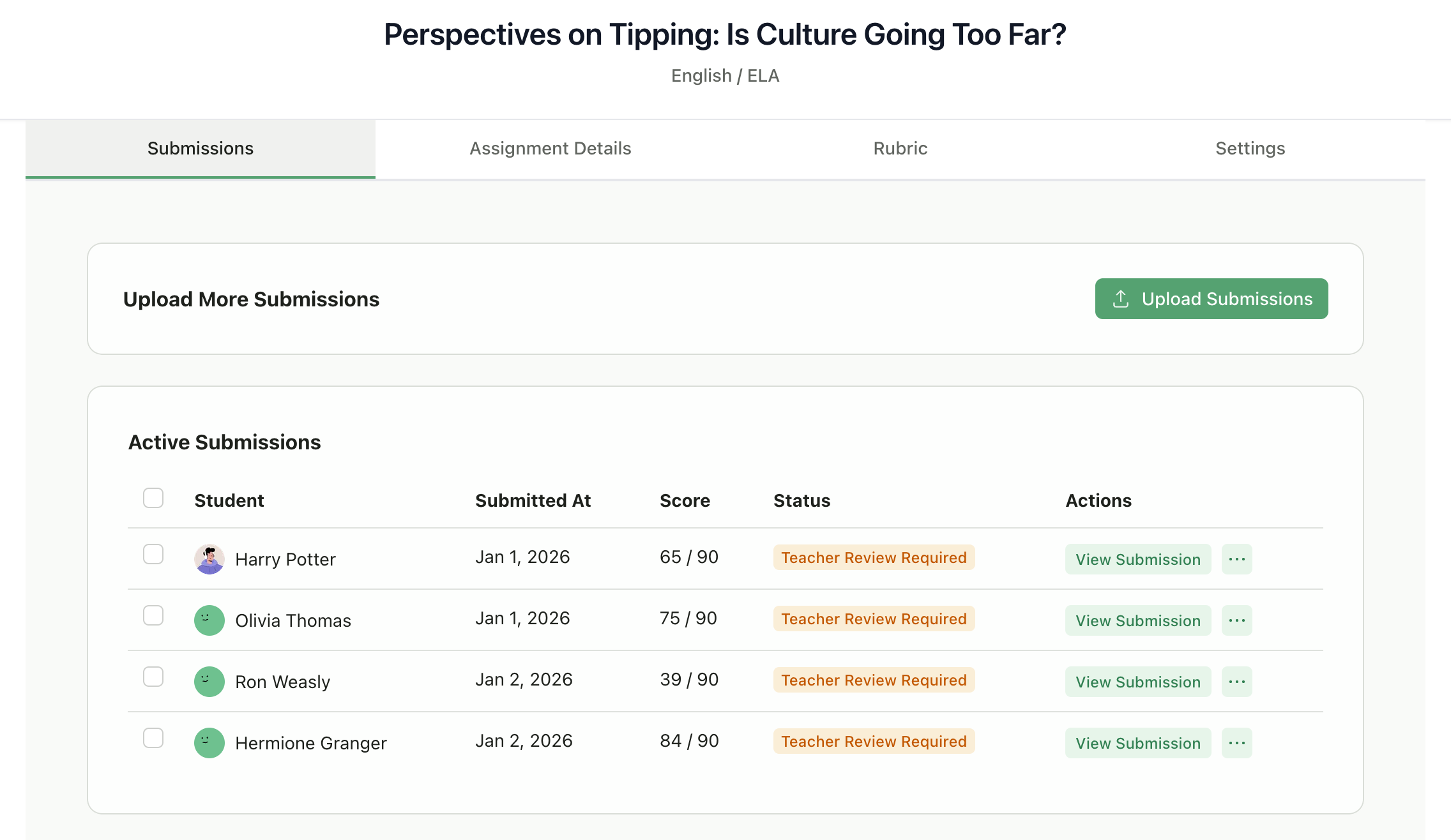
View all submissions in the **Submissions** tab
 ### Submission Status
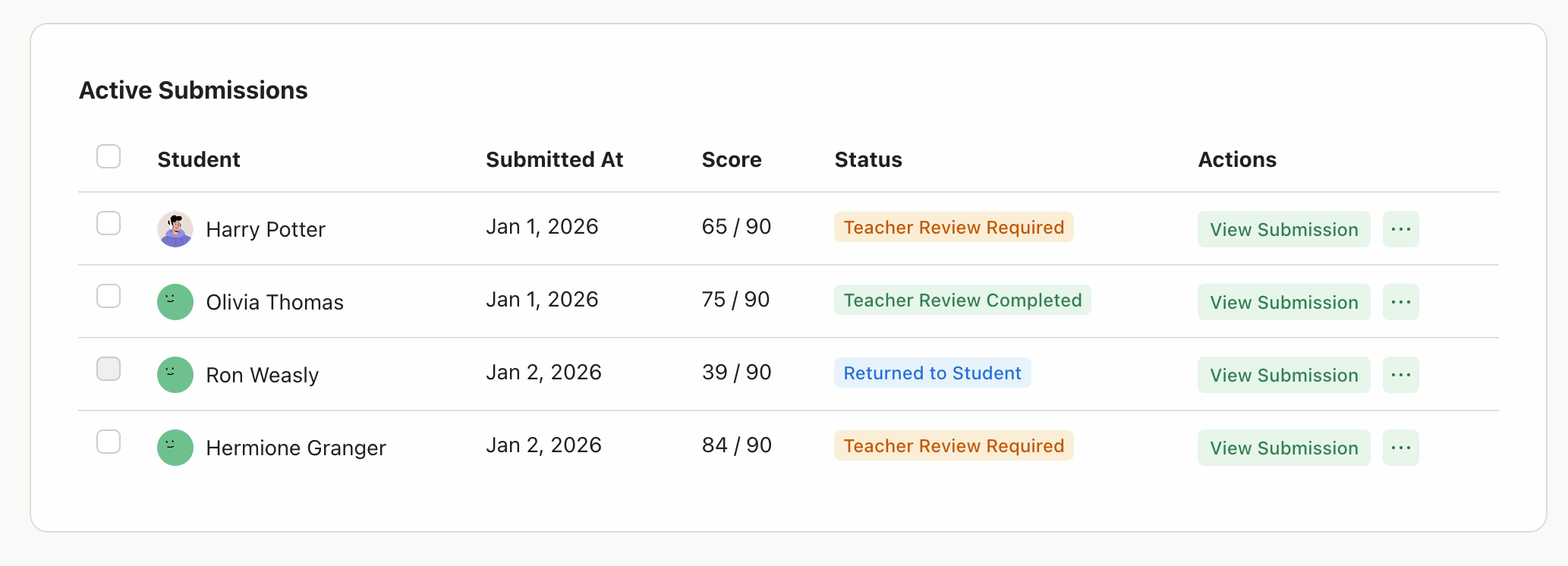
Each submission shows its current status:
| Status | Meaning |
| ------------------ | --------------------------------------- |
| **In Progress** | AI is currently grading the submission |
| **Pending Review** | Grading complete, awaiting your review |
| **Completed** | You've reviewed and finalized the grade |
| **Returned** | Grade and feedback sent to student |
| **Failed** | An error occurred during grading |
### Submission Status
Each submission shows its current status:
| Status | Meaning |
| ------------------ | --------------------------------------- |
| **In Progress** | AI is currently grading the submission |
| **Pending Review** | Grading complete, awaiting your review |
| **Completed** | You've reviewed and finalized the grade |
| **Returned** | Grade and feedback sent to student |
| **Failed** | An error occurred during grading |
 ***
## Writing & Multi-Media Assignments
This section covers **Writing & Essays**, **Video & Audio**, **Presentations**, and **Art & Design** assignments.
### The Review Interface
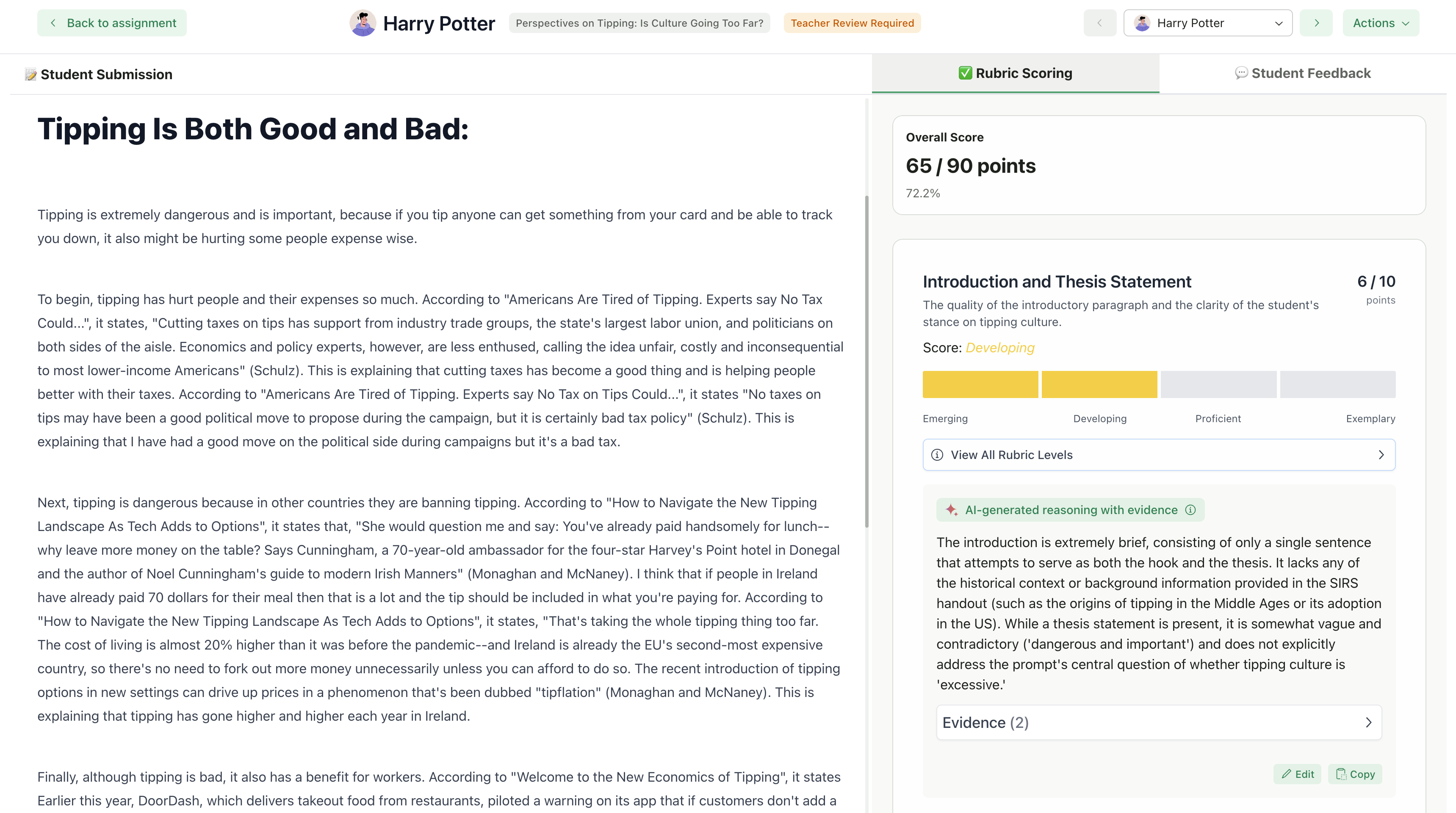
Click any submission to open the review page:
* **Left panel:** Student's submitted work (document, video, or visual)
* **Right panel:** AI-generated scores and feedback organized by tabs
***
## Writing & Multi-Media Assignments
This section covers **Writing & Essays**, **Video & Audio**, **Presentations**, and **Art & Design** assignments.
### The Review Interface
Click any submission to open the review page:
* **Left panel:** Student's submitted work (document, video, or visual)
* **Right panel:** AI-generated scores and feedback organized by tabs
 ***
### Understanding Scores
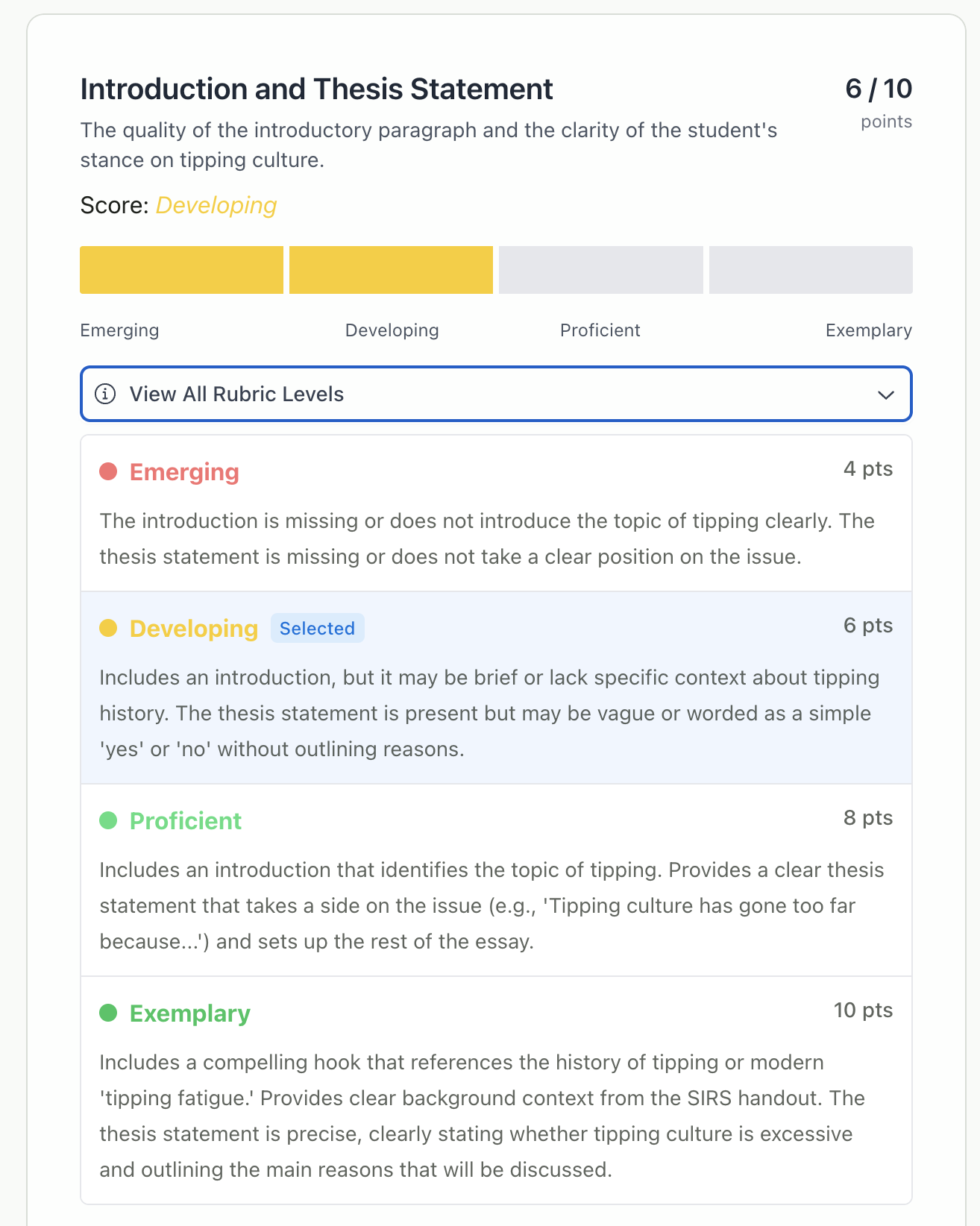
The AI scores each **rubric criterion** separately. For each criterion, you'll see:
* **Criterion name** - What was evaluated
* **Score** - Points earned out of possible points
* **Level achieved** - Which rubric level the submission matched (shown as a colored progress bar)
* **Justification** - AI's reasoning for the score with evidence comments from student submission (only visible to you and not the students)
***
### Understanding Scores
The AI scores each **rubric criterion** separately. For each criterion, you'll see:
* **Criterion name** - What was evaluated
* **Score** - Points earned out of possible points
* **Level achieved** - Which rubric level the submission matched (shown as a colored progress bar)
* **Justification** - AI's reasoning for the score with evidence comments from student submission (only visible to you and not the students)
 ***
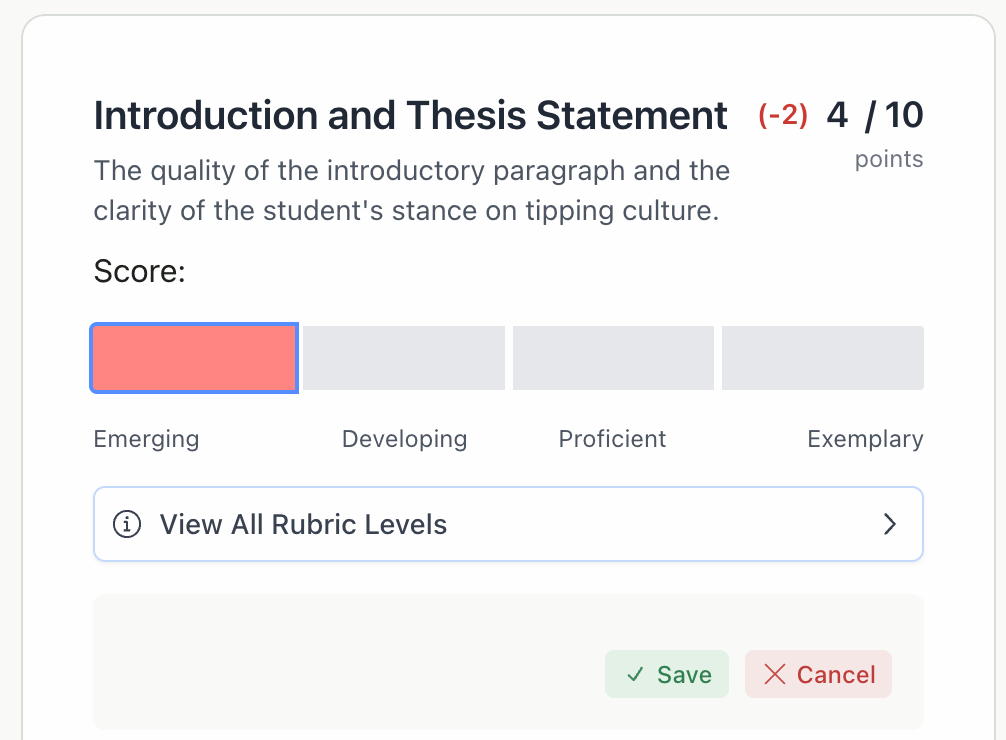
### Editing Scores
You can adjust AI-assigned scores if you disagree with the grading.
**To change a criterion score:**
Click **Edit** on the criterion card
Click on a different level segment in the progress bar
The score updates to match the selected level
Click **Save**
***
### Editing Scores
You can adjust AI-assigned scores if you disagree with the grading.
**To change a criterion score:**
Click **Edit** on the criterion card
Click on a different level segment in the progress bar
The score updates to match the selected level
Click **Save**
 #### Point Range Adjustments
If your rubric has **Point Ranges enabled**, you can fine-tune scores within a level:
1. Select the appropriate level
2. Enter an exact point value within that level's min-max range
3. The score reflects your custom value while staying within the level bounds
For example, if "Proficient" is 7-9 points, you can award exactly 8 points.
#### Point Range Adjustments
If your rubric has **Point Ranges enabled**, you can fine-tune scores within a level:
1. Select the appropriate level
2. Enter an exact point value within that level's min-max range
3. The score reflects your custom value while staying within the level bounds
For example, if "Proficient" is 7-9 points, you can award exactly 8 points.
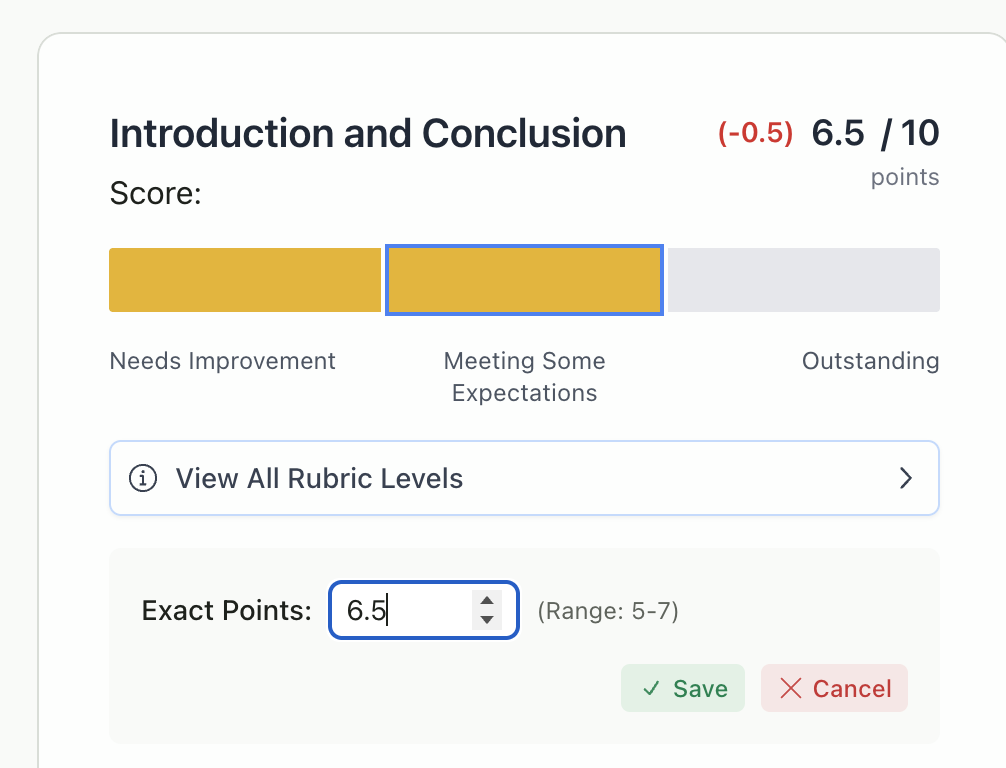 Point range editing is only available if you enabled "Point Ranges" when creating your rubric. See [Set Up Writing & Multi-Media Assignments](/teacher/grade-your-assignment/setup-writing-multimedia-assignments).
***
### Understanding Feedback
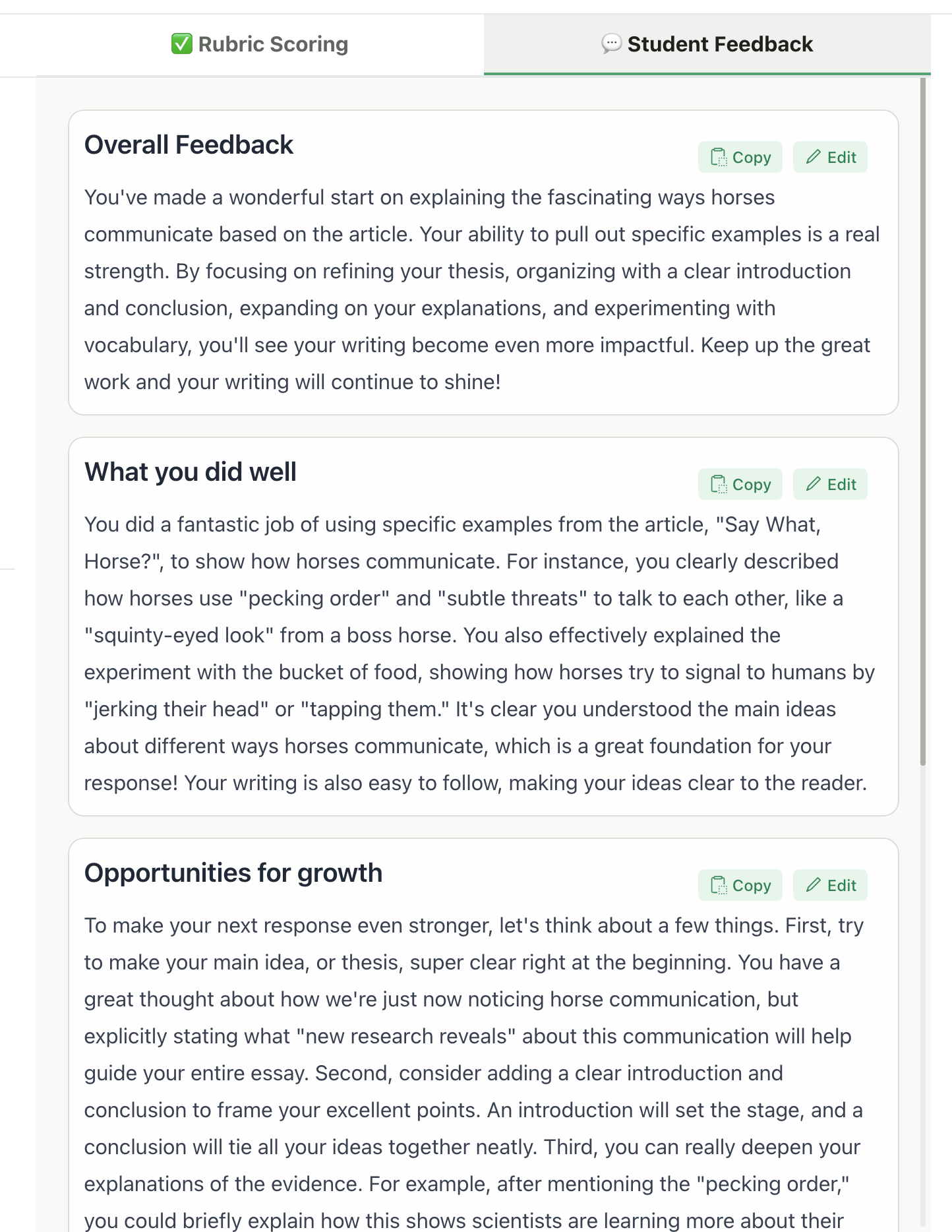
The **Student Feedback** tab shows all AI-generated feedback. Feedback is organized into sections based on your chosen feedback style.
| Feedback Style | Sections You'll See |
| --------------- | ---------------------------------------------------------------------------------------------- |
| **Targeted** | Inline comments on specific text (see [Targeted Feedback](#targeted-feedback-inline-comments)) |
| **Glow & Grow** | Glows (strengths), Grows (improvements), Overall Feedback |
| **Structured** | One section per rubric criterion, plus Overall Feedback |
| **Sandwich** | Positives, Constructive, Positives, Overall Feedback |
| **Actionable** | Next Steps, Areas for Improvement, Overall Feedback |
| **Socratic** | Guiding Questions, Reflections, Overall Feedback |
Point range editing is only available if you enabled "Point Ranges" when creating your rubric. See [Set Up Writing & Multi-Media Assignments](/teacher/grade-your-assignment/setup-writing-multimedia-assignments).
***
### Understanding Feedback
The **Student Feedback** tab shows all AI-generated feedback. Feedback is organized into sections based on your chosen feedback style.
| Feedback Style | Sections You'll See |
| --------------- | ---------------------------------------------------------------------------------------------- |
| **Targeted** | Inline comments on specific text (see [Targeted Feedback](#targeted-feedback-inline-comments)) |
| **Glow & Grow** | Glows (strengths), Grows (improvements), Overall Feedback |
| **Structured** | One section per rubric criterion, plus Overall Feedback |
| **Sandwich** | Positives, Constructive, Positives, Overall Feedback |
| **Actionable** | Next Steps, Areas for Improvement, Overall Feedback |
| **Socratic** | Guiding Questions, Reflections, Overall Feedback |
 ***
### Editing Feedback Sections
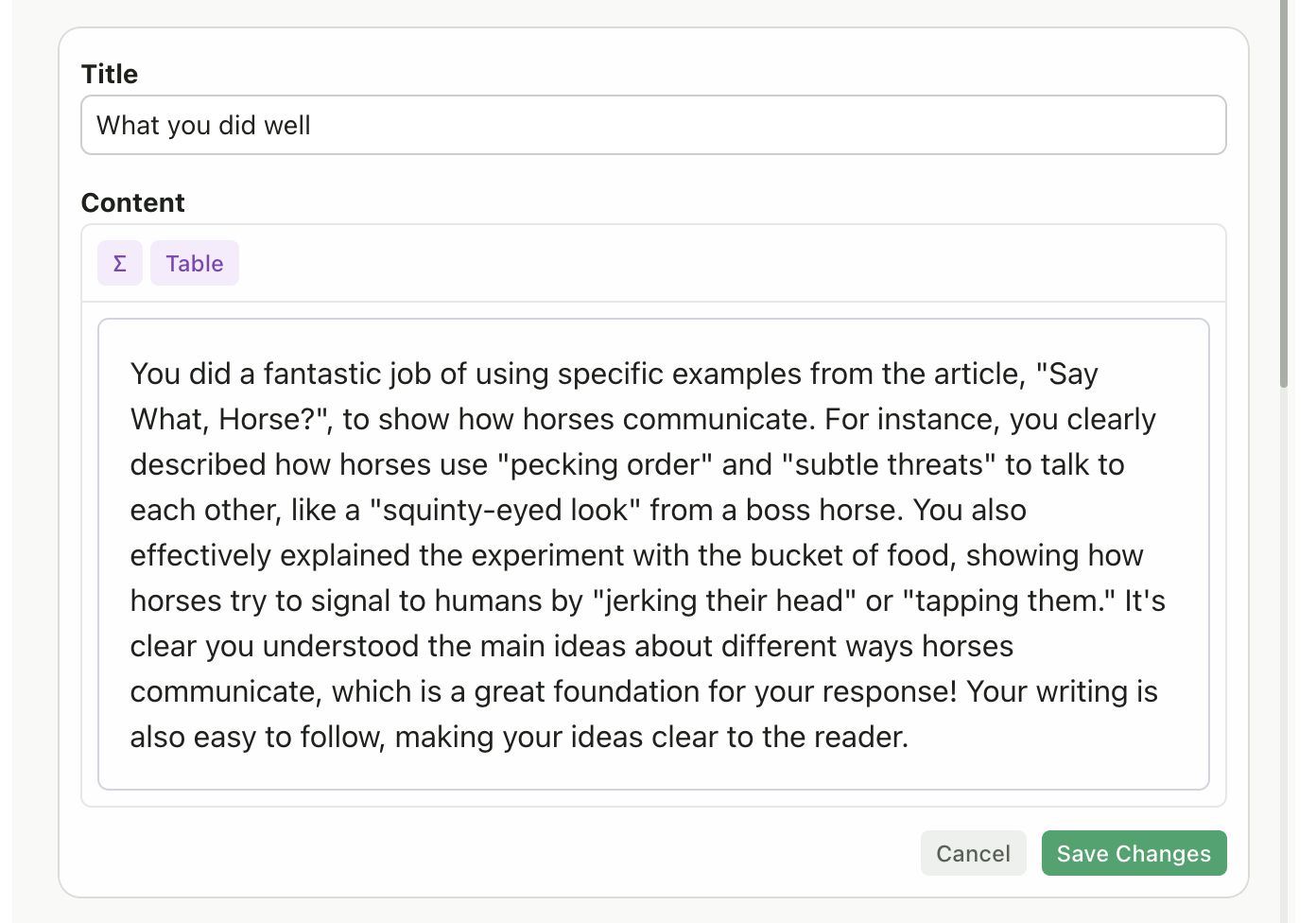
Each feedback section can be edited independently using manual editing or AI assistance.
#### Manual Editing
Click the **Edit** button on any feedback section
Select **Manually**
Edit the title and content directly in the text fields
Click **Save Changes**
***
### Editing Feedback Sections
Each feedback section can be edited independently using manual editing or AI assistance.
#### Manual Editing
Click the **Edit** button on any feedback section
Select **Manually**
Edit the title and content directly in the text fields
Click **Save Changes**
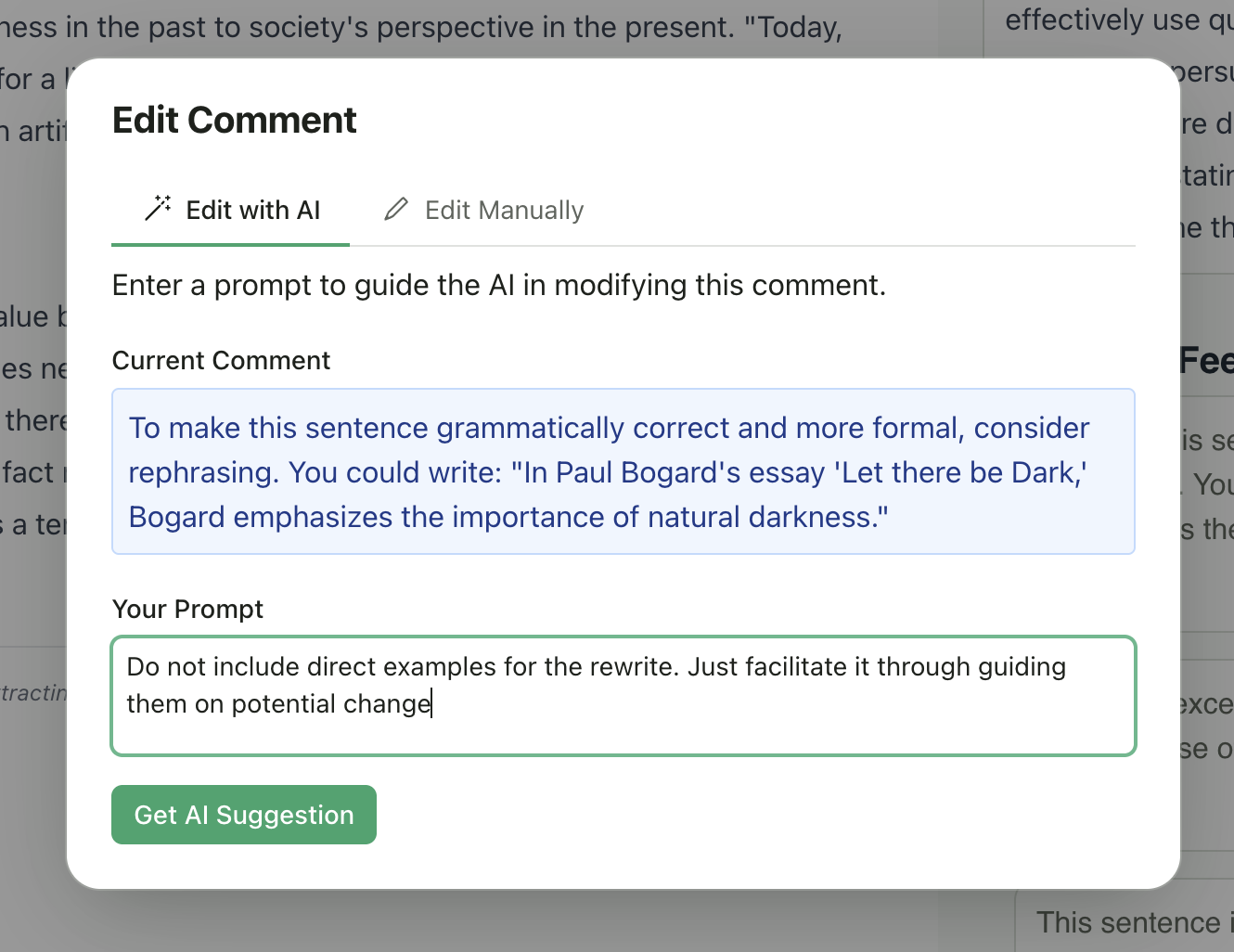
 #### AI-Assisted Editing
Click the **Edit** button on any feedback section
Select **With AI**
Enter a prompt describing how to modify the feedback (e.g., "Make it more encouraging" or "Add specific examples from the student's work")
Click **Edit with AI**
Review the AI-generated draft (shown with a highlighted border)
Click **Accept** to save or **Reject** to discard
#### AI-Assisted Editing
Click the **Edit** button on any feedback section
Select **With AI**
Enter a prompt describing how to modify the feedback (e.g., "Make it more encouraging" or "Add specific examples from the student's work")
Click **Edit with AI**
Review the AI-generated draft (shown with a highlighted border)
Click **Accept** to save or **Reject** to discard
 #### Deleting Sections
1. Click the **Edit** button
2. Select **Delete**
3. The section is removed
The Overall Feedback section cannot be deleted.
***
### Adjust All Feedback at Once
Use the **Adjust All Feedback** panel to modify all feedback sections simultaneously with AI.
#### Deleting Sections
1. Click the **Edit** button
2. Select **Delete**
3. The section is removed
The Overall Feedback section cannot be deleted.
***
### Adjust All Feedback at Once
Use the **Adjust All Feedback** panel to modify all feedback sections simultaneously with AI.
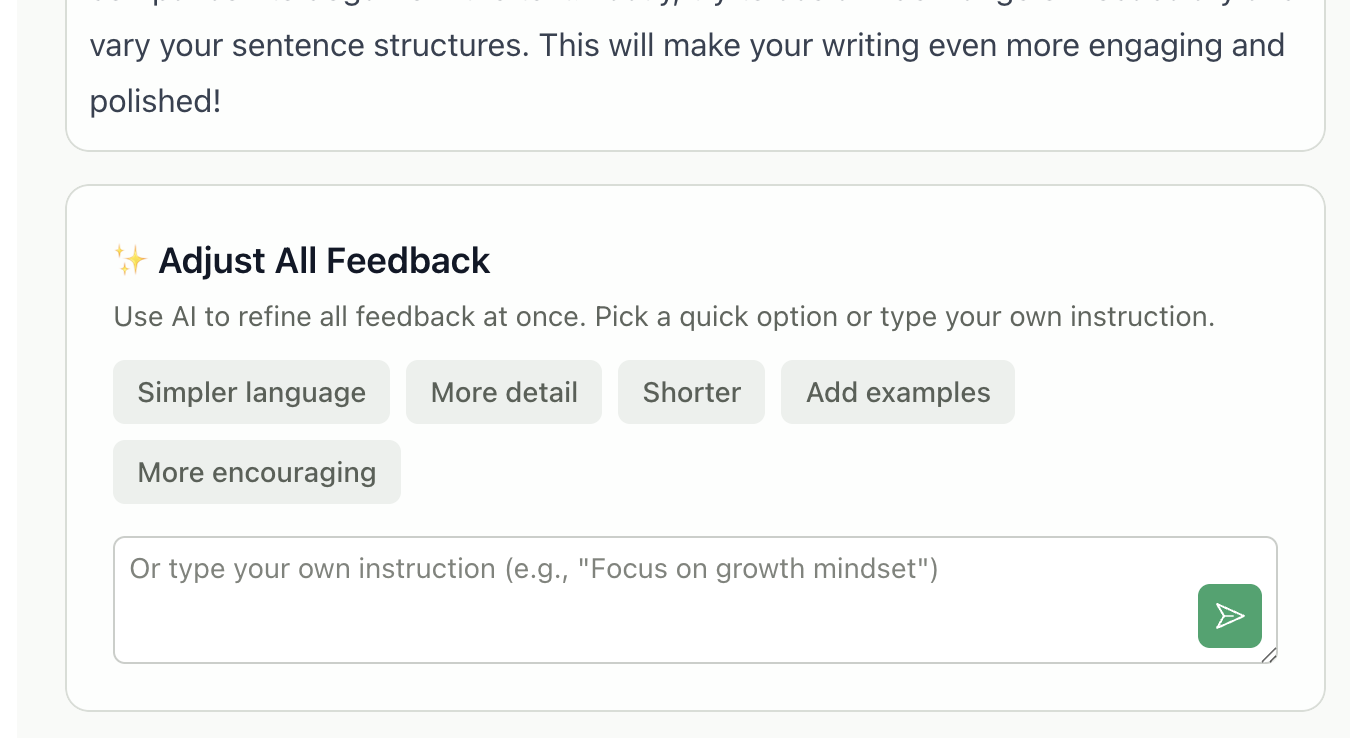 **Quick prompts** - Click any preset option:
* **Simpler language** - Makes feedback easier to understand
* **More detail** - Adds more specific observations
* **Shorter** - Condenses feedback to key points
* **Add examples** - Includes concrete examples from the student's work
* **More encouraging** - Adds positive framing
**Custom prompts** - Type your own instruction in the text area (e.g., "Focus on growth mindset" or "Reference the rubric criteria by name").
After AI generates the draft:
1. Review the changes (shown with a green border)
2. Click **Accept** to apply all changes
3. Or click **Reject** to discard and keep the original
This feature is not available for handwritten submissions. See [Handwritten Submissions](#handwritten-submissions) for details.
***
### Targeted Feedback (Inline Comments)
For **Writing & Essays** assignments using the **Targeted** feedback style, comments appear directly on specific text passages—similar to commenting in Google Docs.
**Quick prompts** - Click any preset option:
* **Simpler language** - Makes feedback easier to understand
* **More detail** - Adds more specific observations
* **Shorter** - Condenses feedback to key points
* **Add examples** - Includes concrete examples from the student's work
* **More encouraging** - Adds positive framing
**Custom prompts** - Type your own instruction in the text area (e.g., "Focus on growth mindset" or "Reference the rubric criteria by name").
After AI generates the draft:
1. Review the changes (shown with a green border)
2. Click **Accept** to apply all changes
3. Or click **Reject** to discard and keep the original
This feature is not available for handwritten submissions. See [Handwritten Submissions](#handwritten-submissions) for details.
***
### Targeted Feedback (Inline Comments)
For **Writing & Essays** assignments using the **Targeted** feedback style, comments appear directly on specific text passages—similar to commenting in Google Docs.
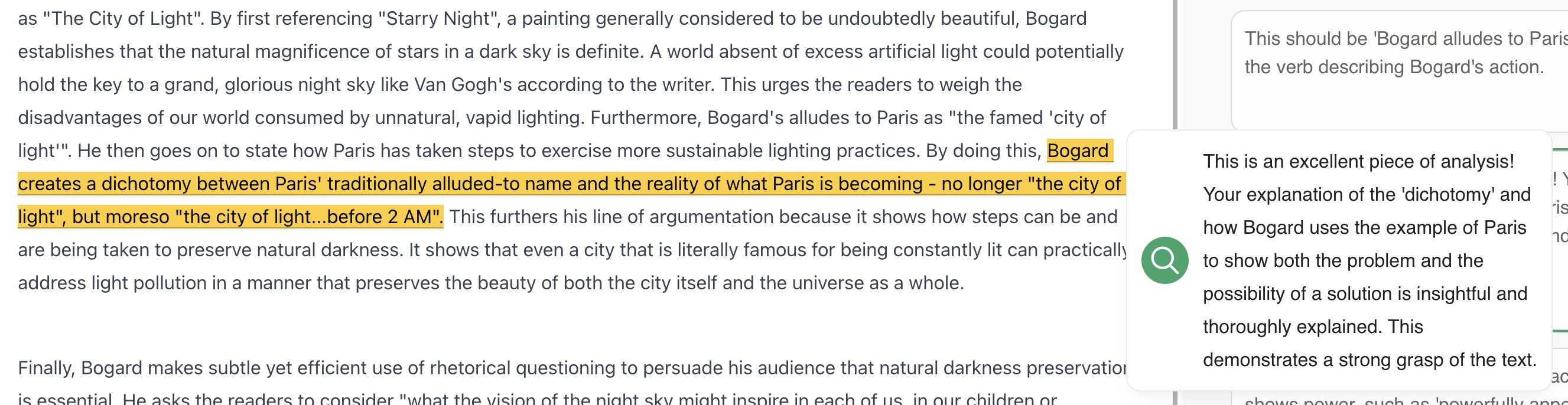 #### Viewing Targeted Comments
* Comments are highlighted in the student's text (left panel)
* All comments also appear in the **Student Feedback** tab sidebar (right panel)
* Click any comment in the sidebar to scroll to its location in the document
#### Adding Comments
1. In the left panel, highlight text in the student's submission
2. Click the **Add Comment** button that appears
3. Type your feedback
4. The comment is linked to that specific passage
#### Editing and Deleting Comments
* Click any comment to edit its text
* Use the menu (three dots) to delete a comment
#### AI Editing for Targeted Feedback
When using "Adjust All Feedback" with targeted feedback style, the AI edits all inline comments while preserving their positions in the text.
Targeted feedback works best with **typed/digital text submissions**. For handwritten work, the system uses a different approach. See [Handwritten Submissions](#handwritten-submissions).
***
### Video & Audio Submissions
For **Video & Audio** assignments, comments are tied to specific timestamps rather than text positions.
#### Viewing Targeted Comments
* Comments are highlighted in the student's text (left panel)
* All comments also appear in the **Student Feedback** tab sidebar (right panel)
* Click any comment in the sidebar to scroll to its location in the document
#### Adding Comments
1. In the left panel, highlight text in the student's submission
2. Click the **Add Comment** button that appears
3. Type your feedback
4. The comment is linked to that specific passage
#### Editing and Deleting Comments
* Click any comment to edit its text
* Use the menu (three dots) to delete a comment
#### AI Editing for Targeted Feedback
When using "Adjust All Feedback" with targeted feedback style, the AI edits all inline comments while preserving their positions in the text.
Targeted feedback works best with **typed/digital text submissions**. For handwritten work, the system uses a different approach. See [Handwritten Submissions](#handwritten-submissions).
***
### Video & Audio Submissions
For **Video & Audio** assignments, comments are tied to specific timestamps rather than text positions.
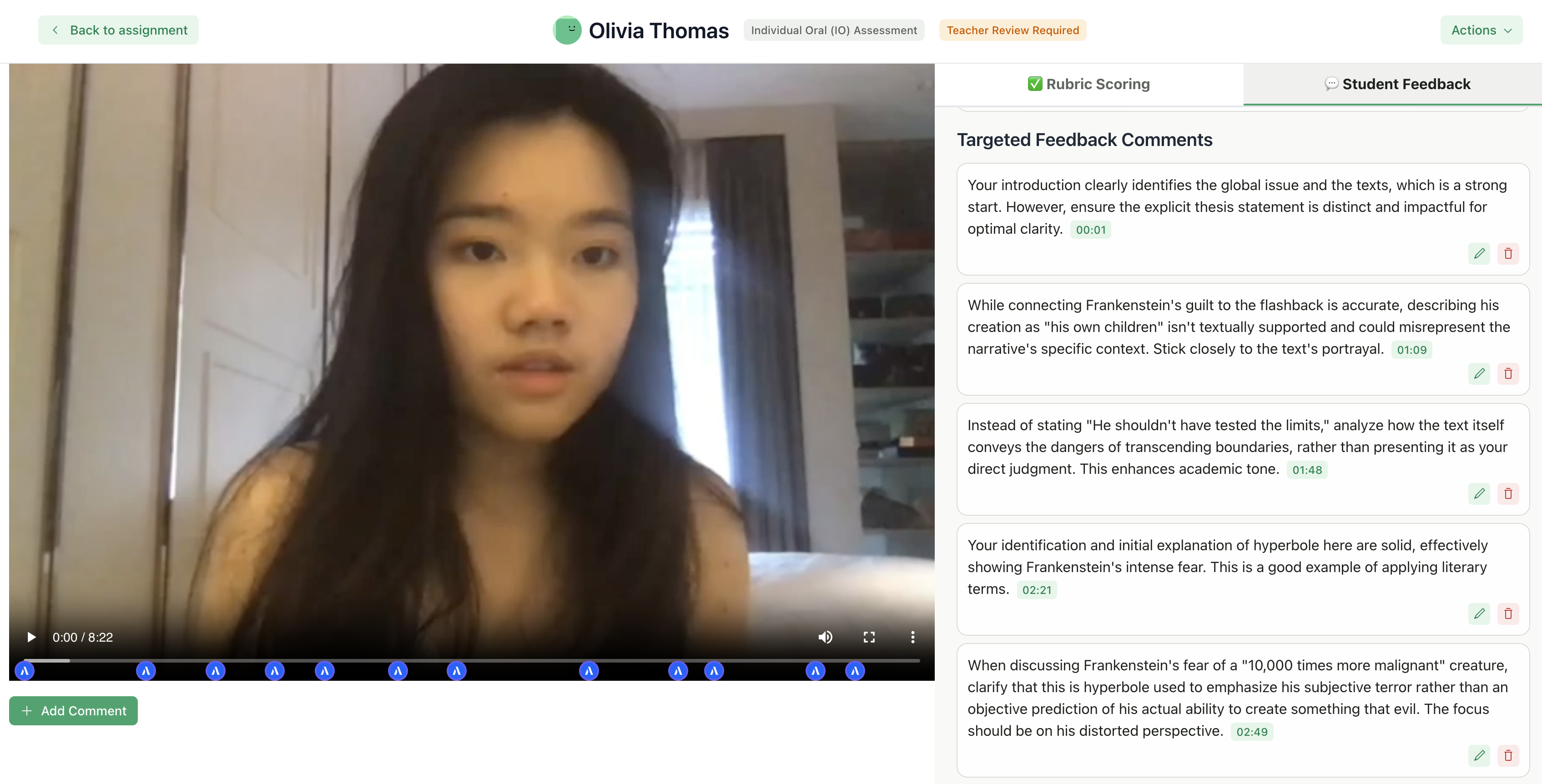 #### Viewing Video Comments
* Comments appear in chronological order in the feedback panel
* Each comment shows its timestamp as a badge
* Click any comment to jump to that moment in the video
#### Adding Timestamped Comments
1. Play the video to the moment you want to comment on
2. Pause at that timestamp
3. Click **Add Comment**
4. Type your feedback
5. The comment is saved at that timestamp
#### Editing Video Comments
* Click any comment to edit its text
* Use the menu to delete a comment
* Timestamps cannot be changed after creation
***
### Presentation & Art Submissions
**Presentations** and **Art & Design** submissions display as PDFs in the left panel.
* Scoring works identically to writing assignments (per-criterion)
* Feedback sections can be edited manually
* Targeted inline comments are **not available** for these types (use Glow & Grow, Structured, or another section-based style instead)
***
## Structured Assignments
This section covers **Exams**, **Quizzes**, **Problem Sets**, and **Worksheets**.
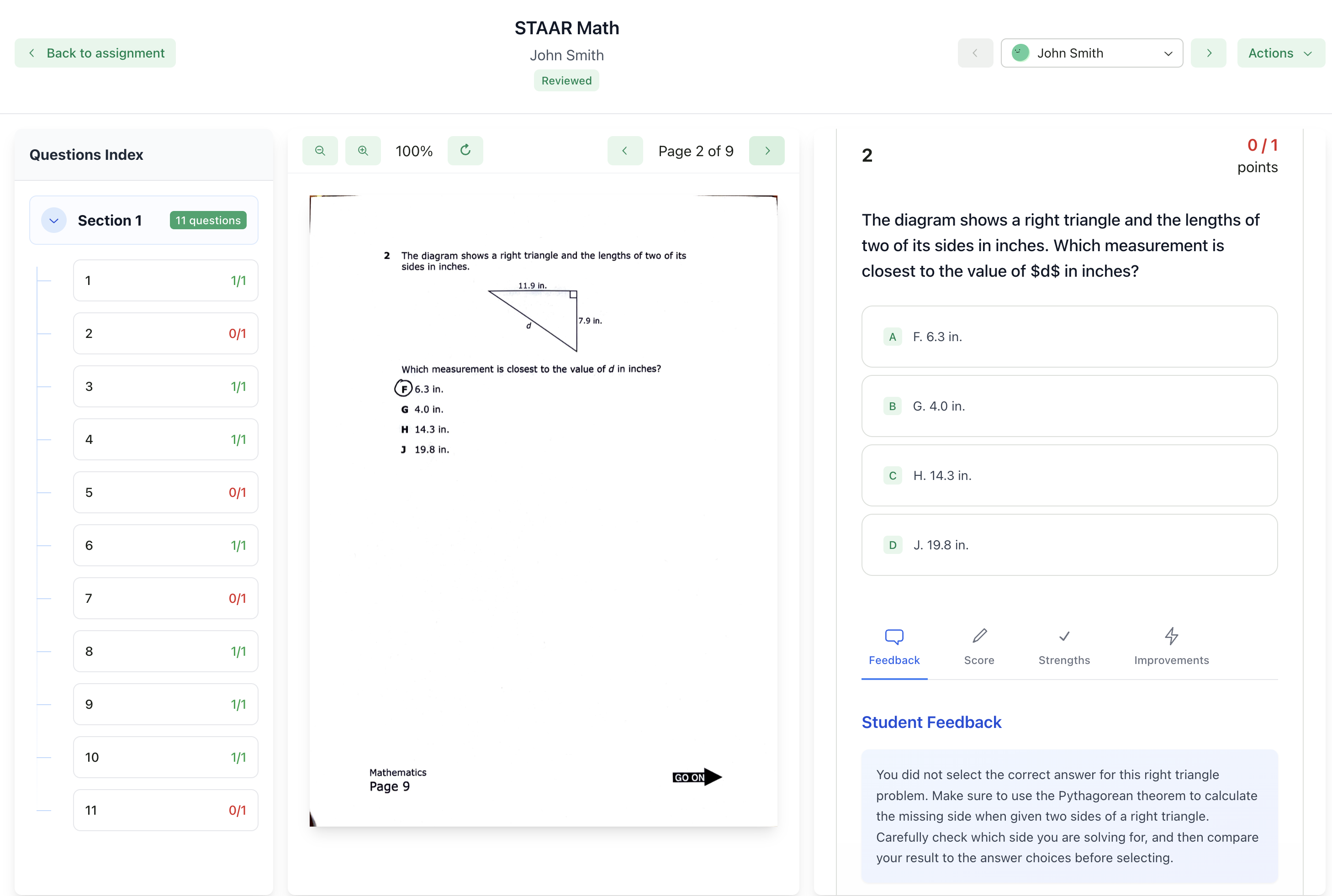
### The Review Interface
Structured assignments have a different layout optimized for question-by-question review:
* **Left panel:** The original assignment document with student's answers
* **Right panel:** Question list and per-question scoring
* **Navigation:** Questions appear as a list; click any question to review it
#### Viewing Video Comments
* Comments appear in chronological order in the feedback panel
* Each comment shows its timestamp as a badge
* Click any comment to jump to that moment in the video
#### Adding Timestamped Comments
1. Play the video to the moment you want to comment on
2. Pause at that timestamp
3. Click **Add Comment**
4. Type your feedback
5. The comment is saved at that timestamp
#### Editing Video Comments
* Click any comment to edit its text
* Use the menu to delete a comment
* Timestamps cannot be changed after creation
***
### Presentation & Art Submissions
**Presentations** and **Art & Design** submissions display as PDFs in the left panel.
* Scoring works identically to writing assignments (per-criterion)
* Feedback sections can be edited manually
* Targeted inline comments are **not available** for these types (use Glow & Grow, Structured, or another section-based style instead)
***
## Structured Assignments
This section covers **Exams**, **Quizzes**, **Problem Sets**, and **Worksheets**.
### The Review Interface
Structured assignments have a different layout optimized for question-by-question review:
* **Left panel:** The original assignment document with student's answers
* **Right panel:** Question list and per-question scoring
* **Navigation:** Questions appear as a list; click any question to review it
 ***
### Understanding Scores
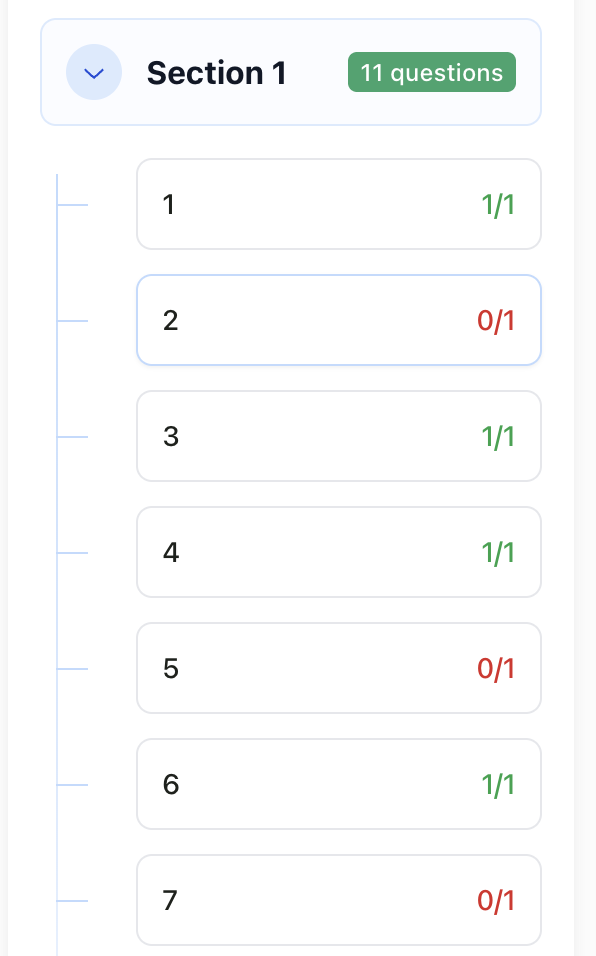
Each **question** is scored individually with its own rubric.
For each question, you'll see:
* **Question number and text**
* **Student's answer** (extracted from their submission)
* **Score** - Points earned based on the rubric level selected by the AI
The AI selects a rubric level (e.g., "Excellent", "Good", "Needs Improvement") for each criterion, which determines the points awarded. There is no separate AI reasoning text - the score is based directly on the rubric level definitions you created.
Sub-questions (like 2a, 2b, 2c) are scored separately, and their totals sum to the parent question's score.
***
### Understanding Scores
Each **question** is scored individually with its own rubric.
For each question, you'll see:
* **Question number and text**
* **Student's answer** (extracted from their submission)
* **Score** - Points earned based on the rubric level selected by the AI
The AI selects a rubric level (e.g., "Excellent", "Good", "Needs Improvement") for each criterion, which determines the points awarded. There is no separate AI reasoning text - the score is based directly on the rubric level definitions you created.
Sub-questions (like 2a, 2b, 2c) are scored separately, and their totals sum to the parent question's score.
 ***
### Editing Scores
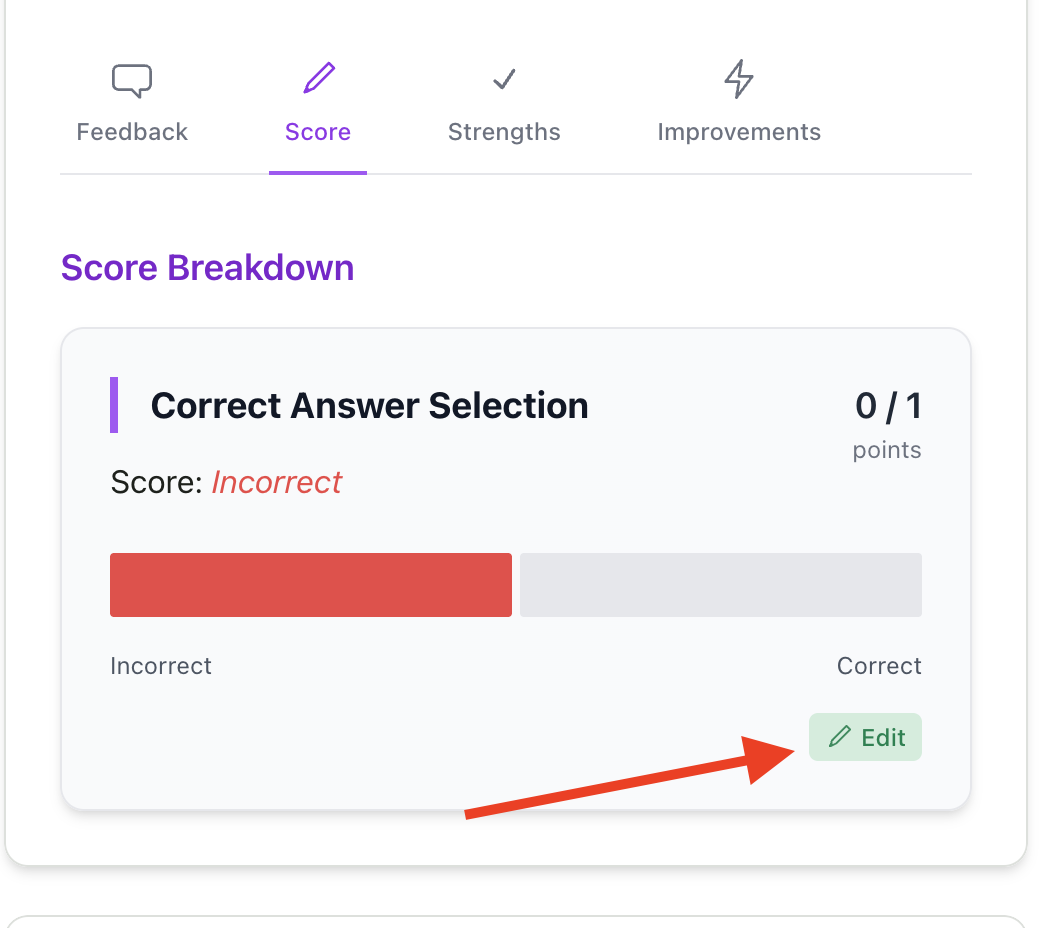
**To change a question score:**
Click on the question in the sidebar
Click the **Score** tab to view the rubric breakdown
Click **Edit** on the criterion you want to change
Select a different rubric level using the progress bar or level options
Click **Save** - the total score recalculates automatically
Each rubric level has predefined points, so you're selecting the level that best matches the student's work rather than entering arbitrary point values.
***
### Editing Scores
**To change a question score:**
Click on the question in the sidebar
Click the **Score** tab to view the rubric breakdown
Click **Edit** on the criterion you want to change
Select a different rubric level using the progress bar or level options
Click **Save** - the total score recalculates automatically
Each rubric level has predefined points, so you're selecting the level that best matches the student's work rather than entering arbitrary point values.
 ***
### Feedback in Structured Assignments
Structured assignments provide **per-question feedback** through dedicated tabs for each question:
**Each question has four tabs:**
1. **Feedback** - General feedback about the student's response
2. **Score** - Rubric breakdown showing the level selected for each criterion
3. **Strengths** - What the student did well on this question
4. **Improvements** - Areas where the student can improve
**Editing feedback:**
* Click on any tab to view or edit that section
* Feedback, Strengths, and Improvements can all be edited by clicking the **Edit** button
* Changes are saved individually per question
**Differences from essay-type assignments:**
* There is no "Adjust All Feedback" feature (feedback is per-question)
* There are no feedback style options (Glow & Grow, Targeted, etc.)
* Feedback is organized by question rather than by overall sections
***
## Handwritten Submissions
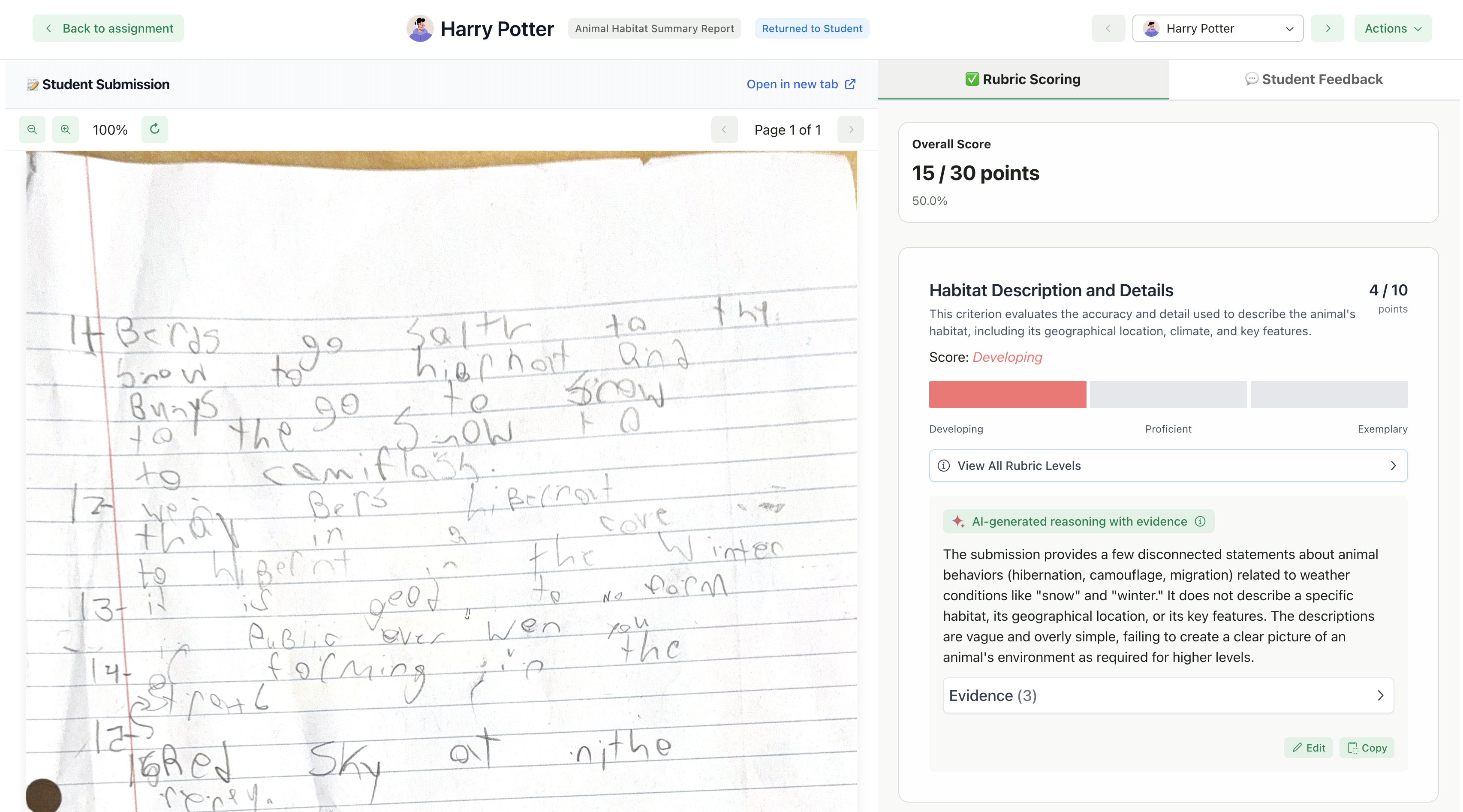
GradingPal automatically detects when a submission contains handwritten text. Handwritten submissions have some different capabilities compared to typed/digital submissions.
### How It Works
When the AI detects handwritten content in a PDF submission, it:
1. Displays the submission as a PDF (regardless of assignment type)
2. Adjusts certain feedback editing features (see below)
3. Uses backend-stored annotations instead of interactive text highlighting
***
### Feedback in Structured Assignments
Structured assignments provide **per-question feedback** through dedicated tabs for each question:
**Each question has four tabs:**
1. **Feedback** - General feedback about the student's response
2. **Score** - Rubric breakdown showing the level selected for each criterion
3. **Strengths** - What the student did well on this question
4. **Improvements** - Areas where the student can improve
**Editing feedback:**
* Click on any tab to view or edit that section
* Feedback, Strengths, and Improvements can all be edited by clicking the **Edit** button
* Changes are saved individually per question
**Differences from essay-type assignments:**
* There is no "Adjust All Feedback" feature (feedback is per-question)
* There are no feedback style options (Glow & Grow, Targeted, etc.)
* Feedback is organized by question rather than by overall sections
***
## Handwritten Submissions
GradingPal automatically detects when a submission contains handwritten text. Handwritten submissions have some different capabilities compared to typed/digital submissions.
### How It Works
When the AI detects handwritten content in a PDF submission, it:
1. Displays the submission as a PDF (regardless of assignment type)
2. Adjusts certain feedback editing features (see below)
3. Uses backend-stored annotations instead of interactive text highlighting
 ***
### Available Features for Handwritten Submissions
| Feature | Available? | Notes |
| --------------------------- | ---------- | ----------------------------------------------------------- |
| View submission | Yes | Displays as PDF |
| View AI scores | Yes | Same as typed submissions |
| Edit scores (change levels) | Yes | Same as typed submissions |
| Point range adjustments | Yes | Same as typed submissions |
| View AI feedback | Yes | Same as typed submissions |
| **Edit feedback manually** | Yes | Edit title and content directly |
| **Edit feedback with AI** | No | AI-assisted editing is disabled for handwritten submissions |
| **Adjust All Feedback** | No | This feature is hidden for handwritten submissions |
| Targeted feedback (inline) | Limited | See below |
***
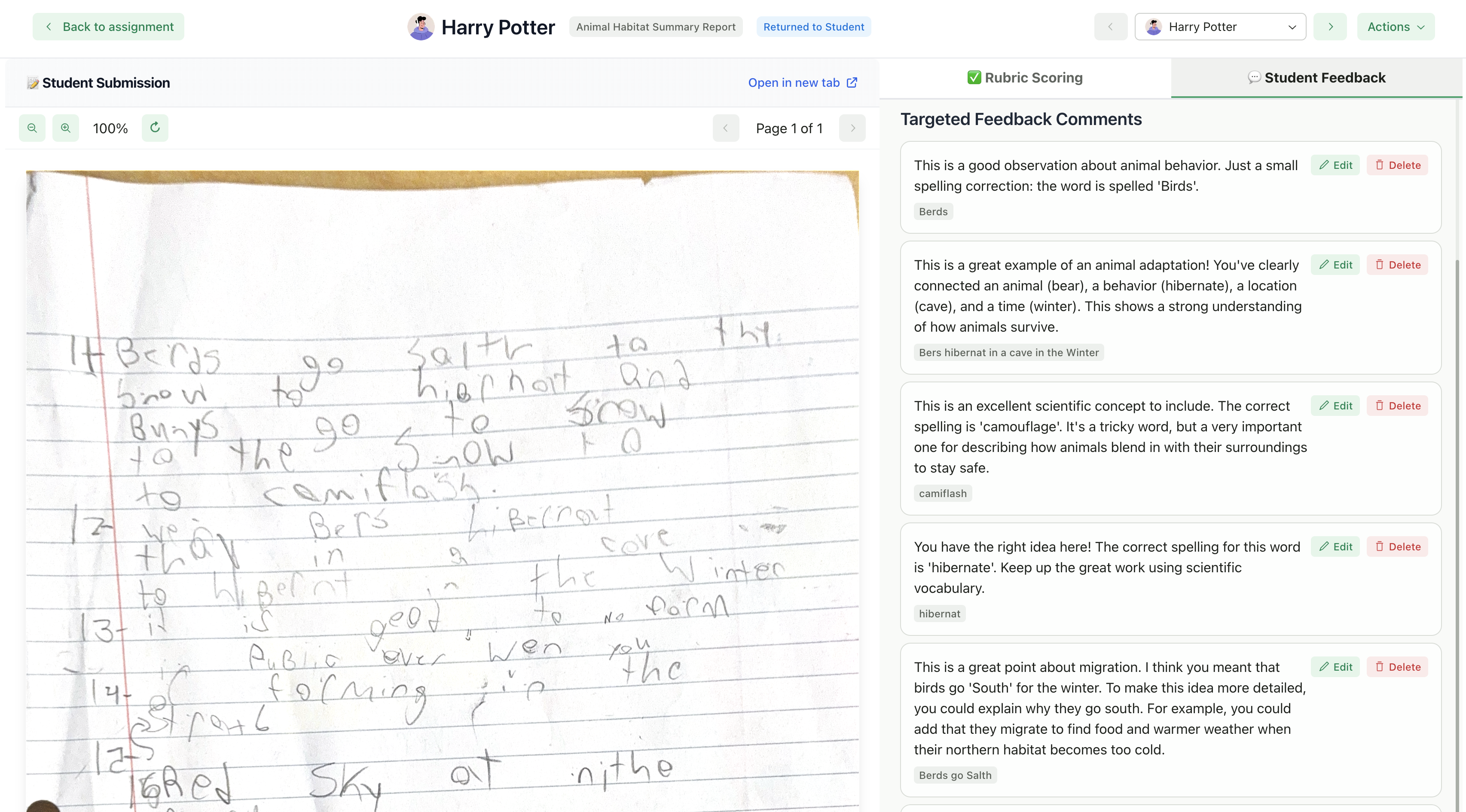
### Targeted Feedback on Handwritten Submissions
If you selected **Targeted** feedback style and the submission is handwritten:
* Comments appear in a list format (no interactive text highlighting)
* You can view, edit, and delete comments manually
* AI editing of targeted comments is not available
***
### Available Features for Handwritten Submissions
| Feature | Available? | Notes |
| --------------------------- | ---------- | ----------------------------------------------------------- |
| View submission | Yes | Displays as PDF |
| View AI scores | Yes | Same as typed submissions |
| Edit scores (change levels) | Yes | Same as typed submissions |
| Point range adjustments | Yes | Same as typed submissions |
| View AI feedback | Yes | Same as typed submissions |
| **Edit feedback manually** | Yes | Edit title and content directly |
| **Edit feedback with AI** | No | AI-assisted editing is disabled for handwritten submissions |
| **Adjust All Feedback** | No | This feature is hidden for handwritten submissions |
| Targeted feedback (inline) | Limited | See below |
***
### Targeted Feedback on Handwritten Submissions
If you selected **Targeted** feedback style and the submission is handwritten:
* Comments appear in a list format (no interactive text highlighting)
* You can view, edit, and delete comments manually
* AI editing of targeted comments is not available
 ***
### Recommendations for Handwritten Work
If you frequently receive handwritten submissions:
1. **Use section-based feedback styles** - Glow & Grow, Structured, or Actionable work better than Targeted for handwritten work
2. **Review manually** - Plan to edit feedback manually rather than relying on AI editing
3. **Consider typed alternatives** - If students can type responses (even short ones), the full feature set becomes available
***
## Quick Reference: Editing Capabilities by Assignment Type
| Feature | Writing (Typed) | Writing (Handwritten) | Video | Presentation/Art | Structured (ADSL) |
| ------------------------ | --------------- | --------------------- | ---------- | ---------------- | ------------------ |
| **Score editing** | Yes | Yes | Yes | Yes | Yes |
| **Point range editing** | If enabled | If enabled | If enabled | If enabled | Yes (per question) |
| **Manual feedback edit** | Yes | Yes | Yes | Yes | Per-question only |
| **AI feedback edit** | Yes | No | No | No | No |
| **Adjust All Feedback** | Yes | No | No | No | No |
| **Targeted comments** | Yes | No text highlighting | Timestamps | No | No |
| **AI edit targeted** | Yes | No | No | N/A | N/A |
***
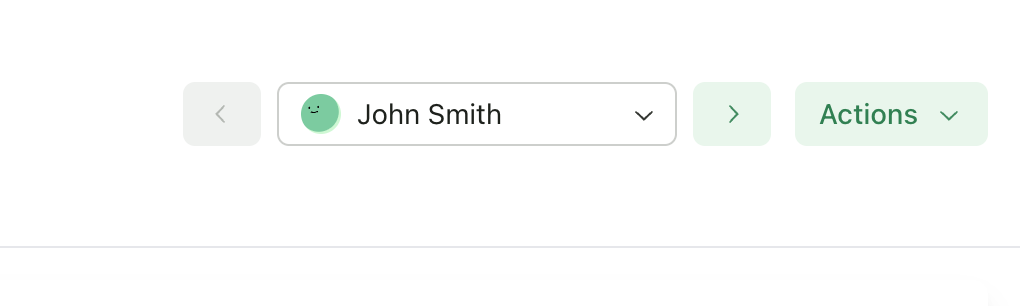
## Navigating Between Submissions
Review multiple submissions efficiently:
| Action | How |
| ----------------------- | -------------------------------------- |
| **Next submission** | Click the right arrow or press **→** |
| **Previous submission** | Click the left arrow or press **←** |
| **Jump to student** | Use the student dropdown in the header |
***
### Recommendations for Handwritten Work
If you frequently receive handwritten submissions:
1. **Use section-based feedback styles** - Glow & Grow, Structured, or Actionable work better than Targeted for handwritten work
2. **Review manually** - Plan to edit feedback manually rather than relying on AI editing
3. **Consider typed alternatives** - If students can type responses (even short ones), the full feature set becomes available
***
## Quick Reference: Editing Capabilities by Assignment Type
| Feature | Writing (Typed) | Writing (Handwritten) | Video | Presentation/Art | Structured (ADSL) |
| ------------------------ | --------------- | --------------------- | ---------- | ---------------- | ------------------ |
| **Score editing** | Yes | Yes | Yes | Yes | Yes |
| **Point range editing** | If enabled | If enabled | If enabled | If enabled | Yes (per question) |
| **Manual feedback edit** | Yes | Yes | Yes | Yes | Per-question only |
| **AI feedback edit** | Yes | No | No | No | No |
| **Adjust All Feedback** | Yes | No | No | No | No |
| **Targeted comments** | Yes | No text highlighting | Timestamps | No | No |
| **AI edit targeted** | Yes | No | No | N/A | N/A |
***
## Navigating Between Submissions
Review multiple submissions efficiently:
| Action | How |
| ----------------------- | -------------------------------------- |
| **Next submission** | Click the right arrow or press **→** |
| **Previous submission** | Click the left arrow or press **←** |
| **Jump to student** | Use the student dropdown in the header |
 ***
## Submission Actions
### Mark as Completed
Track which submissions you've reviewed:
1. Click **Mark as Completed** in the header
2. Status changes from "Pending Review" to "Completed"
To revert: Click **Mark as Pending**
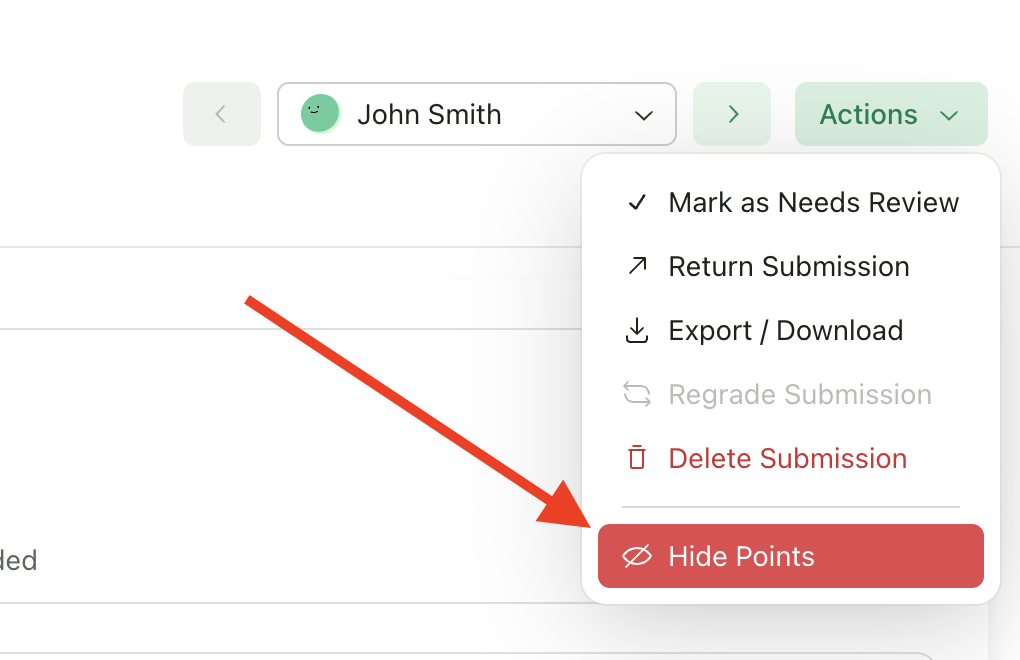
### Hide Points from Student
If you want students to see feedback but not numerical scores:
1. Toggle **Hide Points** in the header
2. When returned, students see feedback without point values
***
## Submission Actions
### Mark as Completed
Track which submissions you've reviewed:
1. Click **Mark as Completed** in the header
2. Status changes from "Pending Review" to "Completed"
To revert: Click **Mark as Pending**
### Hide Points from Student
If you want students to see feedback but not numerical scores:
1. Toggle **Hide Points** in the header
2. When returned, students see feedback without point values
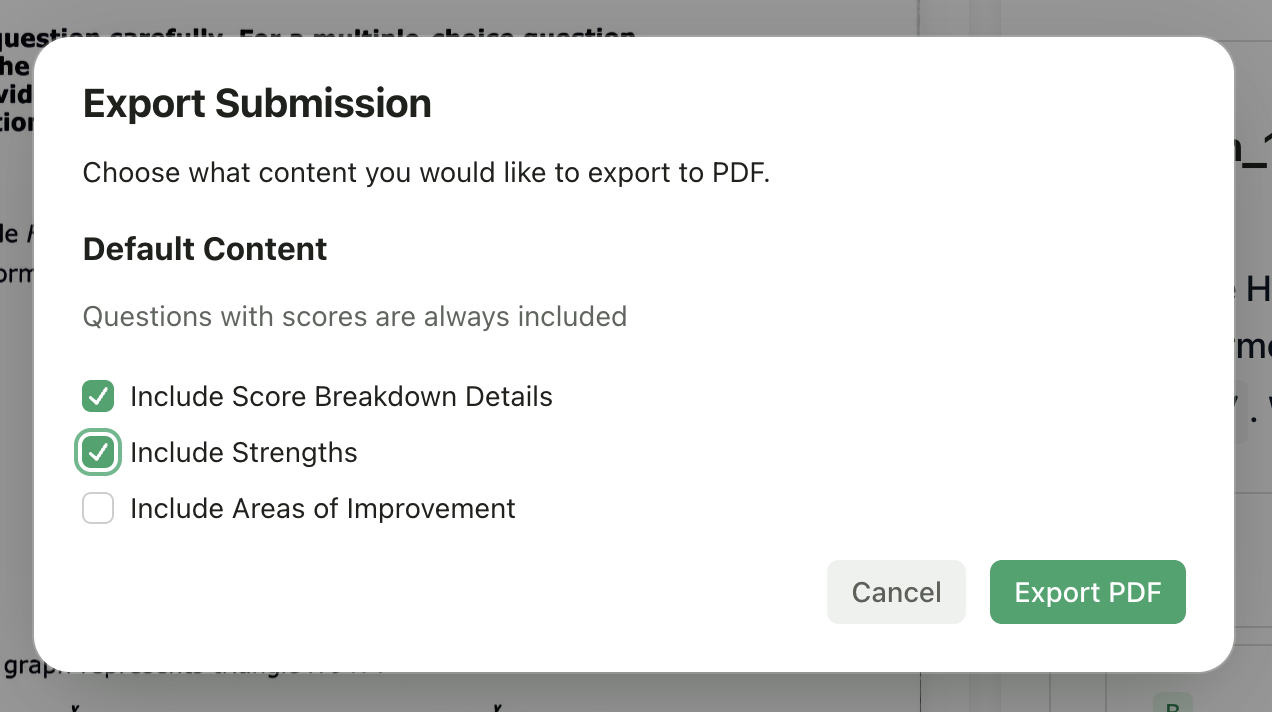
 ### Export to PDF
Download a PDF of the graded submission:
1. Click **Export** in the header
2. Choose options (include student work, rubric scores, feedback)
3. Click **Download PDF**
### Export to PDF
Download a PDF of the graded submission:
1. Click **Export** in the header
2. Choose options (include student work, rubric scores, feedback)
3. Click **Download PDF**
 ### Delete Submission
Remove a submission:
1. Click **Delete**
2. Confirm the deletion
This permanently removes the submission and cannot be undone.
***
## Handling Failed Submissions
If a submission shows "Failed" status:
1. Click on the submission to see the error
2. Click **Retry Grading** to attempt grading again
3. If the issue persists, check that the file is valid and readable
**Common causes:**
* Corrupted or unreadable files
* Unsupported file formats
* Very large files that timeout
***
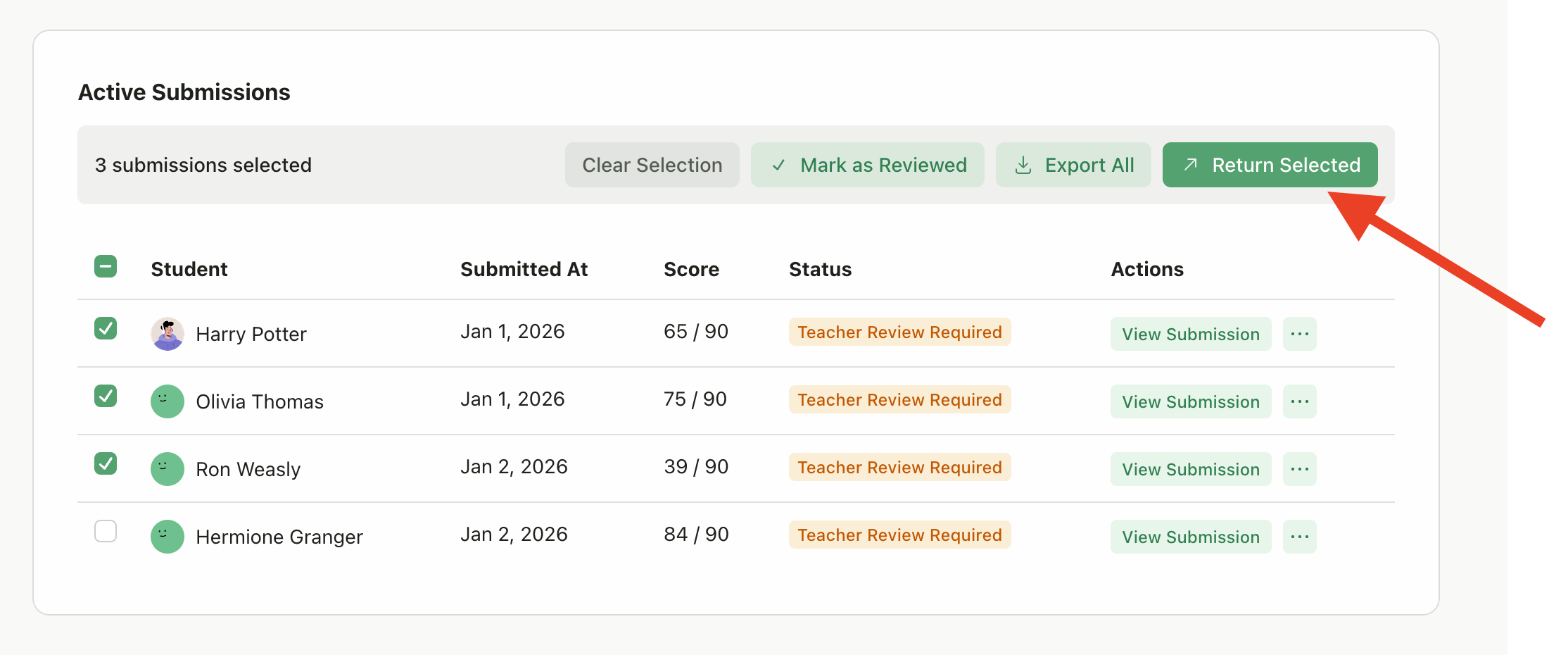
## Bulk Actions
For efficiency with large classes:
1. Select submissions using the checkboxes
2. Choose a bulk action:
* **Mark as Completed** - Update status for all selected
* **Return All** - Return grades to all selected students
* **Export All** - Download PDFs for all selected
### Delete Submission
Remove a submission:
1. Click **Delete**
2. Confirm the deletion
This permanently removes the submission and cannot be undone.
***
## Handling Failed Submissions
If a submission shows "Failed" status:
1. Click on the submission to see the error
2. Click **Retry Grading** to attempt grading again
3. If the issue persists, check that the file is valid and readable
**Common causes:**
* Corrupted or unreadable files
* Unsupported file formats
* Very large files that timeout
***
## Bulk Actions
For efficiency with large classes:
1. Select submissions using the checkboxes
2. Choose a bulk action:
* **Mark as Completed** - Update status for all selected
* **Return All** - Return grades to all selected students
* **Export All** - Download PDFs for all selected
 ***
## Tips for Efficient Review
Use the arrow keys or the submission dropdown at the top of the grading view to toggle between students without returning to the submissions list.
Sort by score to check very high or low grades for accuracy.
A brief note in Overall Feedback can make AI-generated comments feel more personal.
Apply it once with your preferred prompt (like "simpler language") across a batch of similar submissions.
If AI scores consistently miss the mark, [edit your rubric criteria](/teacher/assignment-management/edit-assignment-details-rubric) to be more clear and specific. This automatically triggers a regrade for all submissions, saving you from manual corrections.
***
## Related Articles
* [Return Submissions & Feedback](/teacher/grades-and-feedback/return-submissions-feedback)
* [Upload Student Work](/teacher/grade-your-assignment/upload-student-work)
* [Edit Assignment Details & Rubric](/teacher/assignment-management/edit-assignment-details-rubric)
* [Assignment Settings](/teacher/assignment-management/assignment-settings)
***
## Tips for Efficient Review
Use the arrow keys or the submission dropdown at the top of the grading view to toggle between students without returning to the submissions list.
Sort by score to check very high or low grades for accuracy.
A brief note in Overall Feedback can make AI-generated comments feel more personal.
Apply it once with your preferred prompt (like "simpler language") across a batch of similar submissions.
If AI scores consistently miss the mark, [edit your rubric criteria](/teacher/assignment-management/edit-assignment-details-rubric) to be more clear and specific. This automatically triggers a regrade for all submissions, saving you from manual corrections.
***
## Related Articles
* [Return Submissions & Feedback](/teacher/grades-and-feedback/return-submissions-feedback)
* [Upload Student Work](/teacher/grade-your-assignment/upload-student-work)
* [Edit Assignment Details & Rubric](/teacher/assignment-management/edit-assignment-details-rubric)
* [Assignment Settings](/teacher/assignment-management/assignment-settings)