> ## Documentation Index
> Fetch the complete documentation index at: https://docs.gradingpal.com/llms.txt
> Use this file to discover all available pages before exploring further.
# Google Classroom Integration
> Import classes, sync assignments, pull submissions, and return grades with Google Classroom
GradingPal integrates with Google Classroom to import classes, sync assignments, pull student submissions, and return grades—all while keeping your existing classroom workflow intact.
***
## What You Can Do
| Feature | Description |
| ------------------------ | ------------------------------------------------------------------------- |
| **Import classes** | Bring your Google Classroom roster into GradingPal with one click |
| **Publish assignments** | Create assignments in GradingPal that appear in Google Classroom |
| **Import submissions** | Pull student work from Google Classroom for AI grading |
| **Sync grades** | Return scores and feedback to your Google Classroom gradebook |
| **Auto-enroll students** | Students are automatically enrolled when they submit via Google Classroom |
***
## Connecting Google Classroom
### Step 1: Start the Connection
You can connect Google Classroom from two places:
**During onboarding:** New users are prompted to connect Google Classroom as part of the initial setup flow.
**From the dashboard:** Click **Import Classes** on your teacher dashboard.
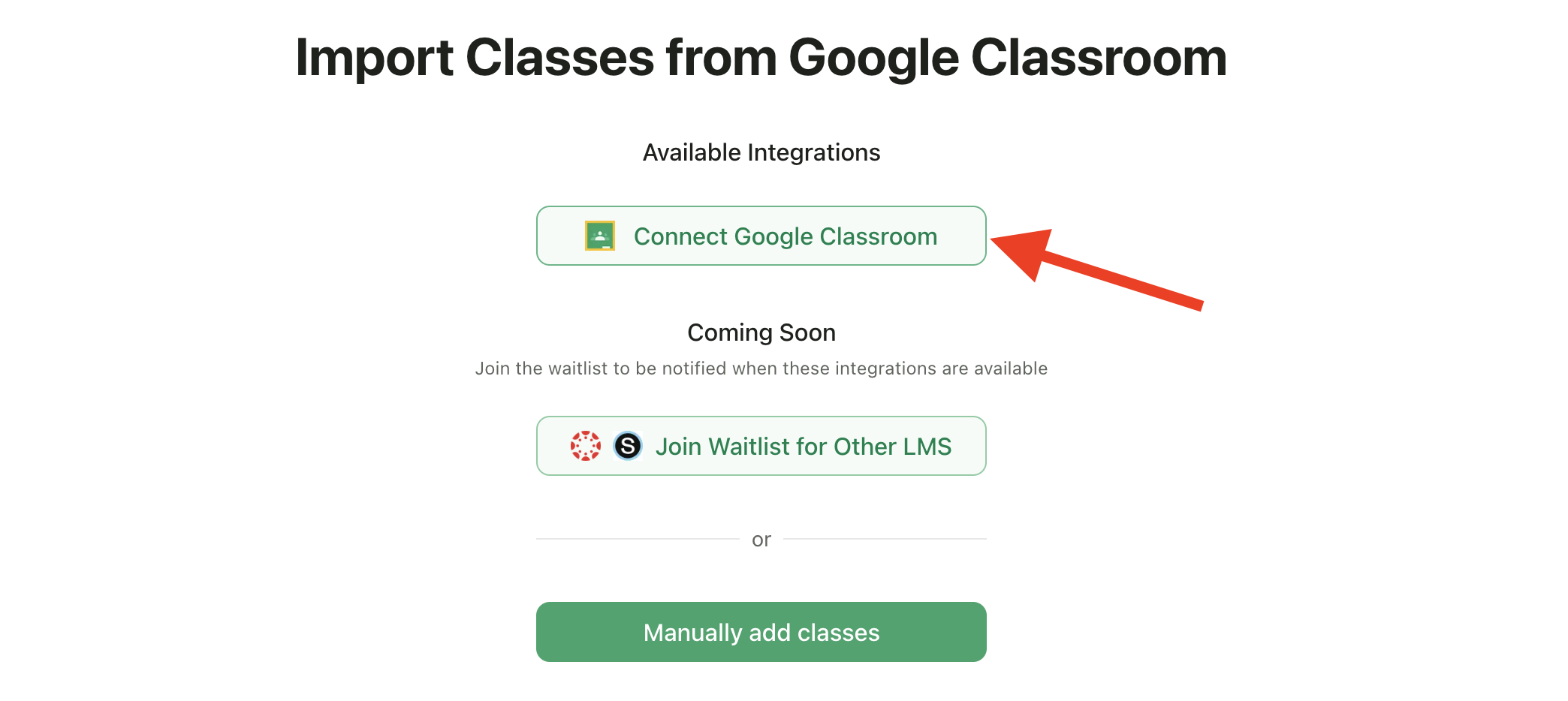
On the integration selection screen, click **Connect Google Classroom**.
You'll be redirected to Google's sign-in page. Sign in with your Google account that has Google Classroom access.
### Step 2: Select All Permissions
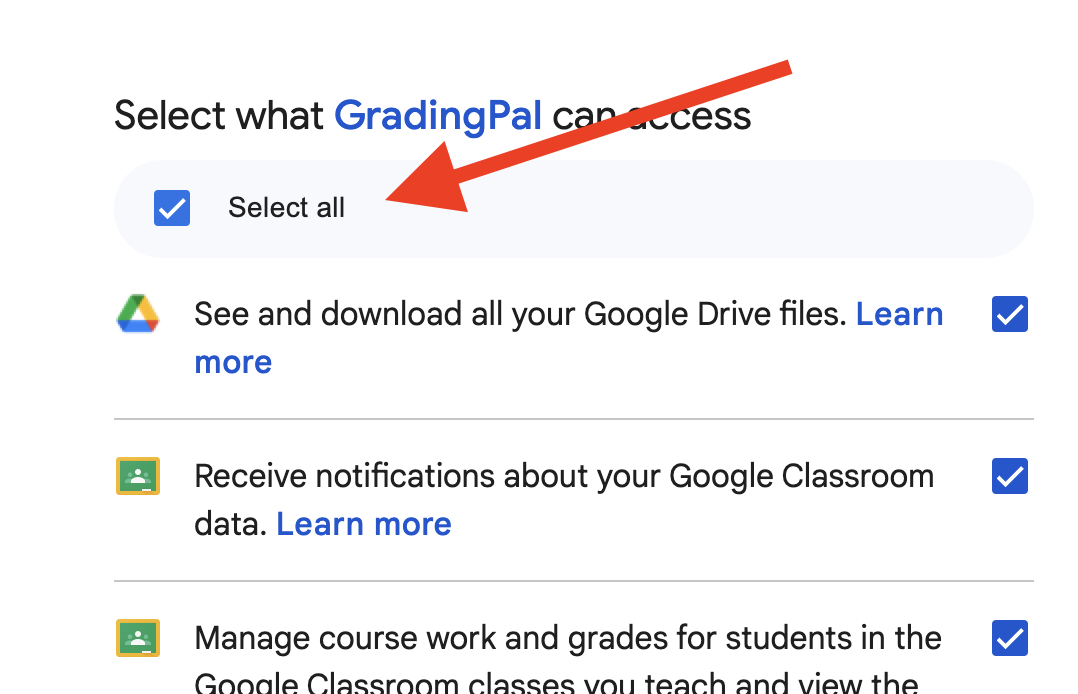
On the Google permissions screen, you **must select "Select All"** for full functionality.
If you don't grant all permissions, you may experience issues with:
* Importing classes and rosters
* Syncing assignments
* Pulling student submissions
* Returning grades
### Step 3: Return to GradingPal
After granting permissions, you'll be redirected back to GradingPal to select which classes to import.
***
## Importing Classes
Once connected, you can import your Google Classroom classes into GradingPal.
### Step 1: Select Classes
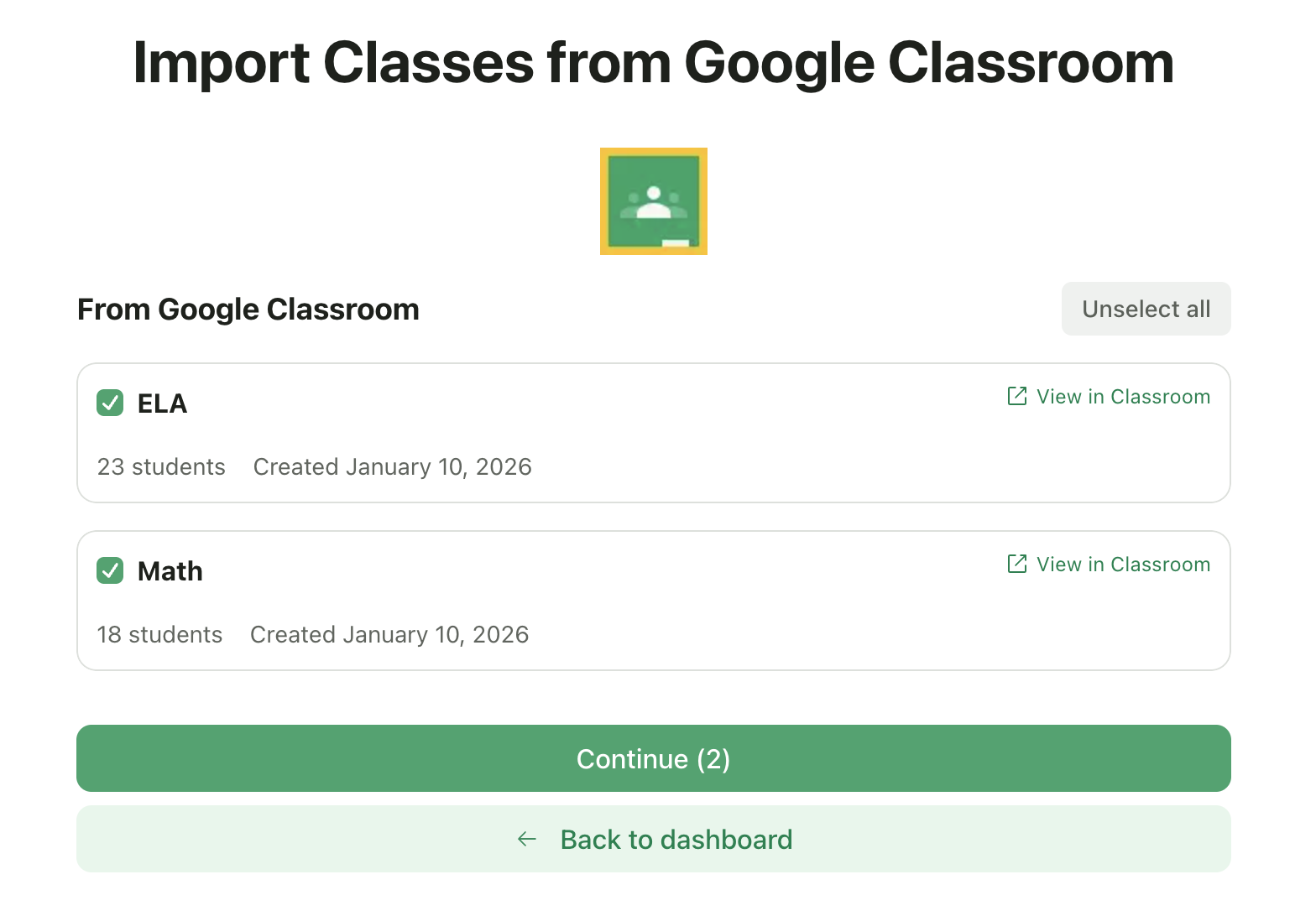
You'll see a list of all your Google Classroom courses. Check the ones you want to import.
Each class card shows:
* Class name and section
* Number of students
* Creation date
* Link to view in Google Classroom
Click **Continue** when you've selected your classes.
### Step 2: Configure Class Details
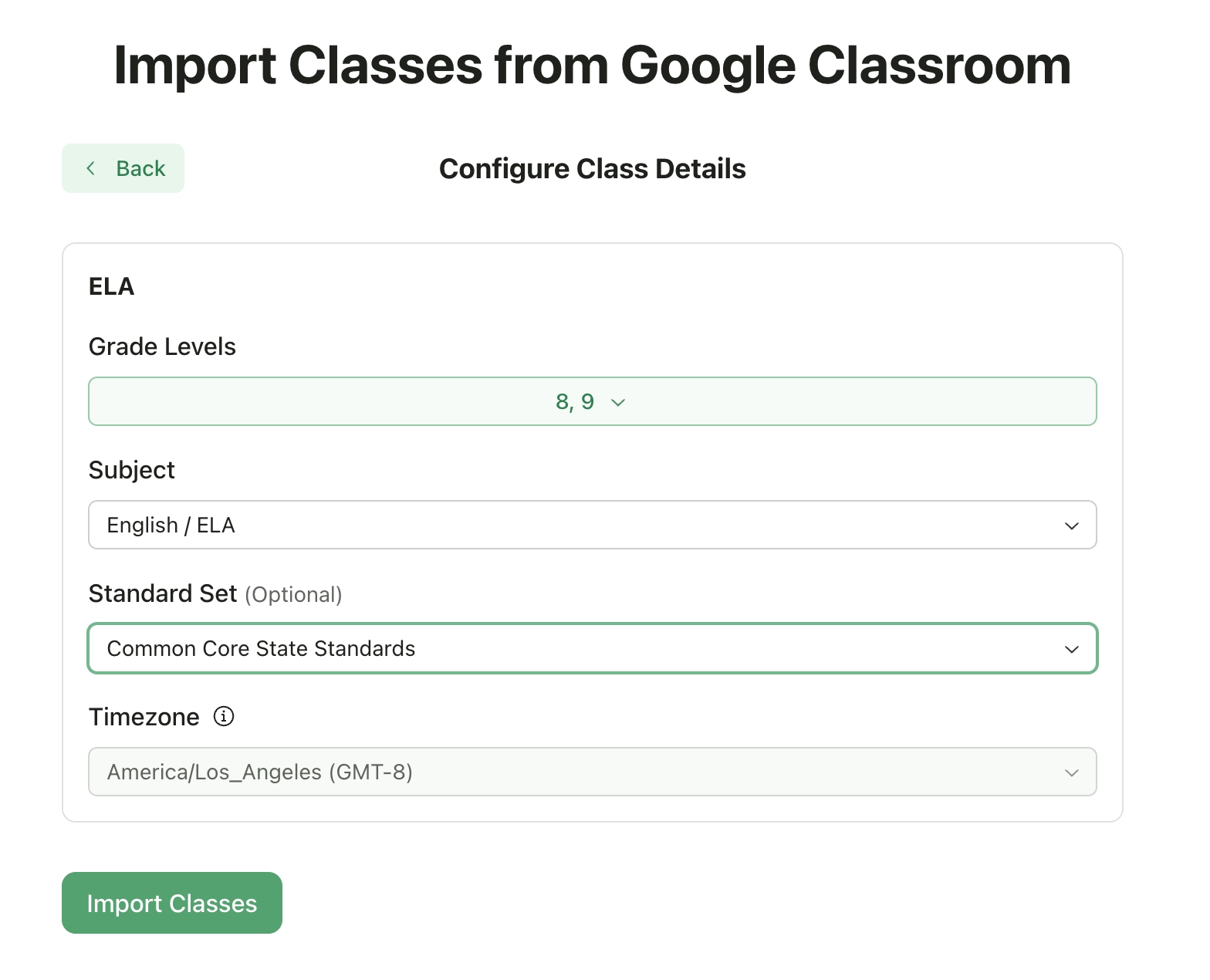
For each class, provide additional information that GradingPal needs:
| Field | Required | Description |
| ---------------- | -------- | ------------------------------------------------ |
| **Grade Levels** | Yes | Select one or more grades (K–12, College, Adult) |
| **Subject** | Yes | Choose the primary subject area |
| **Standard Set** | No | Optionally select a standards framework |
| **Timezone** | Yes | Inherited from your profile settings |
### Step 3: Import
Click **Import Classes**. Your classes, along with their student rosters, will be imported into GradingPal.
After import:
* Students are automatically added to your class roster
* You can start creating assignments immediately
* Any future roster changes in Google Classroom will sync automatically
***
## Creating Assignments (GradingPal → Google Classroom)
When you create an assignment in GradingPal for a Google Classroom-connected class, it can be automatically published to Google Classroom.
### Automatic Publishing (Default)
With **Automatic Assignment Sync** enabled (the default setting), assignments are published to Google Classroom as soon as you create them in GradingPal.
**What gets published:**
* Assignment title and description
* Due date and time
* Maximum points
* Your rubric (with all criteria and levels)
* A link back to GradingPal
### Manual Publishing
If you prefer to control when assignments appear in Google Classroom, you can disable automatic sync in [Class Settings](/teacher/classes-and-students/class-settings).
When automatic sync is off, you can manually publish assignments:
**From the Assignment Wizard:**
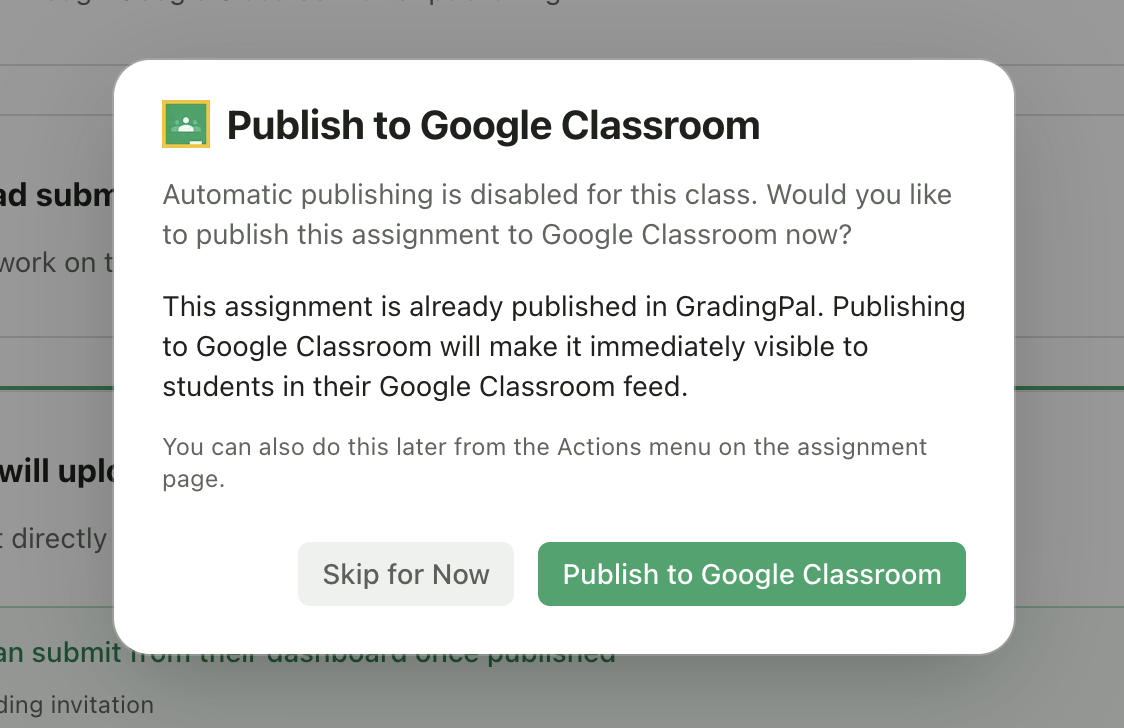
After clicking **Finish Setup**, a dialog will ask if you want to publish to Google Classroom.
**From the Assignment Page:**
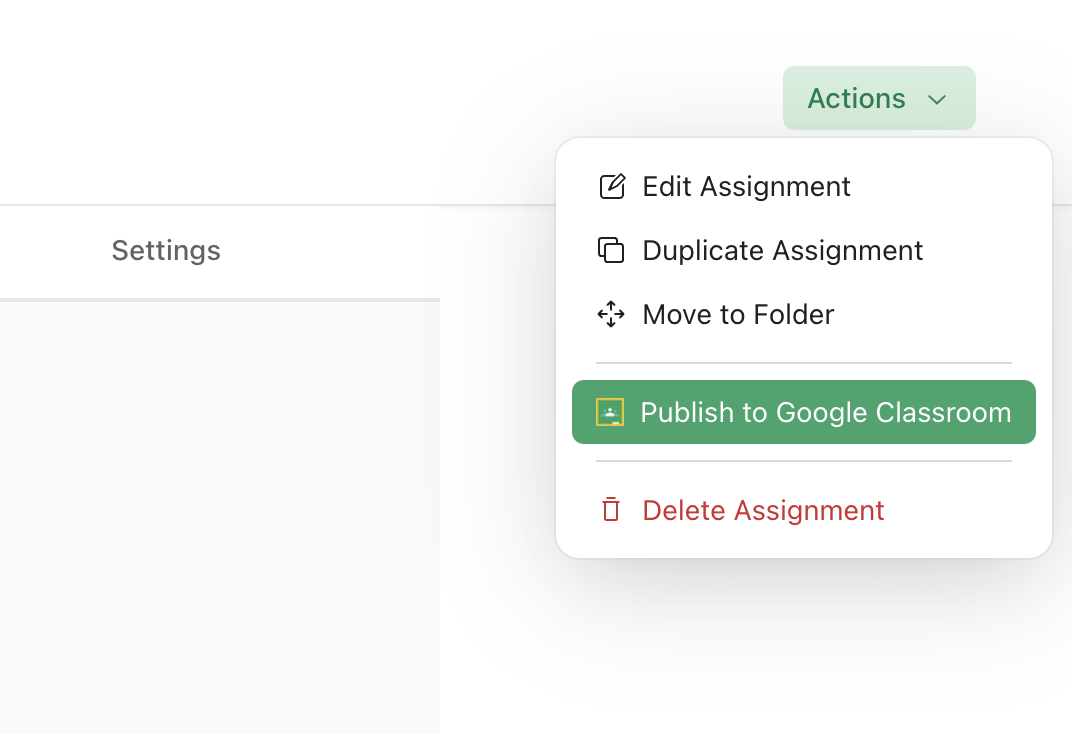
Click **Actions** → **Publish to Google Classroom**.
### Publish Date Handling
GradingPal respects your assignment's publish settings:
| Assignment Status | Publish Date | Result in Google Classroom |
| ----------------- | -------------------- | -------------------------------------------------- |
| Published | Any | Immediately visible to students |
| Draft | Future date | Created as draft, auto-publishes at scheduled time |
| Draft | No date or past date | Created as hidden draft |
### Supported Assignment Types
Not all assignment types can be published to Google Classroom:
| Type | Supported |
| ------------------------- | --------- |
| Writing (Essays, Reports) | Yes |
| Video | Yes |
| Presentation | Yes |
| Art & Design | Yes |
| Exam | No |
| Quiz | No |
| Worksheet | No |
| Problem Set | No |
For unsupported types, the publish option will not appear. Note- we're working on adding support for these unavailable assignment types shortly.
***
## Importing Existing Assignments (Google Classroom → GradingPal)
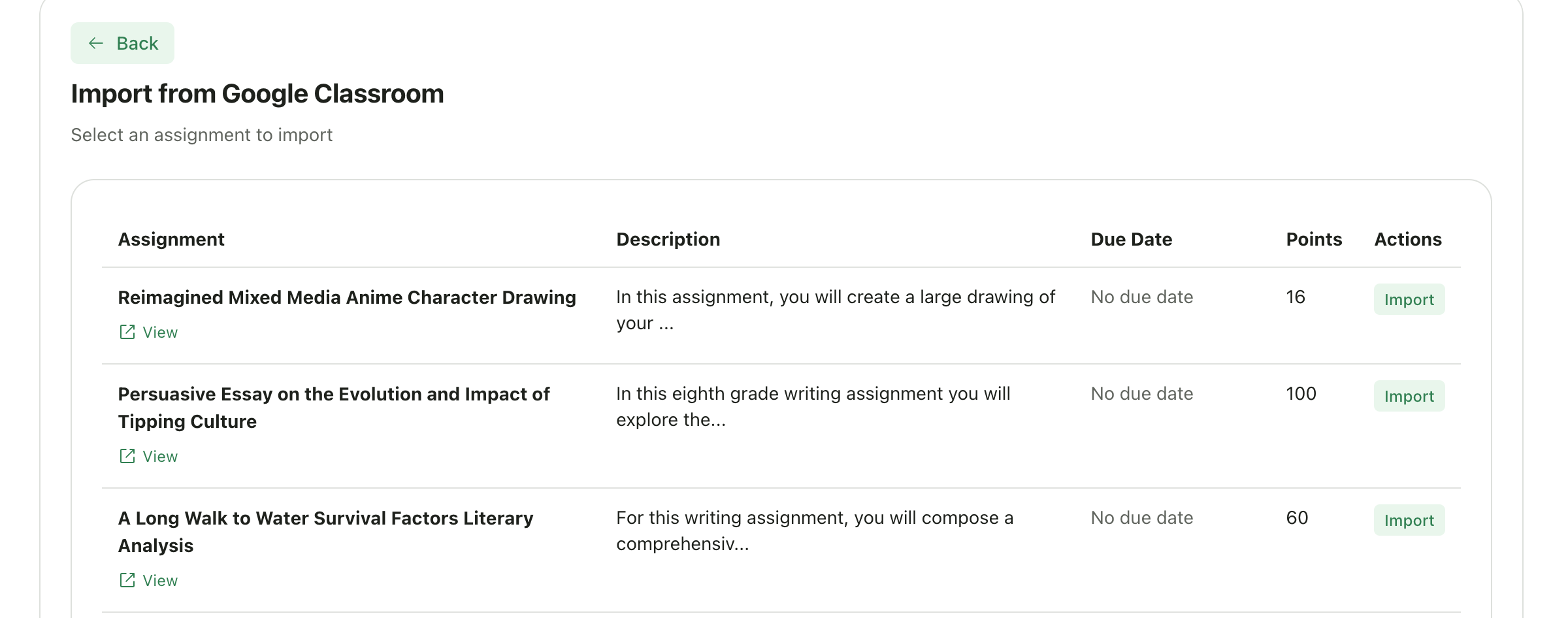
You can also import assignments that already exist in Google Classroom.
### How to Import
1. Go to your class in GradingPal
2. Click **New Assignment**
3. Select **Import from Google Classroom**
4. Choose the assignment you want to import
### Important Limitation
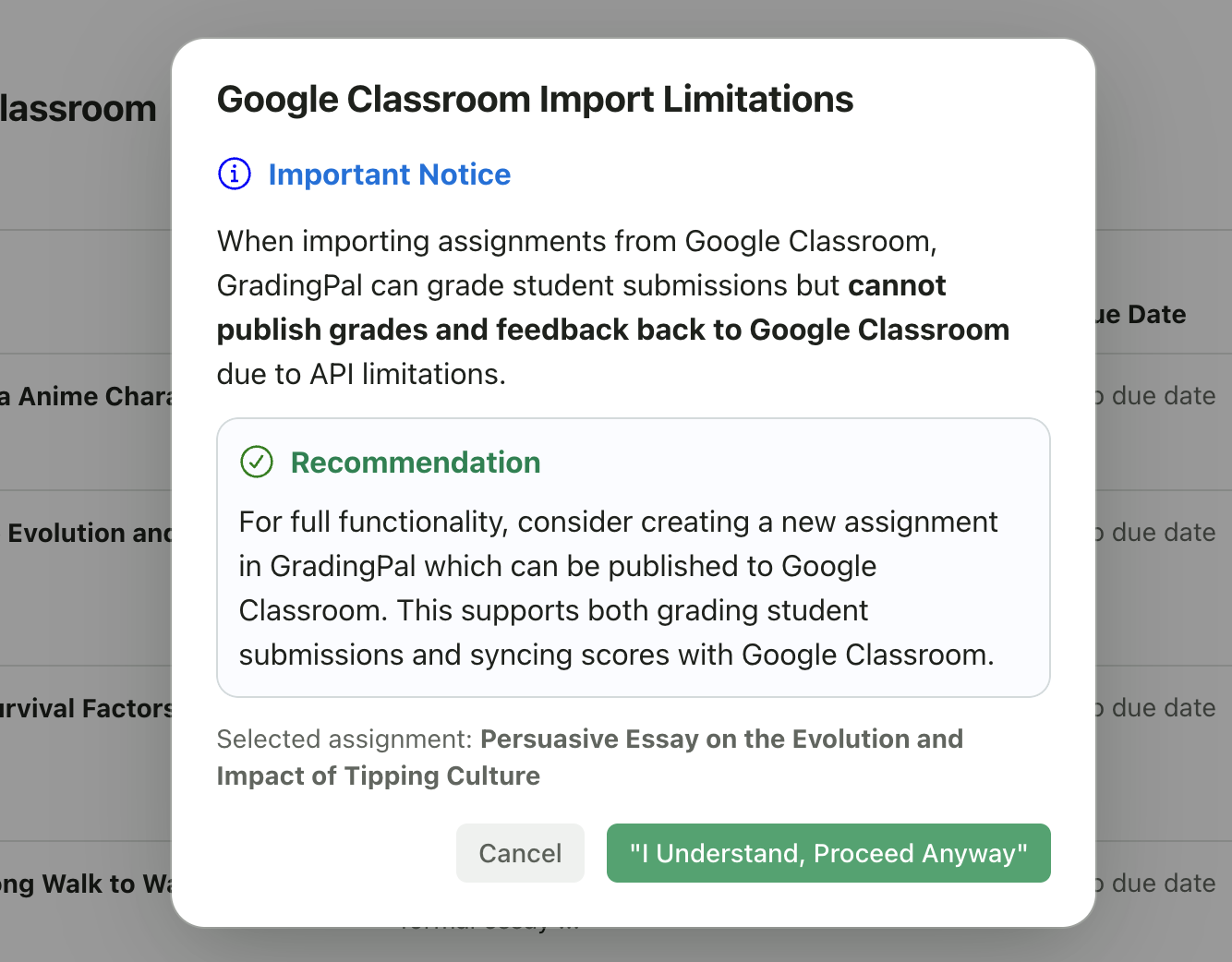
When you import an assignment **from** Google Classroom (rather than creating it in GradingPal), there's a key limitation:
**GradingPal cannot sync grades back to Google Classroom for imported assignments.**
This is due to Google Classroom API restrictions. For full grade sync functionality, we recommend creating new assignments in GradingPal and publishing them to Google Classroom.
A dialog will explain this limitation before you proceed with the import.
***
## Student Submissions from Google Classroom
How student submissions flow into GradingPal depends on how the assignment was created.
### Automatic Sync (Assignments Created in GradingPal)
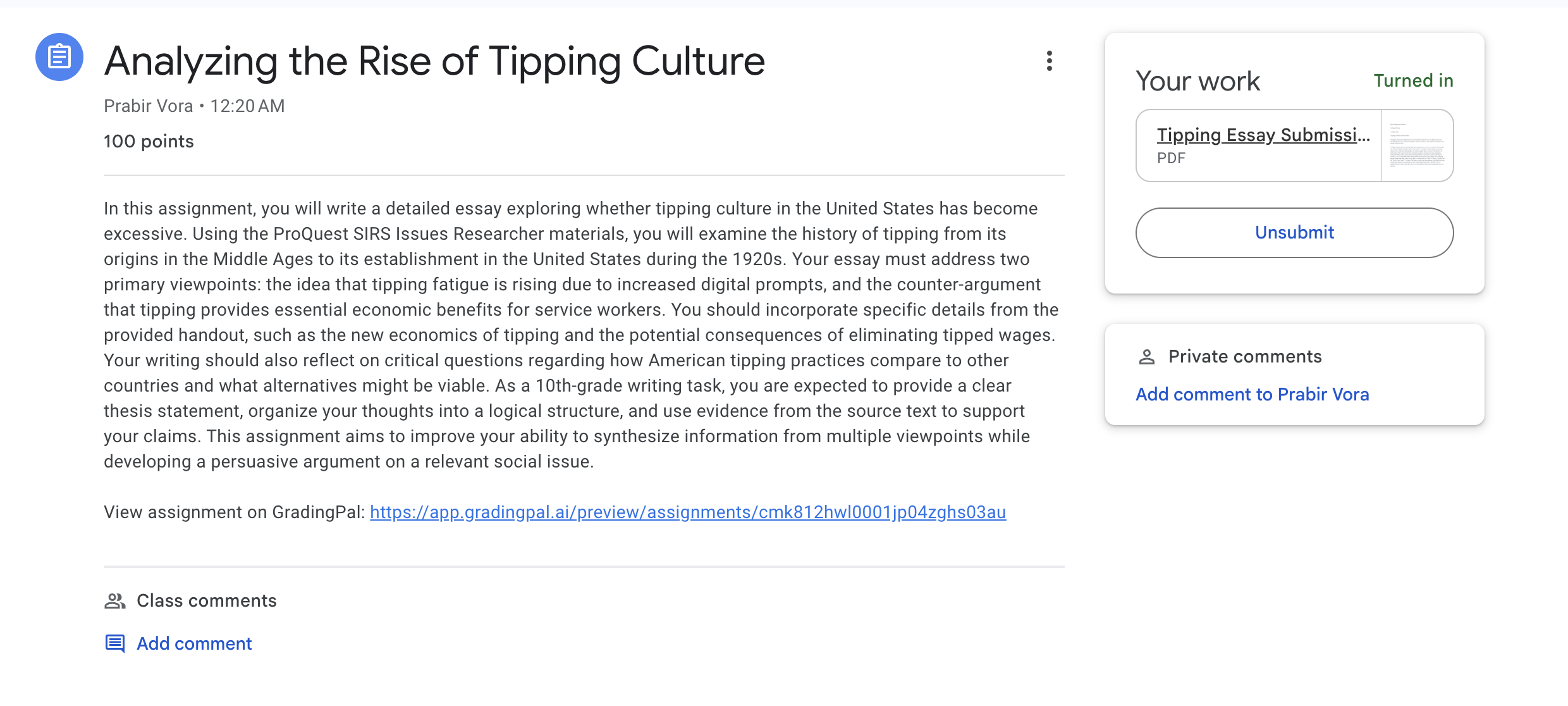
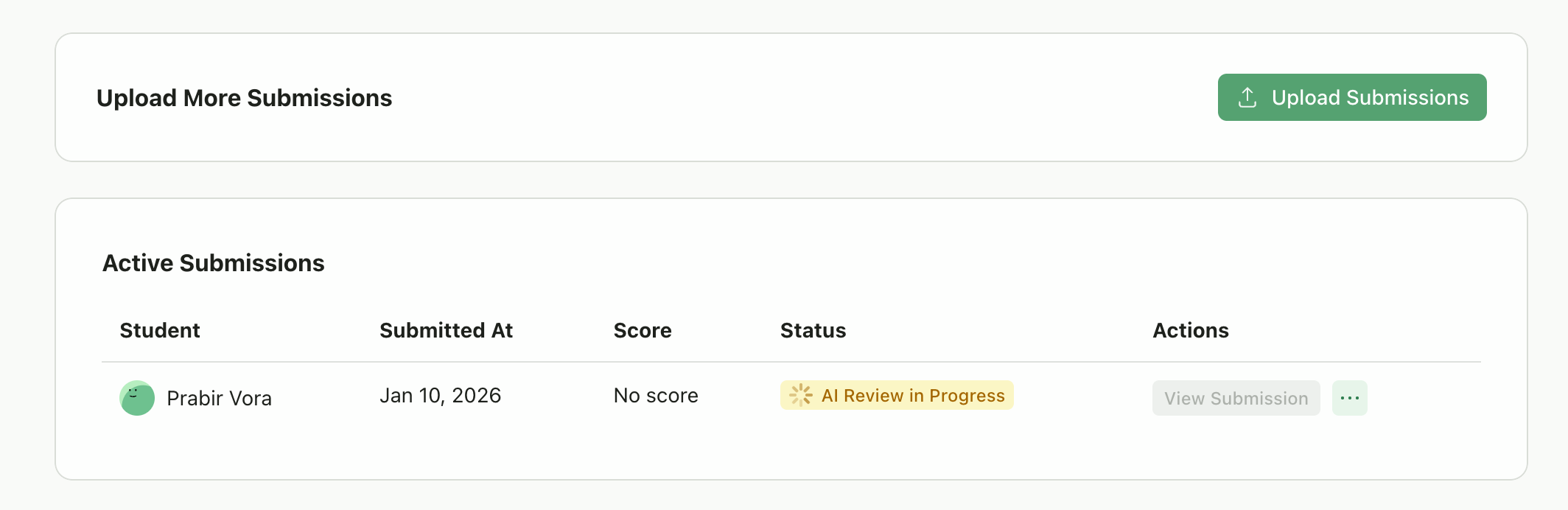
When you create an assignment in GradingPal and publish it to Google Classroom, student submissions **automatically appear in GradingPal** as soon as students turn in their work.
**How it works:**
1. Student submits their work in Google Classroom
2. GradingPal is notified automatically (via real-time sync)
3. The submission appears in GradingPal within moments
4. AI grading starts automatically
5. Student is auto-enrolled if not already in your roster
No manual import needed—submissions flow in seamlessly.
### Manual Import (Assignments Imported from Google Classroom)
For assignments that were imported from Google Classroom (not created in GradingPal), you'll need to manually pull submissions.
#### Step 1: View Submissions Preview
On the assignment page, you'll see a **Google Classroom** panel showing student submission status.
The panel shows:
* Each student's name and email
* Their submission status (Submitted, In Progress, Not Started, etc.)
* Whether they have attachments
* How many submissions are ready to import
#### Step 2: Import Submissions
Click **Import Submissions**. GradingPal will:
1. Download the student's submitted files
2. Create submission records in GradingPal
3. Automatically start AI grading
4. Enroll any new students who weren't already in your roster
Only submissions marked as "Submitted" (turned in) will be imported.
***
## Returning Grades to Google Classroom
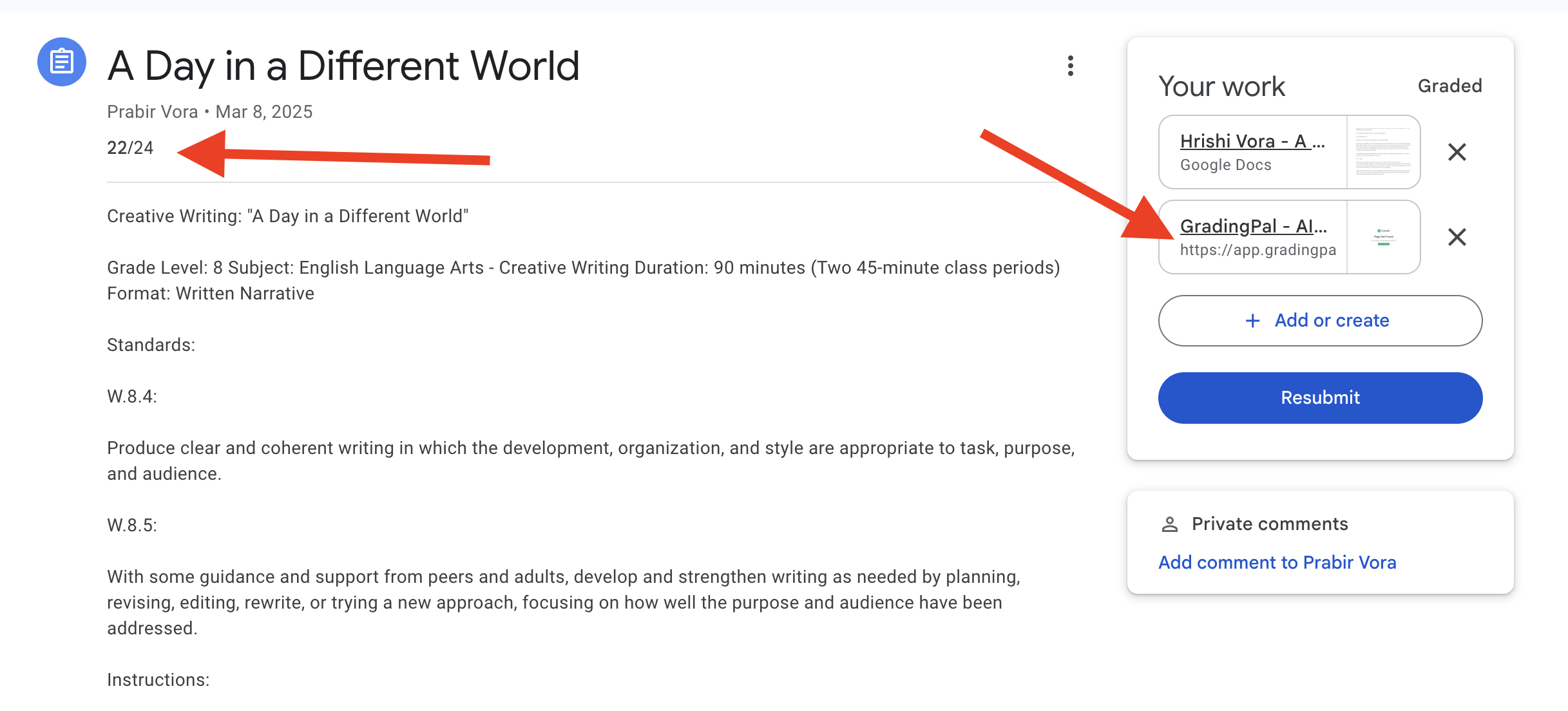
After grading submissions in GradingPal, you can return scores and feedback to Google Classroom.
### What Gets Synced
When you click **Return** on a graded submission:
| Data | Synced to Google Classroom |
| ------------------------ | -------------------------- |
| Numeric grade | Yes |
| GradingPal preview link | Yes (as attachment) |
| Detailed rubric feedback | Via preview link |
### How It Works
AI grades the submission automatically
Review and adjust scores/feedback as needed
Click **Return** on the submission
GradingPal sends the grade to Google Classroom
Student sees their score in Google Classroom and can click the link to view detailed feedback in GradingPal
### Requirements for Grade Sync
For grades to sync back to Google Classroom:
* The assignment must have been **created in GradingPal and published to Google Classroom** (not imported from Google Classroom)
* The student must be enrolled through Google Classroom (have a linked account)
* The submission must be in "Turned In" state
***
## Class Settings for Google Classroom
Google Classroom-connected classes have additional settings to control how assignments and students sync:
* **Automatic Assignment Sync** - Control whether new assignments auto-publish to Google Classroom
* **Allow Manual Student Enrollment** - Enable or disable class codes and invite links
Go to your class → **Settings** tab to configure these options.
Learn about all class configuration options
***
## Troubleshooting
Your connection to Google Classroom has expired or been revoked. Click **Reconnect** and go through the authorization flow again. Make sure to **Select All** permissions.
Check that:
* **Automatic Assignment Sync** is enabled in Class Settings
* The assignment type is supported (Writing, Video, Presentation, Art & Design)
* The assignment has been published (not still in draft mode in GradingPal)
If students from Google Classroom aren't appearing in GradingPal:
* Students are auto-enrolled when they **submit** work via Google Classroom
* You can manually import by clicking **Upload Submissions** → **Import from Google Classroom**
* Check that you granted all required permissions during setup
Grades only sync back to Google Classroom if:
* The assignment was **created in GradingPal** and published to Google Classroom
* Assignments **imported from** Google Classroom cannot sync grades back (API limitation)
***
## Best Practices
Creating assignments in GradingPal and publishing to Google Classroom ensures full grade sync functionality
During Google sign-in, always "Select All" to avoid functionality issues later
Keep Automatic Assignment Sync enabled unless you specifically need to draft assignments privately first
Only "Submitted" work will be imported. Students with "In Progress" status need to turn in their work first
For Google Classroom classes, this ensures students who submit via Google Classroom are properly linked for grade sync
***
## Related Articles
* [Create a New Class](/teacher/classes-and-students/create-a-new-class)
* [Class Settings](/teacher/classes-and-students/class-settings)
* [Enroll Students](/teacher/classes-and-students/enroll-students)
* [Return Submissions & Feedback](/teacher/grades-and-feedback/return-submissions-feedback)
* [3 Ways to Use GradingPal](/teacher/overview/3-ways-to-use-gradingpal)

 You'll be redirected to Google's sign-in page. Sign in with your Google account that has Google Classroom access.
### Step 2: Select All Permissions
On the Google permissions screen, you **must select "Select All"** for full functionality.
You'll be redirected to Google's sign-in page. Sign in with your Google account that has Google Classroom access.
### Step 2: Select All Permissions
On the Google permissions screen, you **must select "Select All"** for full functionality.
 Each class card shows:
* Class name and section
* Number of students
* Creation date
* Link to view in Google Classroom
Click **Continue** when you've selected your classes.
### Step 2: Configure Class Details
For each class, provide additional information that GradingPal needs:
| Field | Required | Description |
| ---------------- | -------- | ------------------------------------------------ |
| **Grade Levels** | Yes | Select one or more grades (K–12, College, Adult) |
| **Subject** | Yes | Choose the primary subject area |
| **Standard Set** | No | Optionally select a standards framework |
| **Timezone** | Yes | Inherited from your profile settings |
Each class card shows:
* Class name and section
* Number of students
* Creation date
* Link to view in Google Classroom
Click **Continue** when you've selected your classes.
### Step 2: Configure Class Details
For each class, provide additional information that GradingPal needs:
| Field | Required | Description |
| ---------------- | -------- | ------------------------------------------------ |
| **Grade Levels** | Yes | Select one or more grades (K–12, College, Adult) |
| **Subject** | Yes | Choose the primary subject area |
| **Standard Set** | No | Optionally select a standards framework |
| **Timezone** | Yes | Inherited from your profile settings |
 ### Step 3: Import
Click **Import Classes**. Your classes, along with their student rosters, will be imported into GradingPal.
After import:
* Students are automatically added to your class roster
* You can start creating assignments immediately
* Any future roster changes in Google Classroom will sync automatically
***
## Creating Assignments (GradingPal → Google Classroom)
When you create an assignment in GradingPal for a Google Classroom-connected class, it can be automatically published to Google Classroom.
### Automatic Publishing (Default)
With **Automatic Assignment Sync** enabled (the default setting), assignments are published to Google Classroom as soon as you create them in GradingPal.
**What gets published:**
* Assignment title and description
* Due date and time
* Maximum points
* Your rubric (with all criteria and levels)
* A link back to GradingPal
### Manual Publishing
If you prefer to control when assignments appear in Google Classroom, you can disable automatic sync in [Class Settings](/teacher/classes-and-students/class-settings).
When automatic sync is off, you can manually publish assignments:
**From the Assignment Wizard:**
After clicking **Finish Setup**, a dialog will ask if you want to publish to Google Classroom.
### Step 3: Import
Click **Import Classes**. Your classes, along with their student rosters, will be imported into GradingPal.
After import:
* Students are automatically added to your class roster
* You can start creating assignments immediately
* Any future roster changes in Google Classroom will sync automatically
***
## Creating Assignments (GradingPal → Google Classroom)
When you create an assignment in GradingPal for a Google Classroom-connected class, it can be automatically published to Google Classroom.
### Automatic Publishing (Default)
With **Automatic Assignment Sync** enabled (the default setting), assignments are published to Google Classroom as soon as you create them in GradingPal.
**What gets published:**
* Assignment title and description
* Due date and time
* Maximum points
* Your rubric (with all criteria and levels)
* A link back to GradingPal
### Manual Publishing
If you prefer to control when assignments appear in Google Classroom, you can disable automatic sync in [Class Settings](/teacher/classes-and-students/class-settings).
When automatic sync is off, you can manually publish assignments:
**From the Assignment Wizard:**
After clicking **Finish Setup**, a dialog will ask if you want to publish to Google Classroom.
 **From the Assignment Page:**
Click **Actions** → **Publish to Google Classroom**.
**From the Assignment Page:**
Click **Actions** → **Publish to Google Classroom**.
 ### Publish Date Handling
GradingPal respects your assignment's publish settings:
| Assignment Status | Publish Date | Result in Google Classroom |
| ----------------- | -------------------- | -------------------------------------------------- |
| Published | Any | Immediately visible to students |
| Draft | Future date | Created as draft, auto-publishes at scheduled time |
| Draft | No date or past date | Created as hidden draft |
### Supported Assignment Types
Not all assignment types can be published to Google Classroom:
| Type | Supported |
| ------------------------- | --------- |
| Writing (Essays, Reports) | Yes |
| Video | Yes |
| Presentation | Yes |
| Art & Design | Yes |
| Exam | No |
| Quiz | No |
| Worksheet | No |
| Problem Set | No |
For unsupported types, the publish option will not appear. Note- we're working on adding support for these unavailable assignment types shortly.
***
## Importing Existing Assignments (Google Classroom → GradingPal)
You can also import assignments that already exist in Google Classroom.
### How to Import
1. Go to your class in GradingPal
2. Click **New Assignment**
3. Select **Import from Google Classroom**
4. Choose the assignment you want to import
### Publish Date Handling
GradingPal respects your assignment's publish settings:
| Assignment Status | Publish Date | Result in Google Classroom |
| ----------------- | -------------------- | -------------------------------------------------- |
| Published | Any | Immediately visible to students |
| Draft | Future date | Created as draft, auto-publishes at scheduled time |
| Draft | No date or past date | Created as hidden draft |
### Supported Assignment Types
Not all assignment types can be published to Google Classroom:
| Type | Supported |
| ------------------------- | --------- |
| Writing (Essays, Reports) | Yes |
| Video | Yes |
| Presentation | Yes |
| Art & Design | Yes |
| Exam | No |
| Quiz | No |
| Worksheet | No |
| Problem Set | No |
For unsupported types, the publish option will not appear. Note- we're working on adding support for these unavailable assignment types shortly.
***
## Importing Existing Assignments (Google Classroom → GradingPal)
You can also import assignments that already exist in Google Classroom.
### How to Import
1. Go to your class in GradingPal
2. Click **New Assignment**
3. Select **Import from Google Classroom**
4. Choose the assignment you want to import
 ### Important Limitation
 A dialog will explain this limitation before you proceed with the import.
***
## Student Submissions from Google Classroom
How student submissions flow into GradingPal depends on how the assignment was created.
### Automatic Sync (Assignments Created in GradingPal)
When you create an assignment in GradingPal and publish it to Google Classroom, student submissions **automatically appear in GradingPal** as soon as students turn in their work.
**How it works:**
1. Student submits their work in Google Classroom
2. GradingPal is notified automatically (via real-time sync)
3. The submission appears in GradingPal within moments
4. AI grading starts automatically
5. Student is auto-enrolled if not already in your roster
No manual import needed—submissions flow in seamlessly.
A dialog will explain this limitation before you proceed with the import.
***
## Student Submissions from Google Classroom
How student submissions flow into GradingPal depends on how the assignment was created.
### Automatic Sync (Assignments Created in GradingPal)
When you create an assignment in GradingPal and publish it to Google Classroom, student submissions **automatically appear in GradingPal** as soon as students turn in their work.
**How it works:**
1. Student submits their work in Google Classroom
2. GradingPal is notified automatically (via real-time sync)
3. The submission appears in GradingPal within moments
4. AI grading starts automatically
5. Student is auto-enrolled if not already in your roster
No manual import needed—submissions flow in seamlessly.
 ### Manual Import (Assignments Imported from Google Classroom)
For assignments that were imported from Google Classroom (not created in GradingPal), you'll need to manually pull submissions.
#### Step 1: View Submissions Preview
On the assignment page, you'll see a **Google Classroom** panel showing student submission status.
### Manual Import (Assignments Imported from Google Classroom)
For assignments that were imported from Google Classroom (not created in GradingPal), you'll need to manually pull submissions.
#### Step 1: View Submissions Preview
On the assignment page, you'll see a **Google Classroom** panel showing student submission status.
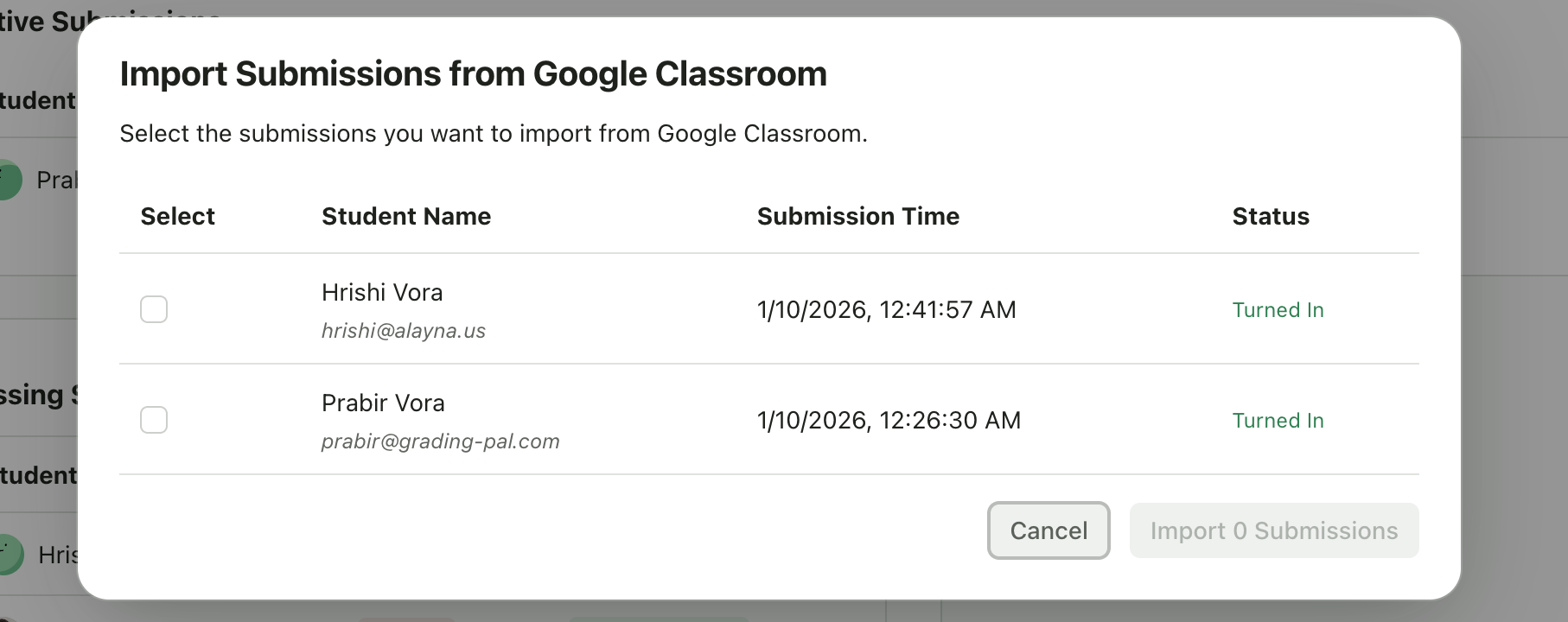 The panel shows:
* Each student's name and email
* Their submission status (Submitted, In Progress, Not Started, etc.)
* Whether they have attachments
* How many submissions are ready to import
#### Step 2: Import Submissions
Click **Import Submissions**. GradingPal will:
1. Download the student's submitted files
2. Create submission records in GradingPal
3. Automatically start AI grading
4. Enroll any new students who weren't already in your roster
Only submissions marked as "Submitted" (turned in) will be imported.
***
## Returning Grades to Google Classroom
After grading submissions in GradingPal, you can return scores and feedback to Google Classroom.
### What Gets Synced
When you click **Return** on a graded submission:
| Data | Synced to Google Classroom |
| ------------------------ | -------------------------- |
| Numeric grade | Yes |
| GradingPal preview link | Yes (as attachment) |
| Detailed rubric feedback | Via preview link |
### How It Works
The panel shows:
* Each student's name and email
* Their submission status (Submitted, In Progress, Not Started, etc.)
* Whether they have attachments
* How many submissions are ready to import
#### Step 2: Import Submissions
Click **Import Submissions**. GradingPal will:
1. Download the student's submitted files
2. Create submission records in GradingPal
3. Automatically start AI grading
4. Enroll any new students who weren't already in your roster
Only submissions marked as "Submitted" (turned in) will be imported.
***
## Returning Grades to Google Classroom
After grading submissions in GradingPal, you can return scores and feedback to Google Classroom.
### What Gets Synced
When you click **Return** on a graded submission:
| Data | Synced to Google Classroom |
| ------------------------ | -------------------------- |
| Numeric grade | Yes |
| GradingPal preview link | Yes (as attachment) |
| Detailed rubric feedback | Via preview link |
### How It Works
 ### Requirements for Grade Sync
For grades to sync back to Google Classroom:
* The assignment must have been **created in GradingPal and published to Google Classroom** (not imported from Google Classroom)
* The student must be enrolled through Google Classroom (have a linked account)
* The submission must be in "Turned In" state
***
## Class Settings for Google Classroom
Google Classroom-connected classes have additional settings to control how assignments and students sync:
* **Automatic Assignment Sync** - Control whether new assignments auto-publish to Google Classroom
* **Allow Manual Student Enrollment** - Enable or disable class codes and invite links
Go to your class → **Settings** tab to configure these options.
### Requirements for Grade Sync
For grades to sync back to Google Classroom:
* The assignment must have been **created in GradingPal and published to Google Classroom** (not imported from Google Classroom)
* The student must be enrolled through Google Classroom (have a linked account)
* The submission must be in "Turned In" state
***
## Class Settings for Google Classroom
Google Classroom-connected classes have additional settings to control how assignments and students sync:
* **Automatic Assignment Sync** - Control whether new assignments auto-publish to Google Classroom
* **Allow Manual Student Enrollment** - Enable or disable class codes and invite links
Go to your class → **Settings** tab to configure these options.