

Finding Your Assignments
1
Log In
Log in to GradingPal at gradingpal.ai
2
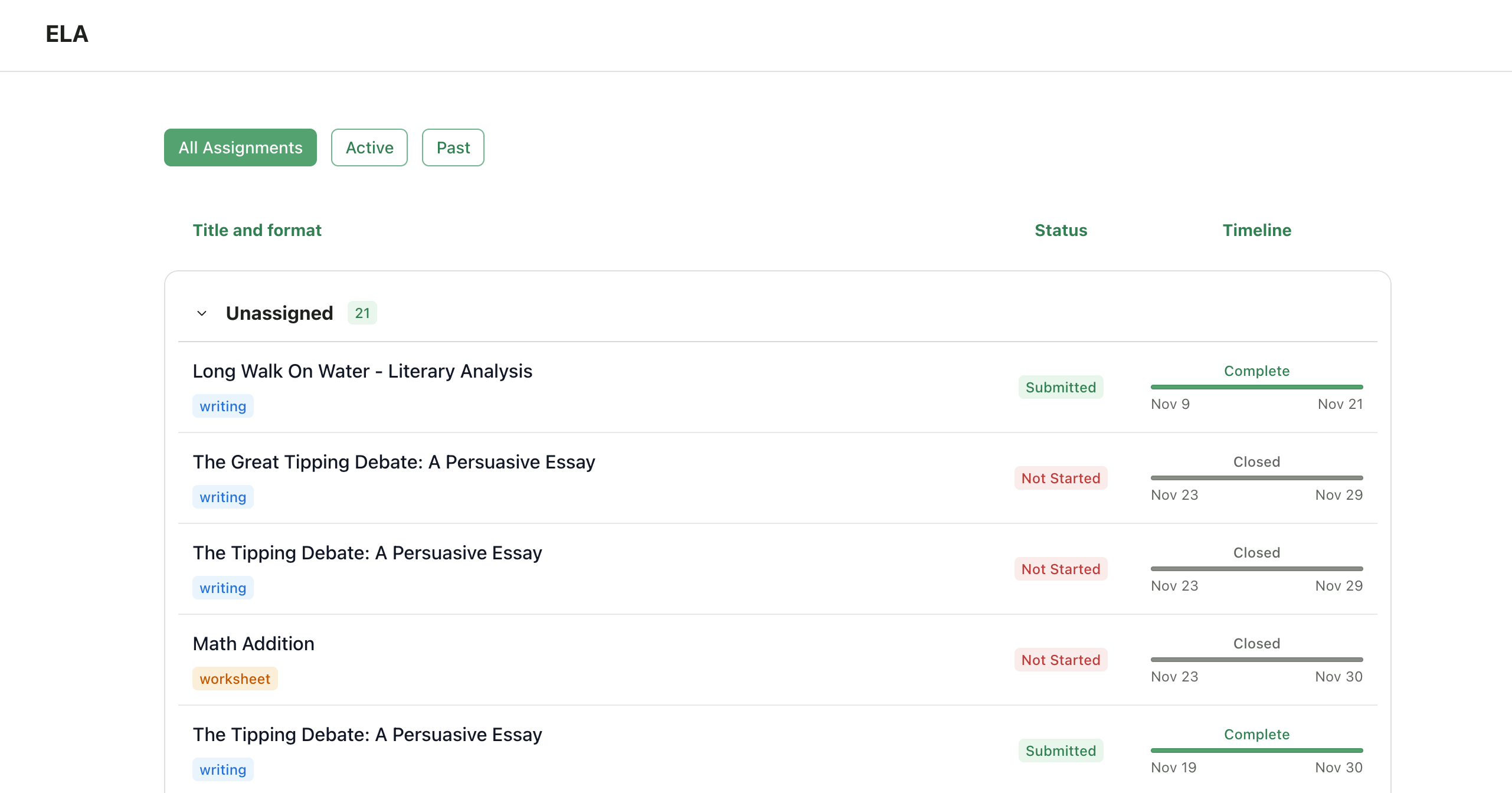
View Dashboard
Your dashboard shows all your enrolled classes
3
Select Class
Click on a class to see its assignments
4
View Assignment Details
Assignments show:
- Assignment name
- Due date (if set)
- Your submission status
Submitting an Assignment
1
Click Assignment
Click on the assignment you want to submit
2
View Details
You’ll see the assignment details and instructions
3
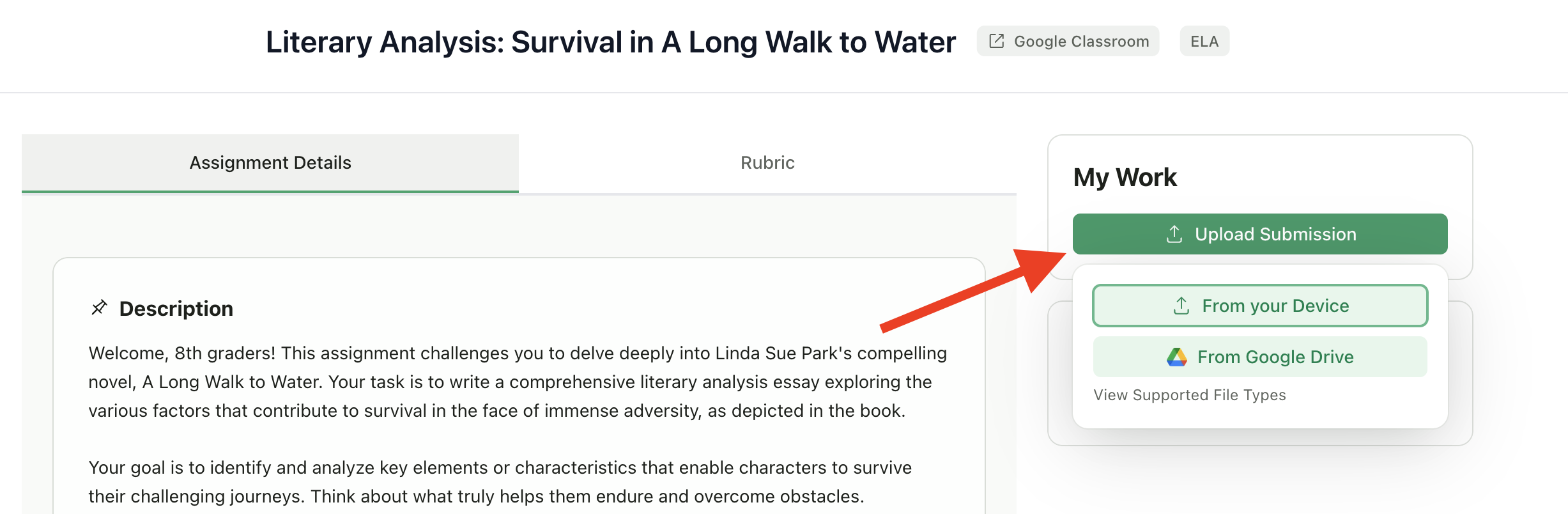
Click Submit
Click Submit or Upload
4
Choose File
Choose your file:
- From your device - Select a file from your computer
- From Google Drive - Pick a file from your Google Drive
5
Confirm
Confirm and submit
Supported File Types
Different assignment types accept different files:If you try to upload the wrong file type, you’ll see an error message explaining what formats are accepted.
Submission Status
After submitting, your assignment will show one of these statuses: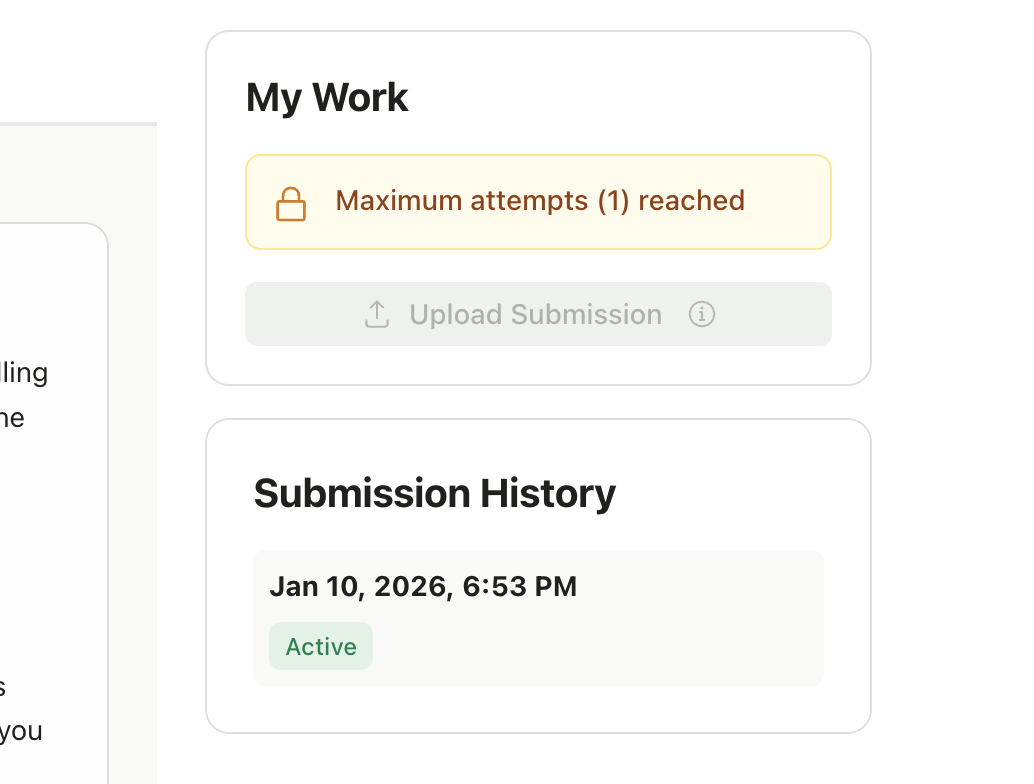
Resubmitting Work
If your teacher allows multiple submissions:- Go to the assignment
- Click Submit Again or Resubmit
- Upload your updated file
- Your new submission replaces the previous one for grading
Your teacher may limit the number of times you can resubmit. Check the assignment details or ask your teacher.
Late Submissions
If the due date has passed:- If late submissions are allowed: You can still submit, but your work may be marked as late
- If late submissions are blocked: You’ll see a message that submissions are closed
Uploading from Google Drive
1
Click Submit
Click Submit on the assignment
2
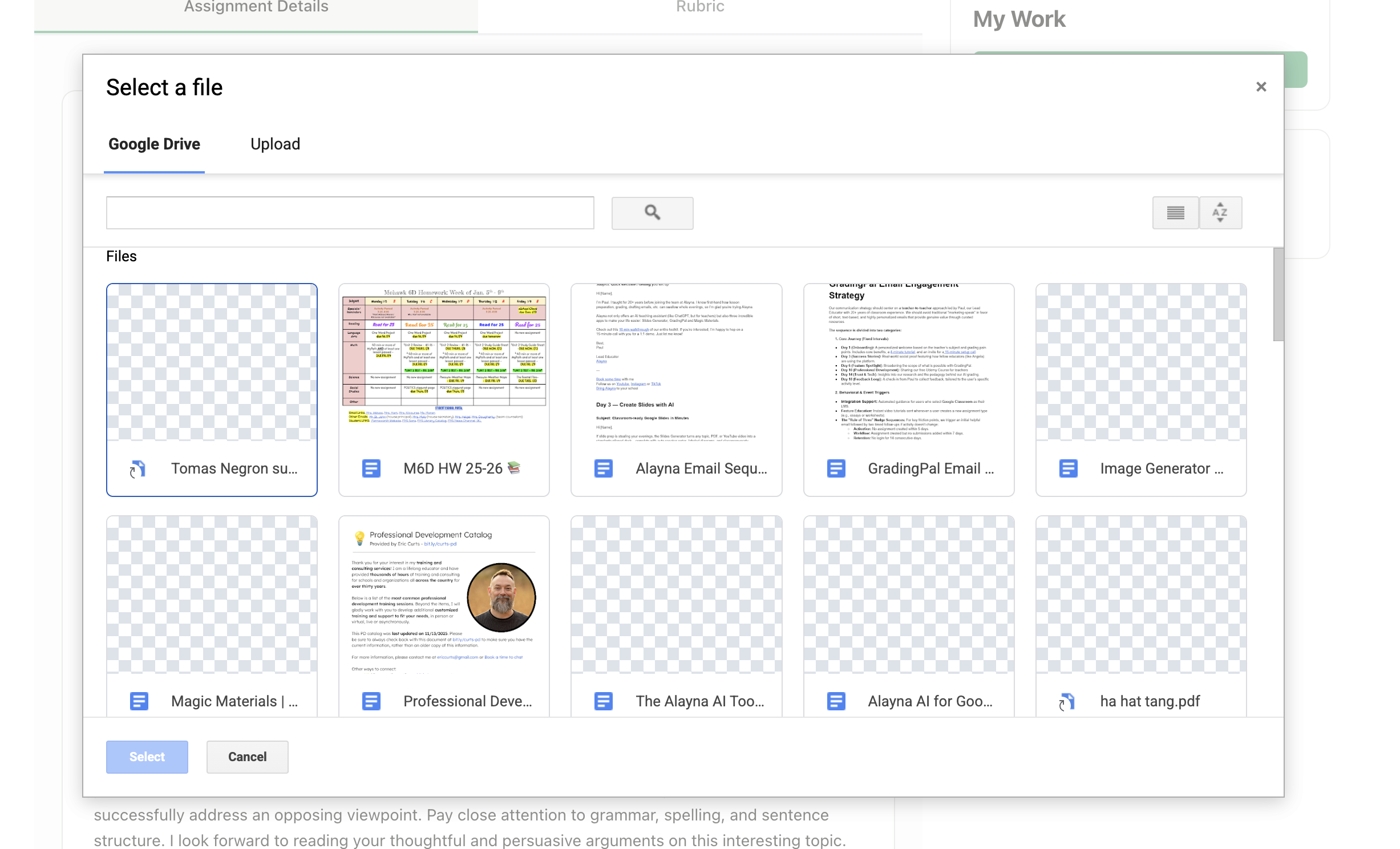
Choose Google Drive
Choose Google Drive
3
Sign In
Sign in to Google if prompted
4
Browse Files
Browse or search for your file
5
Select and Confirm
Select the file and confirm
- Google Docs
- Google Slides
- Files you’ve uploaded to Drive
Tips for Successful Submissions
Before Submitting
- Check the file type - Make sure your file format is accepted
- Review your work - You may not be able to resubmit
- Check the file size - Very large files may take longer to upload
- Name your file clearly - Include your name or the assignment title
If Something Goes Wrong
- Upload failed - Check your internet connection and try again
- Wrong file submitted - Resubmit with the correct file if allowed
- File won’t open - Try saving in a different format (PDF usually works)
What Happens After You Submit
1
Processing
GradingPal converts your file if needed
2
AI Grading
The AI reviews your work based on your teacher’s rubric
3
Teacher Review
Your teacher checks the AI grades and feedback
4
Returned
You receive your graded work with feedback
Viewing Past Submissions
To see your submission history:- Click on the assignment
- Scroll to see your submissions
- Click on any submission to view details
- When you submitted
- What file you submitted
- Status of each submission
Troubleshooting
Upload keeps failing
Upload keeps failing
- Try a smaller file
- Check your internet connection
- Try a different browser
- Save your file as PDF and try again
Submitted the wrong file
Submitted the wrong file
- Resubmit if allowed
- If resubmission is disabled, contact your teacher immediately