Finding Your Graded Work
1
Log In
Log in to GradingPal
2
Go to Class
Go to your class
3
Click Assignment
Click on the assignment
4
View Feedback
If your work has been returned, you’ll see View Feedback or your score

Understanding Your Grades
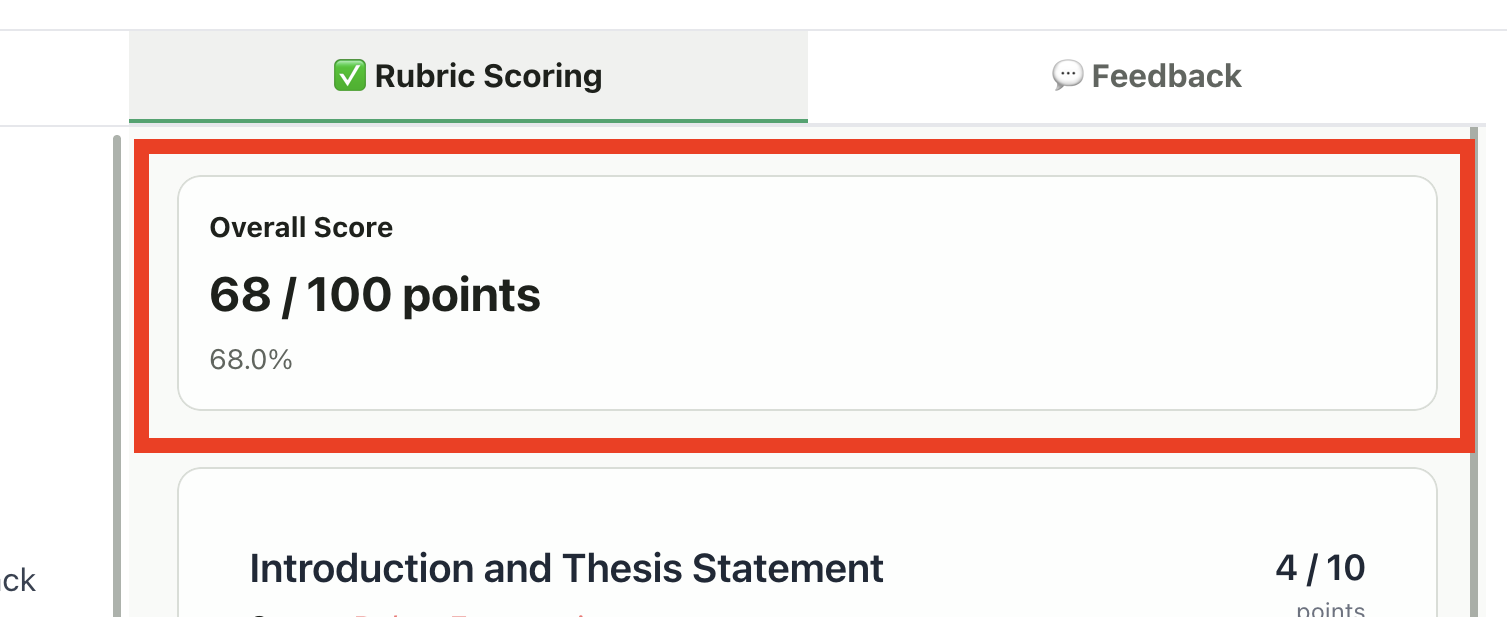
Overall Score
At the top of your graded submission, you’ll see:- Your total points earned
- The maximum points possible
- Your percentage (if shown)
Some teachers hide point values so you focus on the feedback instead.
Per-Criterion Scores
For most assignments, you’ll see scores broken down by rubric criteria: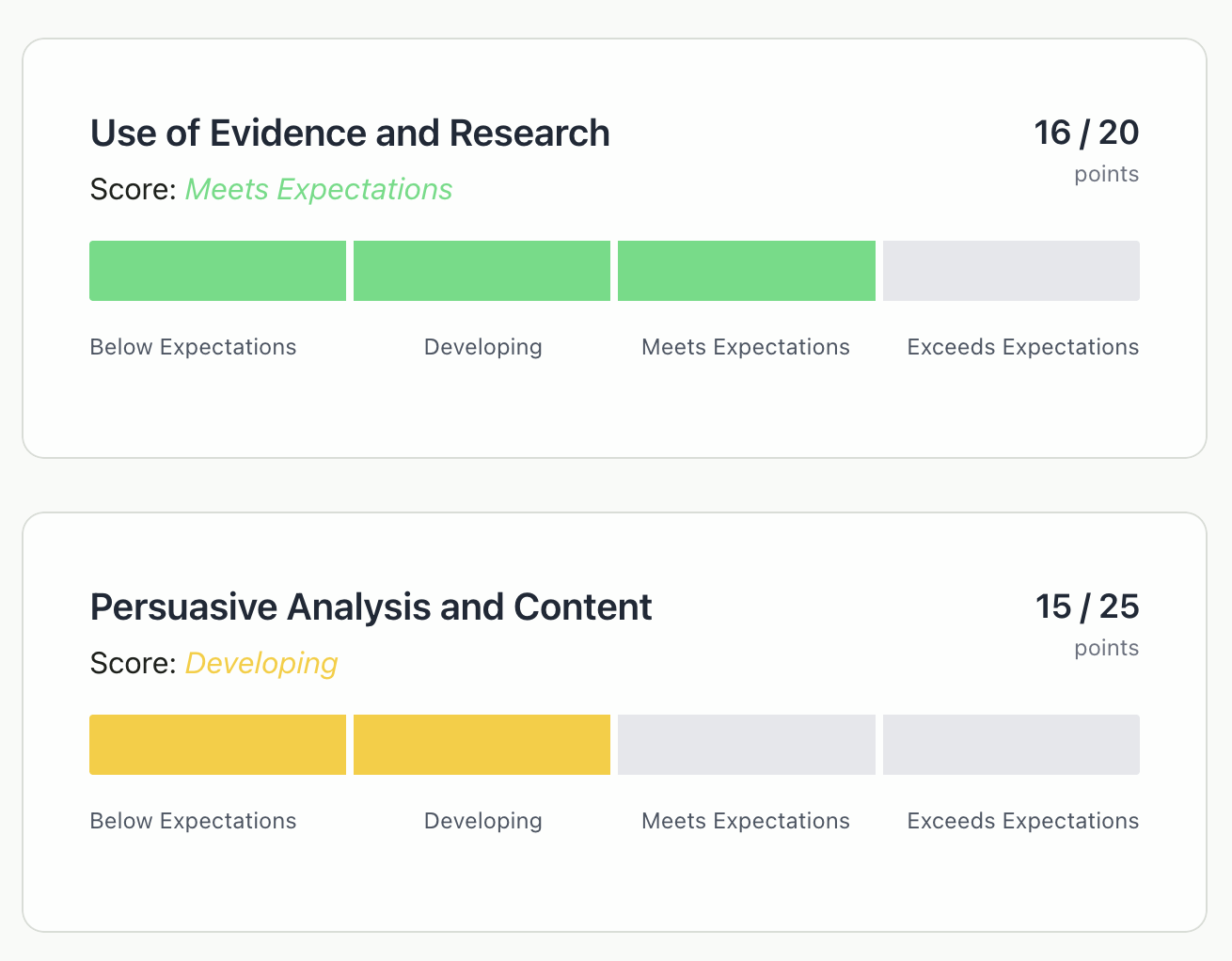
Question Scores (Quizzes/Exams)
For quizzes, exams, and structured assignments:- Each question shows your score
- You can see which questions you got right or wrong
- Feedback explains the correct answer or where you lost points
Reading Your Feedback
Overall Feedback
Your teacher may add overall comments at the top, summarizing:- General impressions of your work
- Key takeaways
- Suggestions for future assignments
Feedback Styles
Your feedback might appear in different styles depending on what your teacher selected:🎯 Targeted
🎯 Targeted
- Direct comments on specific parts of your work
- Similar to Google Docs-style annotations
- Shows exactly where you earned or lost points
✨ Glow & Grow
✨ Glow & Grow
- Glows: What you did well (your strengths)
- Grows: Areas for improvement
📝 Structured
📝 Structured
- Detailed feedback organized by each rubric criterion
- Clear breakdown of how you performed on each section
🥪 Sandwich
🥪 Sandwich
- Starts with positives, then constructive feedback, ends with positives
- Balanced approach that highlights growth areas while acknowledging strengths
📋 Actionable
📋 Actionable
- Specific, step-by-step suggestions for improvement
- Concrete next steps you can take to improve your work
🤔 Socratic
🤔 Socratic
- Feedback through guiding questions
- Prompts self-reflection to help you understand your work deeper
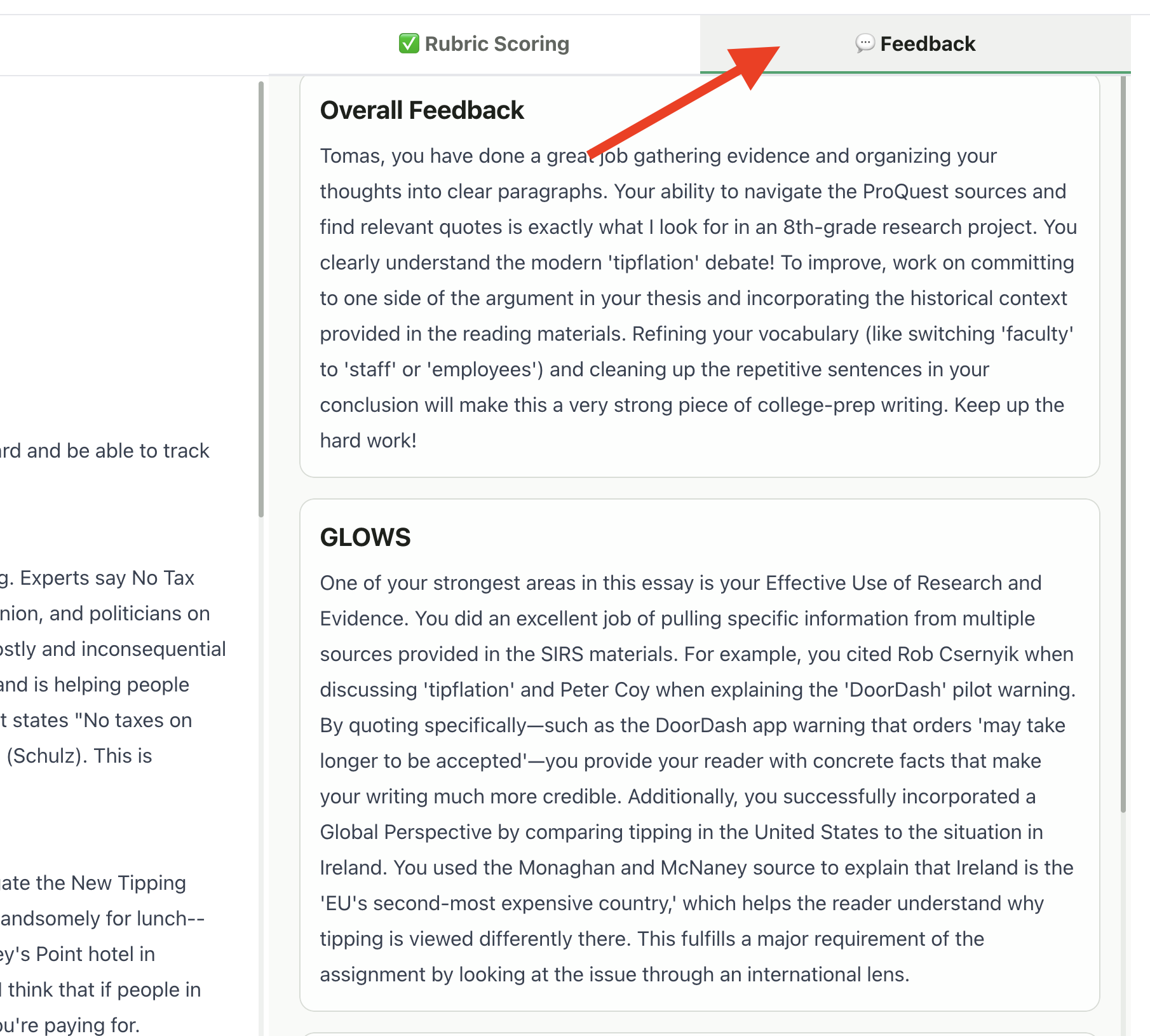
Viewing Your Submitted Work
On the graded submission page:- Left side: Your original submitted work (document, video, etc.)
- Right side: Scores and feedback
- Scroll through your document
- Play videos or audio
- View images at full size
If Points Are Hidden
Your teacher may choose to hide point values. In this case:- You’ll see feedback but not numerical scores
- This helps you focus on improving, not just the grade
- Your teacher can still see your scores
What to Do With Your Feedback
Review Carefully
- Read all feedback, not just the score
- Note patterns—do you see the same comments across assignments?
- Highlight suggestions you can apply to future work
Ask Questions
If you don’t understand your feedback:- Ask your teacher for clarification
- Review the rubric to understand expectations
- Compare your work to the rubric criteria
Improve Next Time
Use feedback to:- Identify your strengths to keep building on
- Focus on areas that need work
- Set specific goals for your next assignment
Troubleshooting
Can't see my grade
Can't see my grade
- Your teacher may not have returned it yet
- Check that the assignment status shows “Returned”
- Ask your teacher if they’ve finished grading
Feedback seems incomplete
Feedback seems incomplete
- Scroll to see all criteria
- Check for an “Overall Feedback” section at the top
- Some criteria may not have additional comments if you scored well
Think there's a mistake
Think there's a mistake
- Review the rubric to understand the scoring
- Compare your work to the feedback
- Politely ask your teacher to explain or reconsider
Can't access old assignments
Can't access old assignments
- Older assignments should still be visible in your class
- If you left a class, you may lose access
- Contact your teacher if you need past grades
Privacy
Your grades and feedback are private:- Only you and your teacher can see your scores
- Other students cannot view your submissions or grades
- Your work is stored securely in GradingPal