

Accessing Your Assignments
1
Log In
Log in to your GradingPal account
2
Select a Class
Click on a class from your dashboard
3
View Assignments
View assignments in the Active or Past tabs
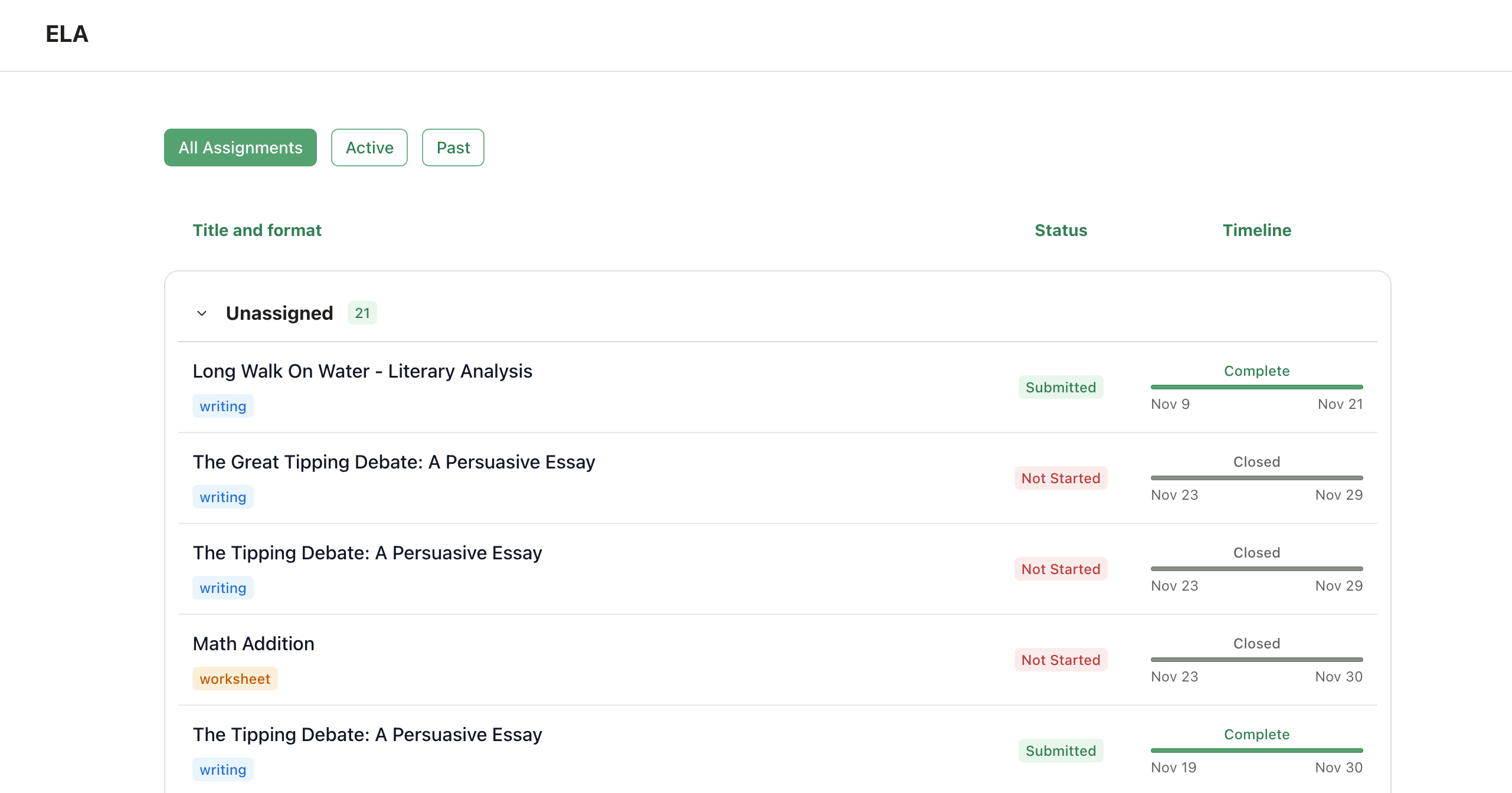
Your assignments organized by Active and Past tabs
Assignment Categories
Active Assignments
An assignment appears in the Active tab when:- The due date hasn’t passed yet, OR
- Late submissions are allowed and the late deadline hasn’t passed
- AND your submission hasn’t been graded yet
Even if you’ve already submitted, the assignment stays active until it’s graded—allowing you to resubmit if permitted.
Past Assignments
An assignment moves to the Past tab when:- The submission deadline has passed (including any late submission window), OR
- Your submission has been graded and returned
Assignment Status Indicators
Next Steps
Submit Your Work
Learn how to turn in assignments
View Scores & Feedback
Check your grades and comments