

Accessing Assignment Settings
1
Go to Assignment
Go to your assignment page
2
Click Settings Tab
Click the Settings tab
3
Configure Settings
Configure your settings
4
Save
Click Save Changes
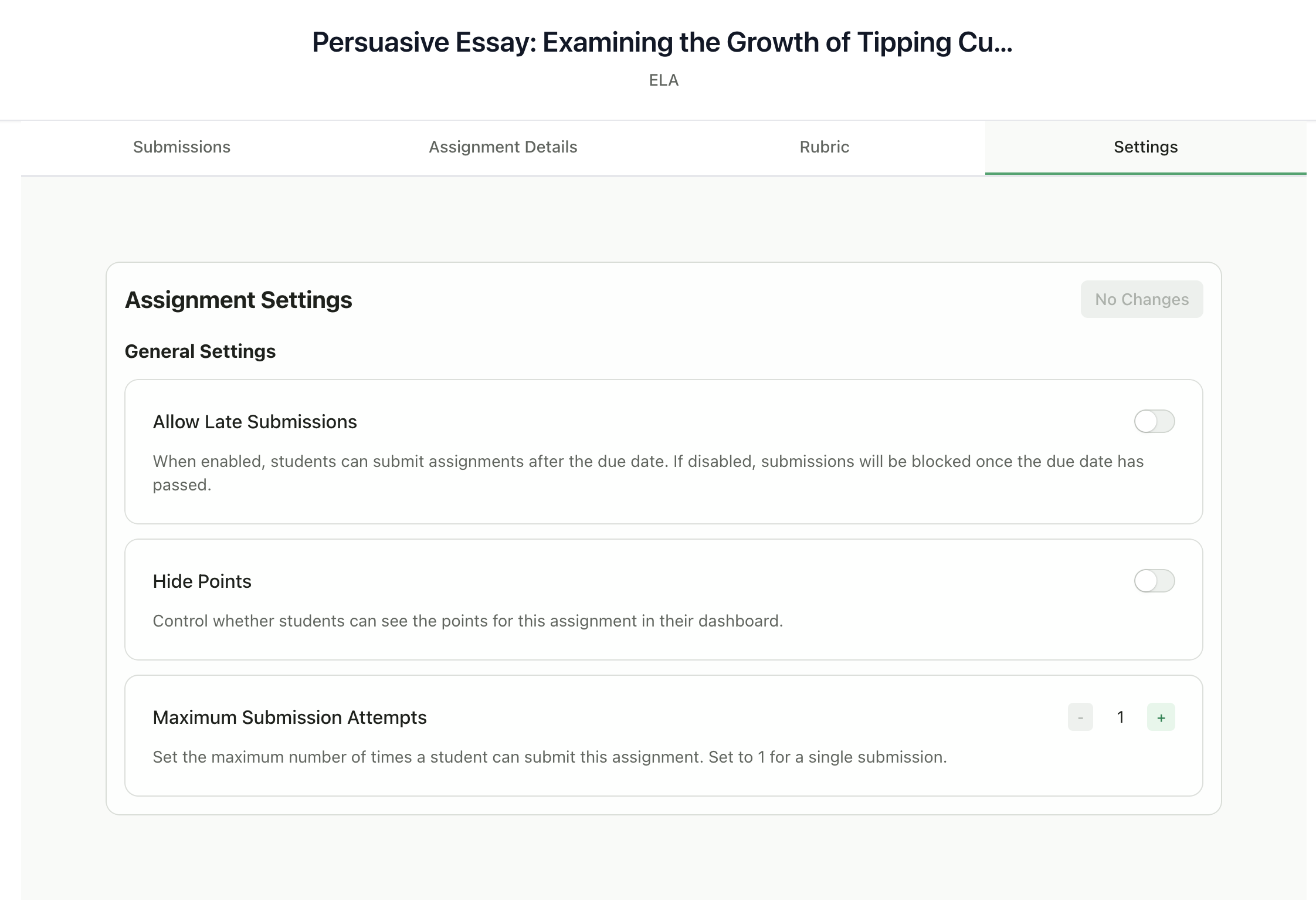
Available Settings
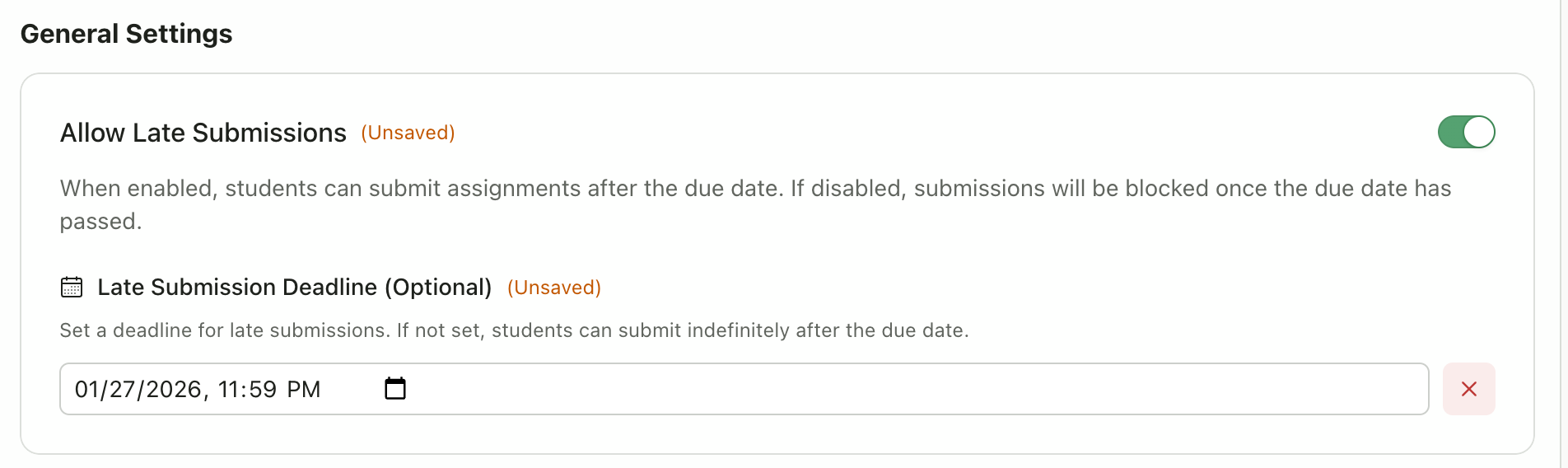
Allow Late Submissions
Controls whether students can submit after the due date.
When enabled, you can also set an optional Late Submission Deadline:
- If set: Students can submit until this date, then submissions are blocked
- If not set: Students can submit indefinitely after the due date
Hide Points
Controls whether students can see the numerical scores for this assignment.Maximum Submission Attempts
Sets how many times a student can submit to this assignment.
Use multiple attempts for:
- Draft and revision workflows
- Allowing students to improve their work
- Practice assignments
How Settings Affect Grading
GradingPal does not automatically deduct points for late submissions. If you want to apply late penalties, you would adjust the grade manually after reviewing.
Saving Settings
- Changes appear as “(Unsaved)” next to modified settings
- Click Save Changes to apply
- The button shows “No Changes” when everything is saved
Default Settings
When you create a new assignment, default settings are:
You can change these for each assignment as needed.