

Option 1: Share a Class Code
Every class has a unique join code that students can use to enroll themselves.Find Your Class Code
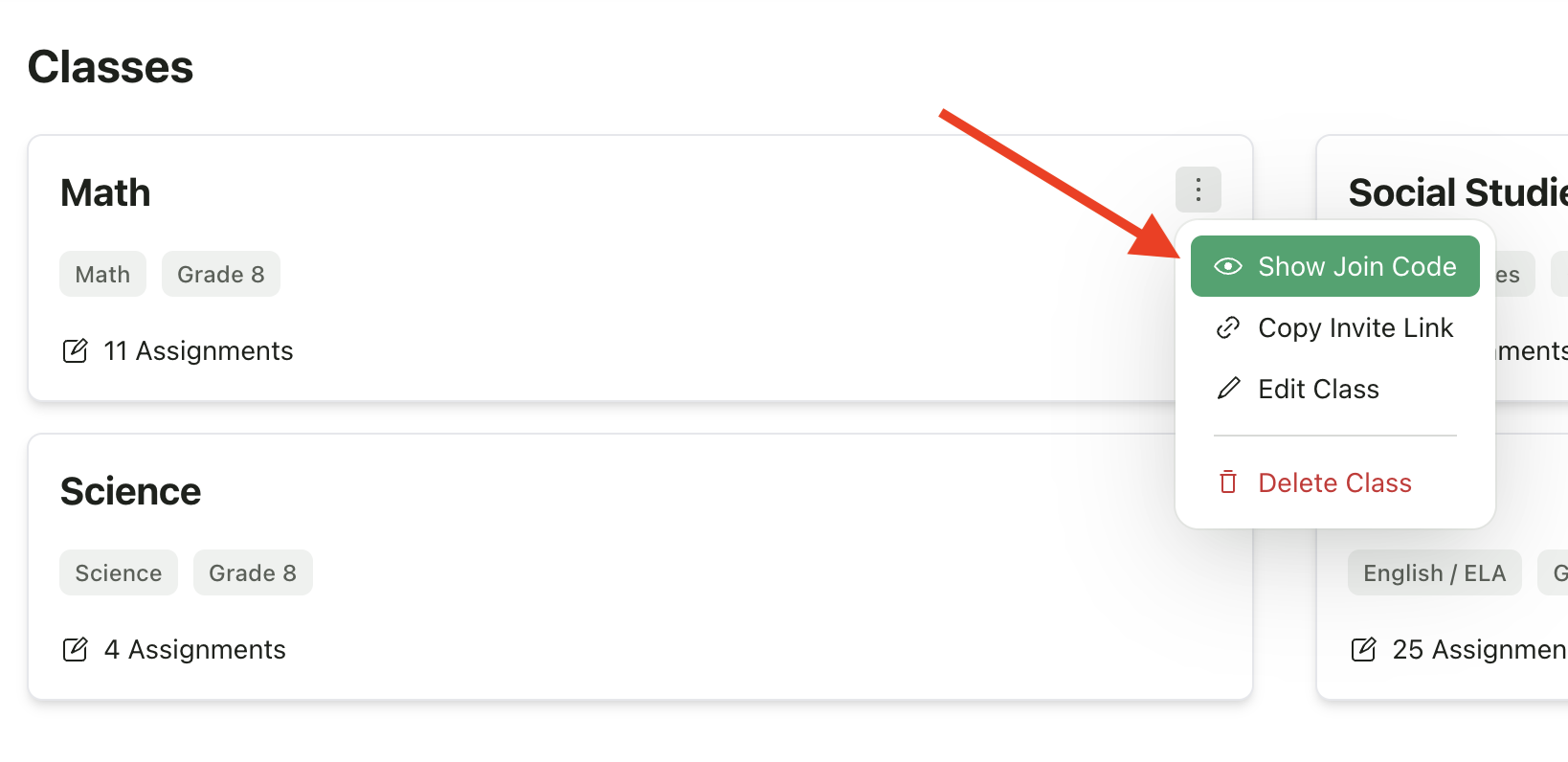
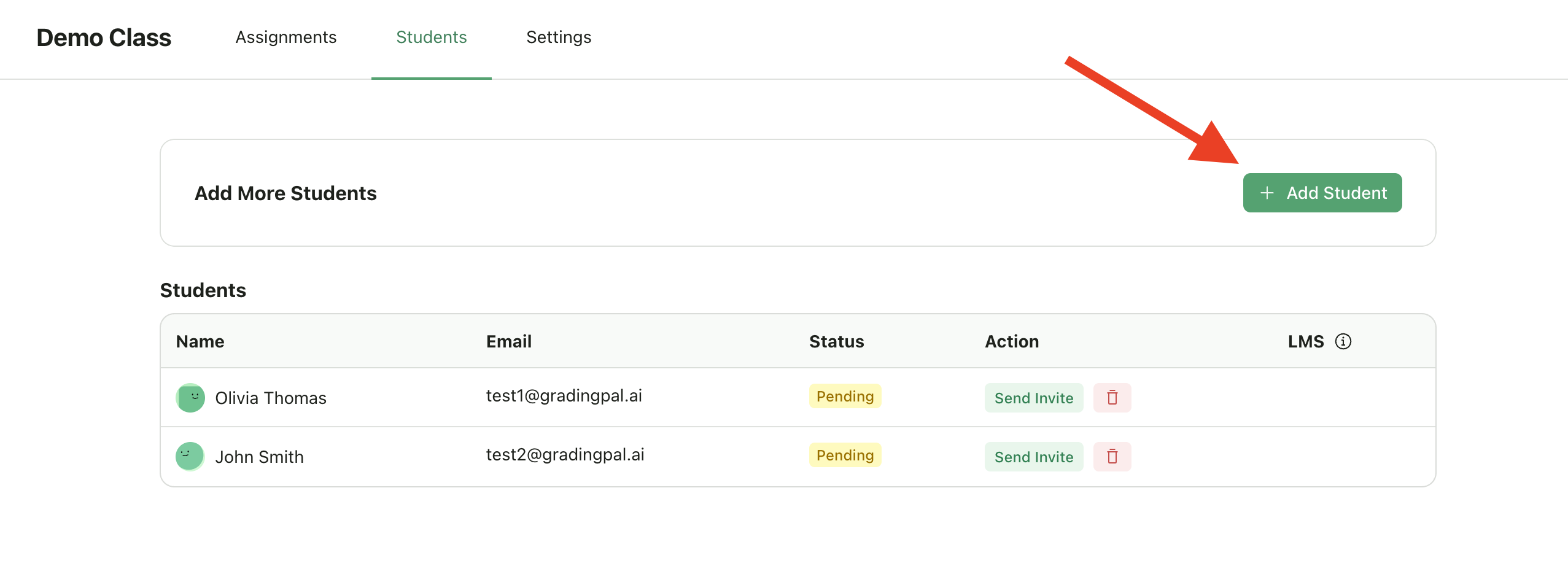
You can access the class join code from two places: From the Home Dashboard:- Find your class on the dashboard
- Click the options menu (three dots) on the class card
- Select Show Join Code
- Open your class and go to the Students tab
- Click Add Students
- Select Show Join Code
Share the Code with Students
The join code dialog displays the code in a large, easy-to-read format that you can project or share with your class.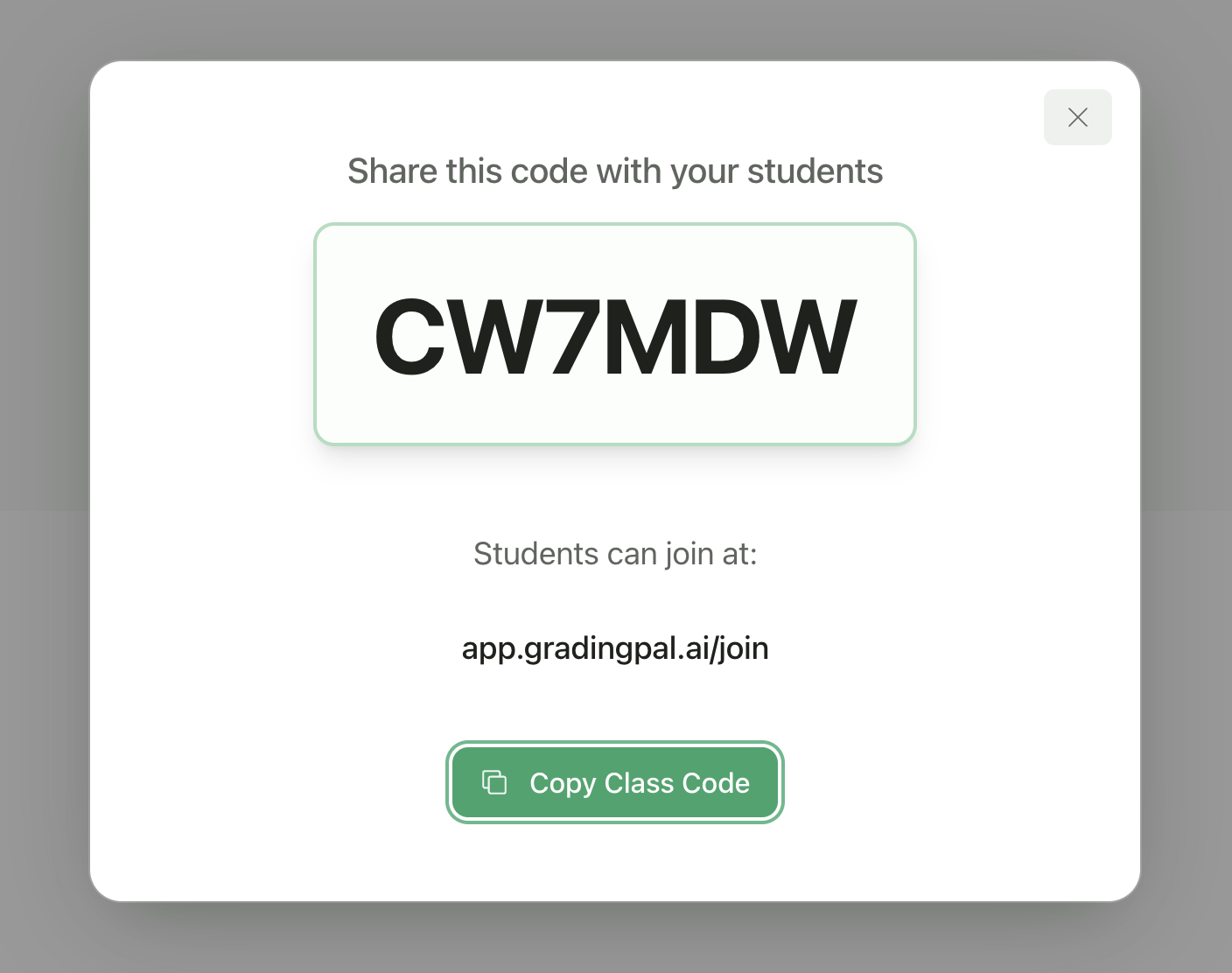
How Students Join
1
Go to Join Page
Students go to app.gradingpal.ai/join
2
Enter Code
Enter the class code
3
Sign Up or Log In
Sign up or log in to their GradingPal account
4
Automatic Enrollment
They’re automatically enrolled in your class
Option 2: Copy Invite Link
Get a shareable link that students can use to join your class.Steps
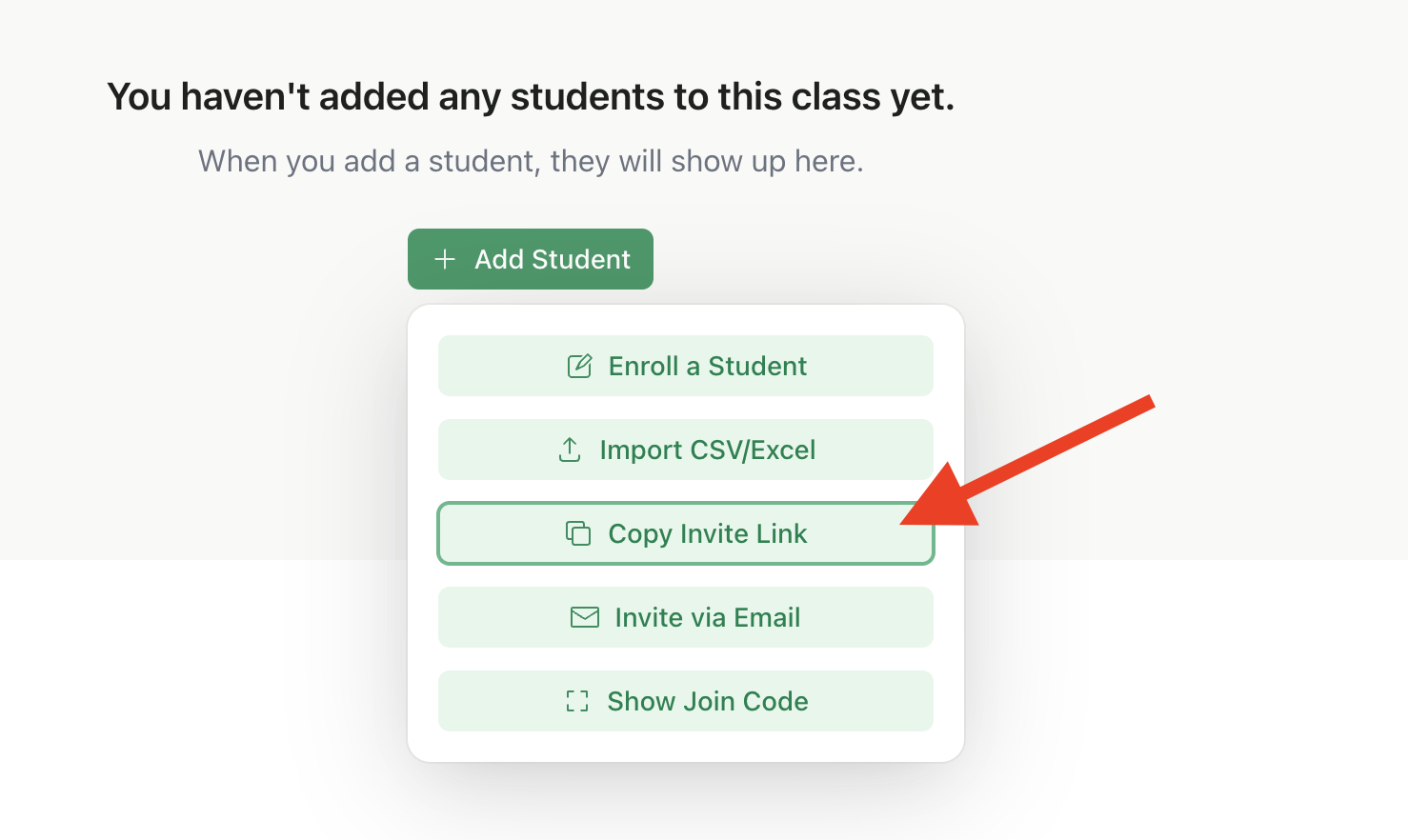
- Open your class and go to the Students tab
- Click Add Students
- Select Copy Invite Link
- The link is copied to your clipboard—share it via your preferred method (LMS, chat, website, etc.)
Option 3: Send Email Invitations
Send invitation emails directly to your students. They’ll receive a link to join your class.Steps
1
Open Add Students
Open your class and go to the Students tab, then click Add Students
2
Select Invite via Email
Select Invite via Email
3
Enter Emails
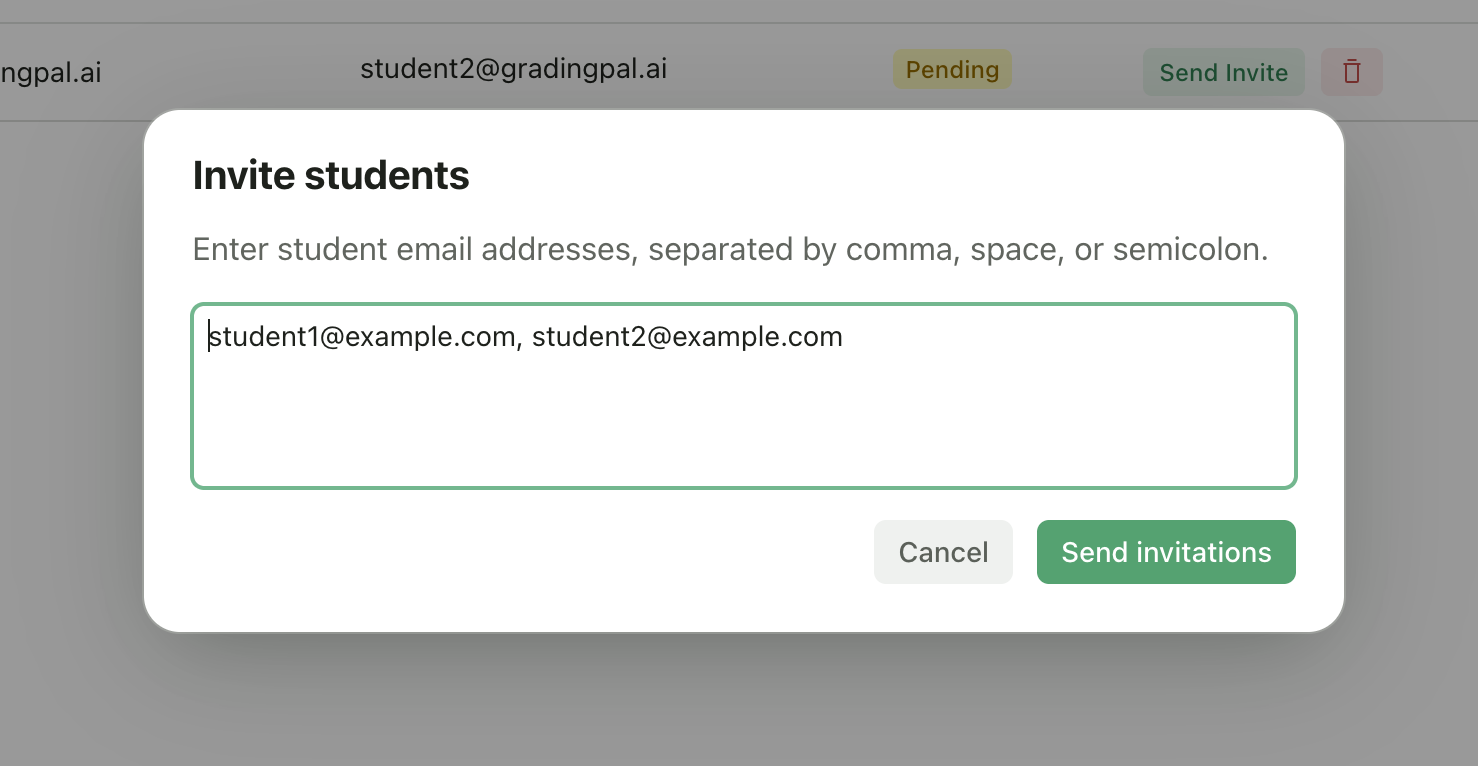
Enter student email addresses, separated by commas, spaces, or semicolons
4
Send Invitations
Click Send invitations
Tips for Email Invitations
- You can paste a list of emails from a spreadsheet
- Already-enrolled students will be skipped automatically
- You’ll see a confirmation of how many invitations were sent
Option 4: Import from CSV or Excel
Bulk import students from a spreadsheet file.Steps
1
Access Import
Open your class → Students tab → Add Students → Import from CSV/Excel
2
Upload File
Click Select File and choose your CSV or Excel file
3
Review Import
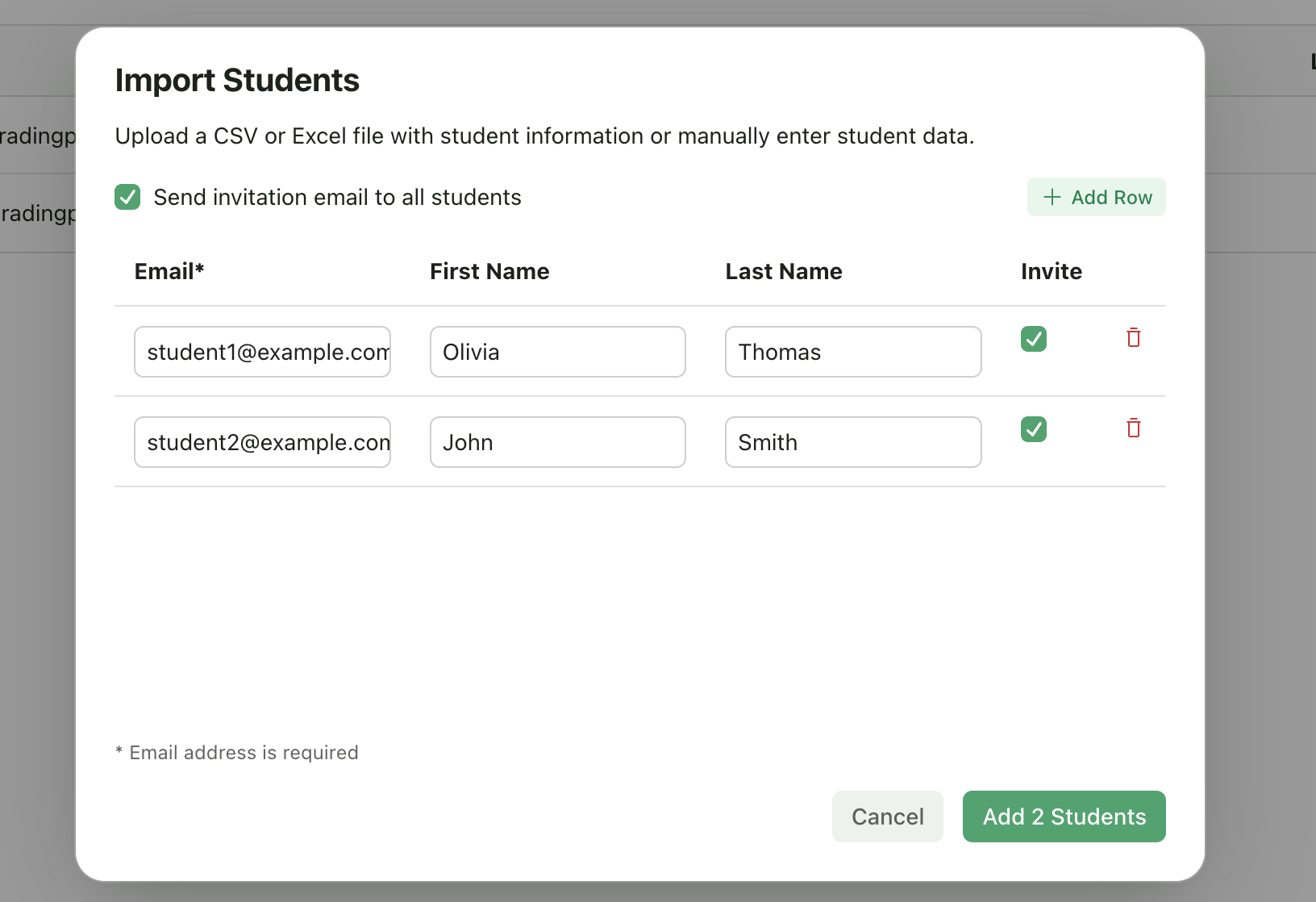
Review the imported student list—you can edit names, emails, or remove rows
4
Configure Invites
Toggle Send invitation email to all students if you want to notify them
5
Add Students
Click Add Students to enroll them
File Format
Your CSV or Excel file should include student email addresses. First name and last name columns are optional but recommended.Tips for Bulk Import
- You can edit any row after importing before adding students
- Add additional rows manually using the Add Row button
- Remove unwanted rows using the trash icon
- Control invitation emails per-student or toggle all at once
Option 5: Add Students Manually
Add individual students by entering their information directly.Steps
- Open your class
- Click Add Student
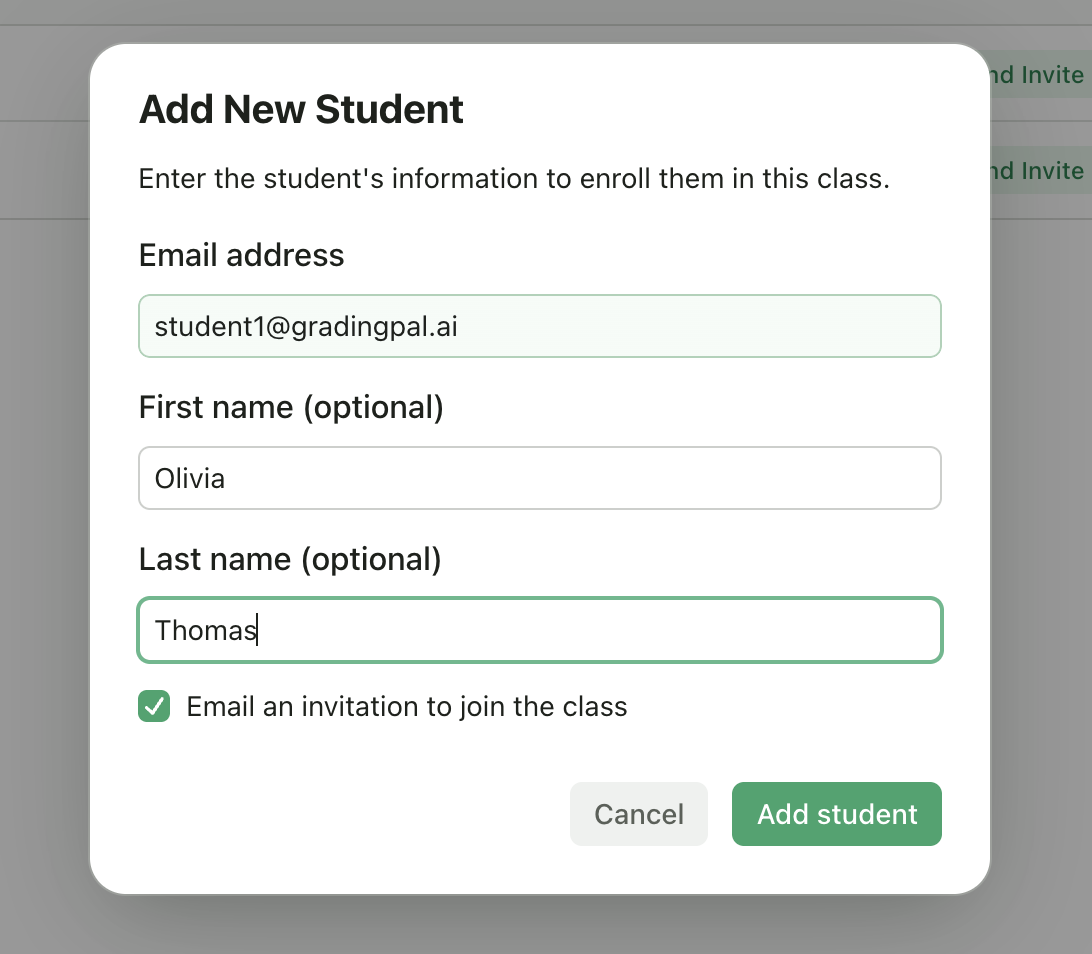
- Enter the student’s email address (required)
- Optionally enter their first and last name
- Choose whether to send an email invitation
- Click Add student
When to Use Manual Entry
- Adding a single student who joined late
- Creating placeholder entries for students who will submit work later (Teacher-Only Mode)
- When you have student names but they won’t be creating accounts
Option 6: Import from Google Classroom
If you imported your class from Google Classroom, your student roster syncs automatically.Google Classroom Integration
Learn how Google Classroom sync works
Managing Your Roster
View Enrolled Students
Navigate to your class to see all enrolled students, their email addresses, and their status.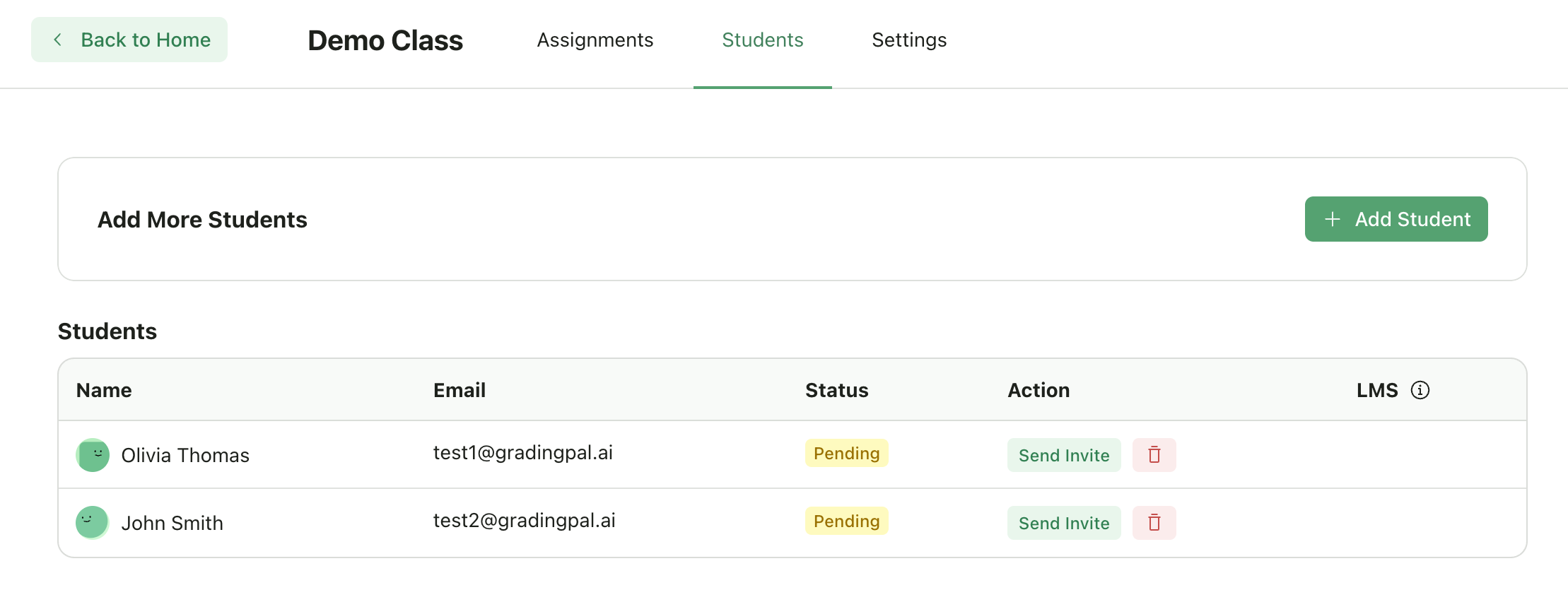
Student Status
Each student in your roster has one of two statuses:What Teachers Can Do with Pending Students
When a student is in Pending status:- ✅ You can upload submissions on their behalf
- ✅ You can grade their work
- ❌ The student cannot log in to view their grades or feedback
Remove a Student
To remove a student from your class:1
Go to Students Tab
Go to the Students tab in your class
2
Find Student
Find the student in the roster table
3
Click Remove
Click the red trash icon in the Action column
4
Confirm
Type the student’s email address to confirm
5
Remove
Click Remove Student
Removing a student will hide their submissions from view. Their submission data is preserved in the database, but you won’t be able to see or grade their work once they’re removed from the class.
Troubleshooting
Student Can't Find the Join Page
Student Can't Find the Join Page
Direct them to app.gradingpal.ai/join and have them enter the class code exactly as shown.
Student Didn't Receive the Invitation Email
Student Didn't Receive the Invitation Email
- Check that the email address was entered correctly
- Ask them to check their spam/junk folder
- Try resending the invitation or share the class code instead
Student Shows as 'Pending'
Student Shows as 'Pending'
This means they’ve been added but haven’t created a GradingPal account yet. They’ll be fully enrolled once they sign up using the same email address.