

Accessing Edit Mode
1
Go to Assignment
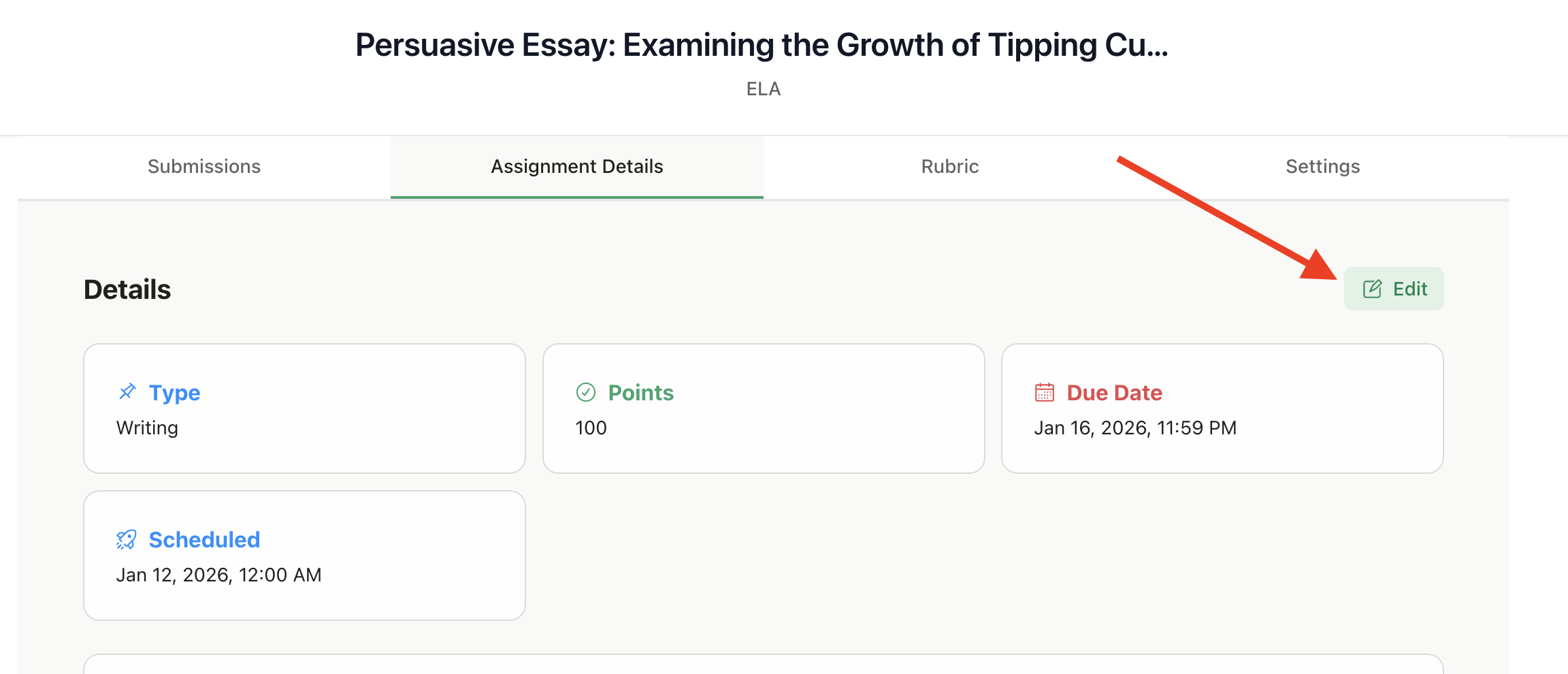
Go to your assignment page
2
Click Actions
Click Actions in the top right
3
Select Edit
Select Edit Assignment
What You Can Edit
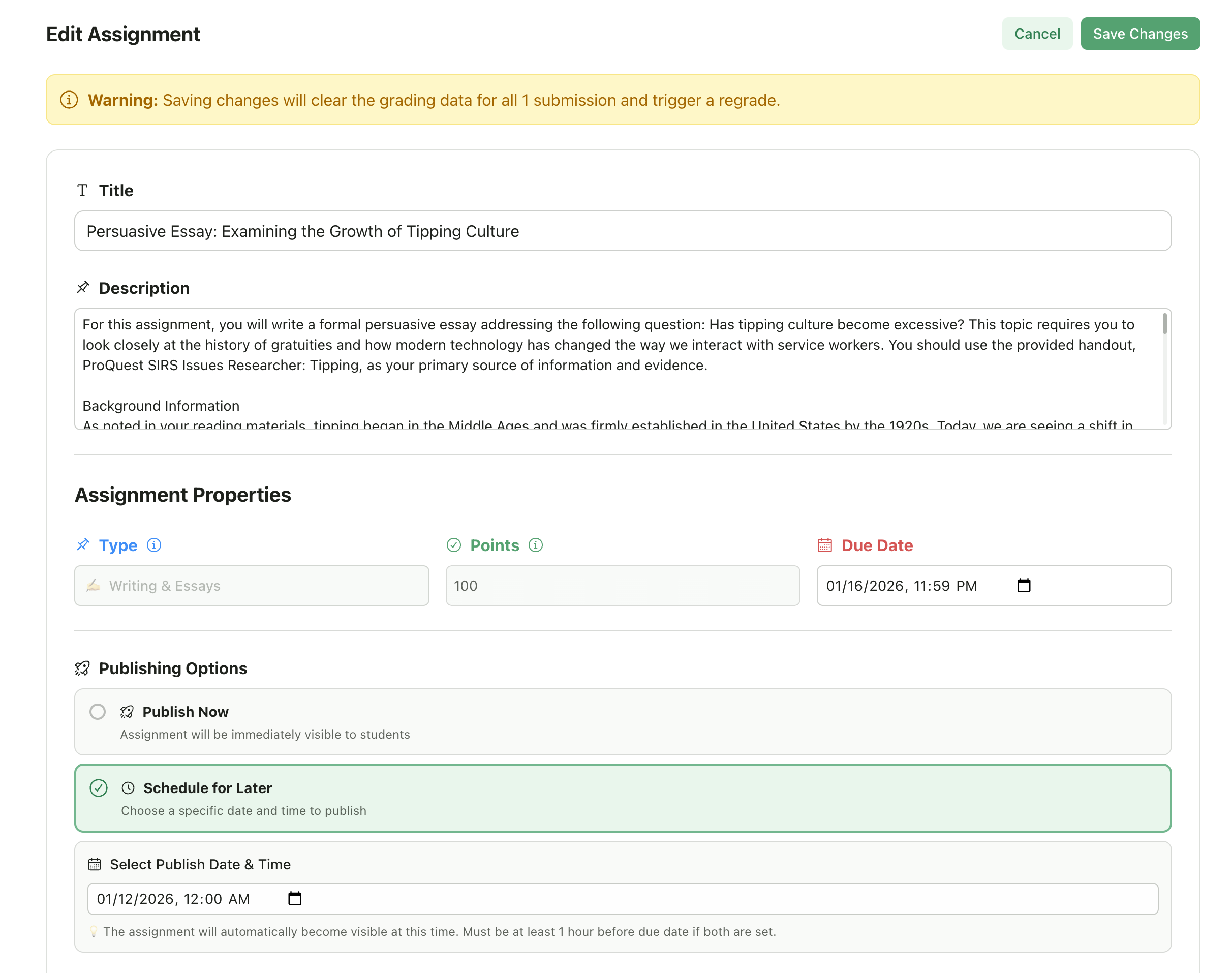
Assignment Details
Feedback Settings
Adjust how the AI generates feedback:Rubric
For Writing & Multi-Media assignments, you can edit the rubric criteria:- Modify criterion names and descriptions
- Add or remove criteria
- Change point values for each level
- Edit level descriptions
Editing Restrictions
When Submissions Are In Progress
If submissions are currently being graded (status: “In Progress”), editing is temporarily blocked. Wait for grading to complete before making changes.
After Submissions Are Graded
You can edit assignments after submissions have been graded. When you make grading-relevant changes, the system automatically handles regrading: For Writing & Multi-Media Assignments:- When you save changes to the rubric (criteria, levels, points) or assignment details (title, description, additional instructions) or feedback settings (style, length, leniency), existing grading data is automatically cleared
- All affected submissions are automatically regraded with the new settings
- Regrading happens in the background — you’ll see a notification when it starts
- No manual regrading is needed
Display-only changes (like reordering rubric levels) do not trigger regrading.
Saving Changes
- Make your edits
- Click Save Changes
- Changes take effect immediately
Publishing Options
When editing, you can also adjust the publish status:If the assignment is already published, you can still edit it, but changes are immediately visible to students.
Best Practices
Review before publishing
Review before publishing
Make all edits while the assignment is still a draft when possible.
Make multiple changes at once
Make multiple changes at once
If editing during the assignment wizard, make all your rubric, details, and feedback changes before clicking “Finish Setup” — regrading will happen once with all your final settings.
Communicate changes
Communicate changes
If you modify an assignment after students have started, let them know what changed.
Test your rubric
Test your rubric
Grade one or two submissions first to verify your rubric works as expected before grading the whole class.
Wait for regrading
Wait for regrading
After making changes that trigger regrading, wait for it to finish before making additional edits.