

Ways to Reuse a Rubric
When creating or editing an assignment’s rubric, you have two options for reusing existing rubrics:Reuse Existing Rubric
Copy a rubric from one of your previous assignments
Import from File
Extract a rubric from a document (PDF, Word, etc.) you already have
Reusing an Existing Rubric
During assignment setup, on the rubric step:1
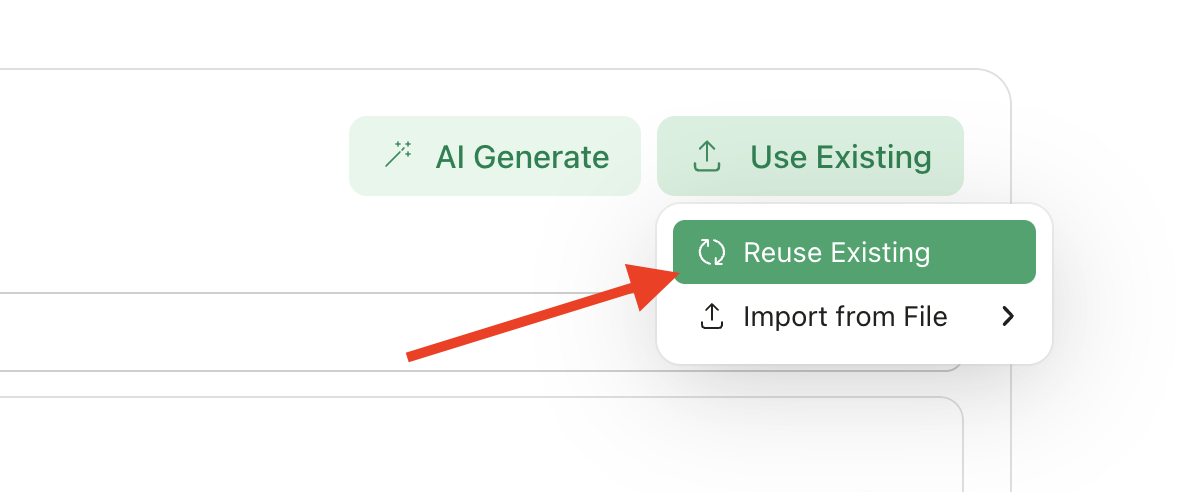
Click Use Existing
Click Use Existing
2
Select Reuse Existing
Select Reuse Existing from the dropdown
3
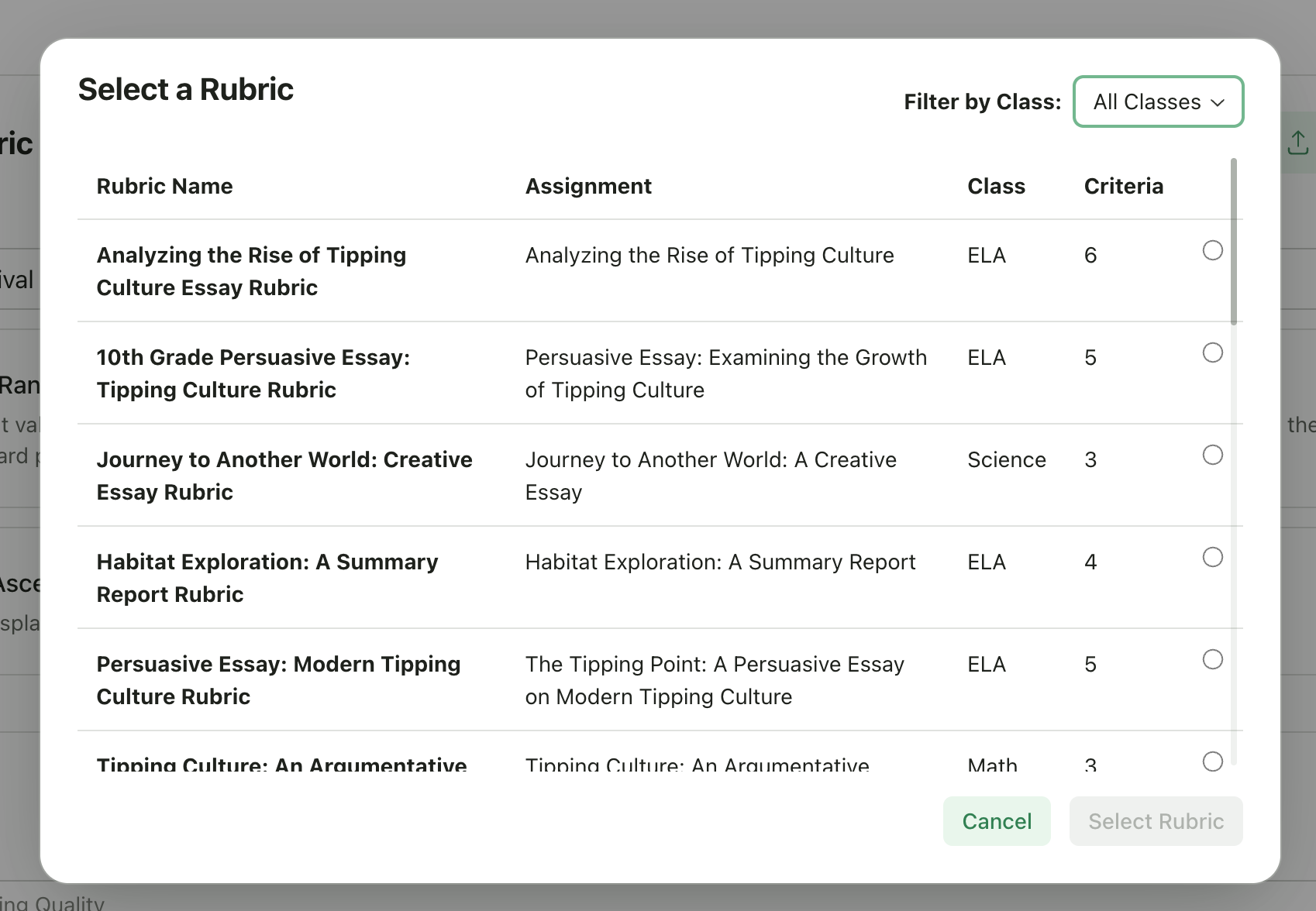
Browse Rubrics
Browse your previous rubrics. Each rubric shows:
- Assignment name it came from
- Class name
- Number of criteria
4
Select Rubric
Click to select a rubric
5
Rubric Copied
The rubric is copied to your new assignment
What Gets Copied
- All criteria names and descriptions
- All levels with their point values
- Level descriptions
The copied rubric is independent—editing it won’t affect the original assignment.
Importing a Rubric from File
If you have a rubric in a document (like a PDF handout or Word file):1
Click Use Existing
Click Use Existing
2
Select Import from File
Select Import from File
3
Choose Source
Choose your source:
- From your Device - Upload a file from your computer
- From Google Drive - Select a file from your Google Drive
4
Wait for Extraction
Wait for the AI to extract the rubric
5
Review and Edit
Review the extracted rubric and edit as needed

Supported File Types
- PDF documents
- Word documents (.doc, .docx)
- Google Docs (via Google Drive)
- Text files
Extraction Tips
For best results, your document should have:- Clear criteria names
- Defined performance levels (e.g., “Excellent”, “Proficient”, “Developing”)
- Point values or score ranges
- Descriptions for each level
When Each Option Works Best
Editing After Import
After reusing or importing a rubric, you can:- Add or remove criteria
- Change point values
- Edit descriptions
- Add or remove performance levels
- Rename levels
Changes only affect the current assignment—original rubrics remain unchanged.
No Rubrics Available?
If “Reuse Existing” is disabled, you haven’t created any assignments with rubrics yet. You can:- Create a rubric manually
- Generate one with AI
- Import from a file