

How It Works
1
Upload Your Assignment PDF
The exam, quiz, or worksheet document
2
AI Extracts Questions
Each question is identified and categorized
3
Review the Outline
Confirm the questions were extracted correctly
4
Approve Rubrics
AI generates scoring criteria for each question
5
Upload Submissions
Grade student work against the auto-generated rubrics
Step 1: Setup
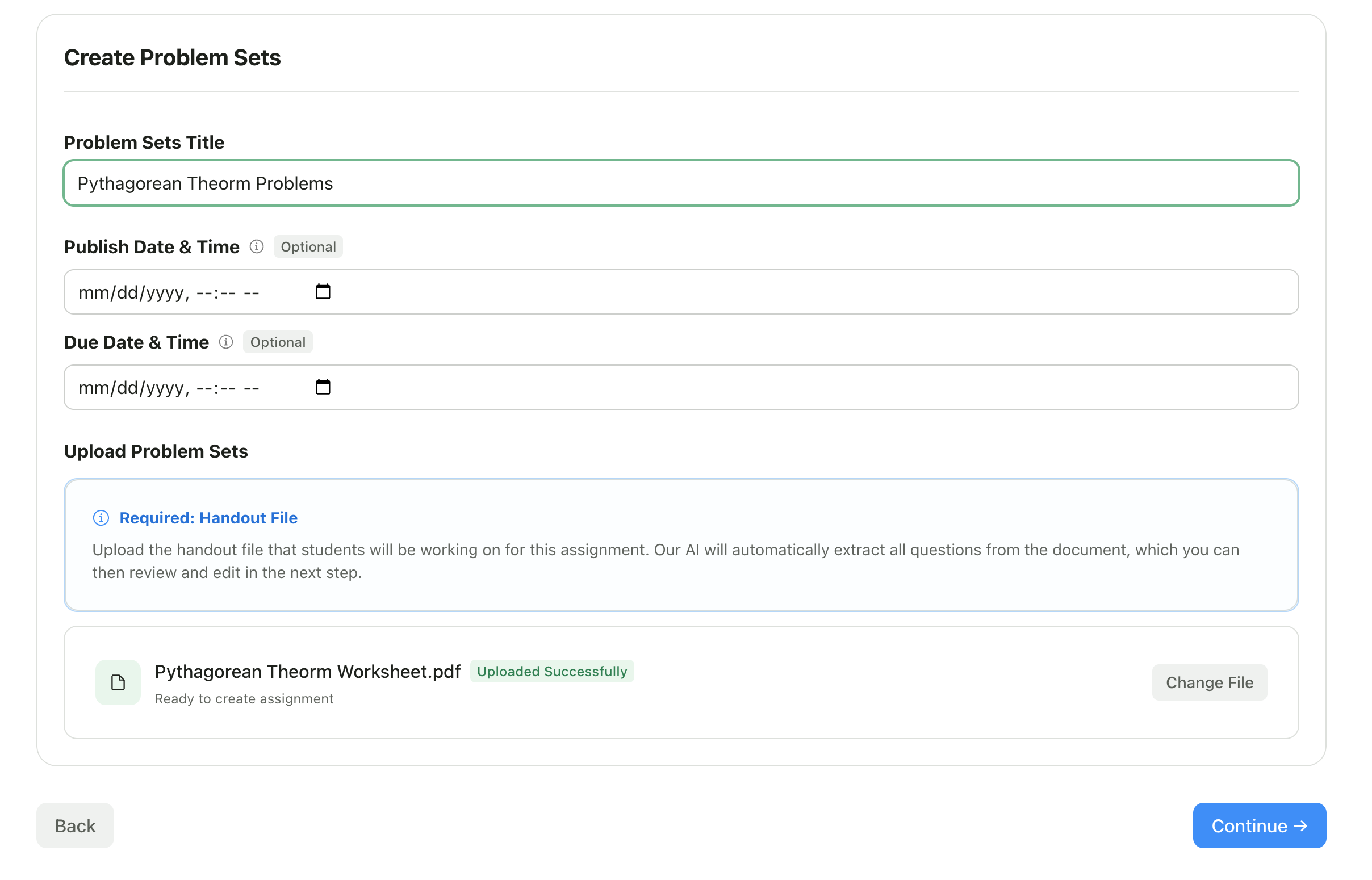
After selecting your assignment type, you’ll provide basic details and upload your document.Enter Assignment Title
Give your assignment a descriptive name (e.g., “Unit 3 Quiz - Fractions”, “Midterm Exam”).Upload Your Assignment PDF
Upload the document that contains your questions.1
Click Upload
Click Upload File
2
Select File
Select your PDF from your device
3
Wait for Upload
Wait for the upload to complete
- Use clear, readable fonts
- Ensure questions are numbered or clearly separated
- Include point values if you want them preserved
- Typed documents work better than handwritten
Set Dates (Optional)
Click Next to begin AI processing.
Step 2: Processing
The AI analyzes your document and extracts questions. This step is automatic—just wait for it to complete.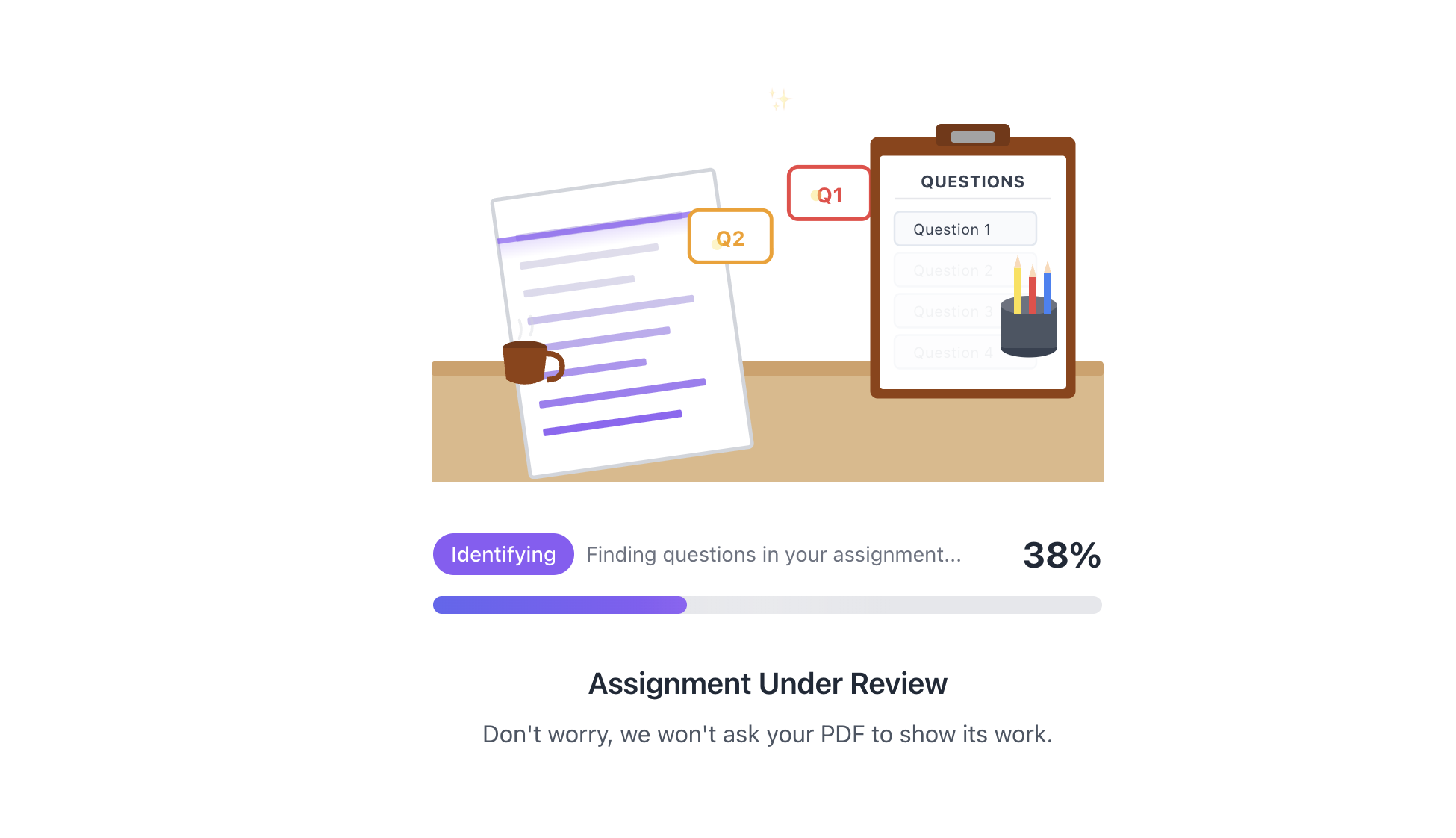
- Document text is extracted
- Questions are identified and numbered
- Question types are detected (multiple choice, short answer, etc.)
- Point values are extracted if present
Step 3: Review Outline
See the questions the AI extracted from your document. This is your chance to verify everything was captured correctly.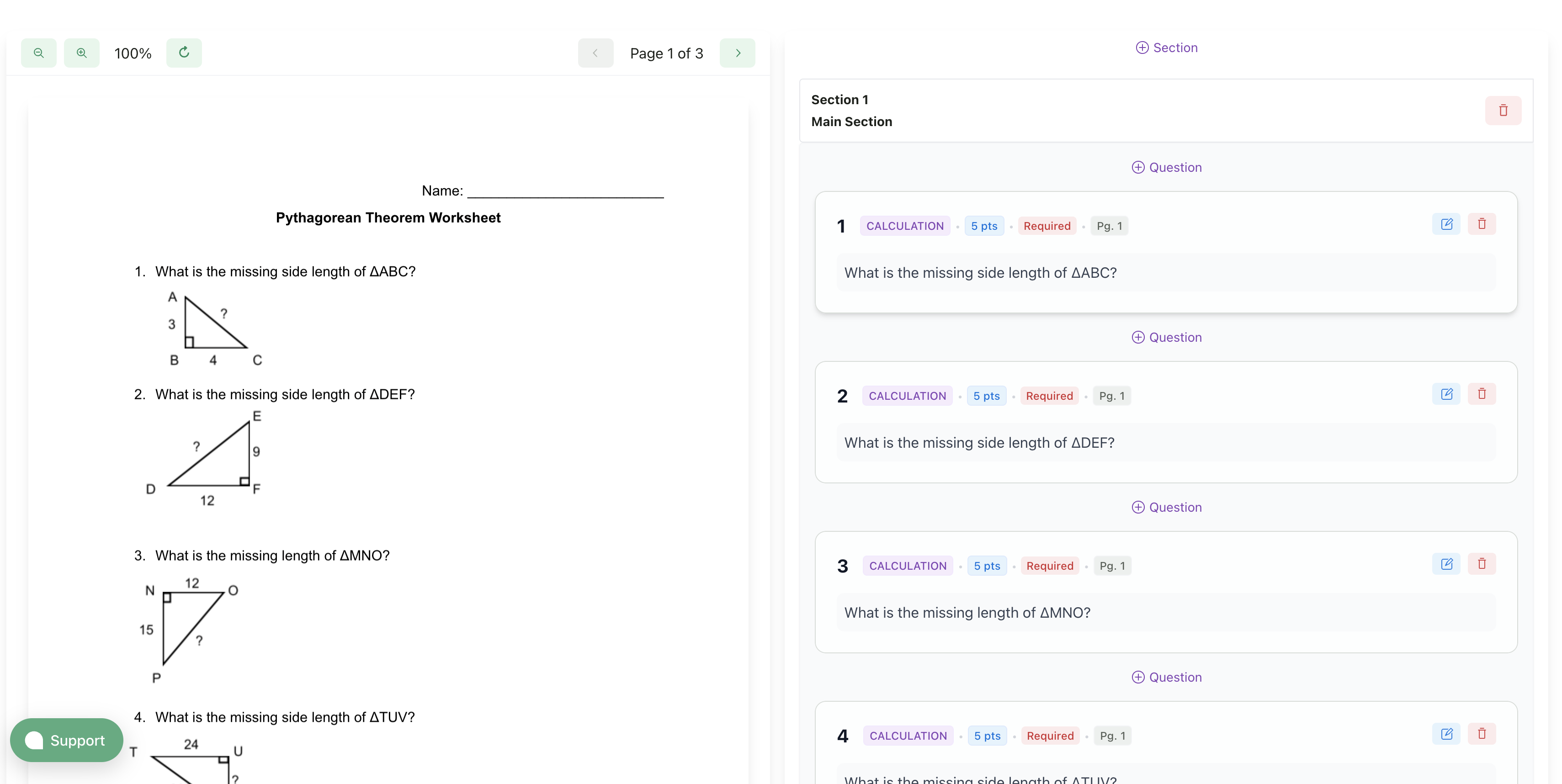
Review Each Question
For each question, verify:- The question text is complete and accurate
- The question number matches your document
- The question type is correct
Edit Questions
Click on any question to edit:- Fix text that wasn’t extracted correctly
- Adjust question numbers
- Change question types
Remove Incorrect Questions
If the AI identified something that isn’t actually a question:- Click the menu (three dots) on that question
- Select Remove
Add Missing Questions
If a question was missed:- Click Add Question
- Enter the question details manually
Step 4: Approve Rubrics
The AI generates a rubric for each question based on:- Question type (multiple choice, short answer, etc.)
- Expected answer format
- Point values from your document
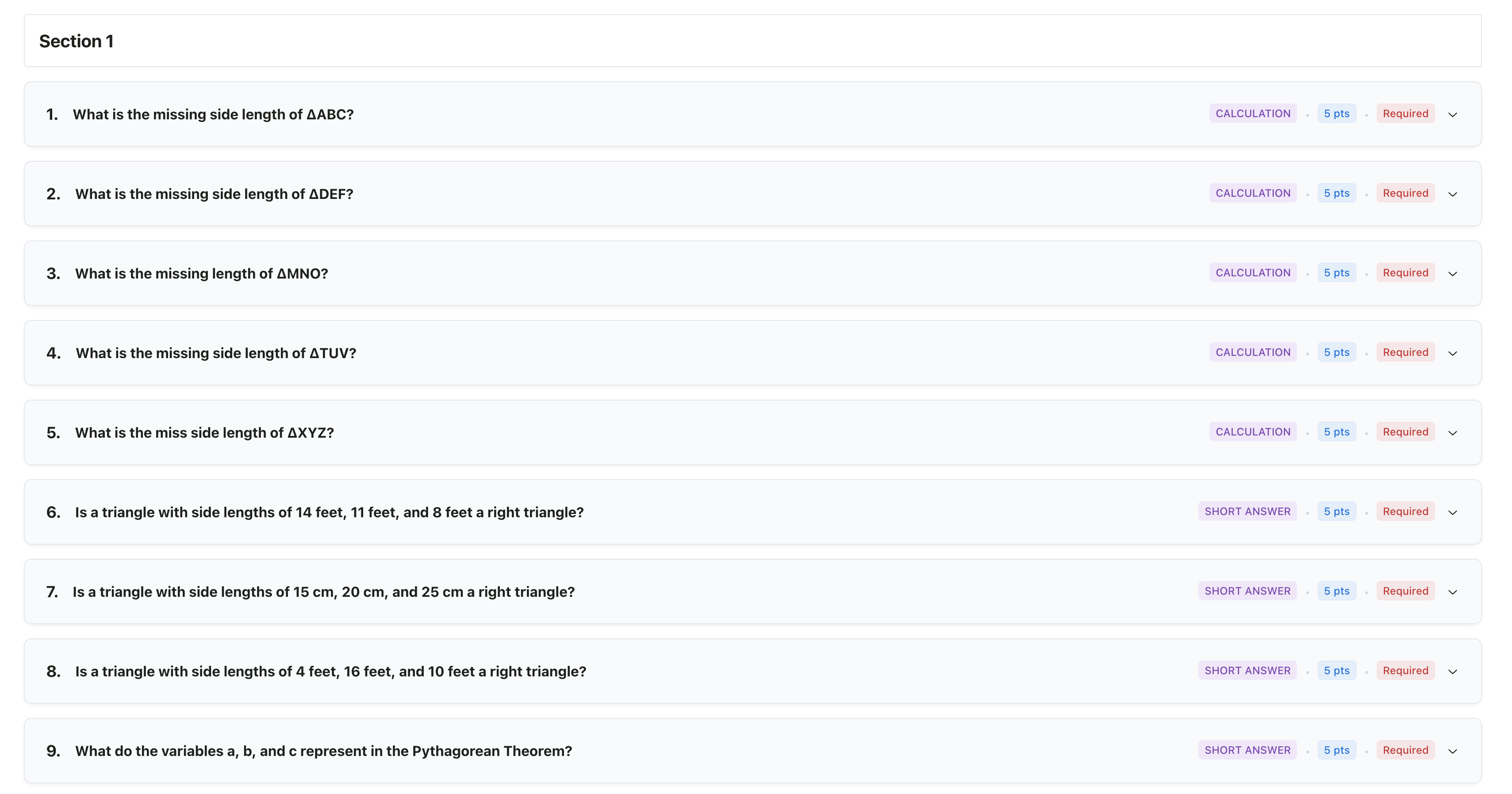
Review Each Rubric
For each question, you’ll see:- Criteria - What’s being evaluated
- Levels - Scoring options (e.g., Full Credit, Partial Credit, No Credit)
- Points - Point values for each level
Edit Rubrics
Click on any rubric to modify:- Adjust point values
- Edit level descriptions
- Add or remove scoring levels
- Verify answer keys or acceptable responses
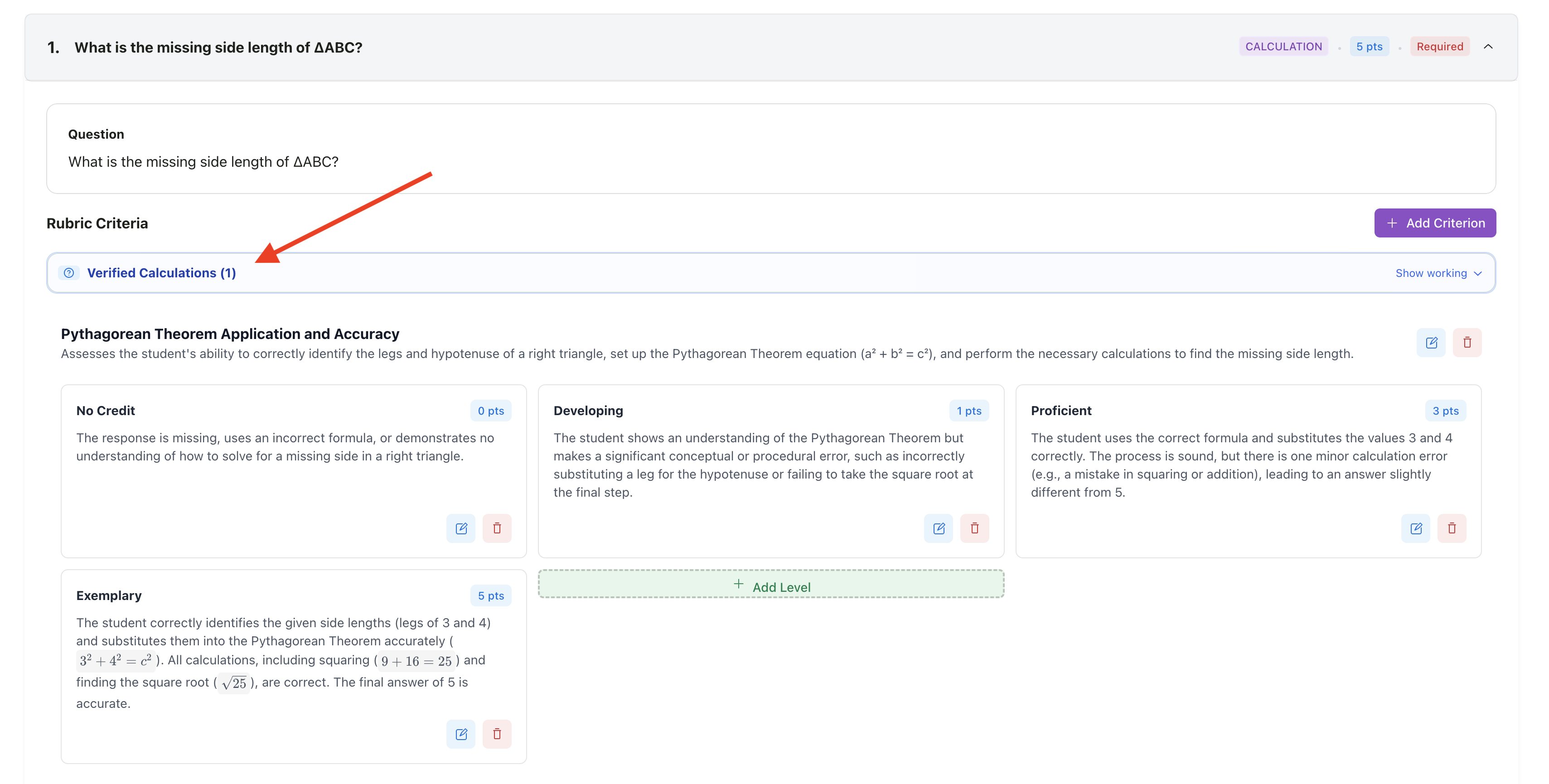
Review the AI's step-by-step calculations to verify answer keys
Bulk Actions
For similar questions, you can:- Copy rubric settings from one question to others
- Apply the same point structure across questions
Step 5: Upload Submissions
Now you can upload student work to be graded against your rubrics.Upload Student Work
Learn about uploading from your device, Google Drive, or Google Classroom
Question Types
The AI recognizes various question types and generates appropriate rubrics:Tips for Better Results
Use clear formatting
Use clear formatting
Numbered questions with consistent formatting extract more accurately.
Include point values
Include point values
If your document shows points per question, the AI will use them.
Review the outline carefully
Review the outline carefully
Catching extraction errors early saves time later.
Add answer keys to rubrics
Add answer keys to rubrics
Especially for short answer and numerical questions, adding the correct answer improves grading accuracy.
Check partial credit settings
Check partial credit settings
Make sure the AI’s partial credit levels match your grading policy.
Editing After Setup
Editing structured assignments after creation is not currently supported. If you need to make changes to questions or rubrics, you’ll need to create a new assignment.