What You Can Do
Connecting Google Classroom
Step 1: Start the Connection
You can connect Google Classroom from two places: During onboarding: New users are prompted to connect Google Classroom as part of the initial setup flow. From the dashboard: Click Import Classes on your teacher dashboard. On the integration selection screen, click Connect Google Classroom.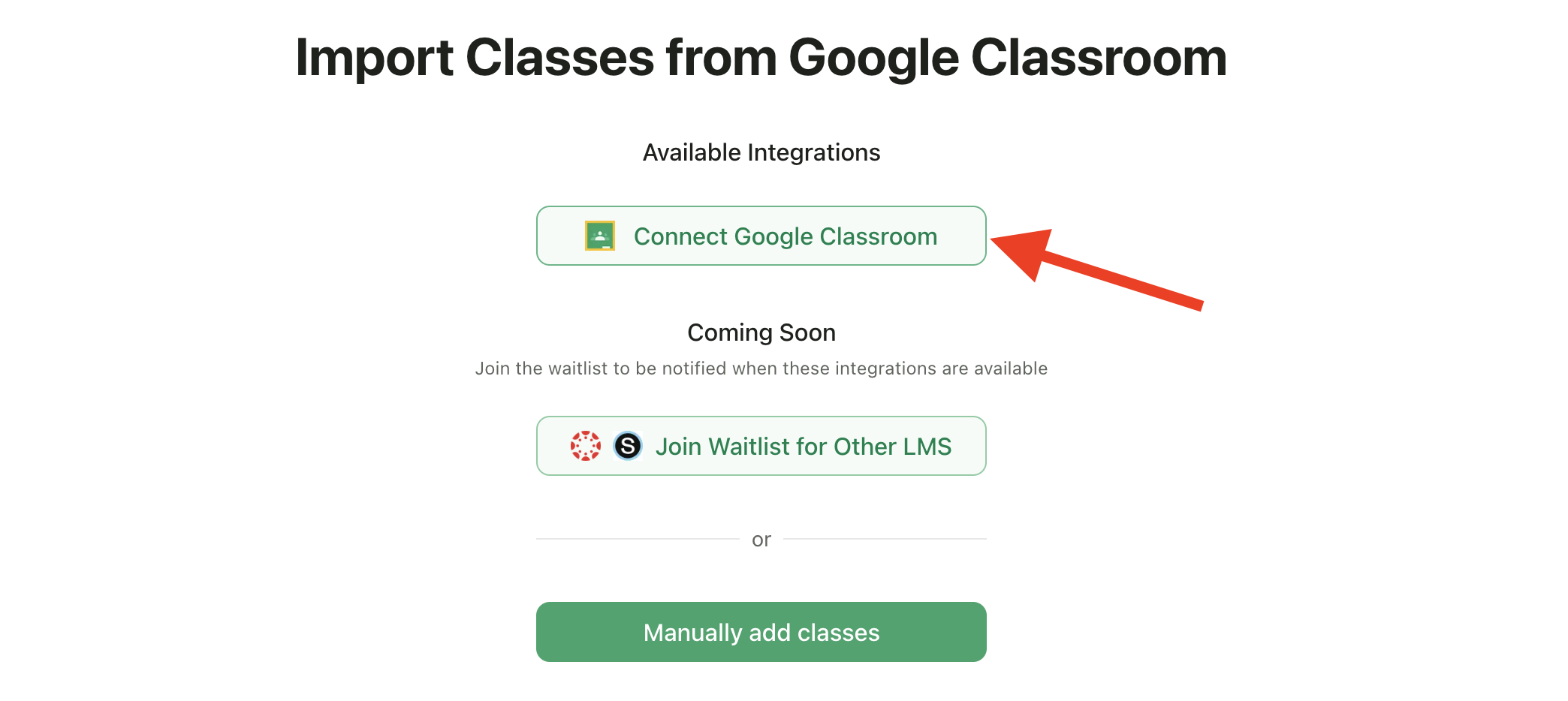
Step 2: Select All Permissions
On the Google permissions screen, you must select “Select All” for full functionality.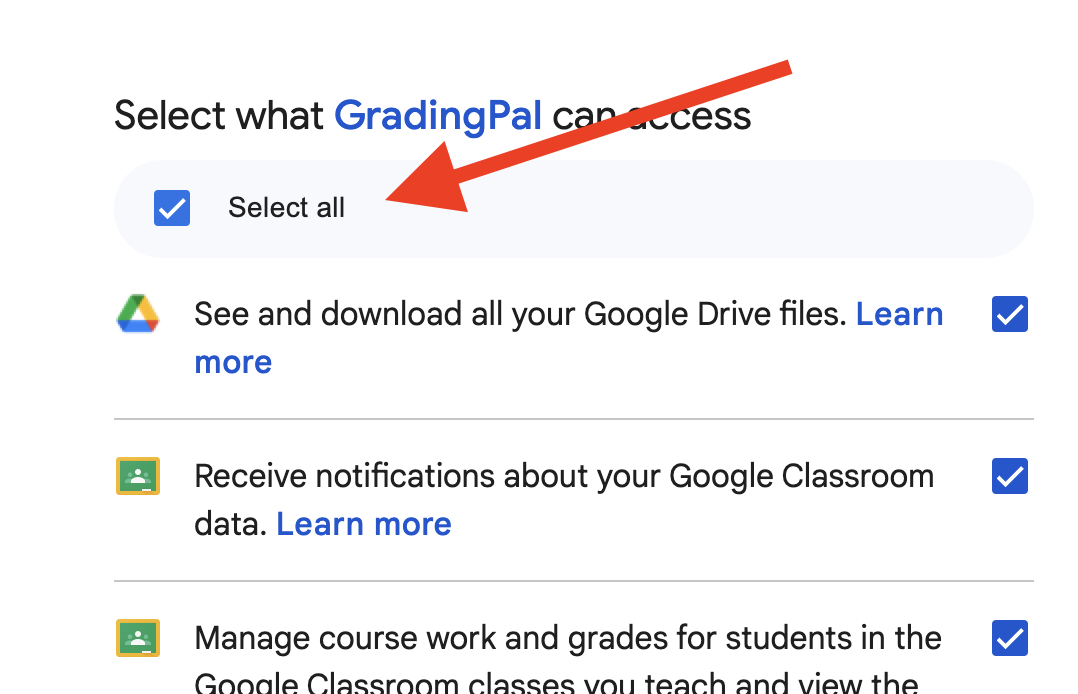
Step 3: Return to GradingPal
After granting permissions, you’ll be redirected back to GradingPal to select which classes to import.Importing Classes
Once connected, you can import your Google Classroom classes into GradingPal.Step 1: Select Classes
You’ll see a list of all your Google Classroom courses. Check the ones you want to import.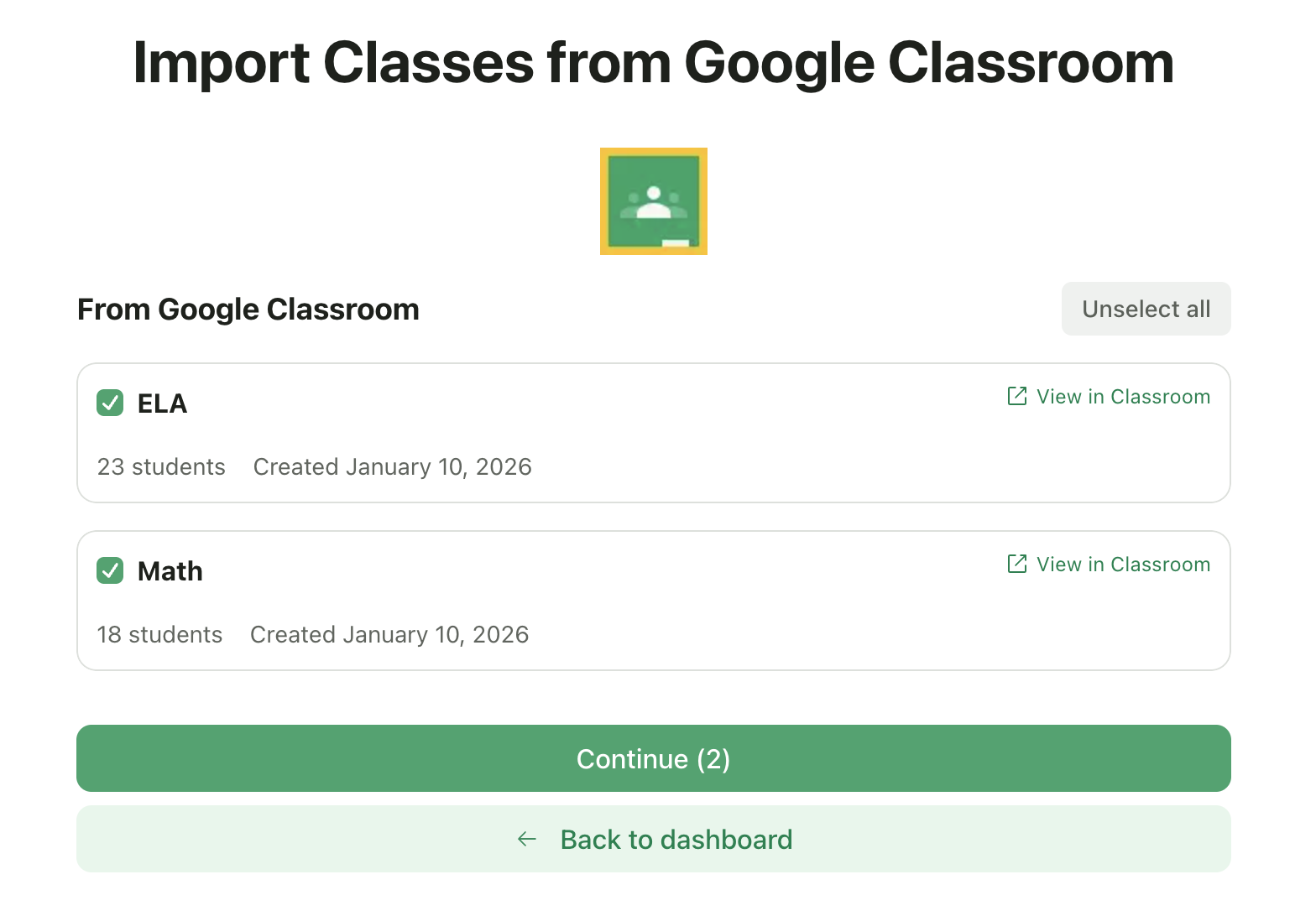
- Class name and section
- Number of students
- Creation date
- Link to view in Google Classroom
Step 2: Configure Class Details
For each class, provide additional information that GradingPal needs: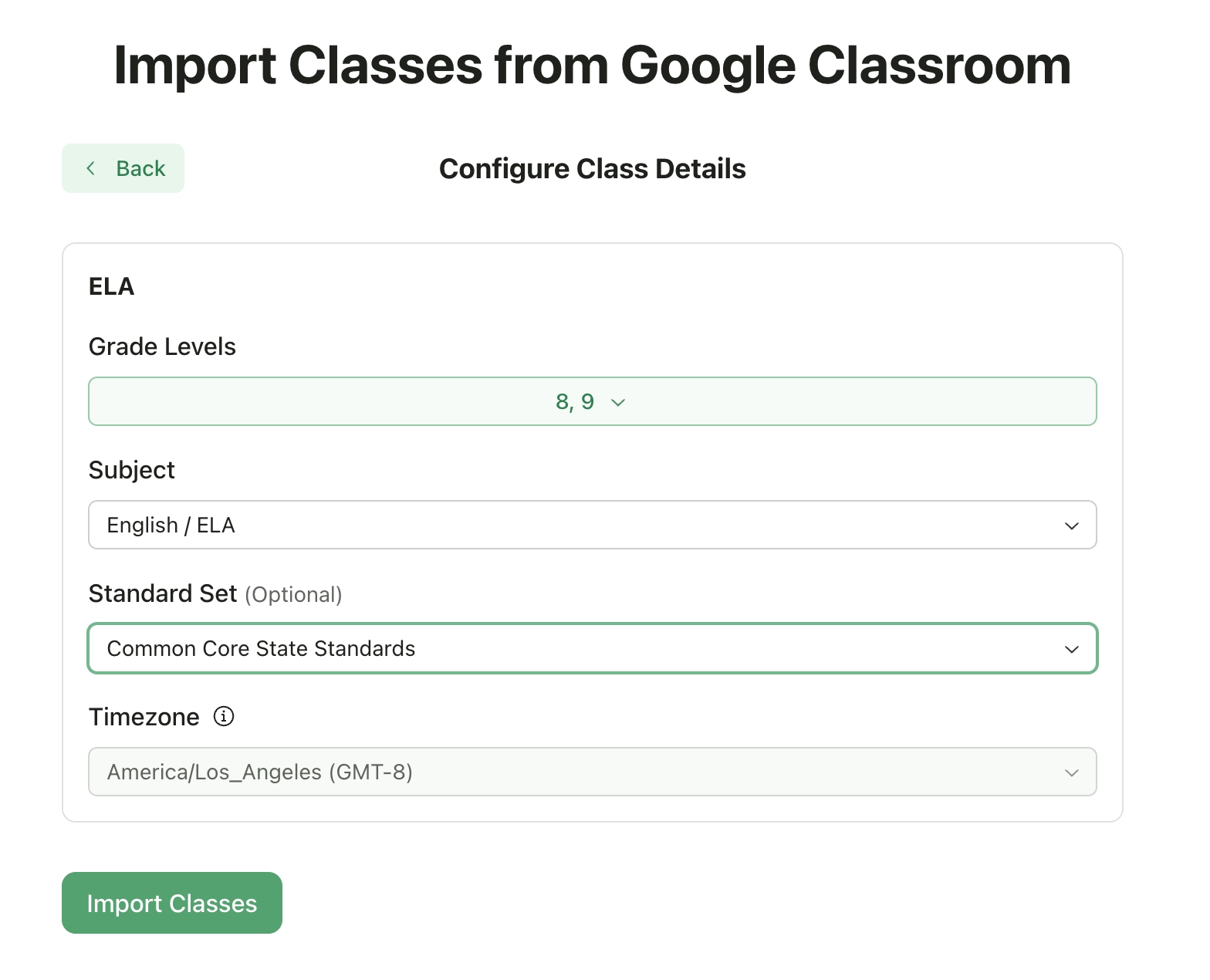
Step 3: Import
Click Import Classes. Your classes, along with their student rosters, will be imported into GradingPal. After import:- Students are automatically added to your class roster
- You can start creating assignments immediately
- Any future roster changes in Google Classroom will sync automatically
Creating Assignments (GradingPal → Google Classroom)
When you create an assignment in GradingPal for a Google Classroom-connected class, it can be automatically published to Google Classroom.Automatic Publishing (Default)
With Automatic Assignment Sync enabled (the default setting), assignments are published to Google Classroom as soon as you create them in GradingPal. What gets published:- Assignment title and description
- Due date and time
- Maximum points
- Your rubric (with all criteria and levels)
- A link back to GradingPal
Manual Publishing
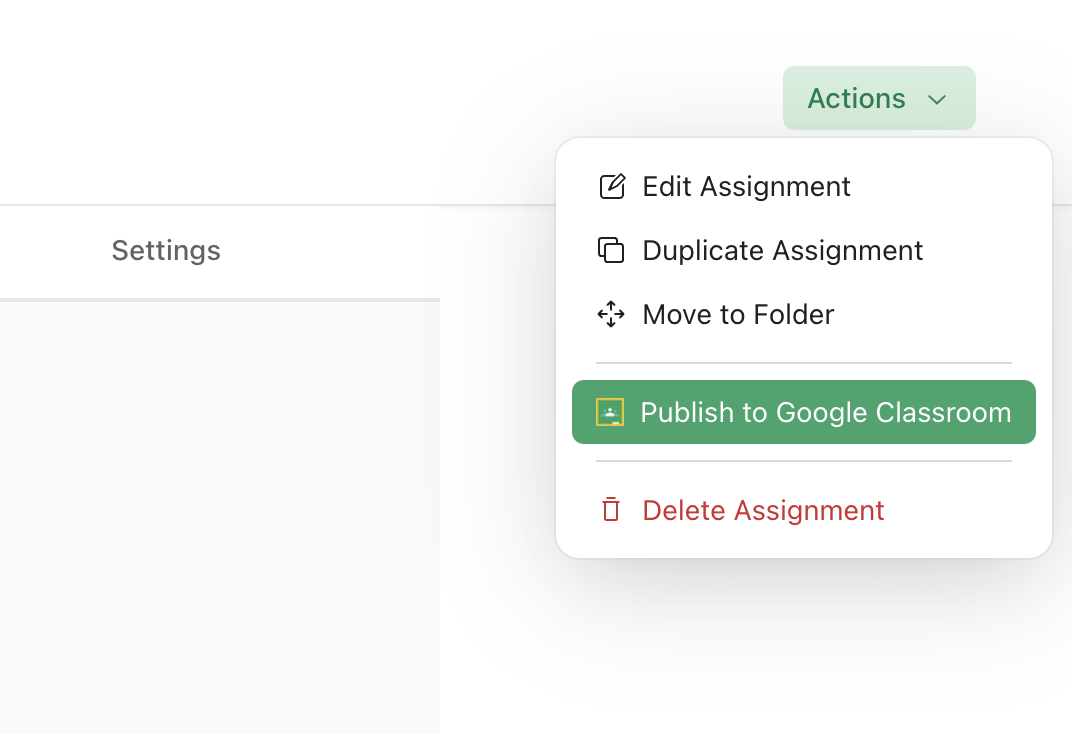
If you prefer to control when assignments appear in Google Classroom, you can disable automatic sync in Class Settings. When automatic sync is off, you can manually publish assignments: From the Assignment Wizard: After clicking Finish Setup, a dialog will ask if you want to publish to Google Classroom.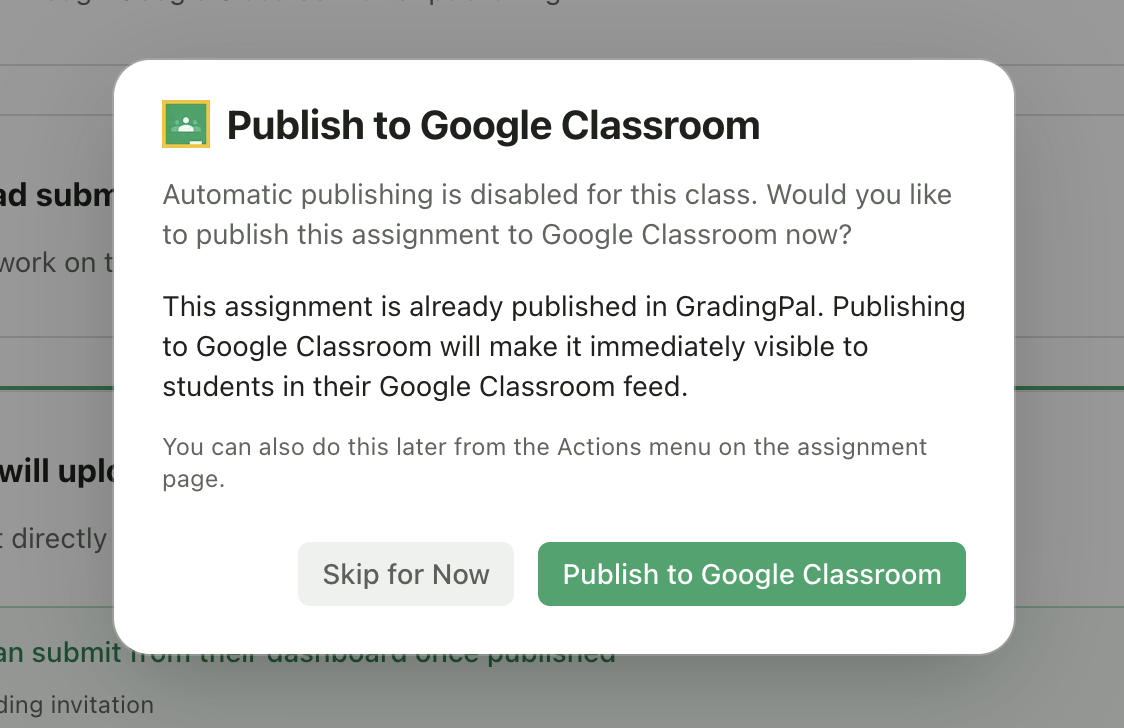
Publish Date Handling
GradingPal respects your assignment’s publish settings:Supported Assignment Types
Not all assignment types can be published to Google Classroom:
For unsupported types, the publish option will not appear. Note- we’re working on adding support for these unavailable assignment types shortly.
Importing Existing Assignments (Google Classroom → GradingPal)
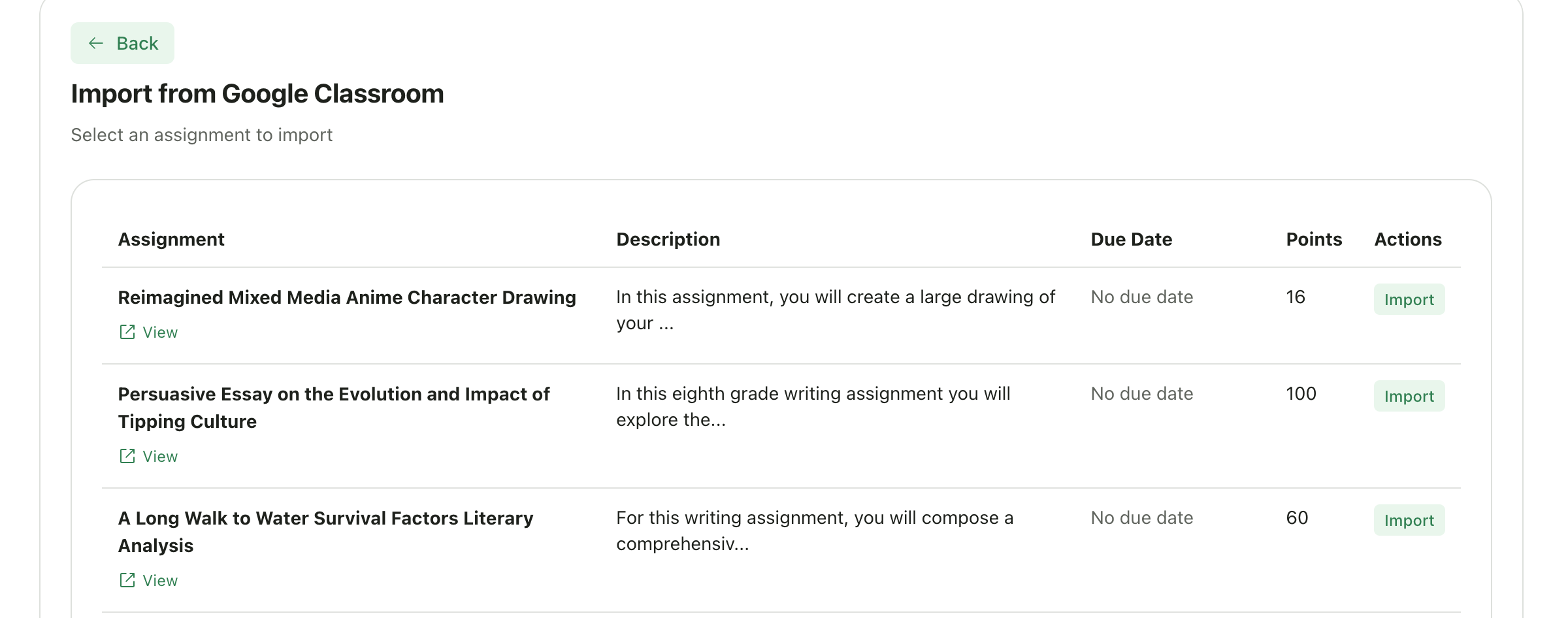
You can also import assignments that already exist in Google Classroom.How to Import
- Go to your class in GradingPal
- Click New Assignment
- Select Import from Google Classroom
- Choose the assignment you want to import
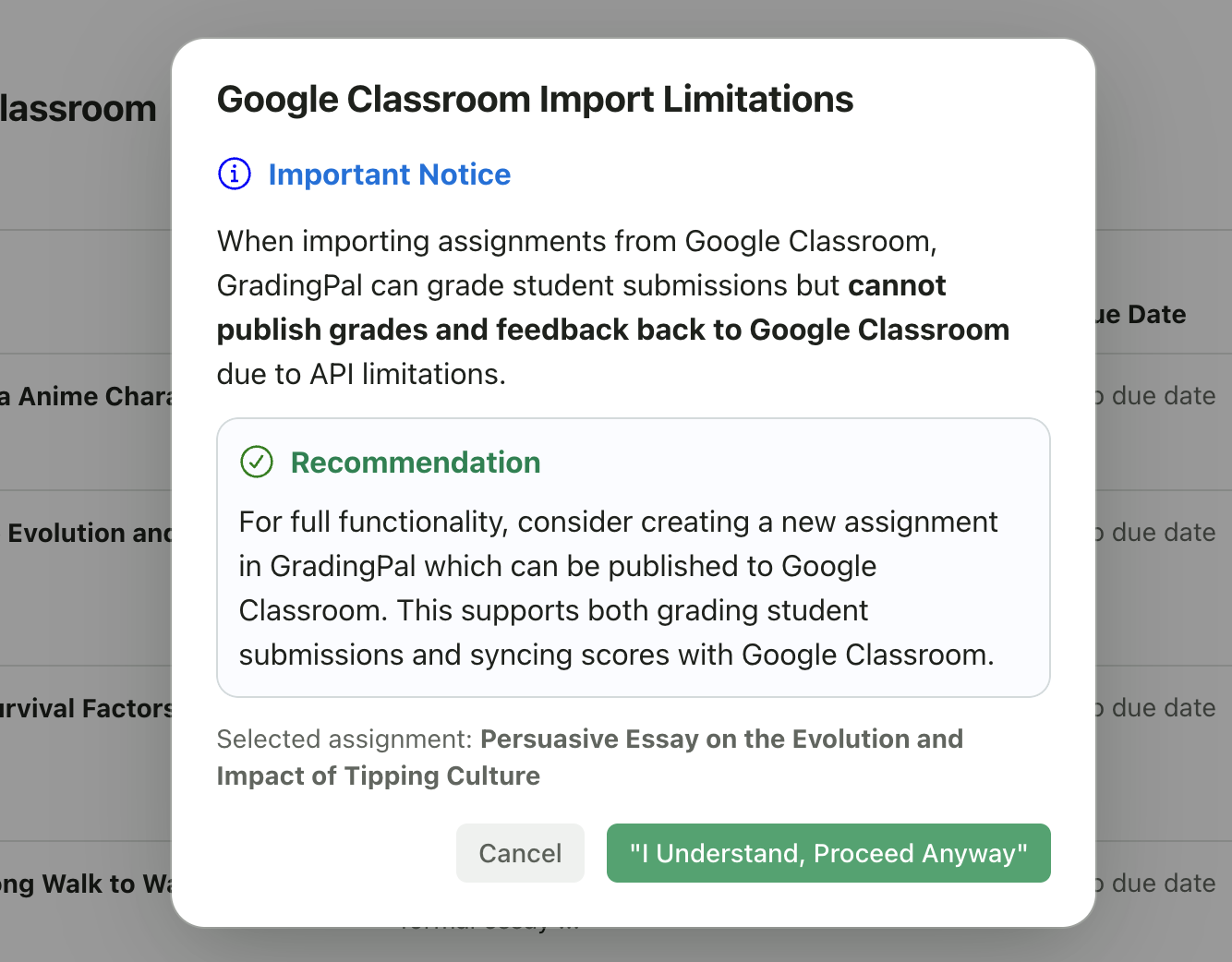
Important Limitation
Student Submissions from Google Classroom
How student submissions flow into GradingPal depends on how the assignment was created.Automatic Sync (Assignments Created in GradingPal)
When you create an assignment in GradingPal and publish it to Google Classroom, student submissions automatically appear in GradingPal as soon as students turn in their work. How it works:- Student submits their work in Google Classroom
- GradingPal is notified automatically (via real-time sync)
- The submission appears in GradingPal within moments
- AI grading starts automatically
- Student is auto-enrolled if not already in your roster
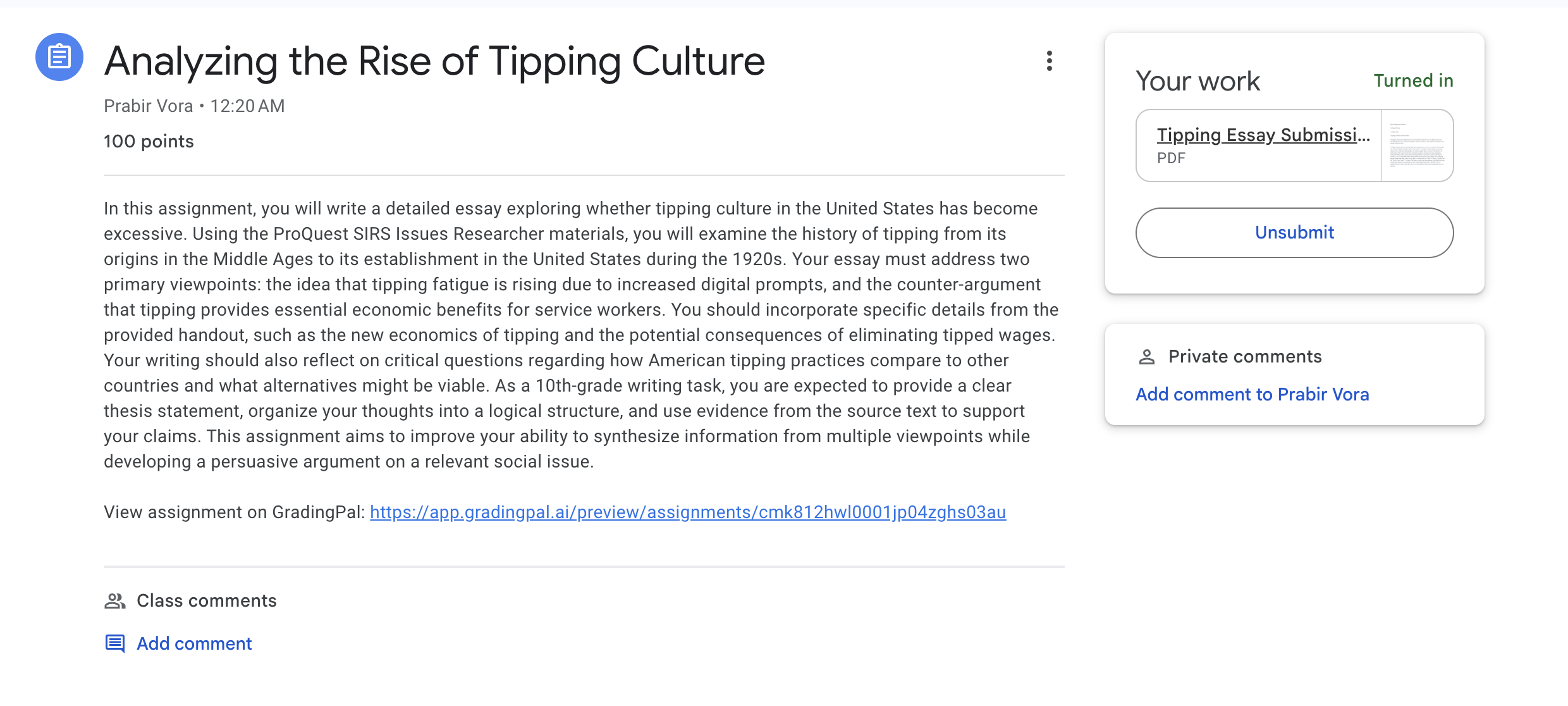
Student turns in their work through Google Classroom
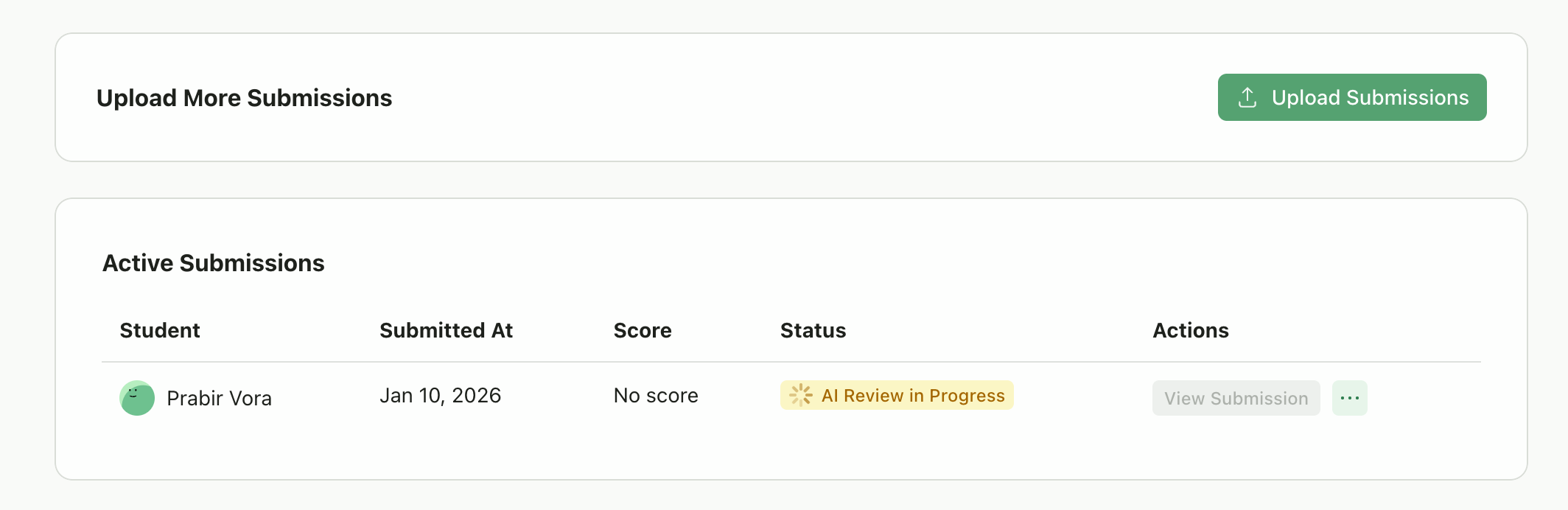
Submission automatically appears in GradingPal and begins processing
Manual Import (Assignments Imported from Google Classroom)
For assignments that were imported from Google Classroom (not created in GradingPal), you’ll need to manually pull submissions.Step 1: View Submissions Preview
On the assignment page, you’ll see a Google Classroom panel showing student submission status.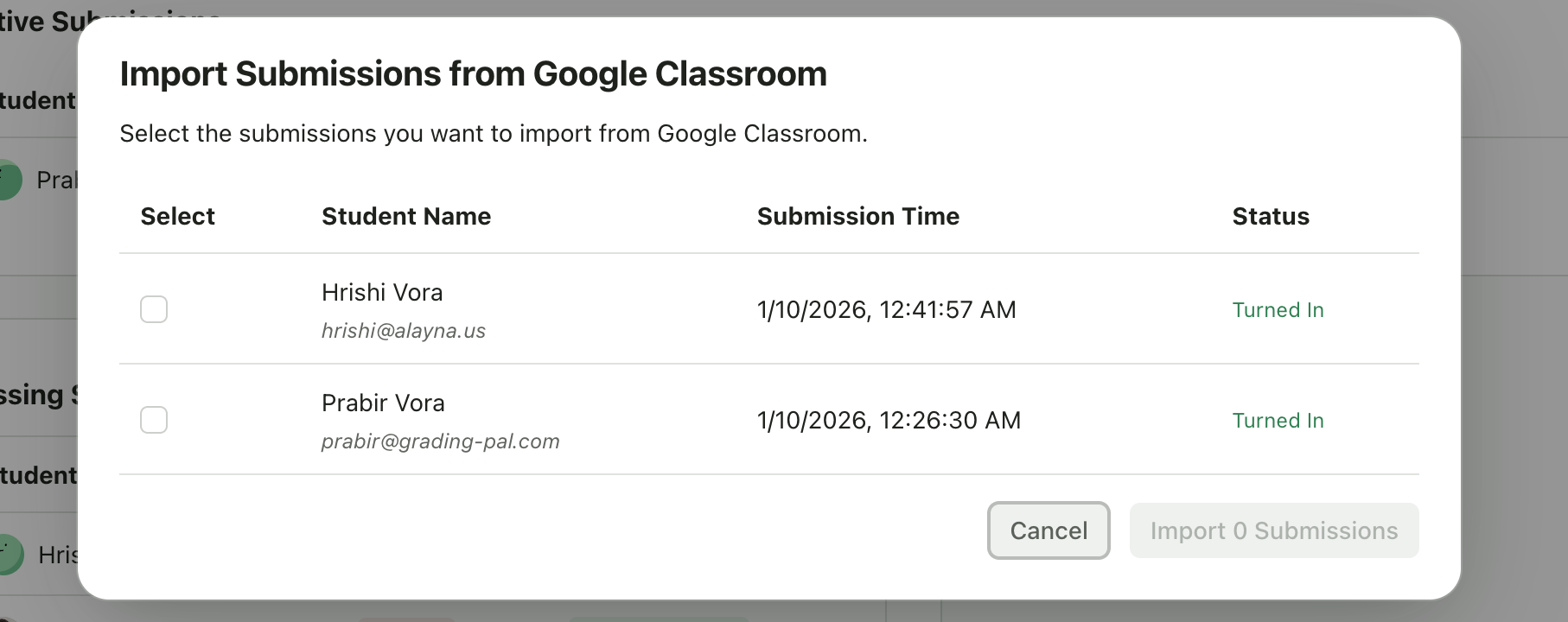
- Each student’s name and email
- Their submission status (Submitted, In Progress, Not Started, etc.)
- Whether they have attachments
- How many submissions are ready to import
Step 2: Import Submissions
Click Import Submissions. GradingPal will:- Download the student’s submitted files
- Create submission records in GradingPal
- Automatically start AI grading
- Enroll any new students who weren’t already in your roster
Returning Grades to Google Classroom
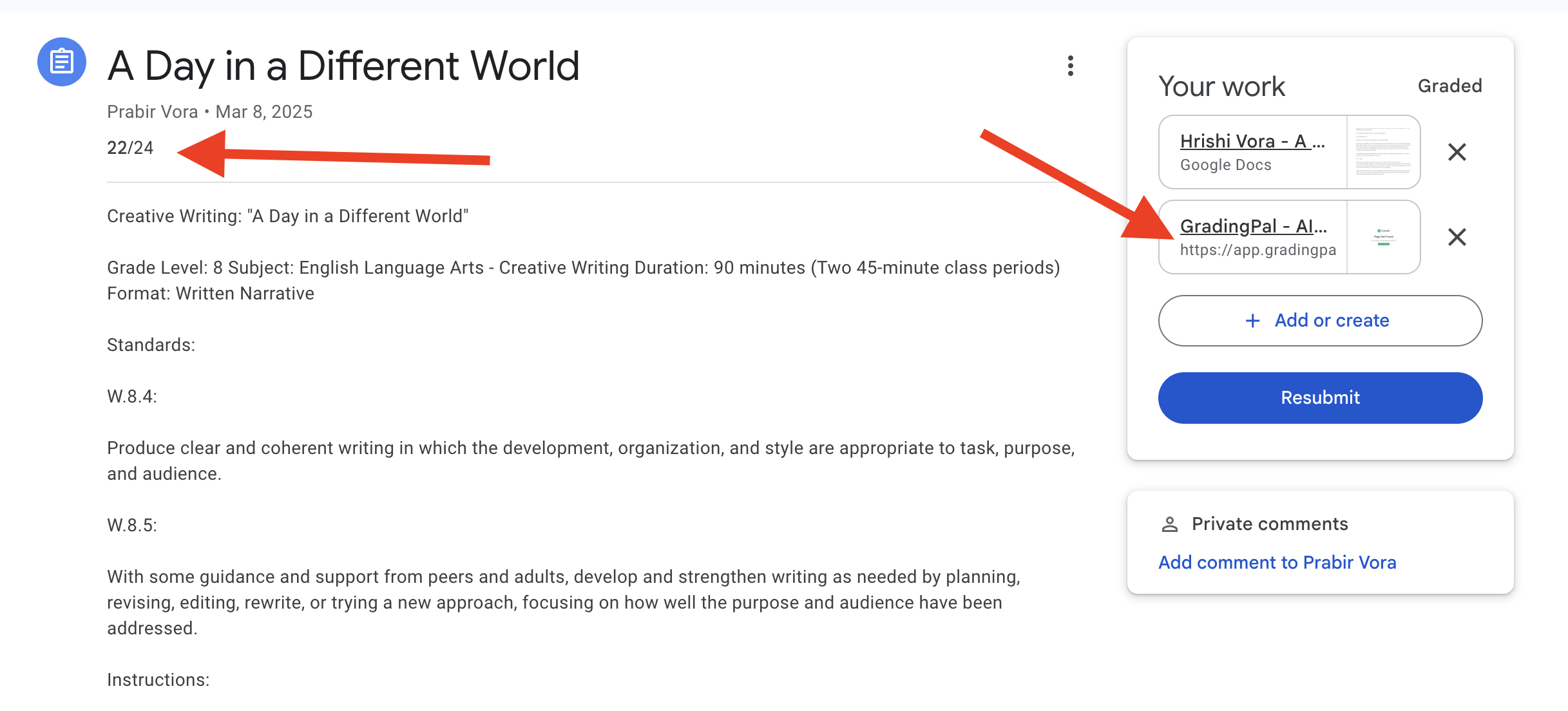
After grading submissions in GradingPal, you can return scores and feedback to Google Classroom.What Gets Synced
When you click Return on a graded submission:How It Works
1
AI Grades Automatically
AI grades the submission automatically
2
Review and Adjust
Review and adjust scores/feedback as needed
3
Click Return
Click Return on the submission
4
Grade Syncs
GradingPal sends the grade to Google Classroom
5
Student Views
Student sees their score in Google Classroom and can click the link to view detailed feedback in GradingPal
Requirements for Grade Sync
For grades to sync back to Google Classroom:- The assignment must have been created in GradingPal and published to Google Classroom (not imported from Google Classroom)
- The student must be enrolled through Google Classroom (have a linked account)
- The submission must be in “Turned In” state
Class Settings for Google Classroom
Google Classroom-connected classes have additional settings to control how assignments and students sync:- Automatic Assignment Sync - Control whether new assignments auto-publish to Google Classroom
- Allow Manual Student Enrollment - Enable or disable class codes and invite links
Class Settings
Learn about all class configuration options
Troubleshooting
Google Classroom connection issue detected
Google Classroom connection issue detected
Your connection to Google Classroom has expired or been revoked. Click Reconnect and go through the authorization flow again. Make sure to Select All permissions.
Assignments not appearing in Google Classroom
Assignments not appearing in Google Classroom
Check that:
- Automatic Assignment Sync is enabled in Class Settings
- The assignment type is supported (Writing, Video, Presentation, Art & Design)
- The assignment has been published (not still in draft mode in GradingPal)
Students not syncing
Students not syncing
If students from Google Classroom aren’t appearing in GradingPal:
- Students are auto-enrolled when they submit work via Google Classroom
- You can manually import by clicking Upload Submissions → Import from Google Classroom
- Check that you granted all required permissions during setup
Grades not syncing back
Grades not syncing back
Grades only sync back to Google Classroom if:
- The assignment was created in GradingPal and published to Google Classroom
- Assignments imported from Google Classroom cannot sync grades back (API limitation)
Best Practices
Create in GradingPal First
Creating assignments in GradingPal and publishing to Google Classroom ensures full grade sync functionality
Grant All Permissions
During Google sign-in, always “Select All” to avoid functionality issues later
Use Auto-Sync
Keep Automatic Assignment Sync enabled unless you specifically need to draft assignments privately first
Check Submission Status
Only “Submitted” work will be imported. Students with “In Progress” status need to turn in their work first
Keep Manual Enrollment Off
For Google Classroom classes, this ensures students who submit via Google Classroom are properly linked for grade sync