

Step 1: Assignment Details
After selecting your assignment type, you’ll provide the details that help the AI understand what to grade.Choose How to Provide Assignment Details
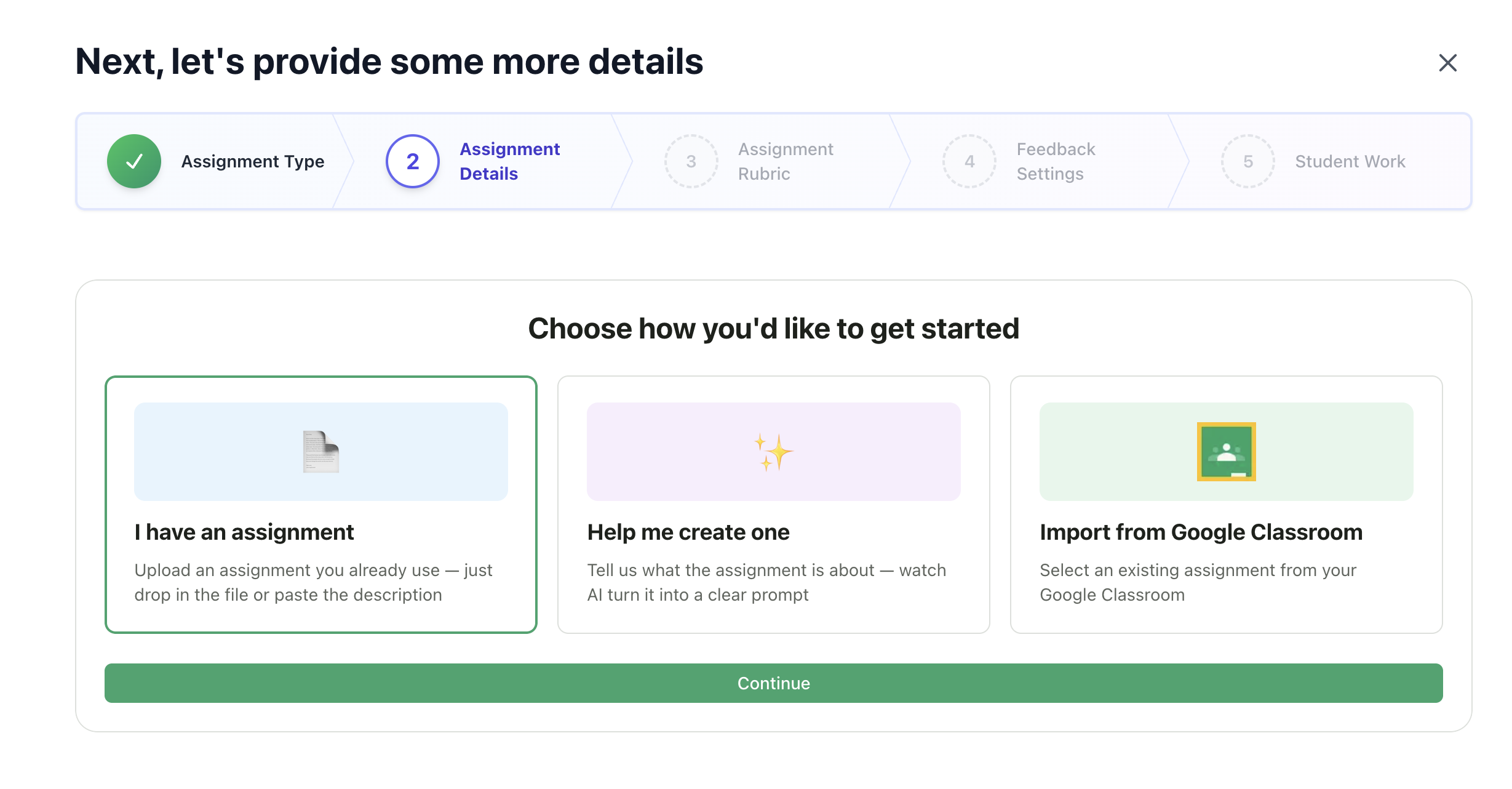
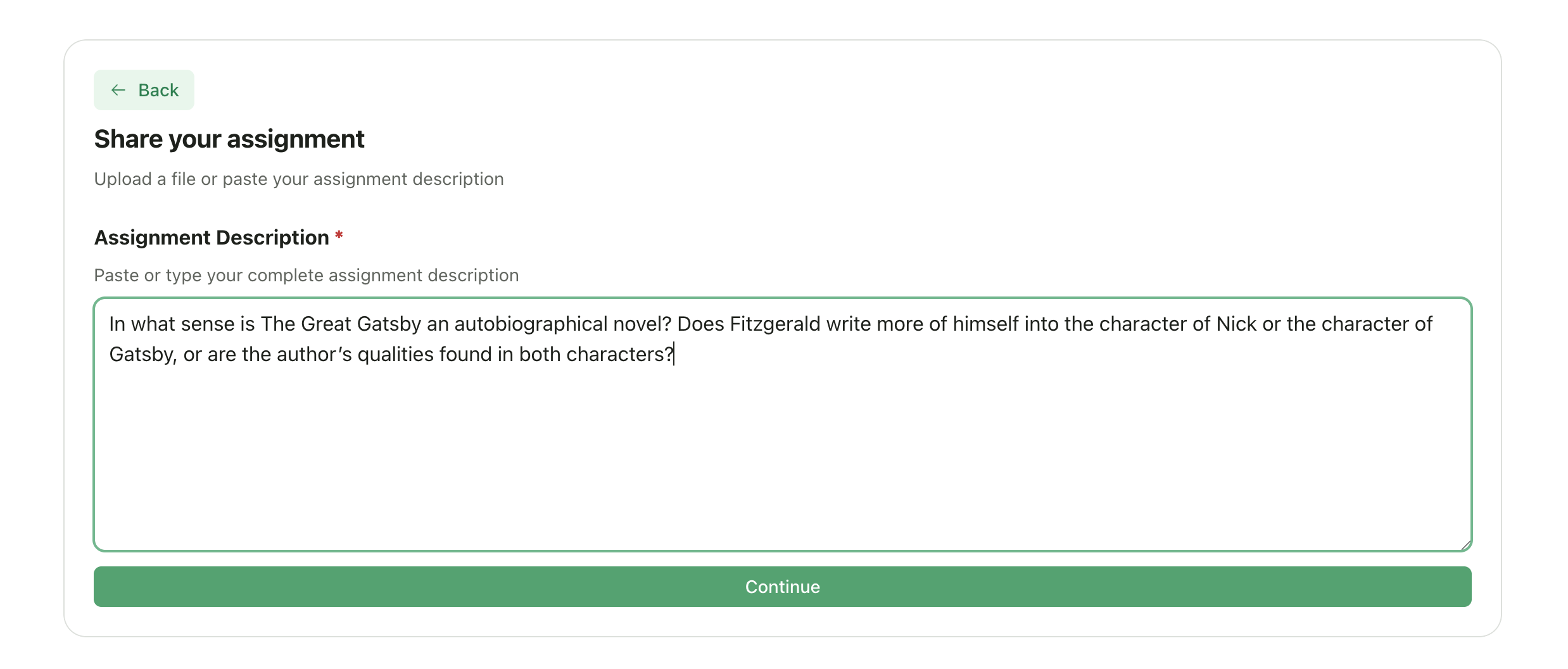
Option A: I Have My Assignment Ready
Use this if you already have your assignment prompt or instructions. Upload a file:- Click Upload file
- Select your assignment document (PDF, Word, or image)
- GradingPal extracts the text and uses it as your assignment description
- Click Paste description
- Type or paste your assignment prompt directly
- Include all instructions students received
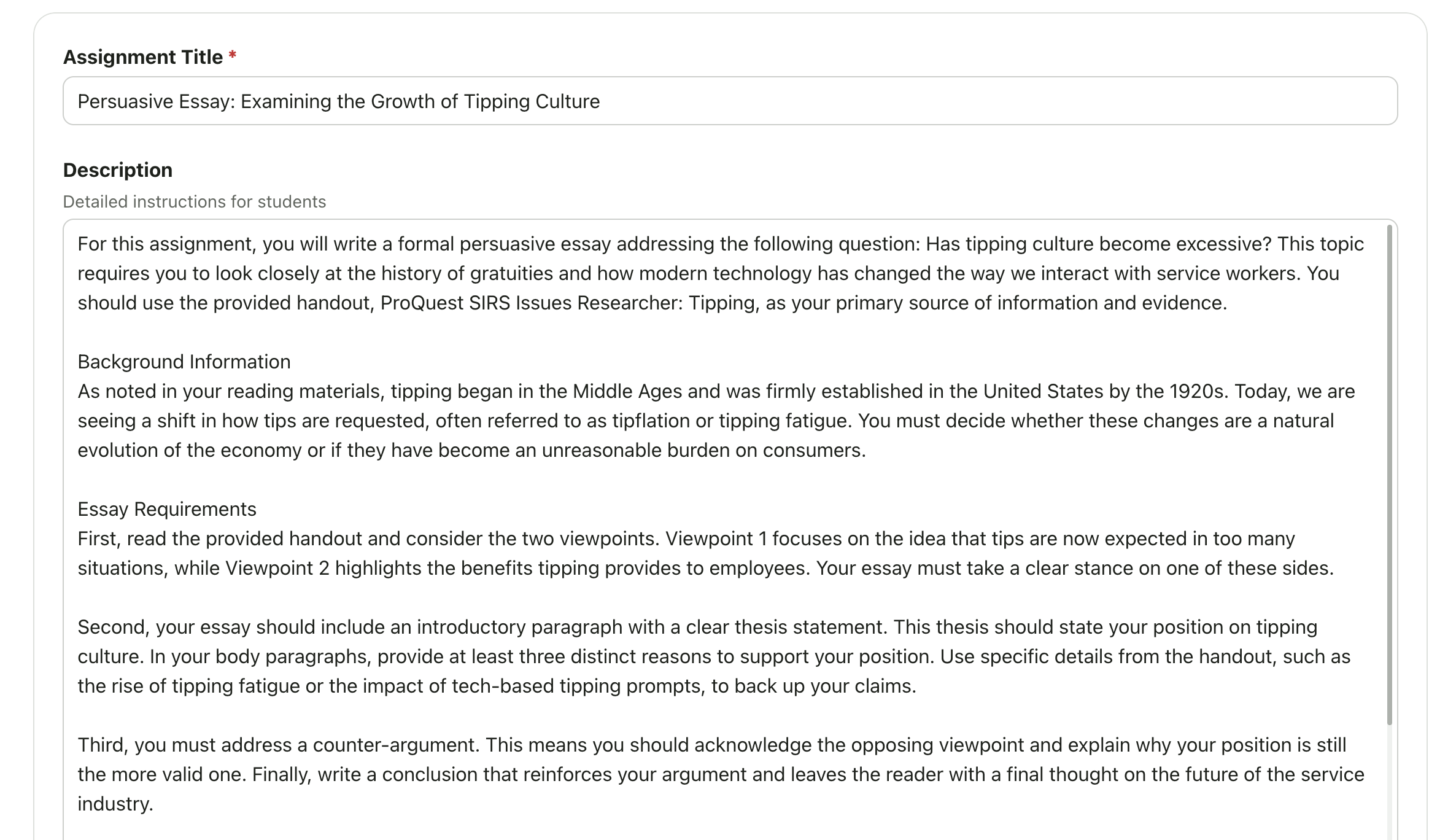
Option B: Help Me Create One with AI
Use this if you need help writing your assignment prompt.1
Describe Your Assignment
Describe what you want students to do in a few sentences
2
Add Materials (Optional)
Optionally upload source materials (readings, resources, examples)
3
Generate
Click Generate
4
Review and Edit
Review the AI-generated assignment description and edit as needed
Option C: Import from Google Classroom
For Google Classroom-connected classes, you can import an existing assignment.- Select Import from Google Classroom
- Choose an assignment from the list
- The assignment details, description, and any attached rubric are imported
Google Classroom Integration
Learn more about importing from Google Classroom
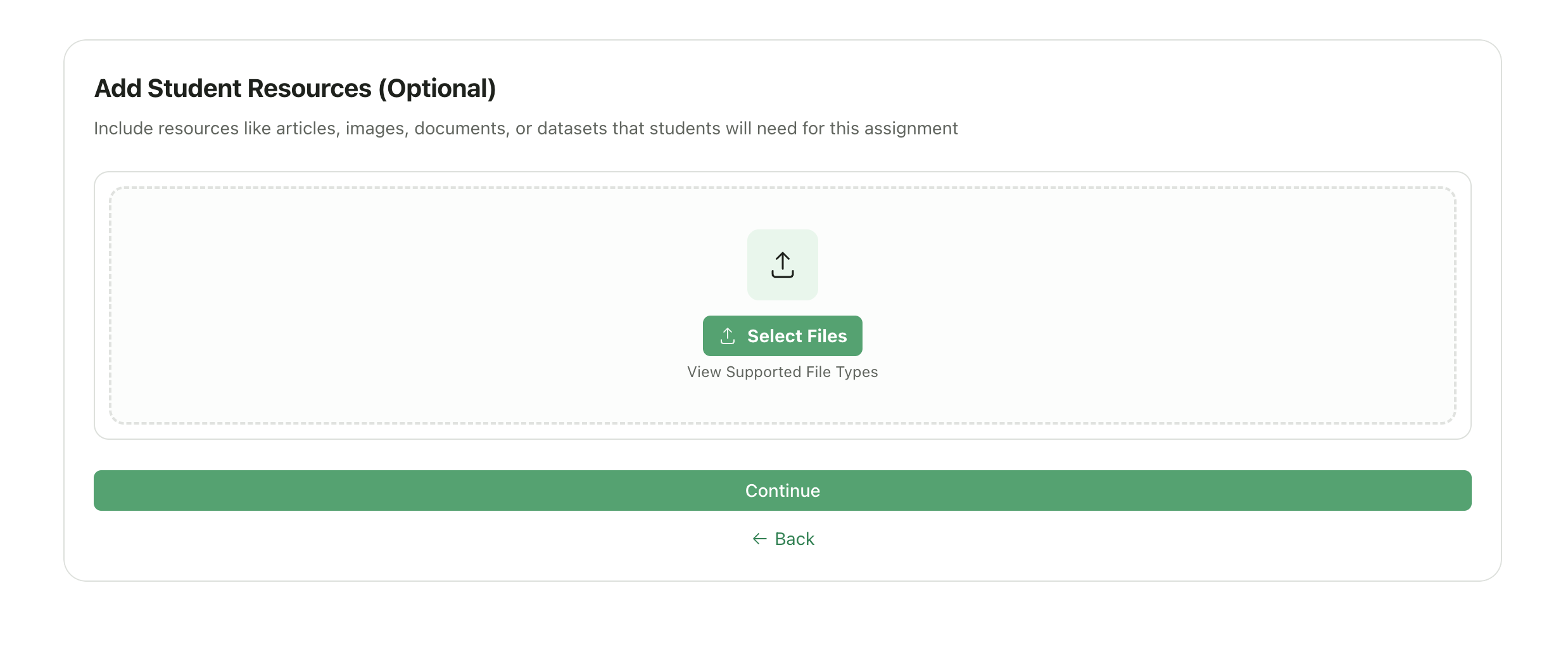
Add Materials (Optional)
Upload handouts, rubrics, or reference materials that students received with the assignment. These help the AI understand context and expectations.- Click Add Materials
- Upload files from your device or Google Drive
- Supported formats: PDF, Word, images, Google Docs
- Source readings students should reference
- Assignment handouts with additional instructions
Set Dates (Optional)
Configure when the assignment is visible and due.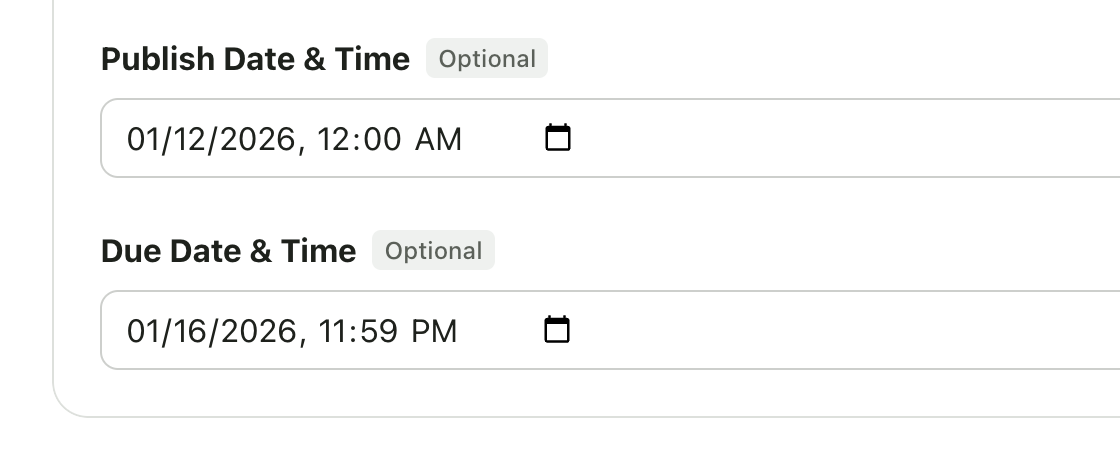
Step 2: Create Your Rubric
Define the criteria the AI will use to grade student work.Option A: Generate with AI
Let AI create a rubric based on your assignment details.1
Click Generate
Click Generate with AI
2
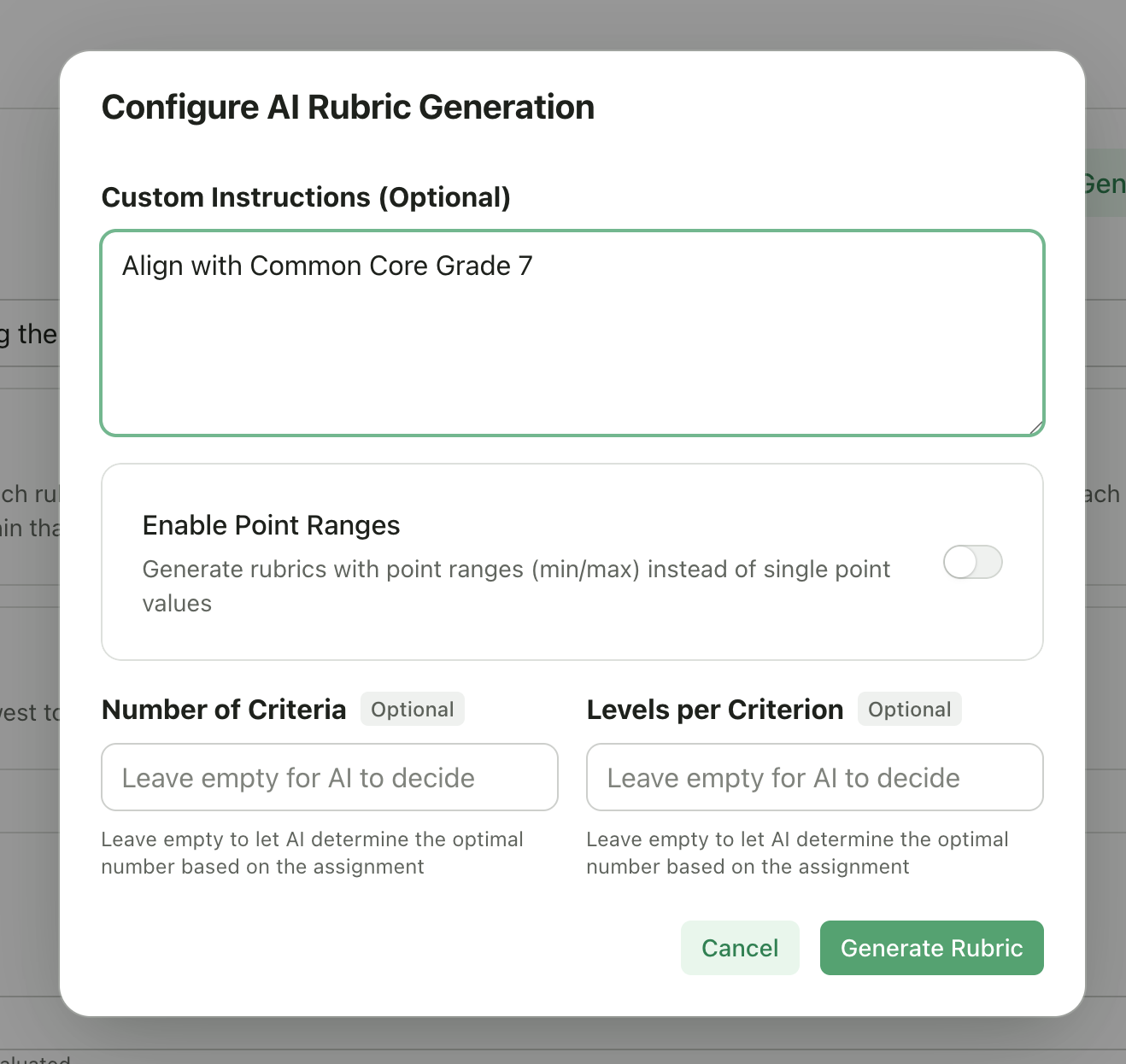
Configure Options
A dialog appears with configuration options:
3
Generate
Click Generate Rubric
4
Review and Edit
Review the generated rubric and edit as needed
Option B: Import from Existing Rubric
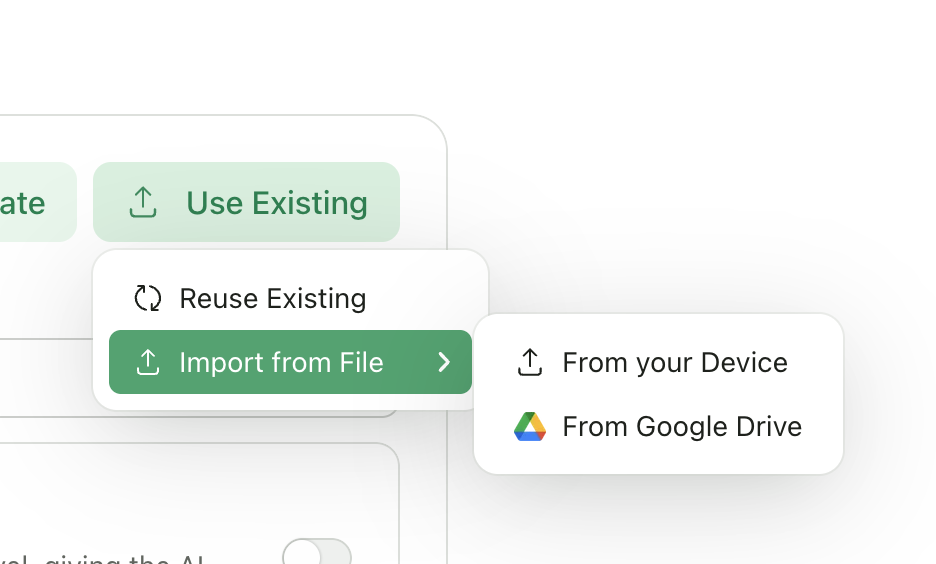
Reuse a rubric from a previous assignment.- Click Import from Existing
- Browse your saved rubrics
- Select one to copy to this assignment
- Edit as needed
Option C: Create Manually
Build your rubric from scratch.1
Add Criterion
Click Add Criterion
2
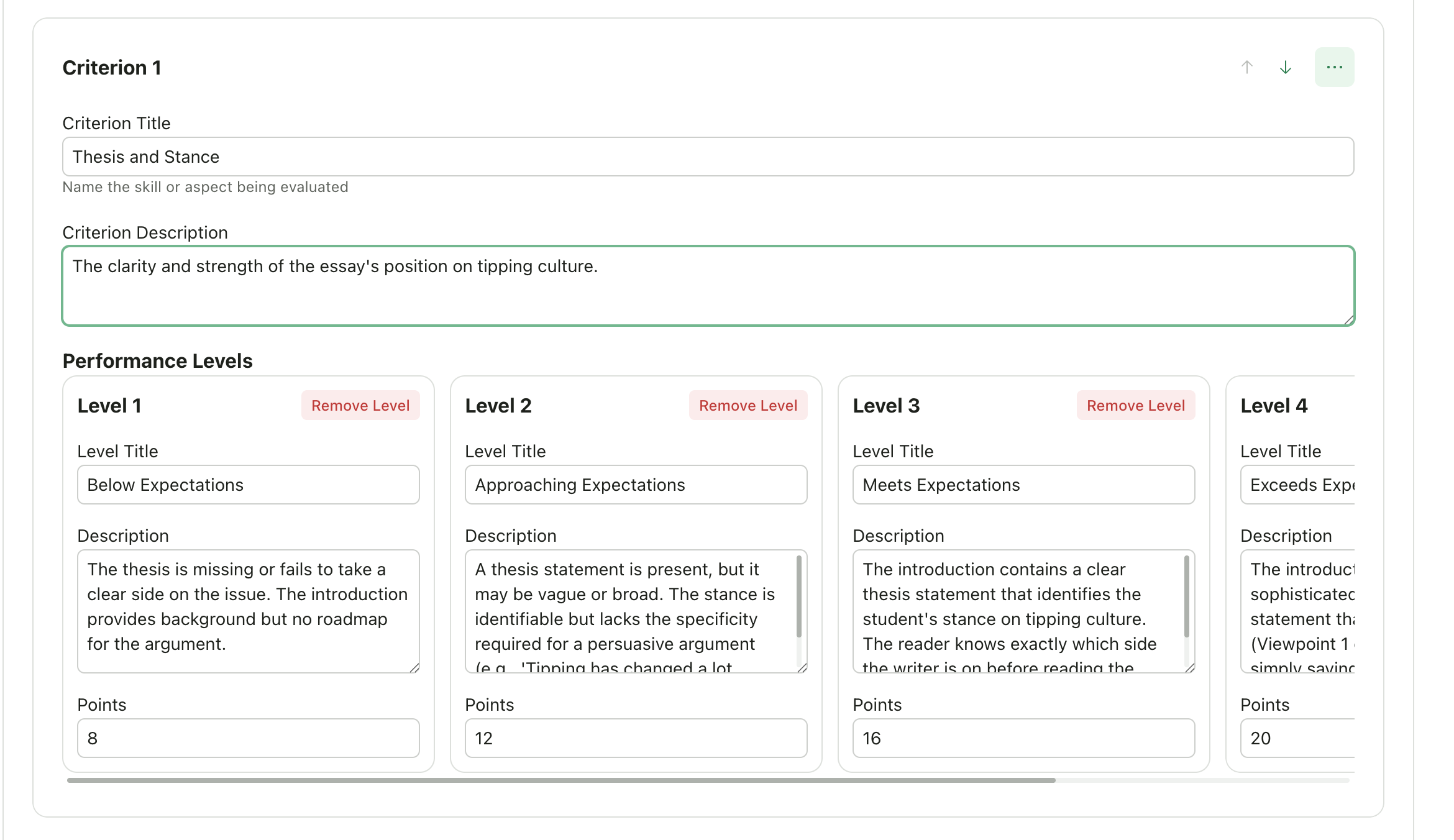
Define Criterion
Enter:
- Criterion name (e.g., “Thesis Statement”)
- Description (what this criterion evaluates)
3
Add Levels
Add levels for this criterion:
- Level name (e.g., “Excellent”, “Proficient”, “Developing”)
- Points (single value or min/max range)
- Description (what this level looks like)
4
Repeat
Repeat for additional criteria
Editing Your Rubric
Once you have a rubric (generated, imported, or manual), you can edit it:Edit with AI
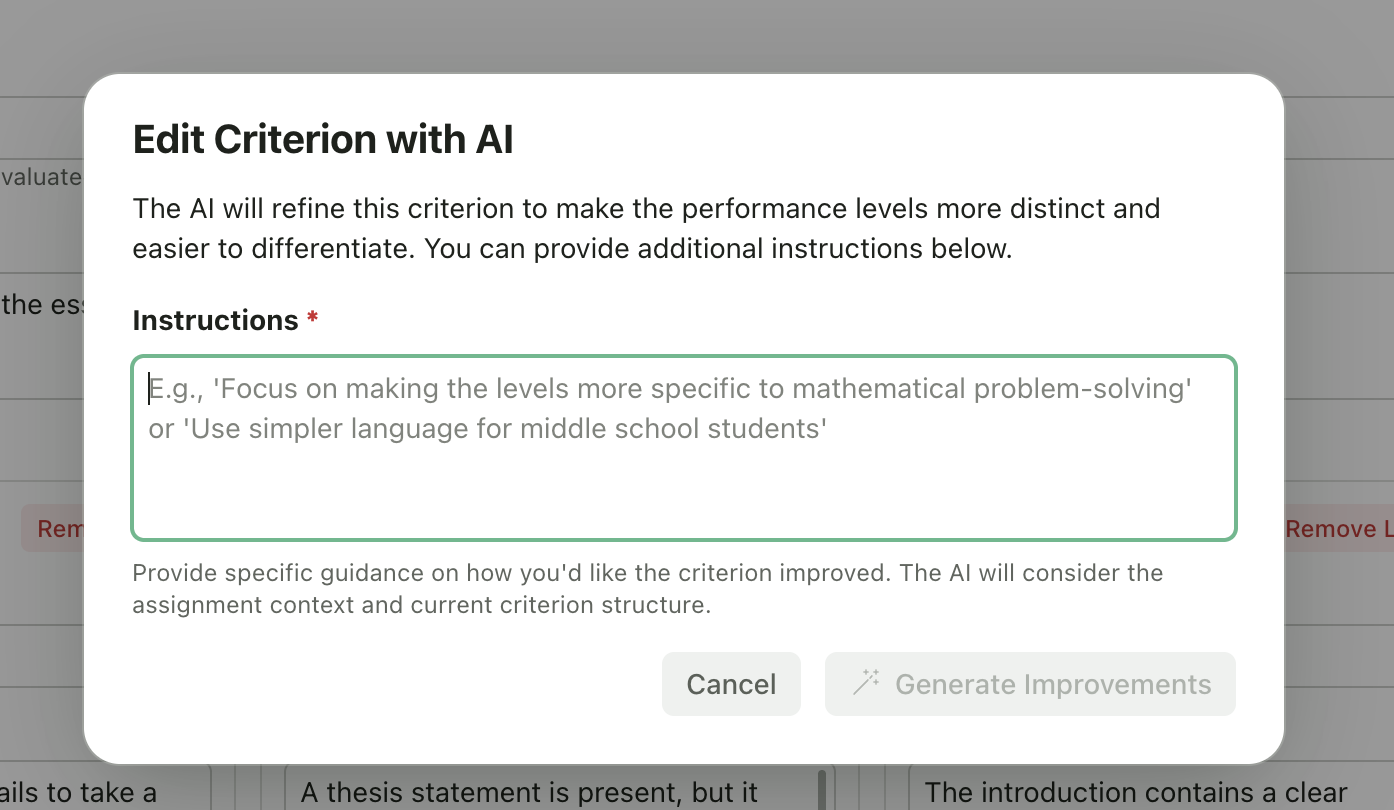
Use AI to refine individual criteria and make performance levels more distinct and easier to differentiate.- Click the menu (three dots) on any criterion
- Select Edit with AI
- In the dialog, provide instructions for how you’d like the criterion improved:
- “Focus on making the levels more specific to mathematical problem-solving”
- “Use simpler language for middle school students”
- “Add more detail to distinguish between the middle performance levels”
- Click Generate Improvements
- Review and further edit the AI suggestions as needed
Step 3: Feedback Settings
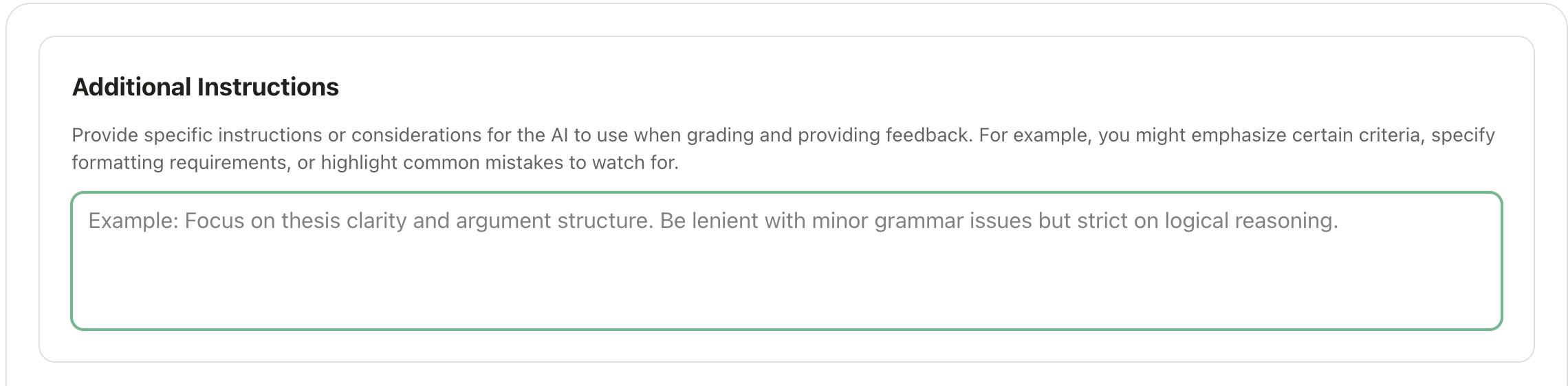
Configure how the AI generates feedback for students.Additional Grading Instructions
Provide context to the AI that will be used during both grading and feedback generation. These instructions are not visible to students. Use this to share information that isn’t captured in your rubric:- Special considerations for this assignment
- Things to look for or ignore
- Context about what was taught in class
- Common mistakes to flag
- Specific terminology or concepts students should use
Feedback Style
About Targeted Feedback:
Targeted feedback places comments directly on specific text passages, similar to commenting in Google Docs. This style is only available for Writing & Essays assignments.Not recommended for handwritten submissions: Targeted feedback works best with typed/digital text. For scanned handwritten work, the AI cannot highlight text directly on the submission. Consider using Structured or Glow & Grow instead for handwritten submissions.
Presentations and Art & Design assignments default to Glow & Grow since targeted inline comments are not applicable to visual work.
Feedback Length
Feedback Warmth
Controls the tone of the AI-generated feedback, displayed as a slider with three positions: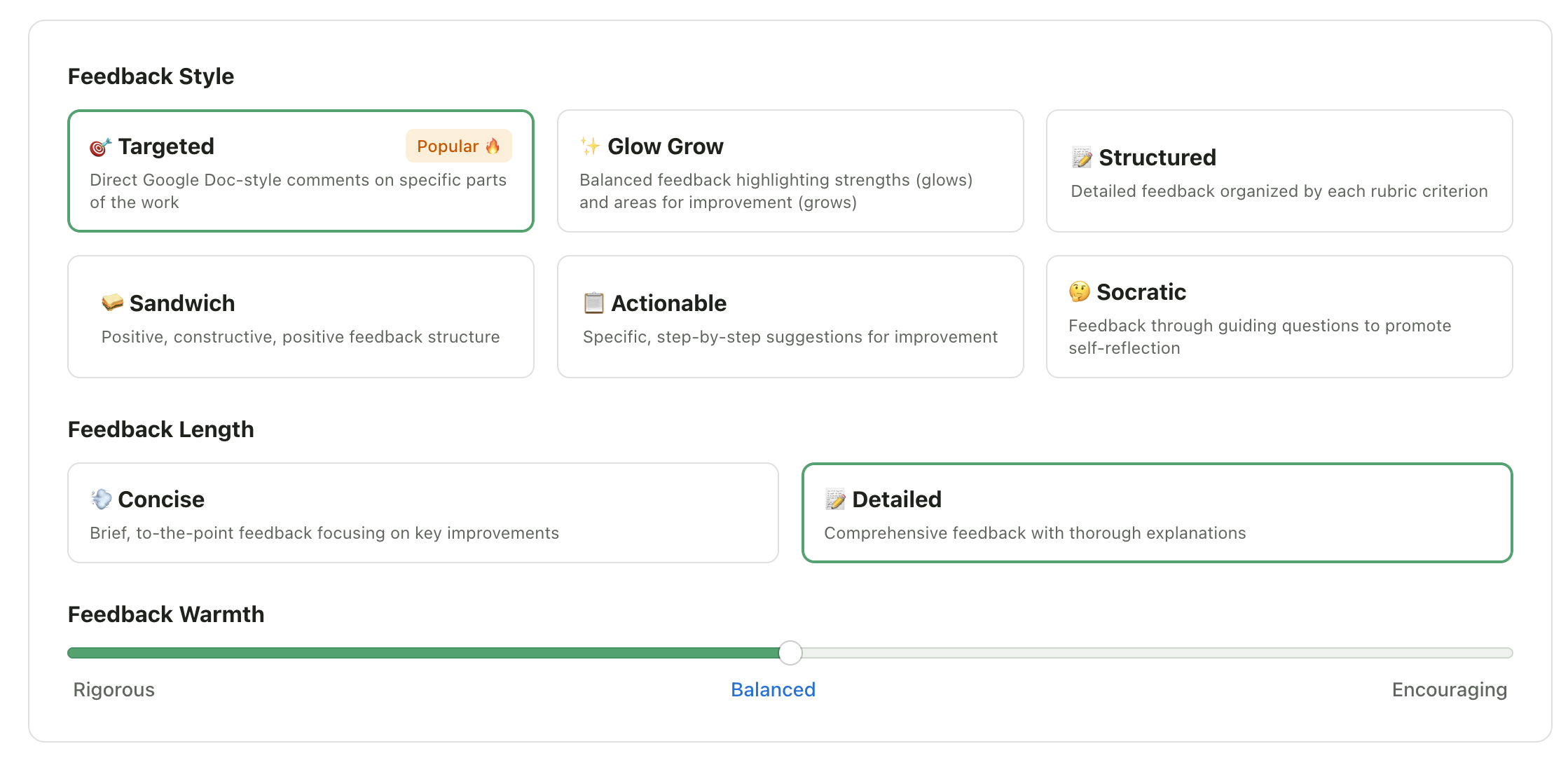
Step 4: Upload Submissions
The final step lets you upload student work or finish setup to upload later. Upload now: See Upload Student Work Finish setup: Click Finish Setup to save your assignment. You can upload submissions anytime from the assignment page.Tips for Better Grading Results
Be specific in your assignment description
Be specific in your assignment description
The more context you provide, the better the AI understands your expectations.
Use clear rubric criteria
Use clear rubric criteria
Vague criteria like “Good writing” lead to inconsistent results; specific criteria like “Uses evidence from the text to support claims” work better.
Upload reference materials
Upload reference materials
Source readings and other additional materials help the AI understand what you’re looking for.
Match feedback length to assignment weight
Match feedback length to assignment weight
Use concise feedback for quick assignments, detailed for major projects.
Review AI-generated rubrics
Review AI-generated rubrics
They’re a great starting point, but you know your class best—adjust as needed.