

- Writing & Multi-Media Assignments (Writing, Video, Presentations, Art)
- Structured Assignments (Exams, Quizzes, Problem Sets, Worksheets)
- Handwritten Submissions (special considerations)
Accessing Submissions
From the Assignment Page
1
Go to Your Class
Navigate to your class
2
Click Assignment
Click on an assignment
3
View Submissions
View all submissions in the Submissions tab
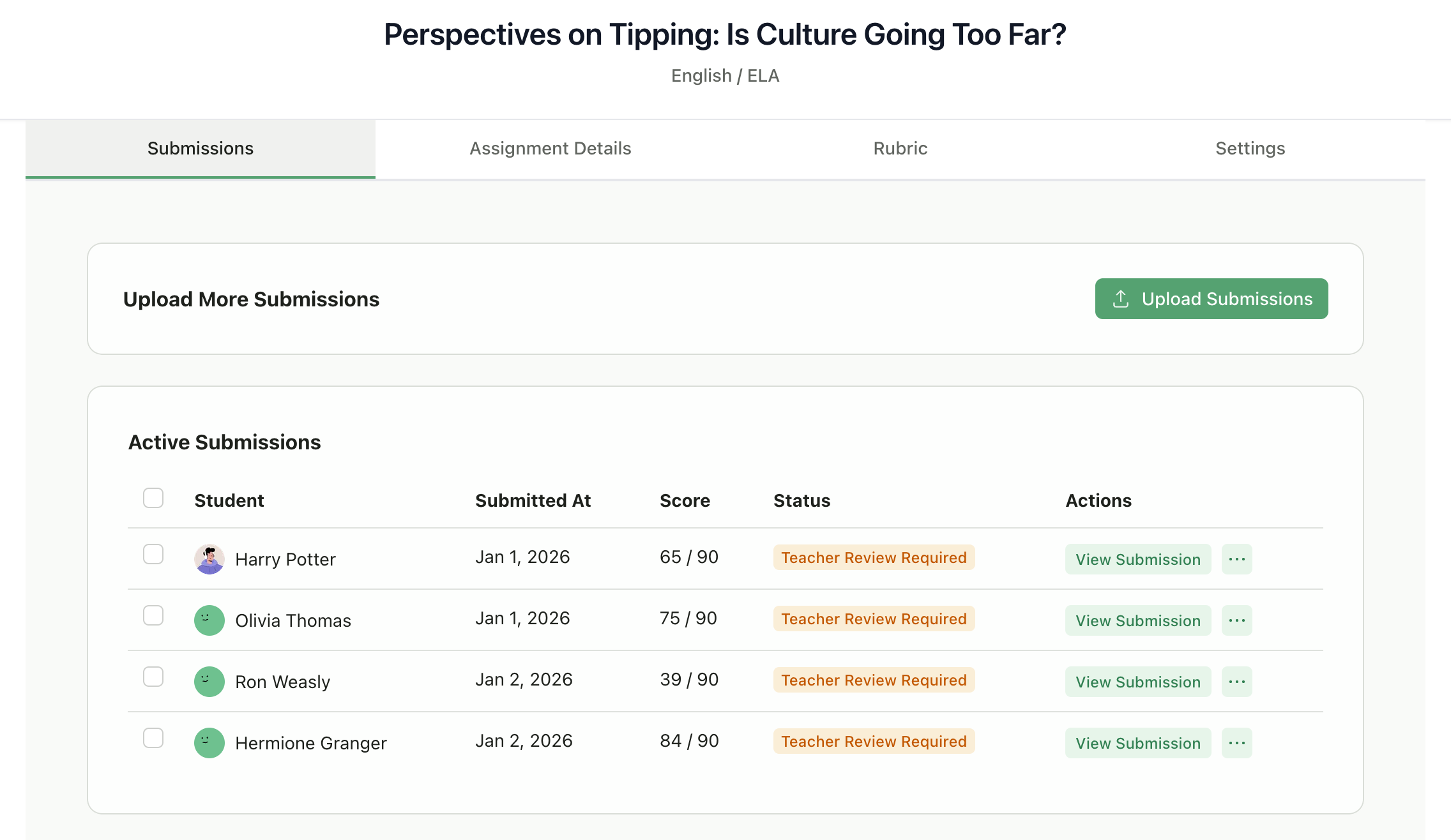
Submission Status
Each submission shows its current status: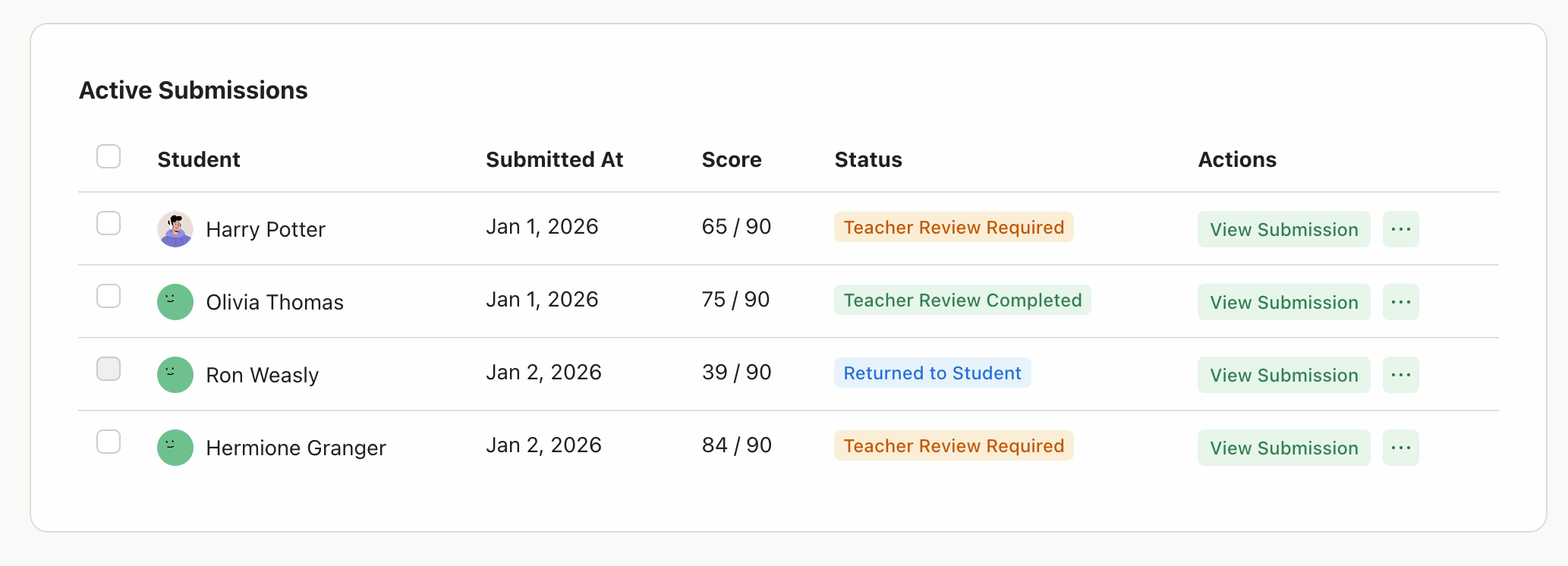
Writing & Multi-Media Assignments
This section covers Writing & Essays, Video & Audio, Presentations, and Art & Design assignments.The Review Interface
Click any submission to open the review page:- Left panel: Student’s submitted work (document, video, or visual)
- Right panel: AI-generated scores and feedback organized by tabs
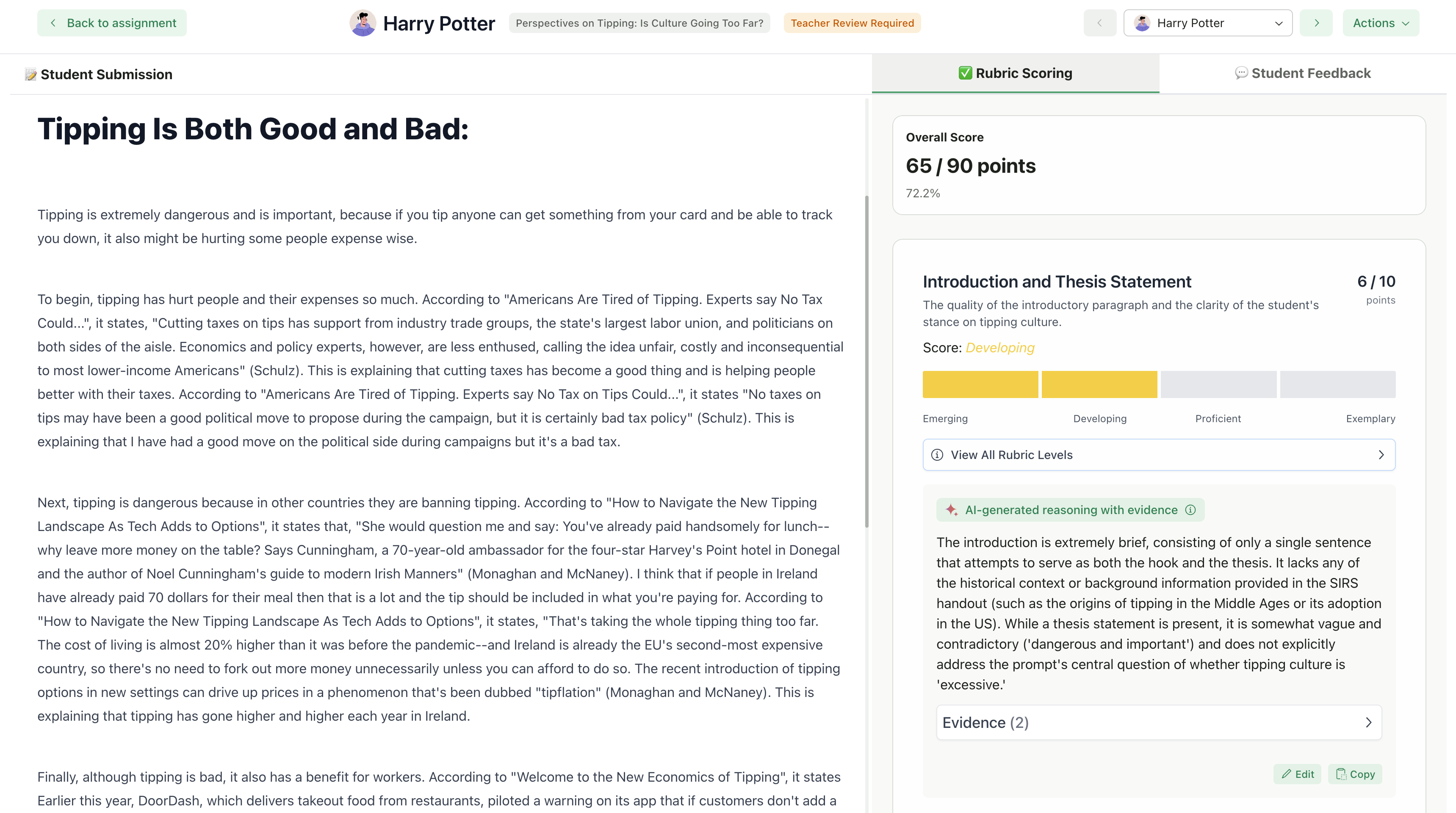
Understanding Scores
The AI scores each rubric criterion separately. For each criterion, you’ll see:- Criterion name - What was evaluated
- Score - Points earned out of possible points
- Level achieved - Which rubric level the submission matched (shown as a colored progress bar)
- Justification - AI’s reasoning for the score with evidence comments from student submission (only visible to you and not the students)
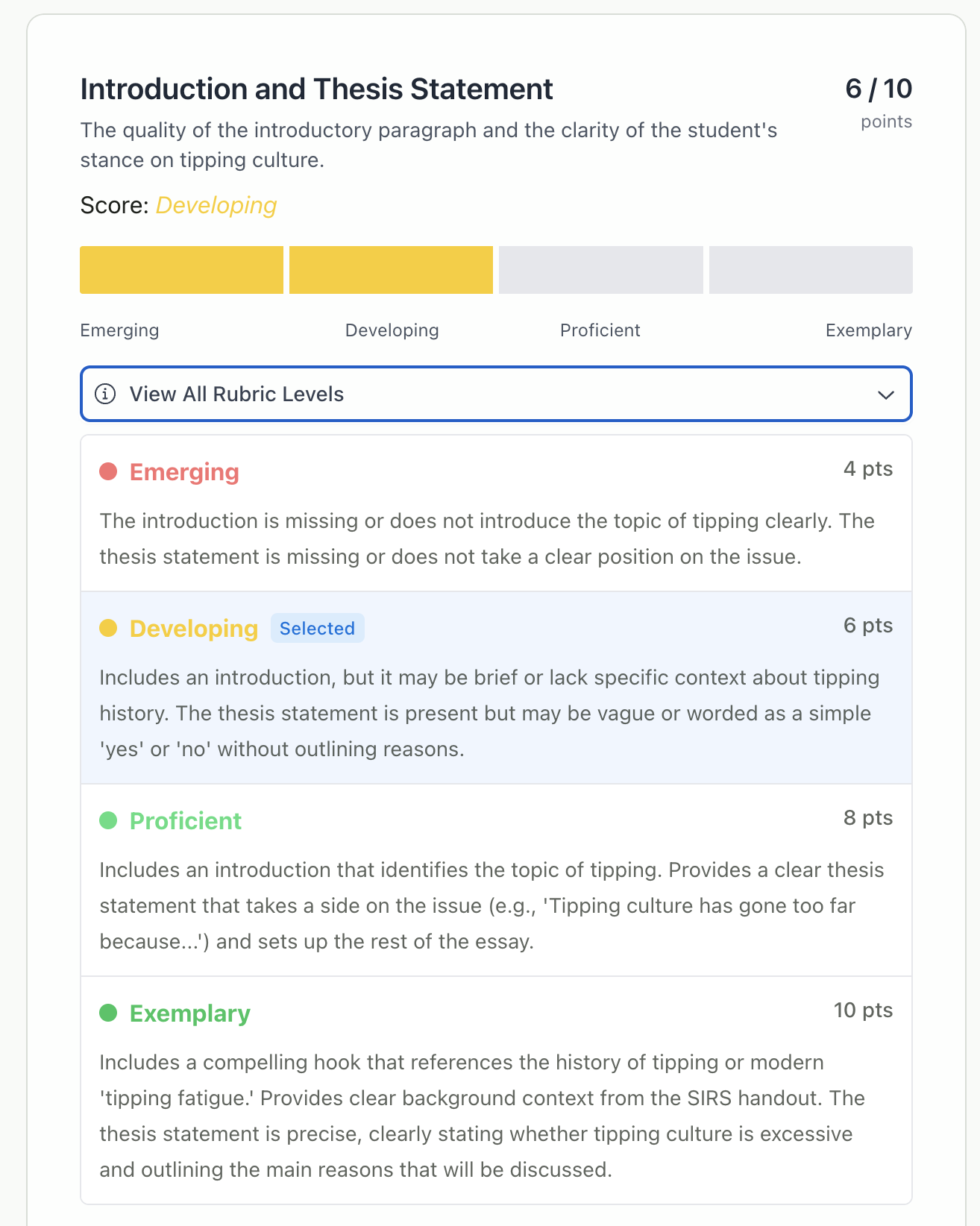
Editing Scores
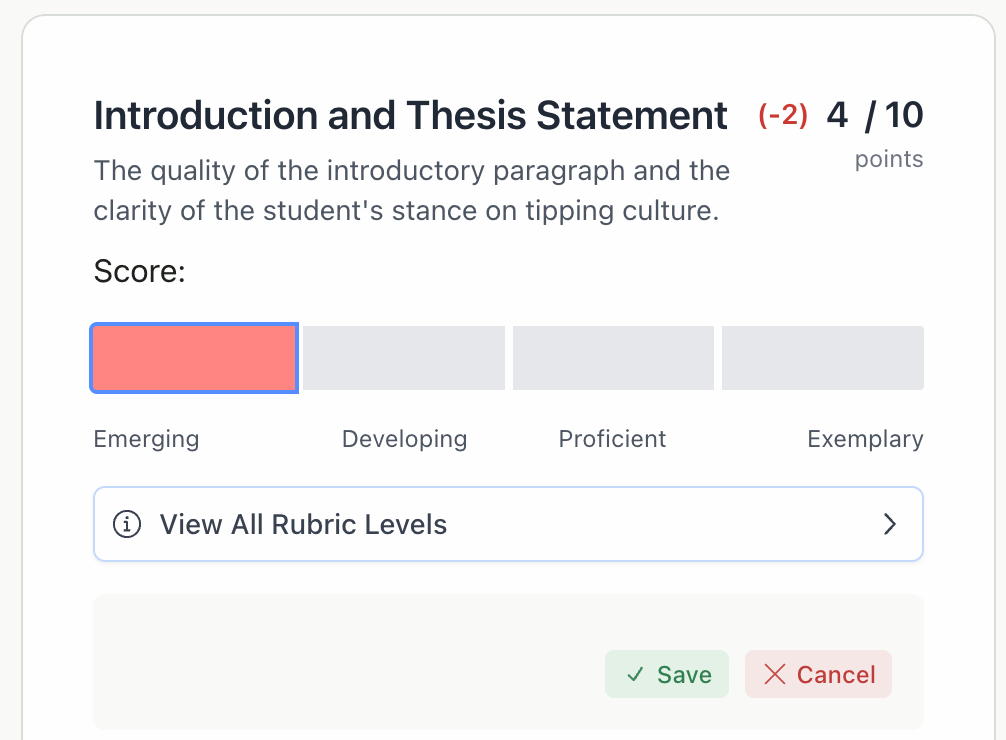
You can adjust AI-assigned scores if you disagree with the grading. To change a criterion score:1
Click Edit
Click Edit on the criterion card
2
Select Level
Click on a different level segment in the progress bar
3
Verify Score
The score updates to match the selected level
4
Save
Click Save
Point Range Adjustments
If your rubric has Point Ranges enabled, you can fine-tune scores within a level:- Select the appropriate level
- Enter an exact point value within that level’s min-max range
- The score reflects your custom value while staying within the level bounds
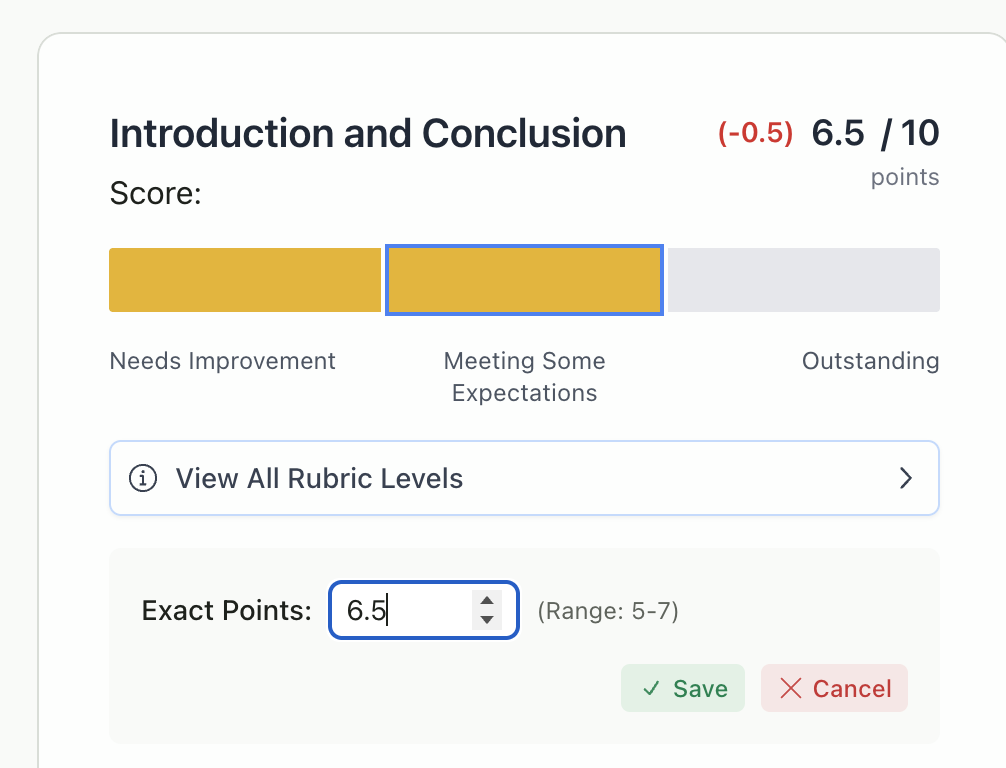
Point range editing is only available if you enabled “Point Ranges” when creating your rubric. See Set Up Writing & Multi-Media Assignments.
Understanding Feedback
The Student Feedback tab shows all AI-generated feedback. Feedback is organized into sections based on your chosen feedback style.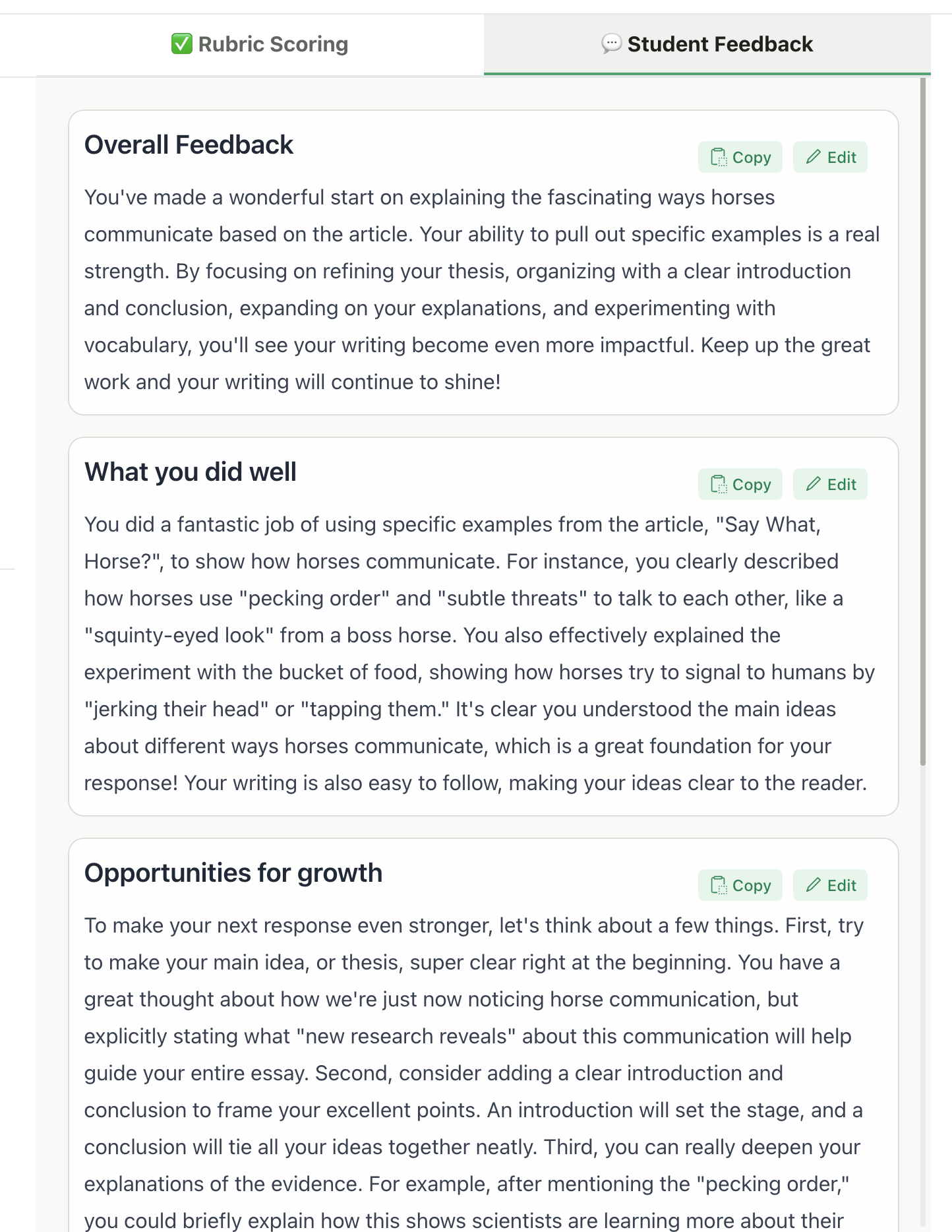
Example showing the Glow & Grow feedback style
Editing Feedback Sections
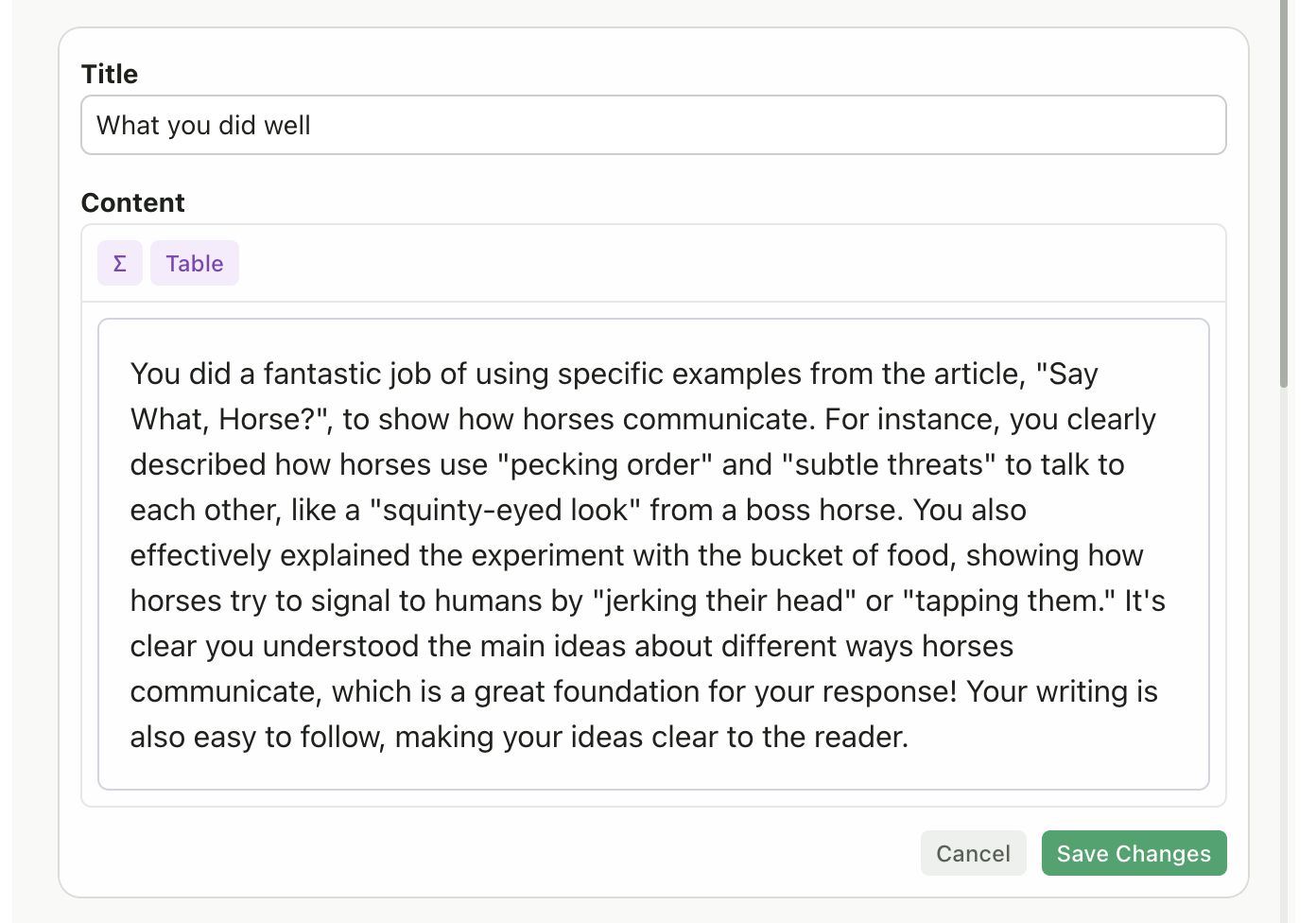
Each feedback section can be edited independently using manual editing or AI assistance.Manual Editing
1
Click Edit
Click the Edit button on any feedback section
2
Select Manually
Select Manually
3
Edit Content
Edit the title and content directly in the text fields
4
Save
Click Save Changes
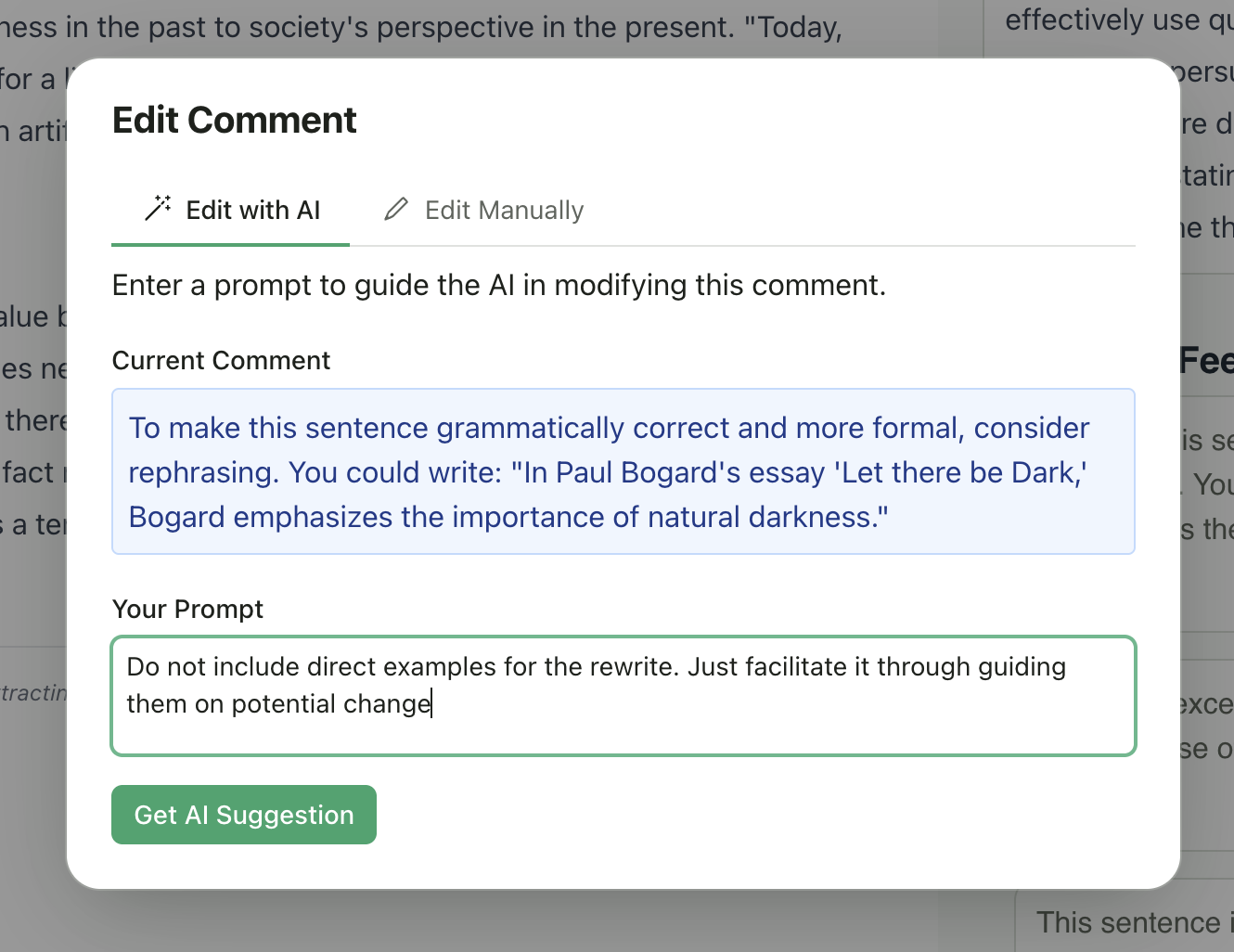
AI-Assisted Editing
1
Click Edit
Click the Edit button on any feedback section
2
Select With AI
Select With AI
3
Enter Prompt
Enter a prompt describing how to modify the feedback (e.g., “Make it more encouraging” or “Add specific examples from the student’s work”)
4
Generate
Click Edit with AI
5
Review Draft
Review the AI-generated draft (shown with a highlighted border)
6
Accept or Reject
Click Accept to save or Reject to discard
Deleting Sections
- Click the Edit button
- Select Delete
- The section is removed
The Overall Feedback section cannot be deleted.
Adjust All Feedback at Once
Use the Adjust All Feedback panel to modify all feedback sections simultaneously with AI.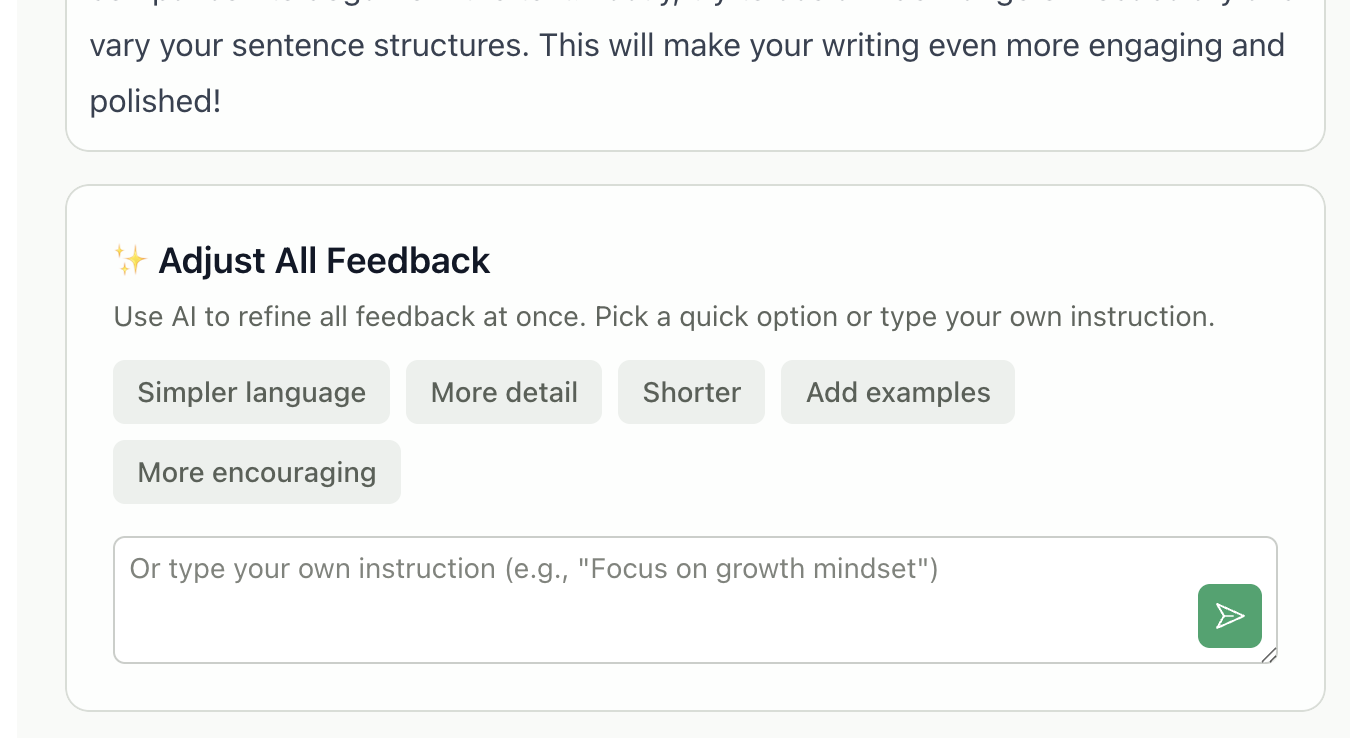
- Simpler language - Makes feedback easier to understand
- More detail - Adds more specific observations
- Shorter - Condenses feedback to key points
- Add examples - Includes concrete examples from the student’s work
- More encouraging - Adds positive framing
- Review the changes (shown with a green border)
- Click Accept to apply all changes
- Or click Reject to discard and keep the original
Targeted Feedback (Inline Comments)
For Writing & Essays assignments using the Targeted feedback style, comments appear directly on specific text passages—similar to commenting in Google Docs.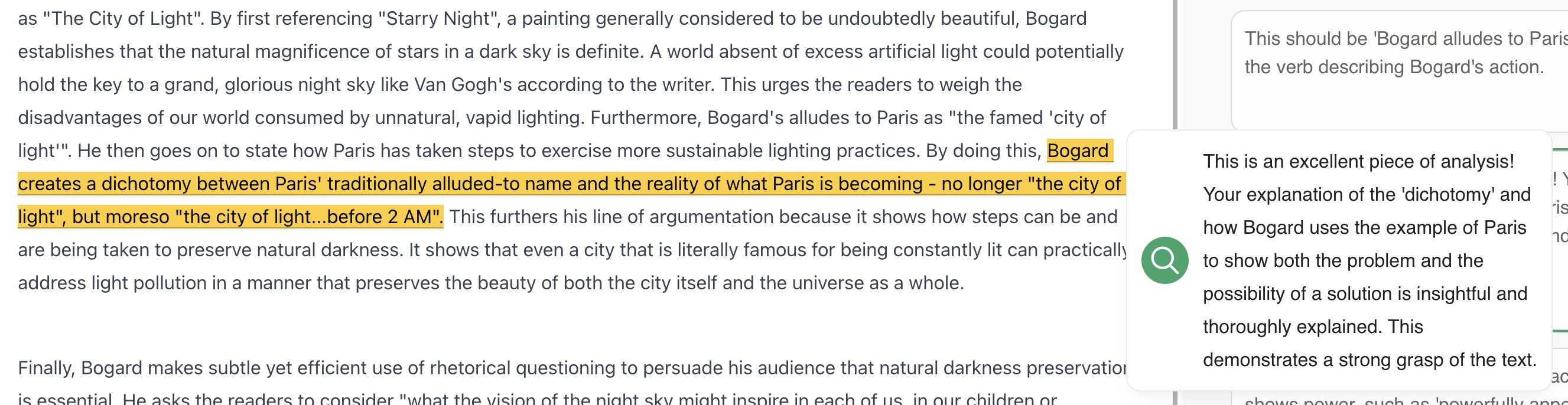
Viewing Targeted Comments
- Comments are highlighted in the student’s text (left panel)
- All comments also appear in the Student Feedback tab sidebar (right panel)
- Click any comment in the sidebar to scroll to its location in the document
Adding Comments
- In the left panel, highlight text in the student’s submission
- Click the Add Comment button that appears
- Type your feedback
- The comment is linked to that specific passage
Editing and Deleting Comments
- Click any comment to edit its text
- Use the menu (three dots) to delete a comment
AI Editing for Targeted Feedback
When using “Adjust All Feedback” with targeted feedback style, the AI edits all inline comments while preserving their positions in the text.Targeted feedback works best with typed/digital text submissions. For handwritten work, the system uses a different approach. See Handwritten Submissions.
Video & Audio Submissions
For Video & Audio assignments, comments are tied to specific timestamps rather than text positions.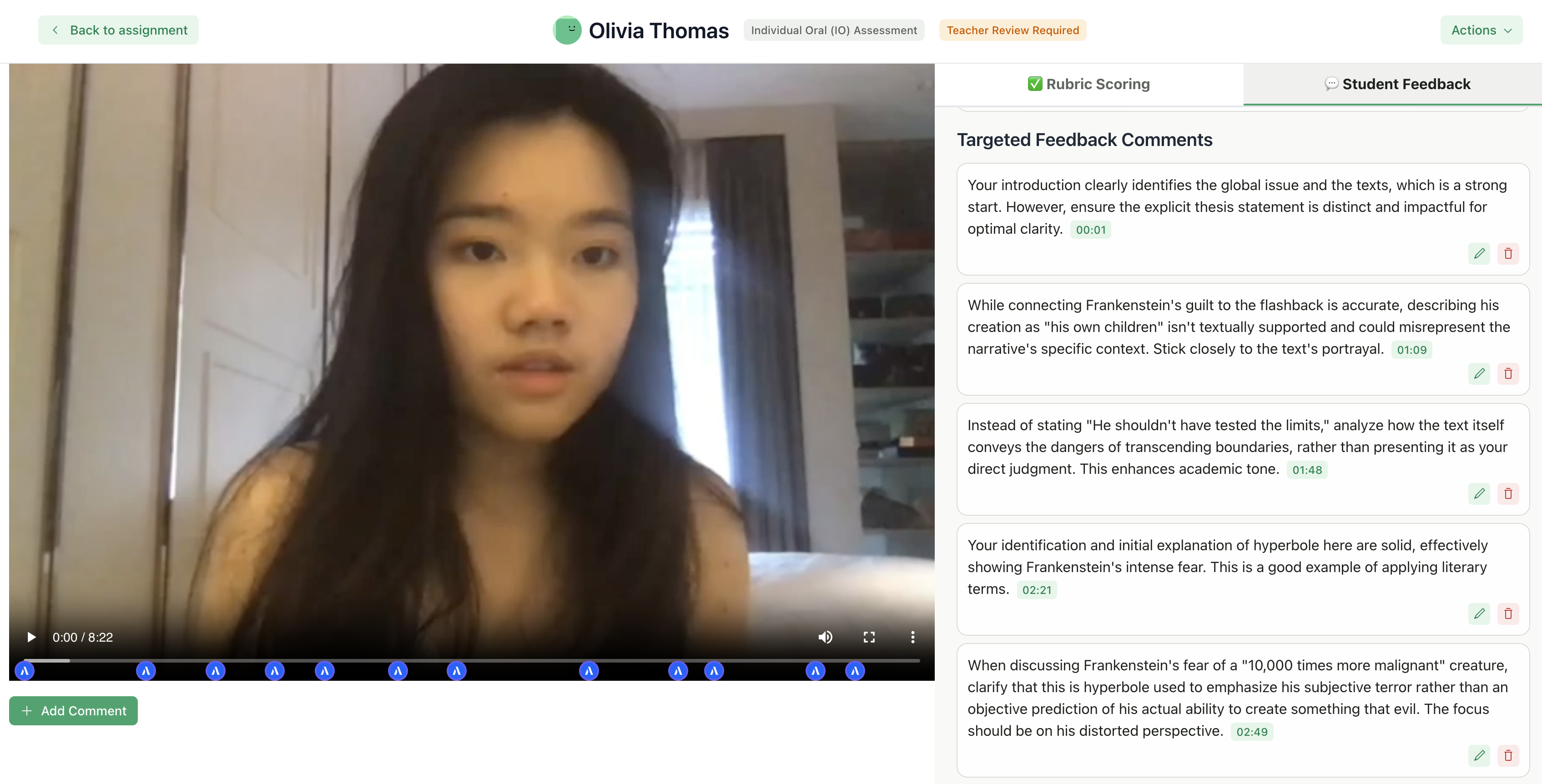
Viewing Video Comments
- Comments appear in chronological order in the feedback panel
- Each comment shows its timestamp as a badge
- Click any comment to jump to that moment in the video
Adding Timestamped Comments
- Play the video to the moment you want to comment on
- Pause at that timestamp
- Click Add Comment
- Type your feedback
- The comment is saved at that timestamp
Editing Video Comments
- Click any comment to edit its text
- Use the menu to delete a comment
- Timestamps cannot be changed after creation
Presentation & Art Submissions
Presentations and Art & Design submissions display as PDFs in the left panel.- Scoring works identically to writing assignments (per-criterion)
- Feedback sections can be edited manually
- Targeted inline comments are not available for these types (use Glow & Grow, Structured, or another section-based style instead)
Structured Assignments
This section covers Exams, Quizzes, Problem Sets, and Worksheets.The Review Interface
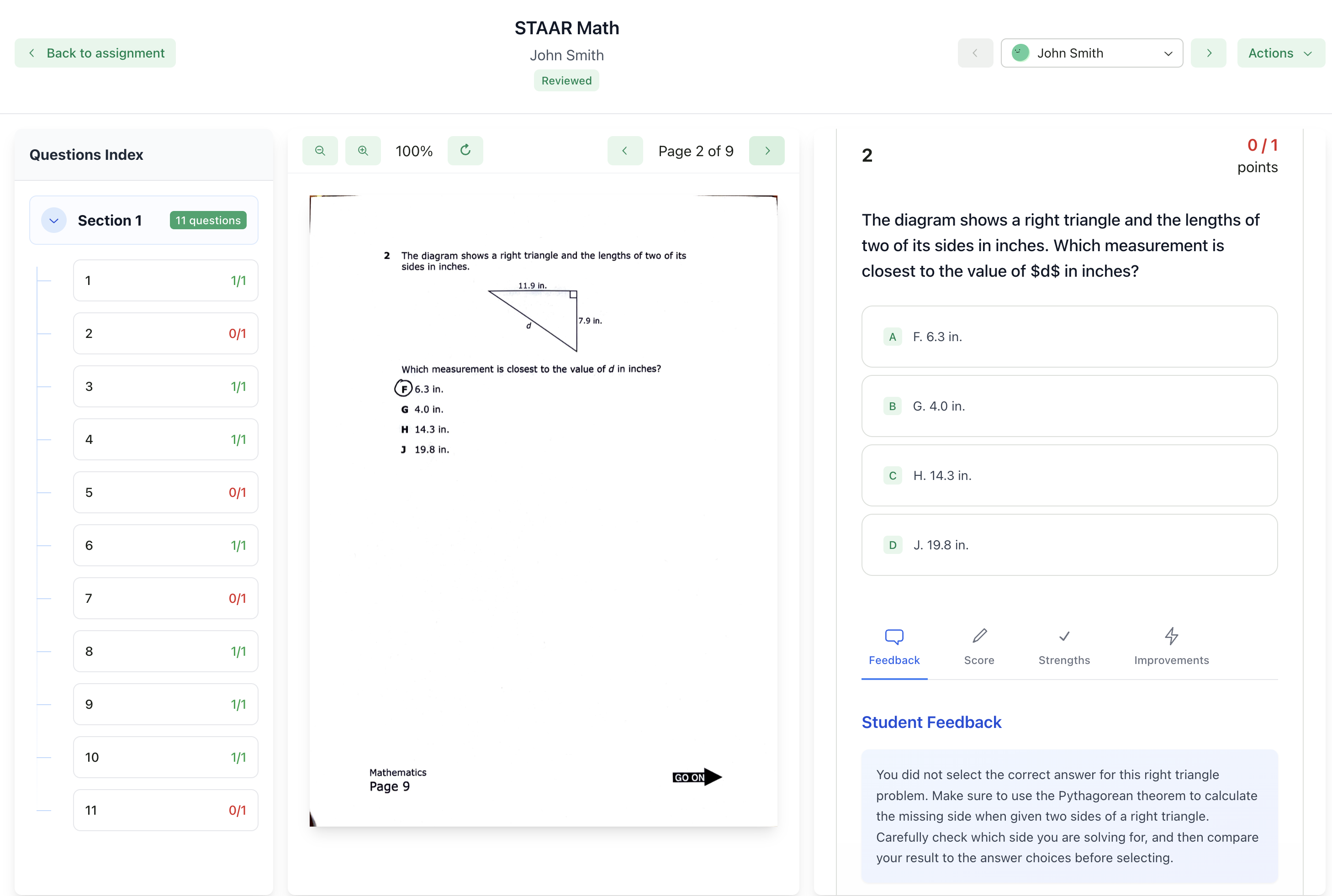
Structured assignments have a different layout optimized for question-by-question review:- Left panel: The original assignment document with student’s answers
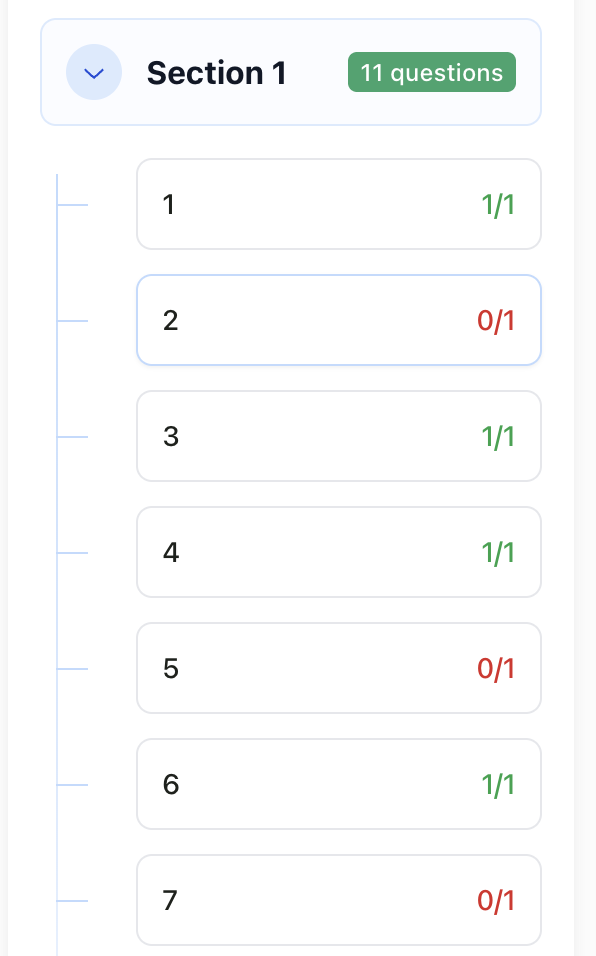
- Right panel: Question list and per-question scoring
- Navigation: Questions appear as a list; click any question to review it
Understanding Scores
Each question is scored individually with its own rubric. For each question, you’ll see:- Question number and text
- Student’s answer (extracted from their submission)
- Score - Points earned based on the rubric level selected by the AI
Editing Scores
To change a question score:1
Select Question
Click on the question in the sidebar
2
View Score Tab
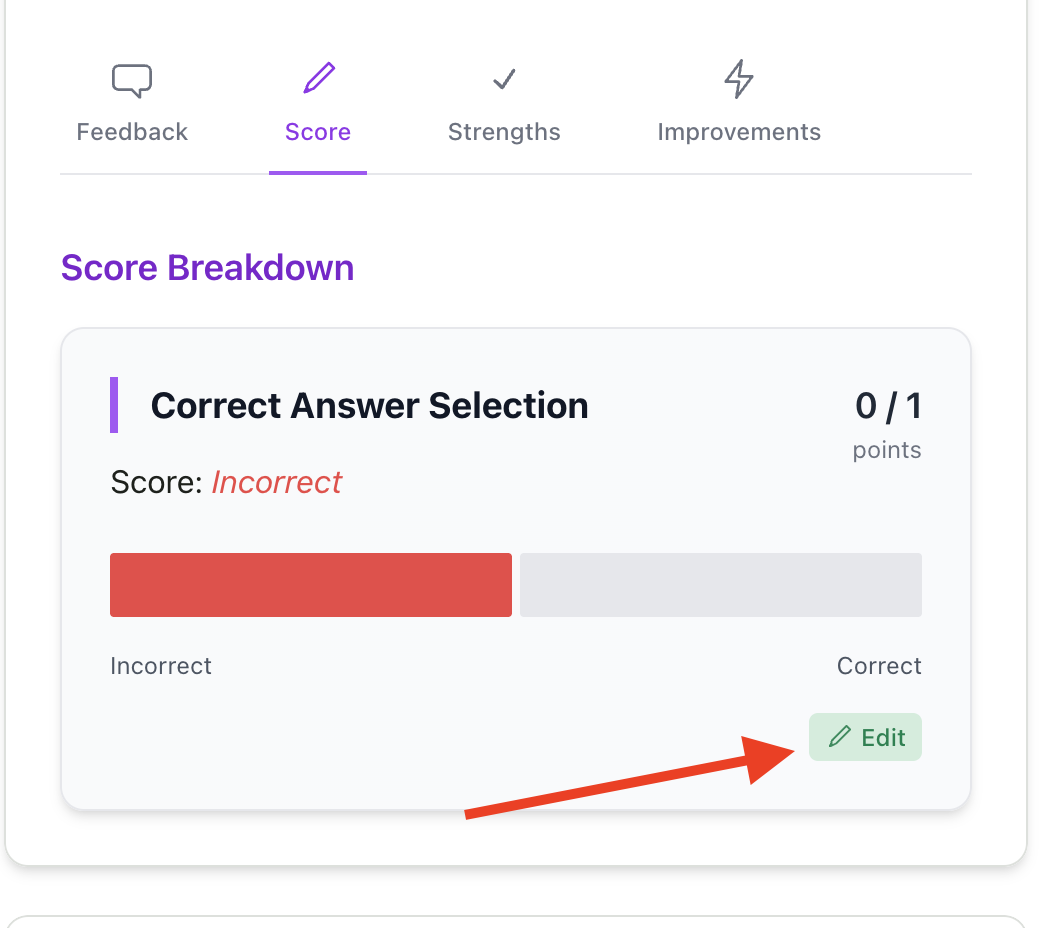
Click the Score tab to view the rubric breakdown
3
Edit Criterion
Click Edit on the criterion you want to change
4
Select Level
Select a different rubric level using the progress bar or level options
5
Save
Click Save - the total score recalculates automatically
Feedback in Structured Assignments
Structured assignments provide per-question feedback through dedicated tabs for each question: Each question has four tabs:- Feedback - General feedback about the student’s response
- Score - Rubric breakdown showing the level selected for each criterion
- Strengths - What the student did well on this question
- Improvements - Areas where the student can improve
- Click on any tab to view or edit that section
- Feedback, Strengths, and Improvements can all be edited by clicking the Edit button
- Changes are saved individually per question
- There is no “Adjust All Feedback” feature (feedback is per-question)
- There are no feedback style options (Glow & Grow, Targeted, etc.)
- Feedback is organized by question rather than by overall sections
Handwritten Submissions
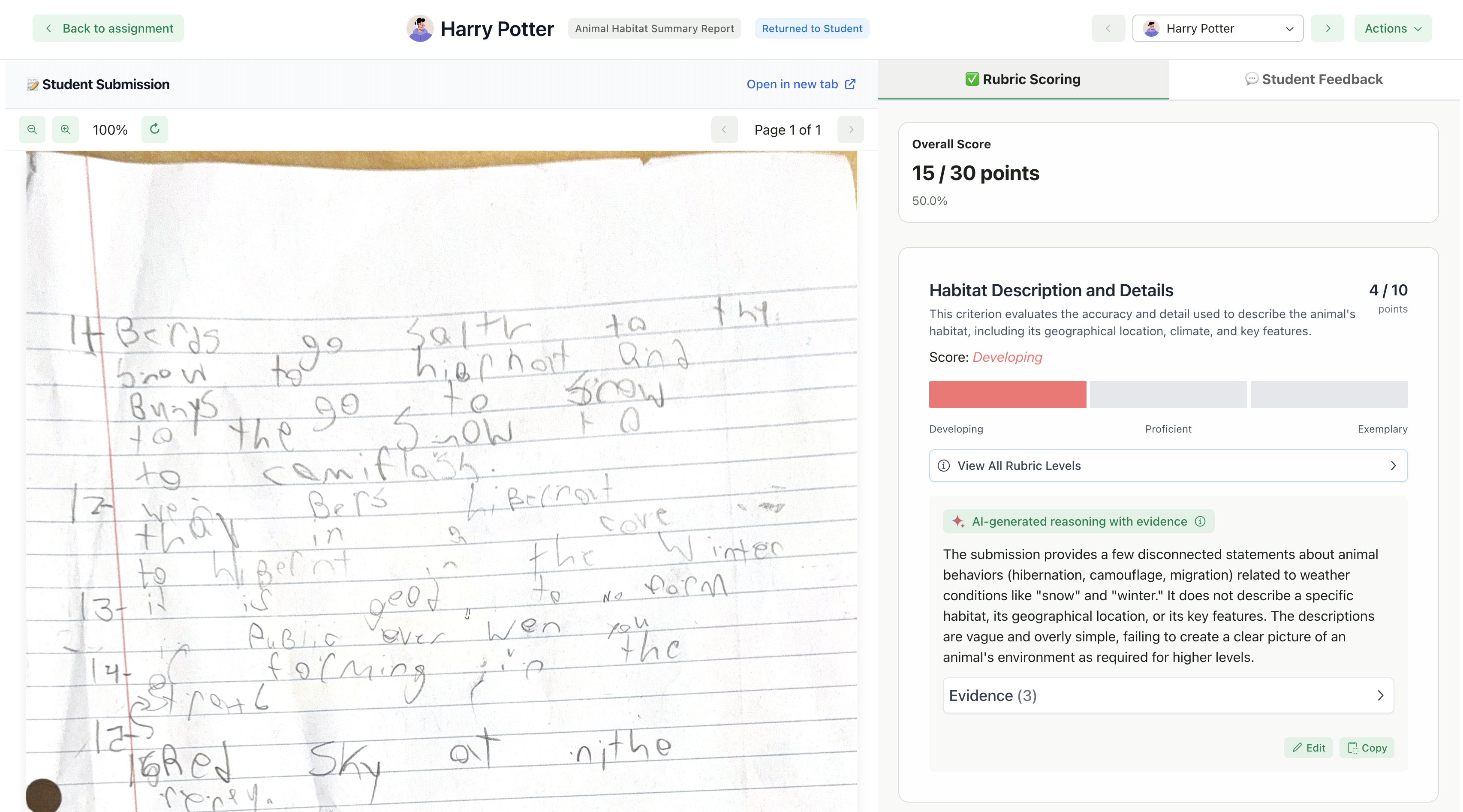
GradingPal automatically detects when a submission contains handwritten text. Handwritten submissions have some different capabilities compared to typed/digital submissions.How It Works
When the AI detects handwritten content in a PDF submission, it:- Displays the submission as a PDF (regardless of assignment type)
- Adjusts certain feedback editing features (see below)
- Uses backend-stored annotations instead of interactive text highlighting
Available Features for Handwritten Submissions
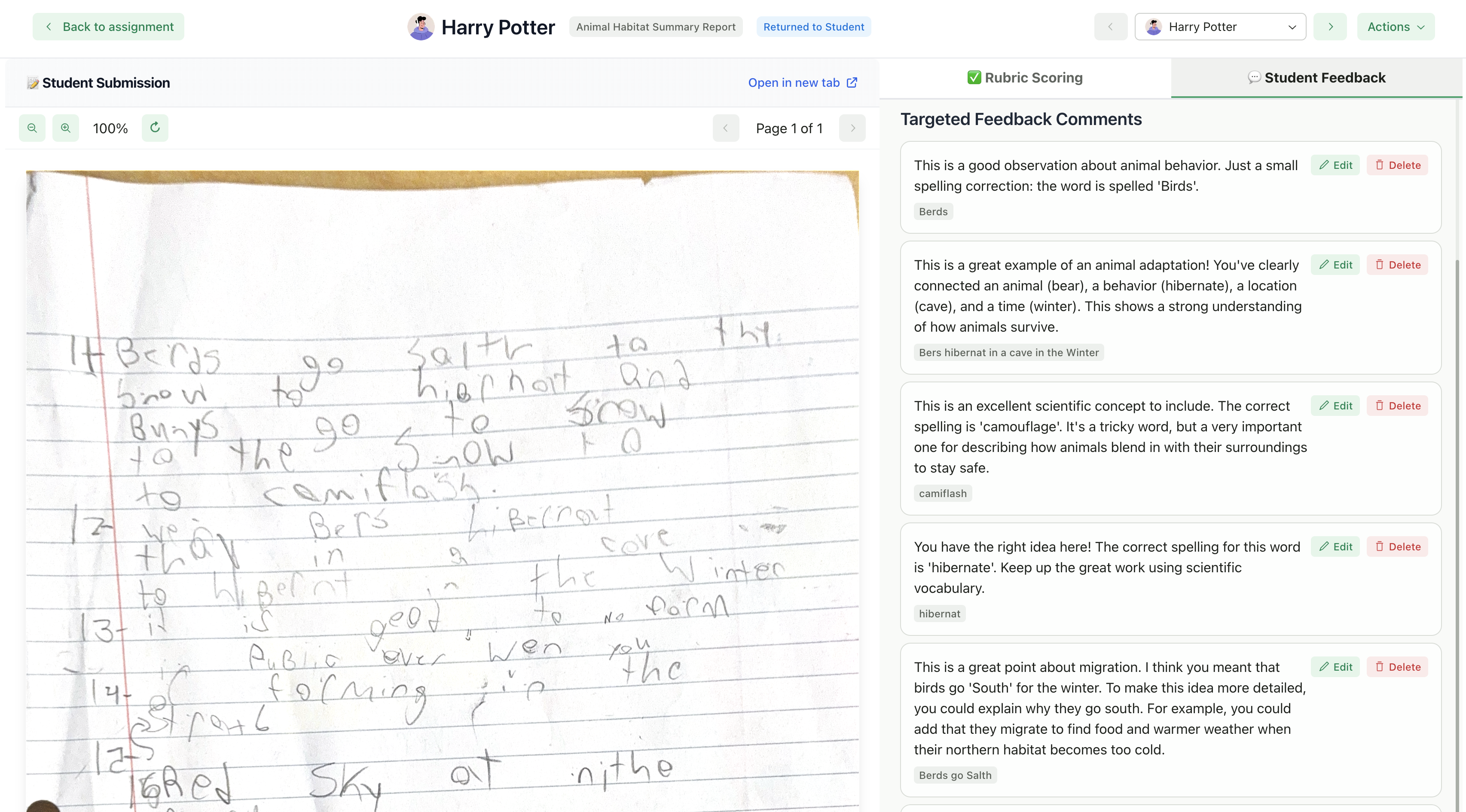
Targeted Feedback on Handwritten Submissions
If you selected Targeted feedback style and the submission is handwritten:- Comments appear in a list format (no interactive text highlighting)
- You can view, edit, and delete comments manually
- AI editing of targeted comments is not available
Recommendations for Handwritten Work
If you frequently receive handwritten submissions:- Use section-based feedback styles - Glow & Grow, Structured, or Actionable work better than Targeted for handwritten work
- Review manually - Plan to edit feedback manually rather than relying on AI editing
- Consider typed alternatives - If students can type responses (even short ones), the full feature set becomes available
Quick Reference: Editing Capabilities by Assignment Type
Navigating Between Submissions
Review multiple submissions efficiently: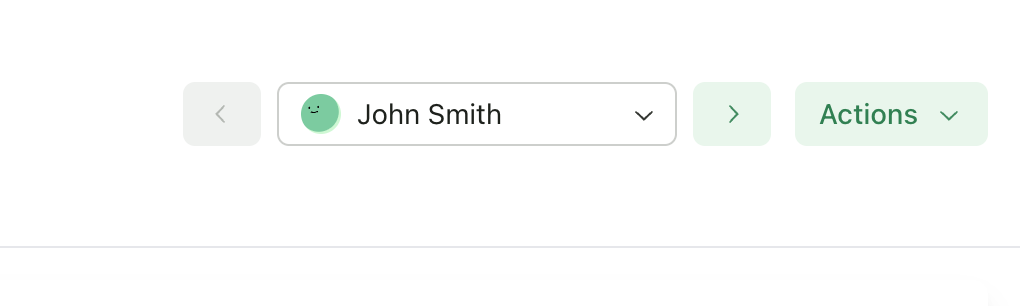
Submission Actions
Mark as Completed
Track which submissions you’ve reviewed:- Click Mark as Completed in the header
- Status changes from “Pending Review” to “Completed”
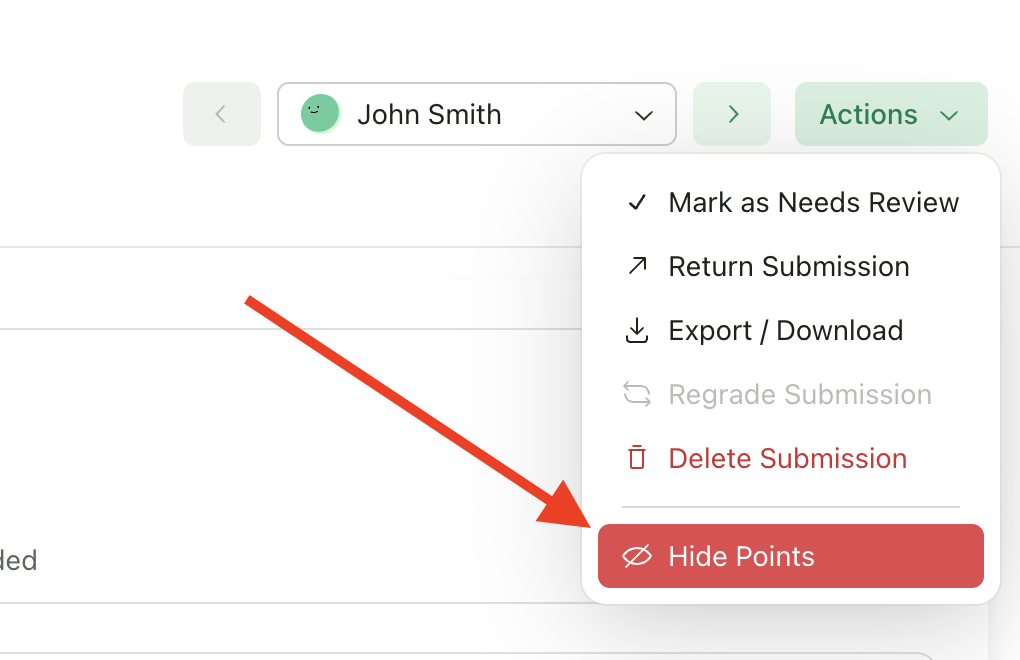
Hide Points from Student
If you want students to see feedback but not numerical scores:- Toggle Hide Points in the header
- When returned, students see feedback without point values
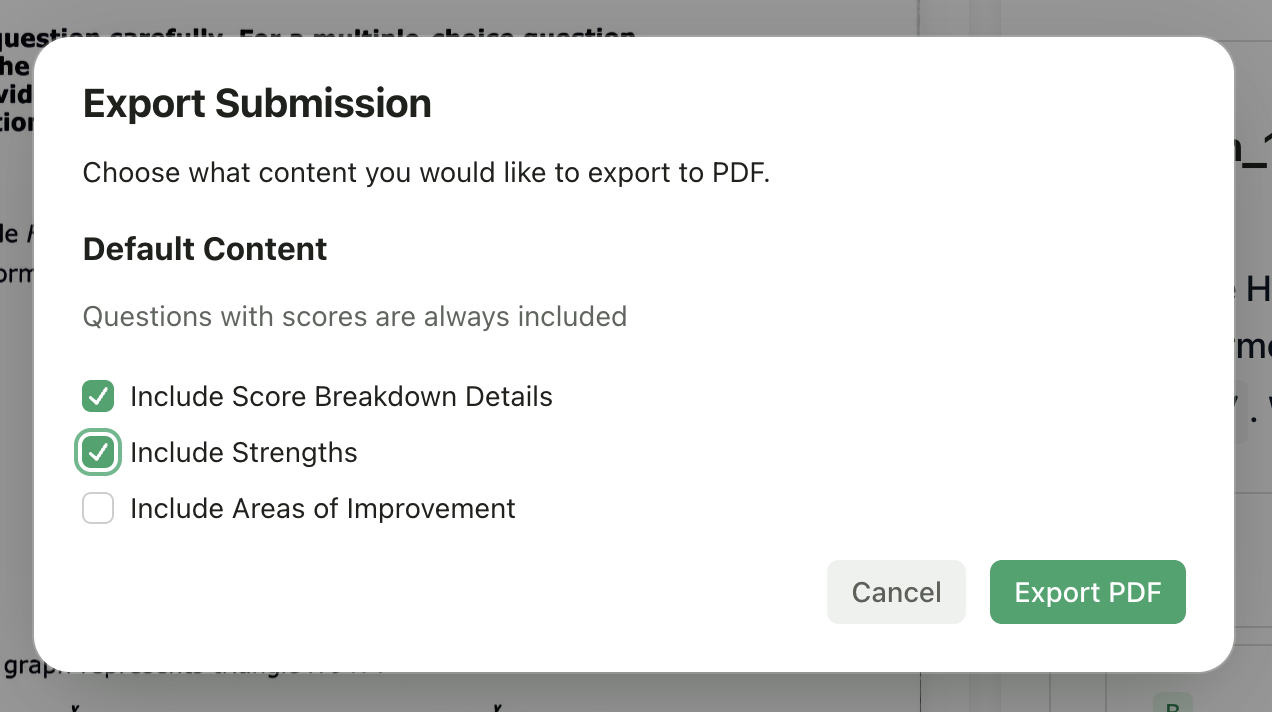
Export to PDF
Download a PDF of the graded submission:- Click Export in the header
- Choose options (include student work, rubric scores, feedback)
- Click Download PDF
Delete Submission
Remove a submission:- Click Delete
- Confirm the deletion
Handling Failed Submissions
If a submission shows “Failed” status:- Click on the submission to see the error
- Click Retry Grading to attempt grading again
- If the issue persists, check that the file is valid and readable
- Corrupted or unreadable files
- Unsupported file formats
- Very large files that timeout
Bulk Actions
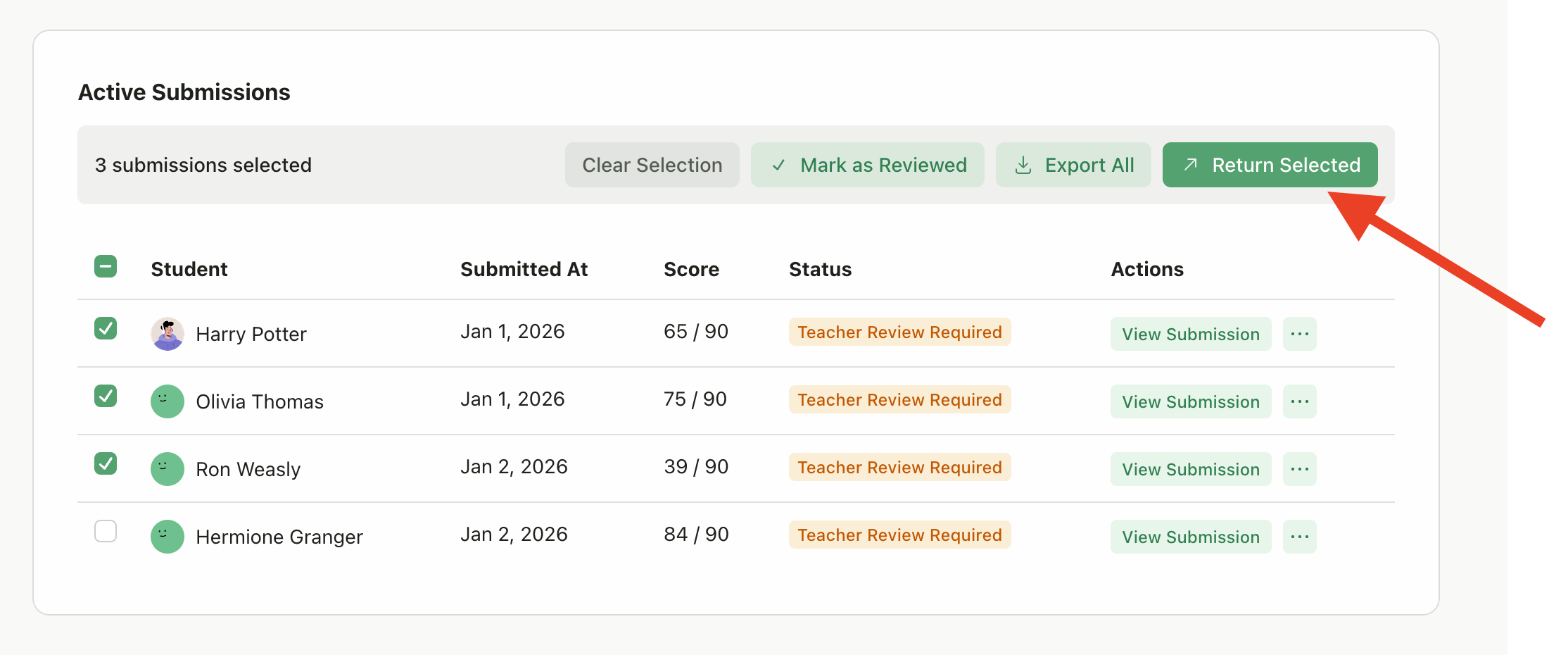
For efficiency with large classes:- Select submissions using the checkboxes
- Choose a bulk action:
- Mark as Completed - Update status for all selected
- Return All - Return grades to all selected students
- Export All - Download PDFs for all selected
Tips for Efficient Review
Review outliers first
Review outliers first
Sort by score to check very high or low grades for accuracy.
Add personal touches
Add personal touches
A brief note in Overall Feedback can make AI-generated comments feel more personal.
Use Adjust All Feedback strategically
Use Adjust All Feedback strategically
Apply it once with your preferred prompt (like “simpler language”) across a batch of similar submissions.
Refine your rubric for better AI alignment
Refine your rubric for better AI alignment
If AI scores consistently miss the mark, edit your rubric criteria to be more clear and specific. This automatically triggers a regrade for all submissions, saving you from manual corrections.