

Accessing Class Settings
1
Open Your Class
Open your class from the teacher dashboard
2
Navigate to Settings
Navigate to the Settings tab
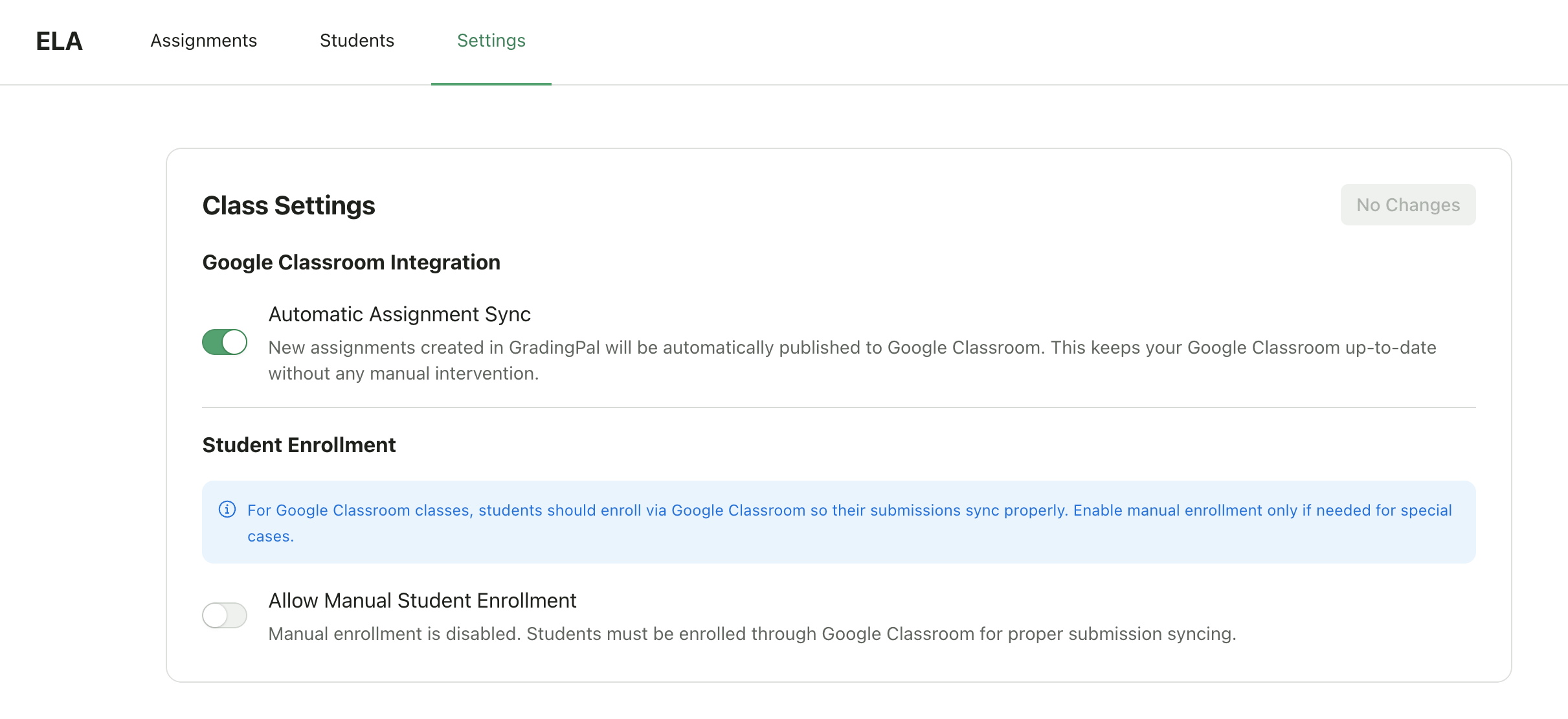
Settings for Google Classroom Classes
Classes imported from Google Classroom have additional settings to control the integration.Automatic Assignment Sync
When to turn this off:
- You want to draft assignments in GradingPal before students see them in Google Classroom
- You prefer to manually control when assignments appear in Google Classroom
Allow Manual Student Enrollment
When to turn this on:
- You have students who aren’t in your Google Classroom roster
- You want to allow guest access to specific students
Saving Changes
After modifying any setting:1
Make Changes
The Save Changes button will turn blue when you’ve made changes
2
Save
Click Save Changes to apply your updates
3
Confirmation
The button will return to gray when changes are saved