What Happens When You Return a Submission
When you return a submission:1
Student Notification
The student can view their grade and feedback in GradingPal
2
Status Update
The submission status changes to “Returned to Student”
3
Google Classroom Sync
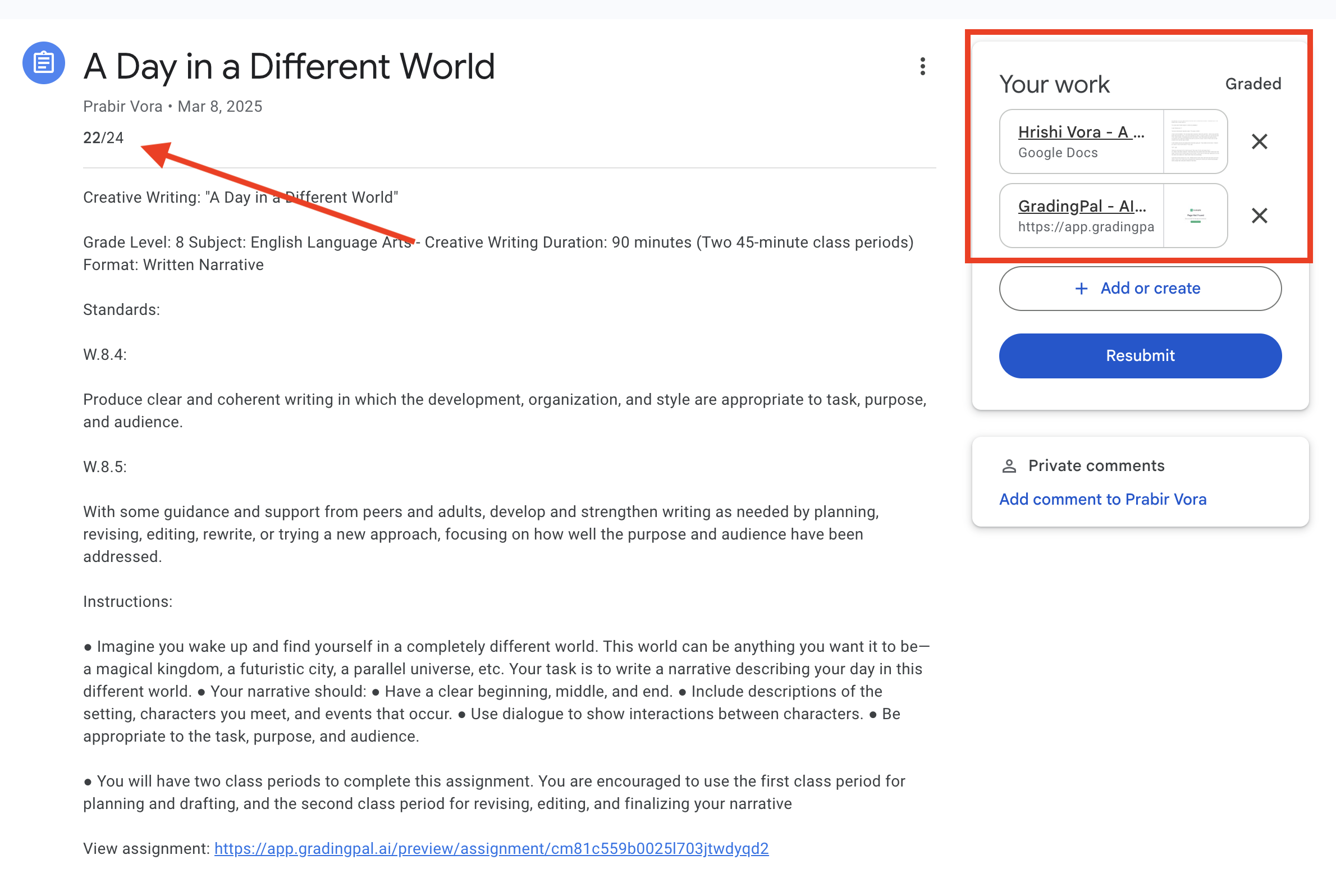
If your class is connected to Google Classroom and the assignment was created in GradingPal, the grade is automatically synced to Google Classroom
Returning Individual Submissions
From the Submission Review Page
1
Open Submission
Open the submission you want to return
2
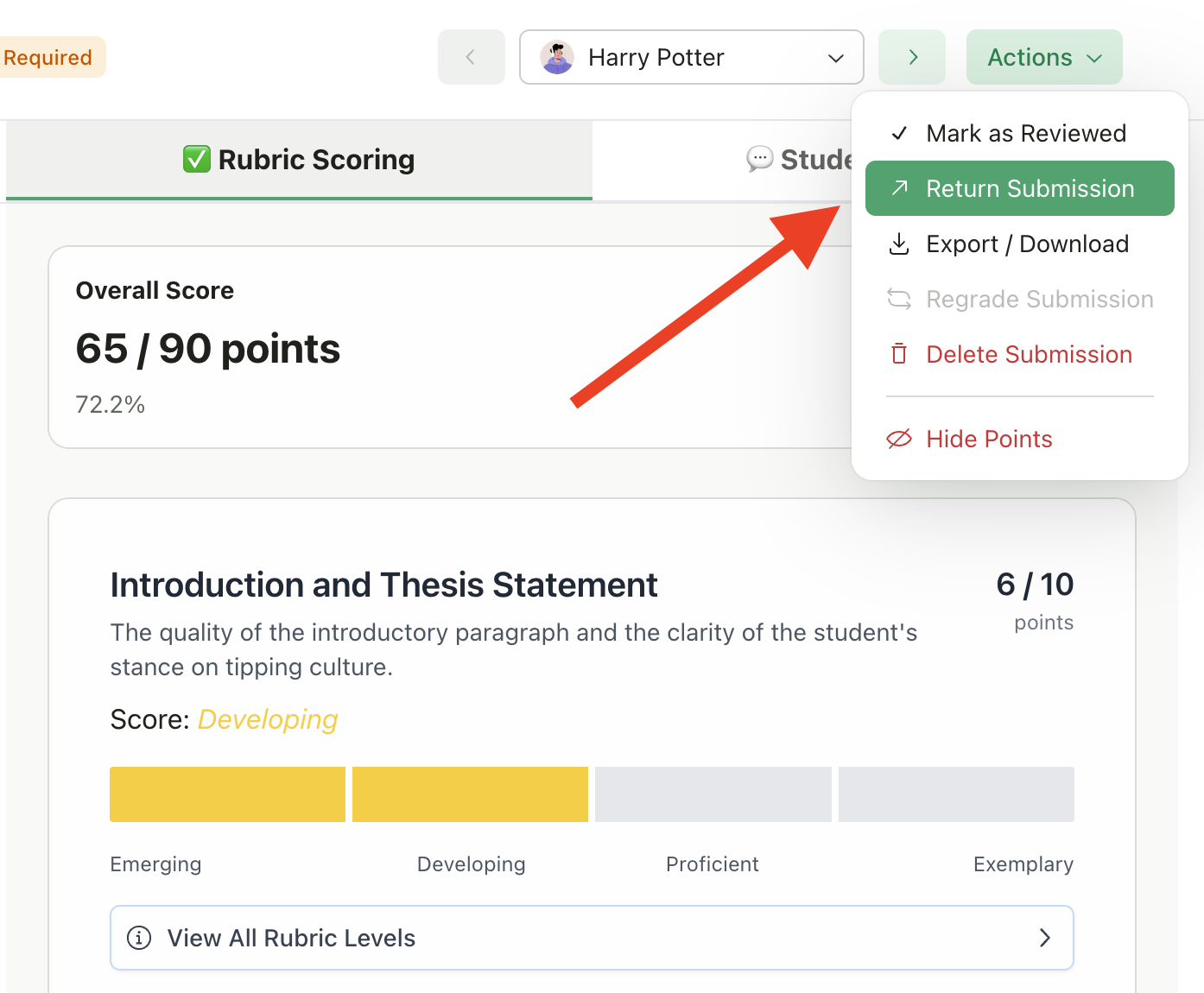
Click Actions
Click Actions in the header
3
Select Return
Select Return Submission
4
Confirmation
The submission is immediately returned to the student
Warning for Unreviewed Submissions
If you try to return a submission that hasn’t been marked as reviewed, you’ll see a warning:“This submission has not been fully reviewed yet. Are you sure you want to return it to the student?”You can:
- Click Cancel to go back and review first
- Click Return Anyway to proceed without marking as reviewed
From the Submissions Table
- Go to your assignment’s Submissions tab
- Find the submission you want to return
- Click the three-dot menu (⋮) on that row
- Select Return Submission
Bulk Return
Return multiple submissions at once when you’ve finished reviewing a batch.Select Submissions
1
Go to Submissions
Go to the assignment’s Submissions tab
2
Select Submissions
Check the boxes next to submissions you want to return
3
Or Select All
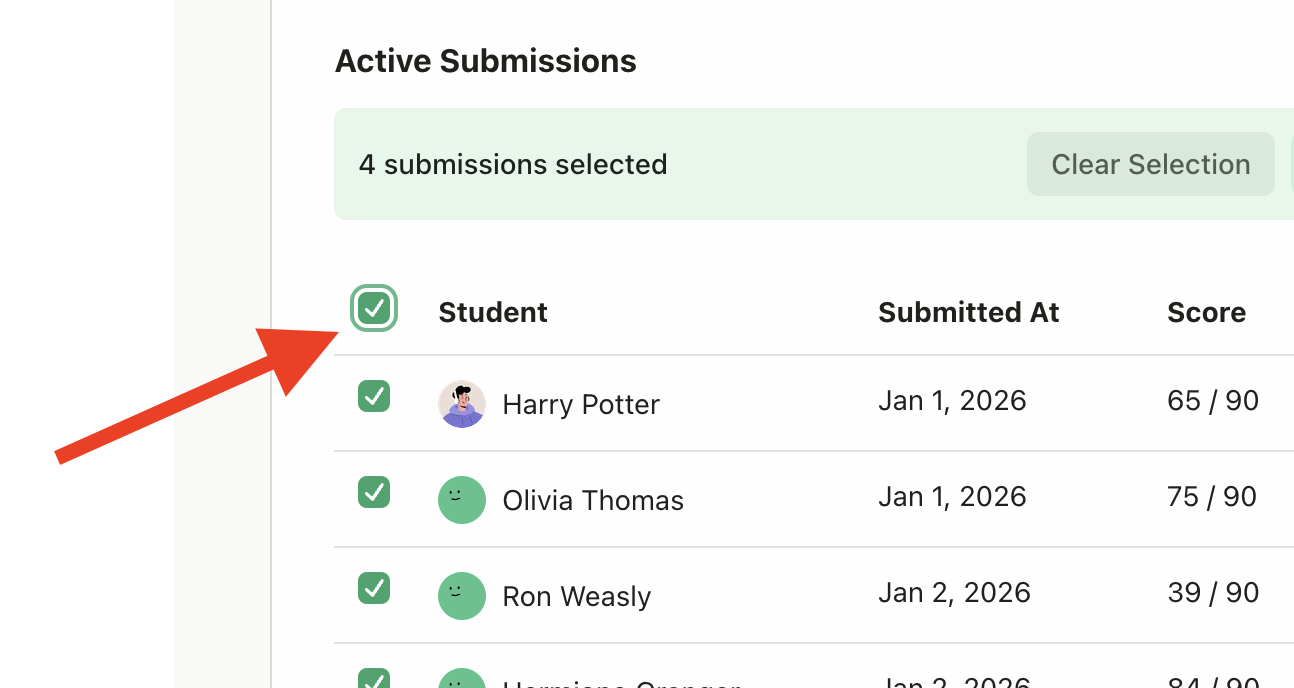
Or use the header checkbox to select all visible submissions
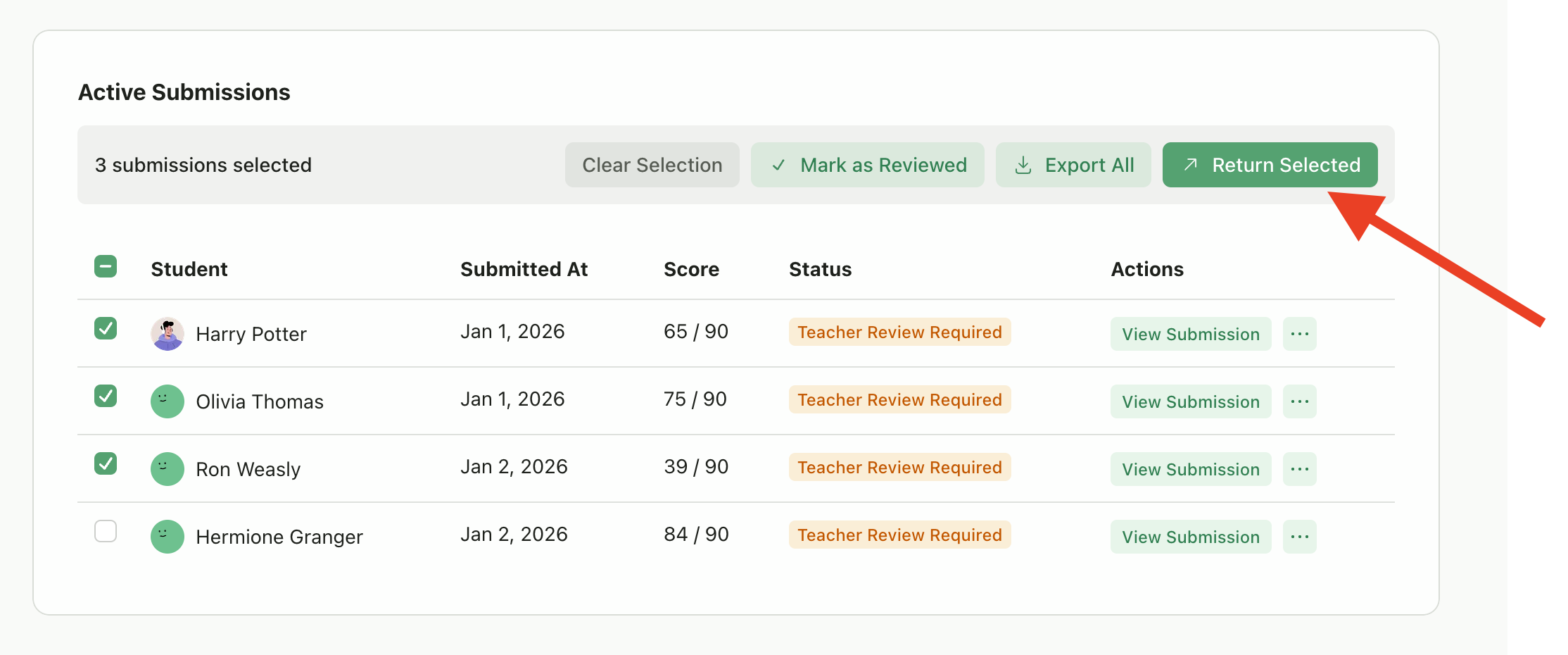
Return Selected
- With submissions selected, click Return All (or the bulk actions button)
- Confirm the action
- All selected submissions are returned to students
Google Classroom Grade Sync
When Grades Sync Automatically
For classes connected to Google Classroom, grades sync automatically when:- The assignment was created in GradingPal and published to Google Classroom
- You return the submission to the student
- The student has a Google Classroom account linked
When Grades Don’t Sync
Grades will not sync to Google Classroom if:- The assignment was imported from Google Classroom (sync only works one direction)
- The class is not connected to Google Classroom
- The student isn’t enrolled in the Google Classroom class
What Gets Synced
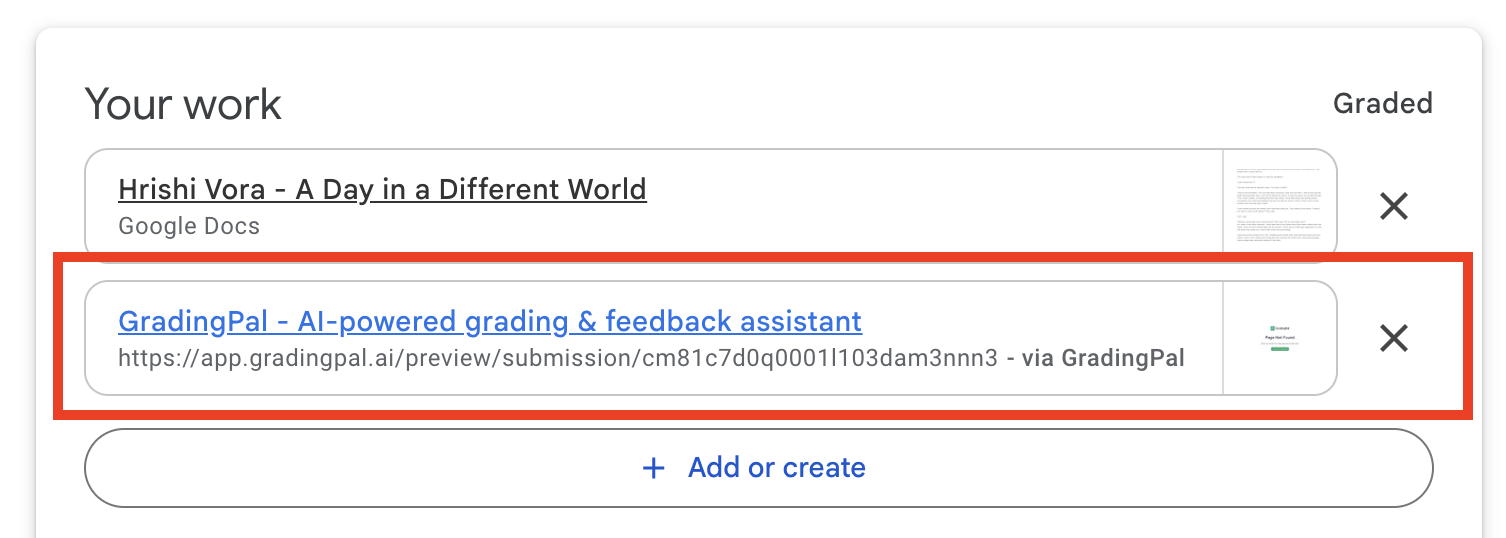
Students can access their detailed feedback directly from Google Classroom via the synced link
Google Classroom Integration
Learn more about grade sync and Google Classroom
Before You Return
Recommended Checks
Before returning submissions, consider:- Review the score - Make sure the AI-assigned grade is accurate
- Check feedback quality - Read through the feedback to ensure it’s helpful
- Edit if needed - Adjust scores or feedback as necessary
- Hide points (optional) - If you want students to see feedback without numerical scores
Mark as Reviewed First
While not required, marking submissions as “Reviewed” before returning helps you track what you’ve checked:- Open the submission
- Click Actions → Mark as Reviewed
- Then proceed to return
After Returning
Can Students See Everything?
Once returned, students can see:- Their total score (unless you hid points)
- Scores for each criterion or question
- All feedback comments
- Any overall feedback you added
Can You Make Changes After Returning?
Once a submission is returned:- You can still view the submission and all grading details
- You can still edit scores and feedback—changes are reflected for the student
- The “Return Submission” action becomes disabled (shows as “Returned to Student”)
- You cannot “un-return” a submission, but edits you make are immediately visible to students
Troubleshooting
Submission Won't Return
Submission Won't Return
If you see an error when trying to return:
- “Submission state is CREATED” - The student hasn’t officially turned in their work yet
- “Assignment has been deleted” - The assignment no longer exists
- Network error - Try again; there may be a temporary connection issue
Grade Didn't Sync to Google Classroom
Grade Didn't Sync to Google Classroom
If the grade doesn’t appear in Google Classroom:
- Verify the assignment was created in GradingPal (not imported from GC)
- Check that your Google Classroom connection is active
- Ensure the student is enrolled in both GradingPal and Google Classroom
- Try returning again after a few minutes
Student Can't See Feedback
Student Can't See Feedback
If a student reports they can’t see their feedback:
- Confirm the submission shows “Returned to Student” status
- Have the student log in to GradingPal (not just Google Classroom)
- Check that the student is viewing the correct assignment
Best Practices
Batch Your Reviews
Review all submissions, then return in bulk for efficiency
Always Review AI Feedback
Think of it as the 80/20 rule: AI does 80% of the heavy lifting, while you provide the 20% of expert review
Use Mark as Reviewed
This helps you track your progress through large classes
Add Personal Notes
Even a brief overall comment makes feedback feel more personal
Set Expectations
Let students know when to expect grades back