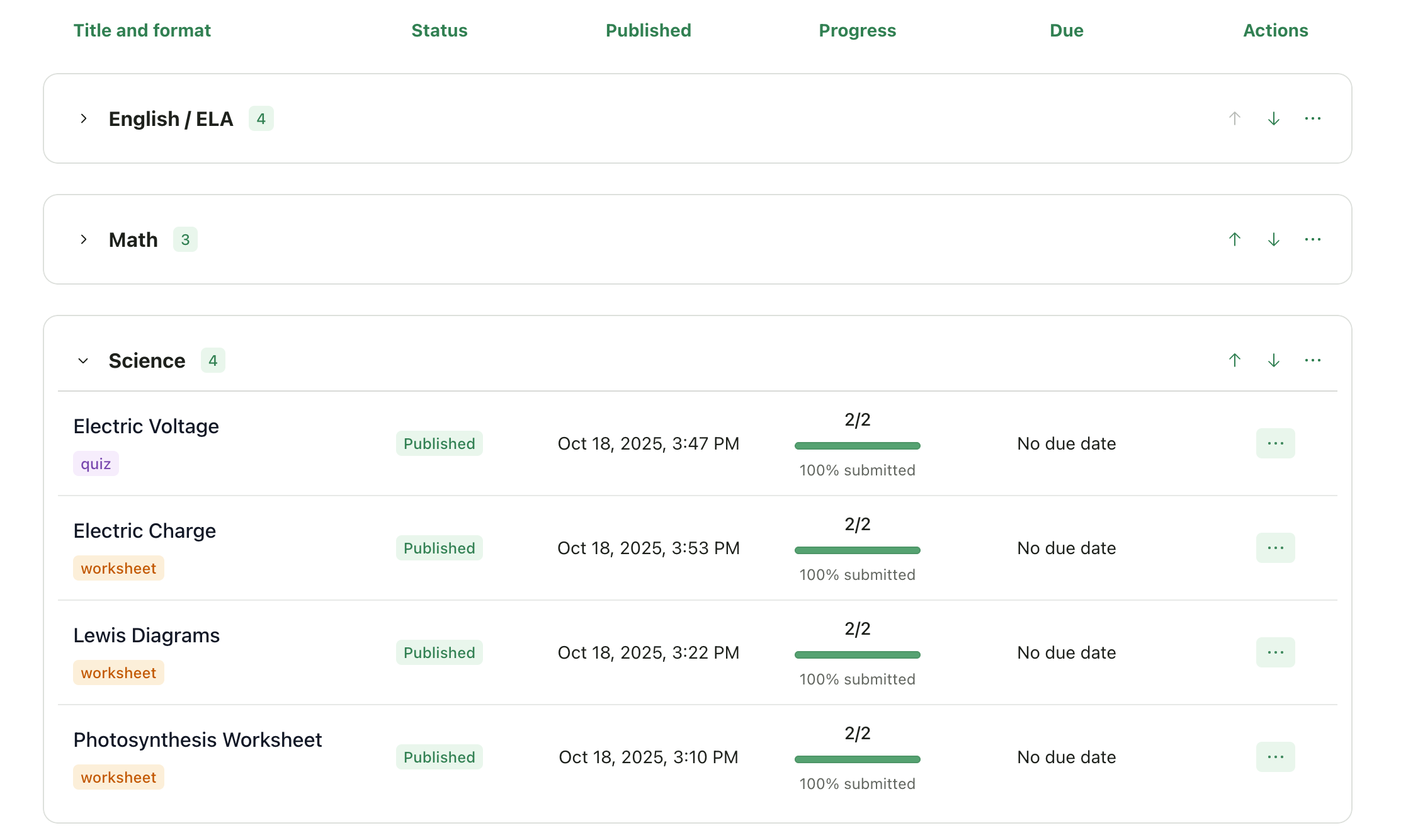

Creating a Folder
1
Open Your Class
Open your class from the dashboard
2
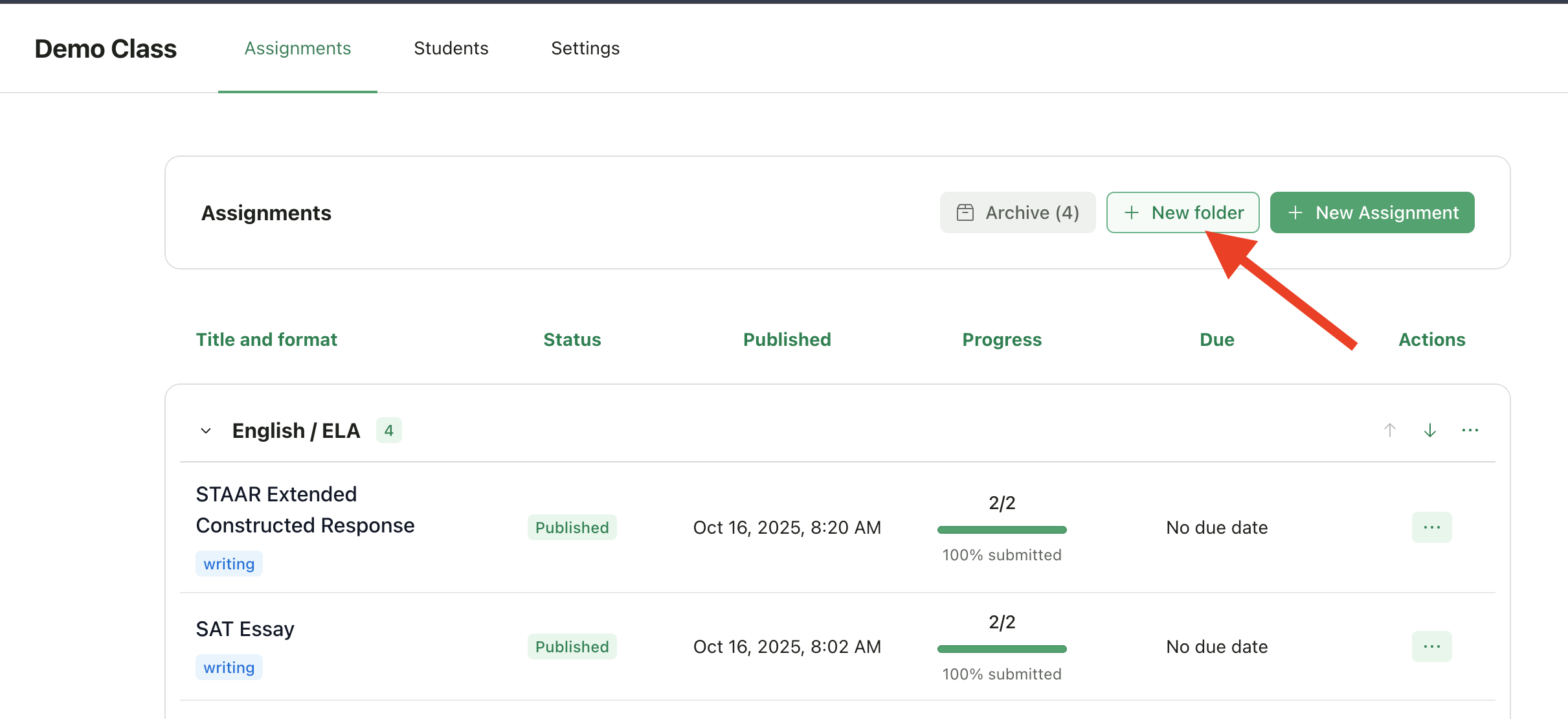
Click New Folder
Click New folder in the assignments header
3
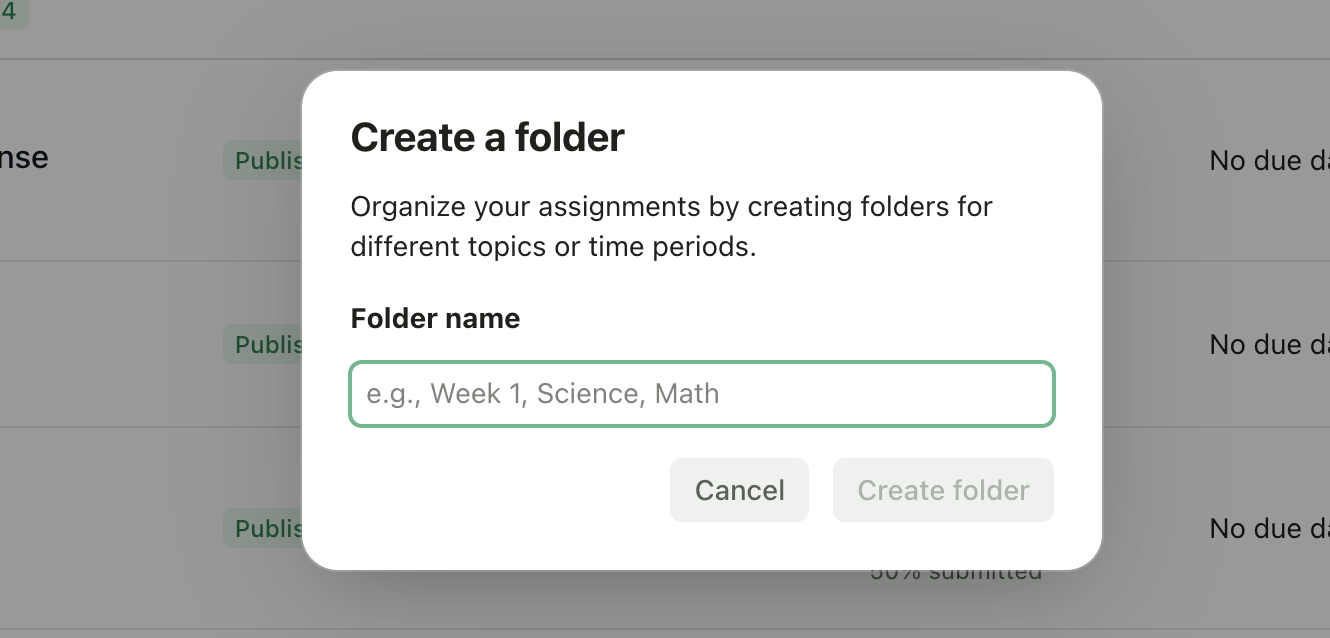
Name the Folder
Enter a folder name (e.g., “Unit 1: Civil War”, “Quarter 1”, “Essays”)
4
Create
Click Create folder
Moving Assignments to a Folder
You can move any assignment into a folder:1
Find Assignment
Find the assignment you want to move
2
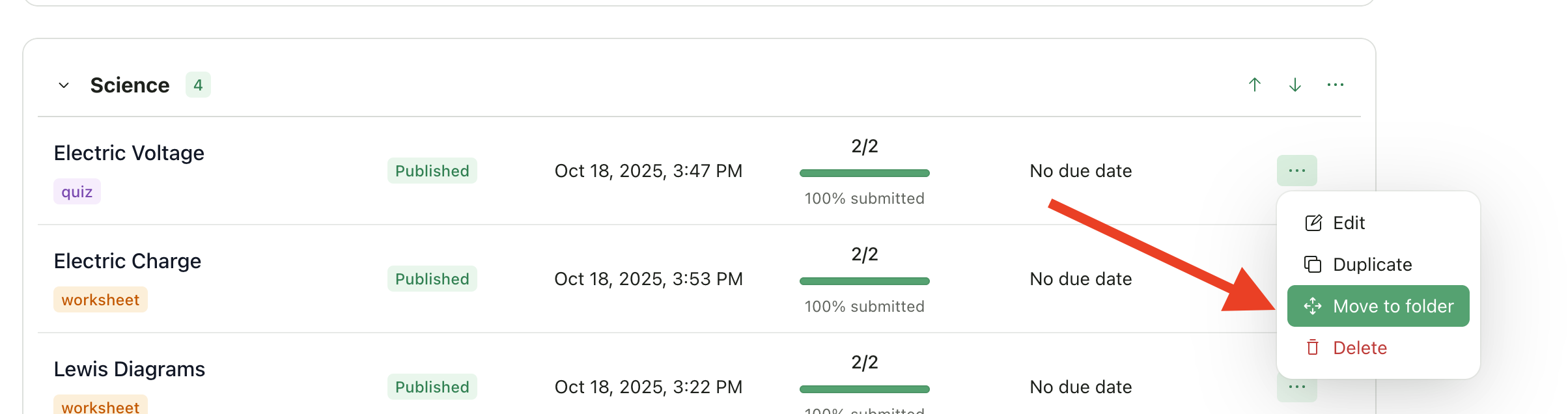
Open Actions Menu
Click the actions menu (three dots) on the assignment row
3
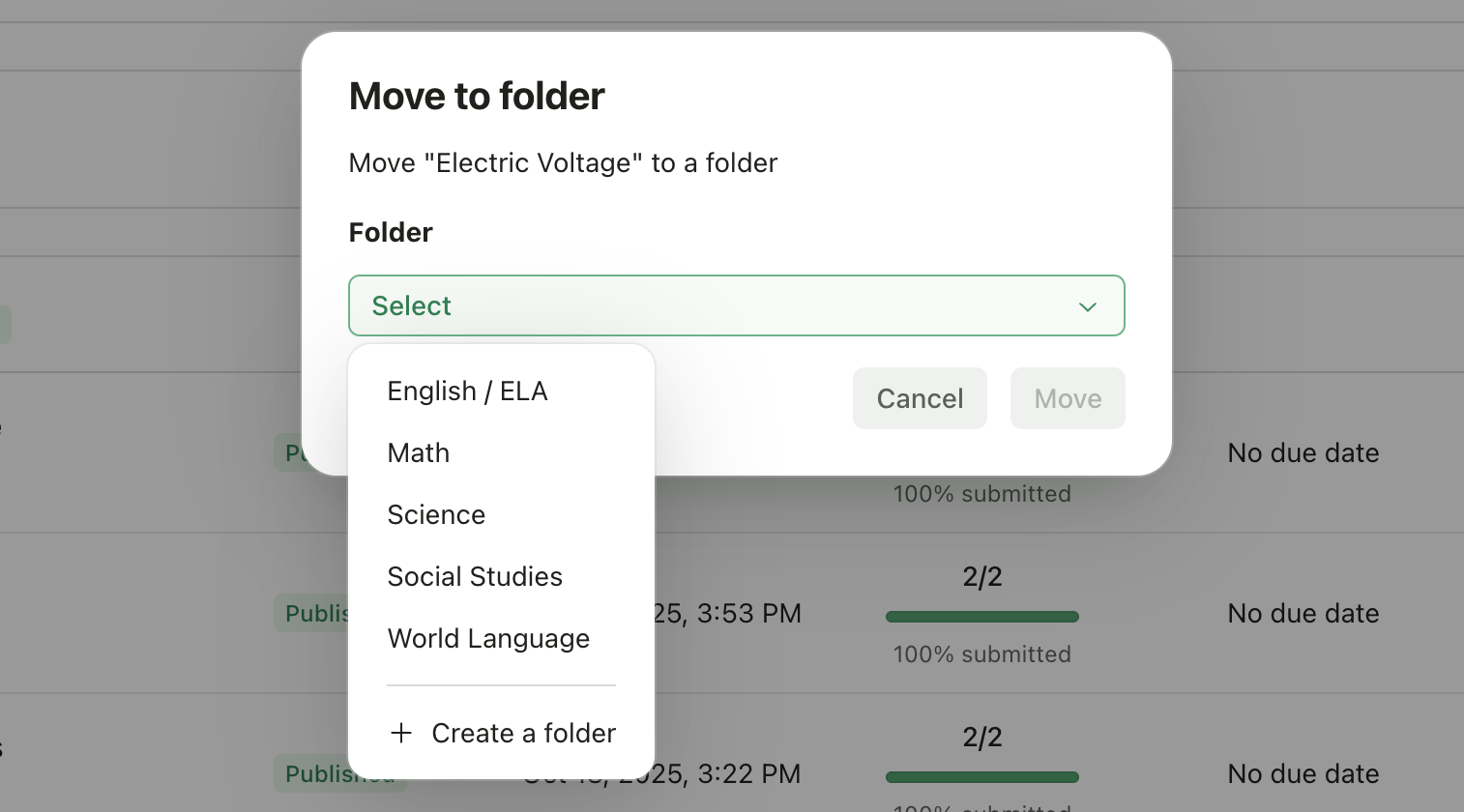
Select Move
Select Move to folder
4
Choose Destination
Choose the destination folder (or “Unassigned” to remove from a folder)
Managing Folders
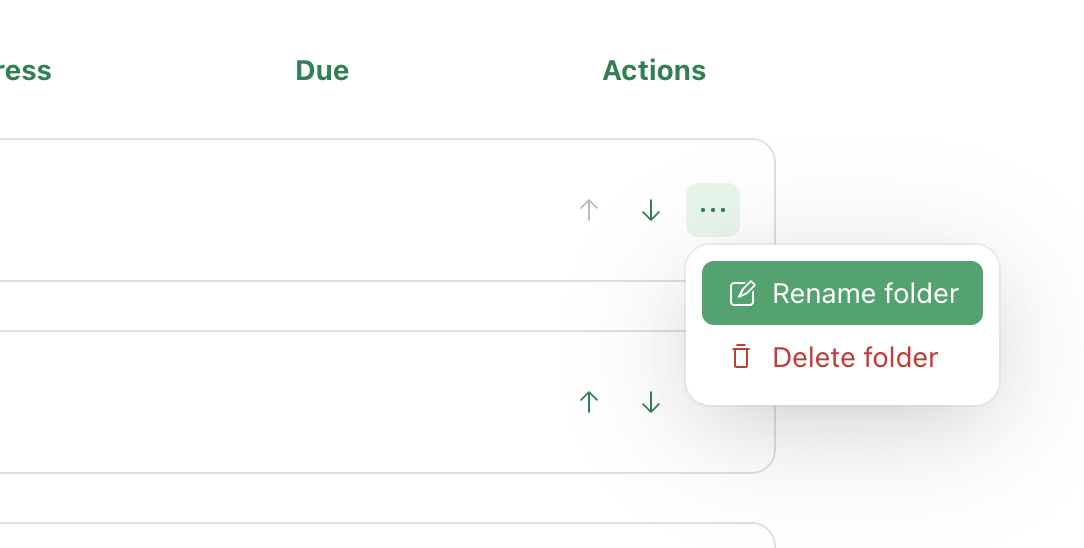
Rename a Folder
- Click the actions menu (three dots) on the folder header
- Select Rename folder
- Enter the new name
- Click Rename
Reorder Folders
Use the up and down arrows on the folder header to change the folder order.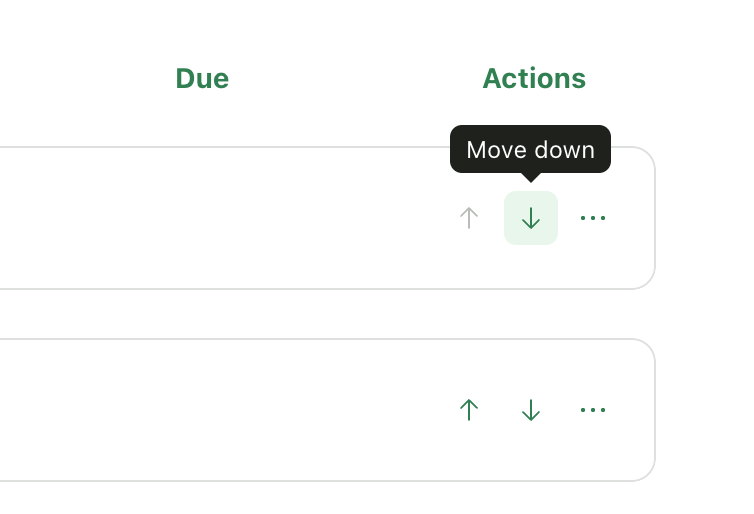
Delete a Folder
- Click the actions menu (three dots) on the folder header
- Select Delete folder
Viewing Assignments
Expand and Collapse Folders
Click on a folder header to expand or collapse it. This helps you focus on specific units or hide completed work.